![Deliverit_White.png]](https://help.deliverit.com.au/hs-fs/hubfs/Deliverit_White.png?height=40&name=Deliverit_White.png)
How to Set Shop Closure Dates For an Online Ordering Website
⚠️ Note: This setting only affects your Online Ordering site.
🟩 Log In
-
Sign in with your DPOS Cloud credentials
🟩 Open Shop Closure Settings
-
Click Settings in the left-hand menu
-
Select Store
-
Go to the Shop Closed Dates tab
Tip: Australian national public holidays are highlighted in red.
🟩 Select the Order Type
-
Choose the order type you want the updates to apply to:
Pickup and Delivery
Pickup Only
Delivery Only
🟩 Add Closure Dates
-
Use the calendar to select the dates your store will be closed
-
Click again on a date to remove it if needed
🟩 Save Changes
-
Click the Save button
🟩 Confirm the Update
-
Click the 🔔 Notification Bell at the top-right
-
✅ Success – Closure saved
-
❌ Failure – Contact support for help
-
🟩 Refresh Your Online Ordering Site
-
Open your online store page
-
Press Refresh to see the updated closure
Note:
To close any Integrations, please refer to the Updating Store Trading Hours guide.
Follow this link for a step-by-step setup: How to Update Store Trading Hours in Deliverit Studio
Please note:
- This applies to online ordering only
- This setting takes effect immediately and will remain active until you manually update it.
Order Type Toggle
Navigation: Use the menu at the top-right corner to check the current status.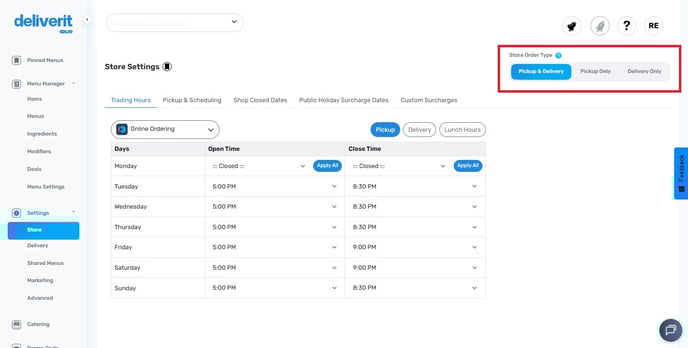
- Pickup & Delivery – Customers can place orders for both pickup and delivery.
- Pickup Only – Customers can place pickup orders only.
- Delivery Only – Customers can place delivery orders only.
Step-by-Step Instructions
Log In
- Go to https://my.deliverit.com.au
- Sign in using your store login details
/1.png?width=688&height=351&name=1.png)
Open Shop Closure Settings
- Click Settings in the left-hand menu.
- Then go to the Store.
/1.jpg?width=688&height=349&name=1.jpg)
Order Type Toggle
Navigation: Use the menu at the top-right corner to check the current status.
- Pickup & Delivery – Customers can place orders for both pickup and delivery.
- Pickup Only – Customers can place pickup orders only.
- Delivery Only – Customers can place delivery orders only.
Please note:
- This applies to online ordering only
- This setting takes effect immediately and will remain active until you manually update it.
- Click on Shop Closed Dates
/2.jpg?width=688&height=350&name=2.jpg)
Australian national public holidays are highlighted in red.
/9.png?width=688&height=351&name=9.png)
Add Closure Dates
- Use the calendar to click on the dates your store will be closed
- You can select one or multiple days
/3.jpg?width=688&height=350&name=3.jpg)
Note: Tap the date again to toggle off the closure setting
Save Your Changes
- Click the Save button.
/4.jpg?width=688&height=350&name=4.jpg)
Confirm the Update
- Check the 🔔 Notification Bell at the top of the screen:
/5.jpg?width=688&height=350&name=5.jpg)
- ✅ Success – Your closure dates are saved
- ❌ Failed – Please contact our support team
/6.jpg?width=688&height=349&name=6.jpg)
Refresh Your Online Ordering Site
- Open your online ordering page
- Press Refresh to make sure the closure is showing
By following these steps, you will be able to efficiently set up shop closure dates in Deliverit Studio. If you need further assistance, simply click the blue chat icon at the bottom-right corner of the screen to connect directly with our Application Support Team.