
How to Update Store Trading Hours
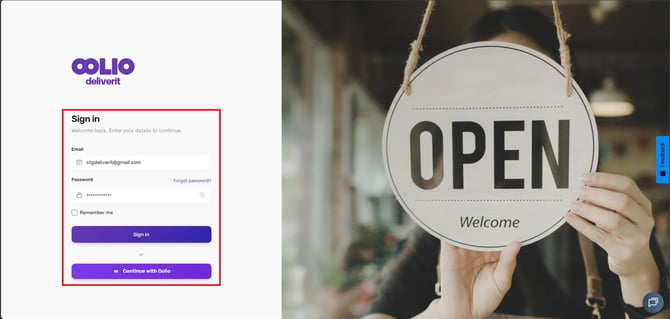
🟩Log In
-
Sign in using your DPOS Cloud login
🟩 Go to Store Settings
-
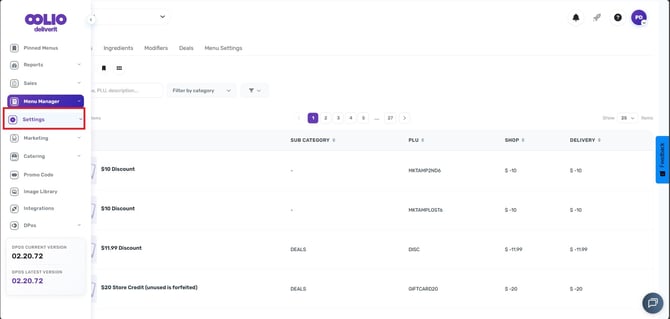
Click Settings in the left-hand menu
-
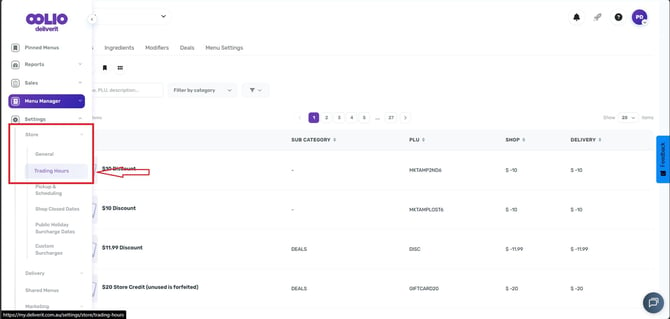
Then select Store and choose the Trading Hours.
🟩 Select the Platform
-
Use the dropdown to choose:
-
Online Ordering
-
UberEats
-
DoorDash
-
🟩 Set Your Hours
-
Use dropdowns to set opening/closing times
-
Click Save (or Save Settings for Online Ordering)
Confirm Everything
🟩 Visit your Online Ordering site and third-party platforms
🟩 Check if the new hours are showing correctly.
Step-by-Step Instructions
Log In
- Sign in using your DPOS Cloud credentials
Open Store Settings
- Click Settings in the left-hand menu
- Select Store and choose Trading Hours.
Order Type Toggle for Online Ordering.
Navigation: Use the menu at the top-right corner to check the current status.
Please note:
- This applies to online ordering only
- This setting takes effect immediately and will remain active until you manually update it.
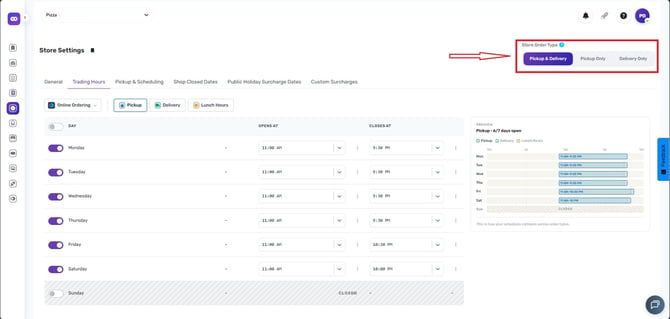
- Pickup & Delivery – Customers can place orders for both pickup and delivery.
- Pickup Only – Customers can place pickup orders only.
- Delivery Only – Customers can place delivery orders only.
Choose a Platform
Use the dropdown menu to select the platform you want to update:- Online Ordering
- UberEats
- DoorDash
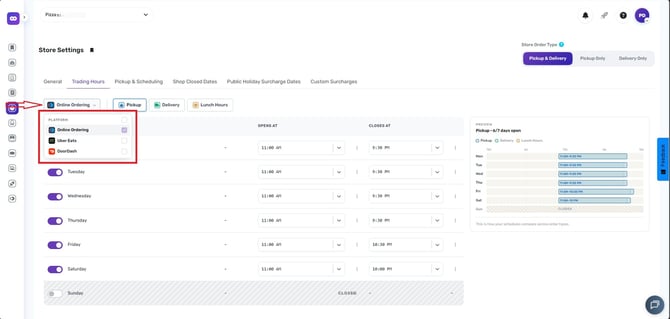
Set Your Trading Hours
-
Use the headings to switch between Pickup, Delivery, or Lunch for Online Ordering.
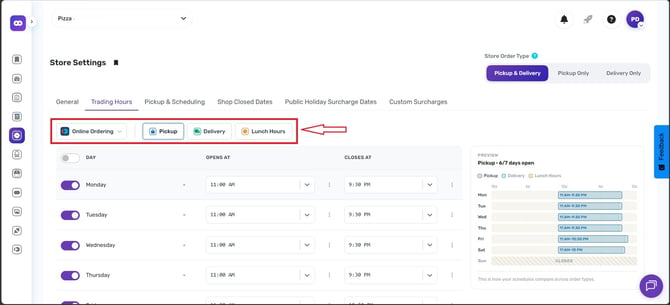
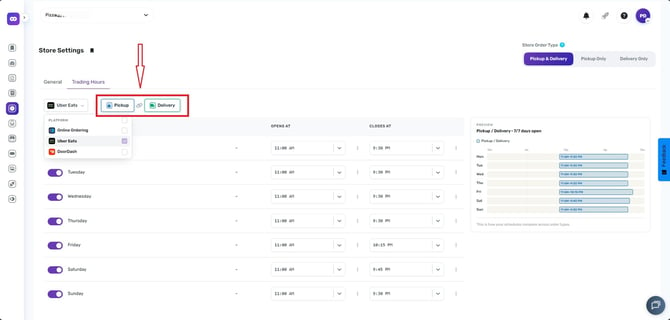
- Pickup and Delivery schedules can now be linked together if 3PA is being selected.
- When linked, changes made to one schedule can automatically sync with the other.
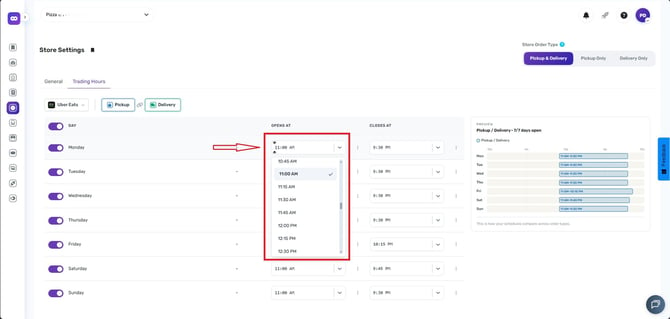
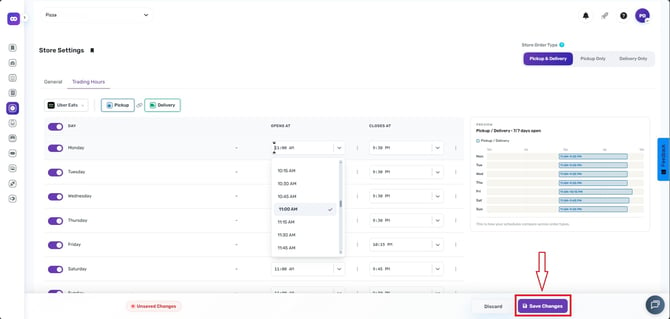
- Use the dropdowns to set opening and closing times for each day.
-
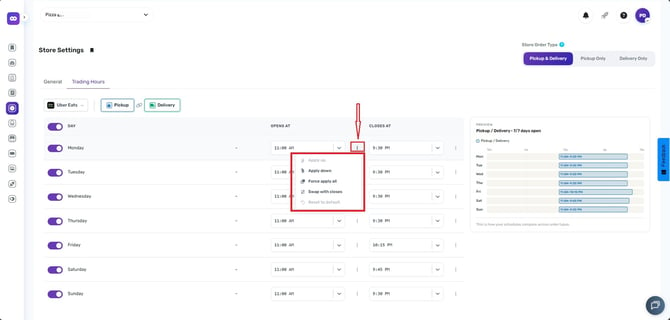
These are some Schedule actions:
Apply Down – Copy the current day's schedule to the following days.
Force Apply All – Apply the current schedule to all days, overriding existing schedules.
Swap with Closes – Quickly swap opening and closing times when needed.
Reset to Default – Restore the default trading hours configuration.
- Click Save (or Save Settings for Online Ordering)
Validation:
- Get warnings when Lunch Hours overlap with your operating hours
- Keep trading periods accurate and conflict-free
- Receive real-time feedback to avoid setup errors
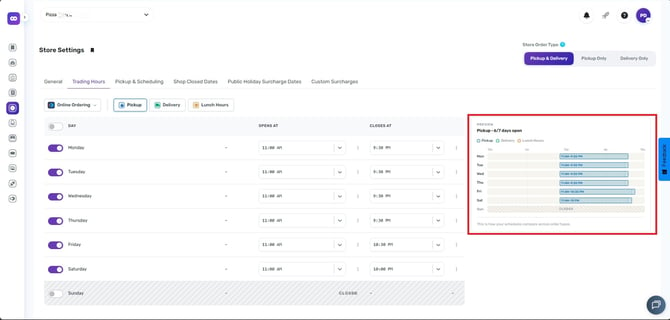
A new Preview panel is now available on the right side of the page.
- Instantly visualize your weekly trading schedule.
- View Pickup, Delivery, and Lunch Hours at a glance.
- Easily verify your configuration before saving changes.
Platform-Specific Notes
|
Platform |
Pickup & Delivery Hours |
Lunch Options |
Deployment Time |
Must Stay Open? |
|
Online Ordering |
Set Separately |
✅ Yes (Lunch Pickup/Delivery) |
Instant (refresh site) |
❌ No restriction |
|
UberEats |
Combined Hours * |
❌ No |
~15 minutes |
✅ Must have open days |
|
DoorDash |
Combined Hours * |
❌ No |
~15 minutes |
✅ Must have open days |
-
Ubereats and Doordash, Pickup and delivery, share the same trading hours.
-
Closing the store in Studio will automatically trigger the closure of UE and DD, ensuring all connected systems align with the store’s status.
Confirm Your Changes
- Visit each platform or your online ordering site.
- Make sure the updated hours are showing correctly.
By following these steps, you will be able to efficiently update your store trading hours across all platforms using Deliverit Studio. If you need further assistance, simply click the blue chat icon at the bottom-right corner of the screen to connect directly with our Application Support Team.