
Step-by-Step Instructions
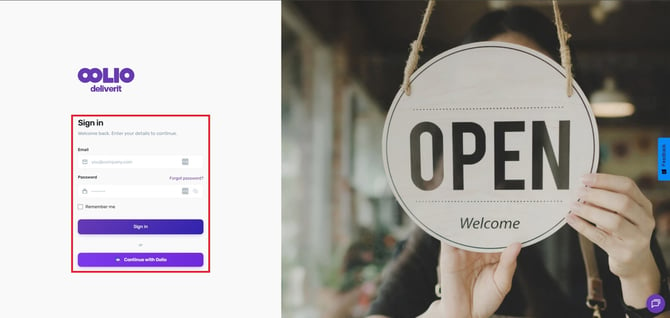
Log in to Deliverit Studio
- Go to my.deliverit.com.au
- Enter your username and password
- Click Log In
✅ Combine Multiple Items into One Offer – Easily group items like pizzas, drinks, and sides into a single, convenient deal.
✅ Create Value-Based Offers – Deliver better pricing to customers while managing margins effectively.
✅ Drive Traffic During Specific Times – Encourage more orders during slow hours or off-peak days.
✅ Customise Promotions for Your Business Needs – Tailor deals based on store preferences, popular items, or seasonal campaigns.
✅ Encourage Repeat Business – Give customers a reason to come back with appealing combo options.
✅ Maintain Consistent Promotions Across Staff – Ensure staff use the same pricing and item combinations when entering orders.
Important Details
Product Code Rules
- Product Codes are auto-generated when new items are created at all selected stores for multi-store deployment.
- If a Product Code already exists in a target store, Studio will not overwrite it.
Limitations
- Multi-store deployment works only when creating a New single promo code.
- It does not apply to Voucher promos. Click this link for a step-by-step guide to creating a voucher promo code.
Prerequisite: Please ensure the Deal/Combo which will be unlocked by the promocode is created and configured first. Click here for assistance.
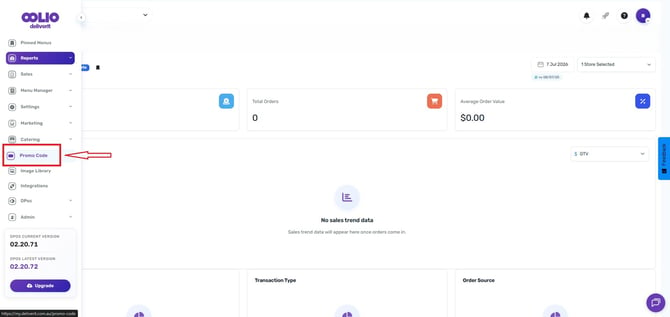
Go to the Promo Code Section
- From the left-hand menu, click Promo Code
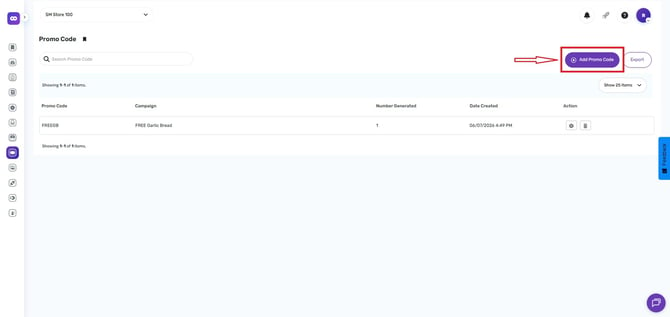
Add a New Promo Code
- Click Add Promo Code
- Click the Single Promo Code
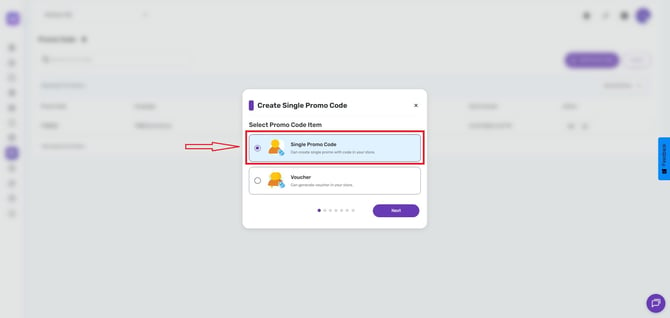
- Click Next to begin setup
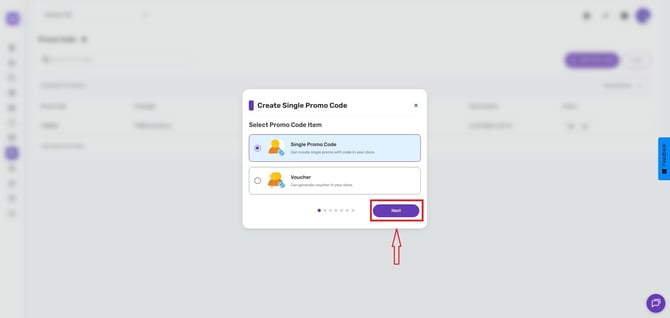
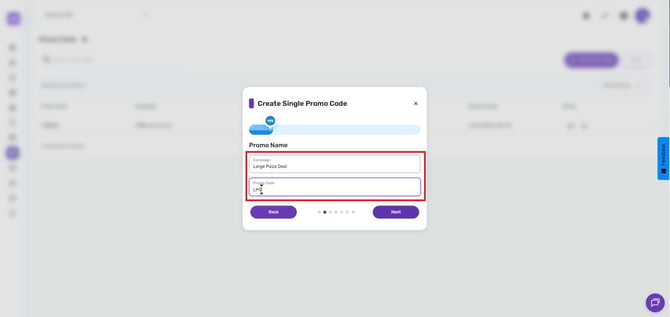
Set Basic Promo Details
- Campaign Name: Internal label for your reference (Large Pizza Deal)
- Promo Code Name: The actual code customers will enter at checkout (e.g., LPD)
- Click Next.
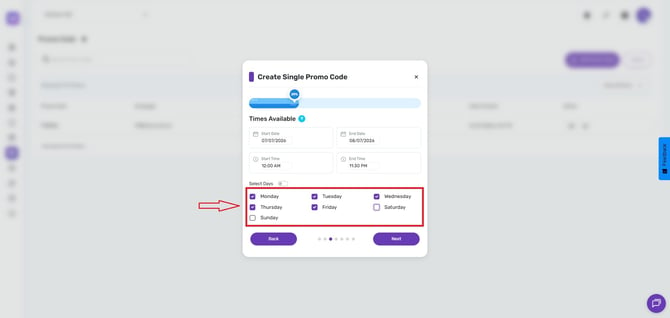
Set Promo Code Availability
- Choose Start Date and End Date
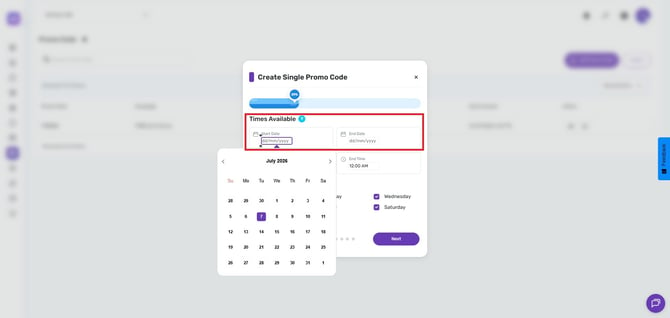
- Set Start Time and End Time (Optional)
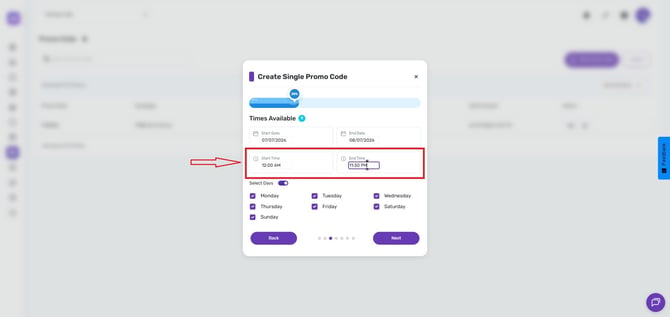
- Tick the days the promo will be active (e.g., Monday–Friday) (Optional)
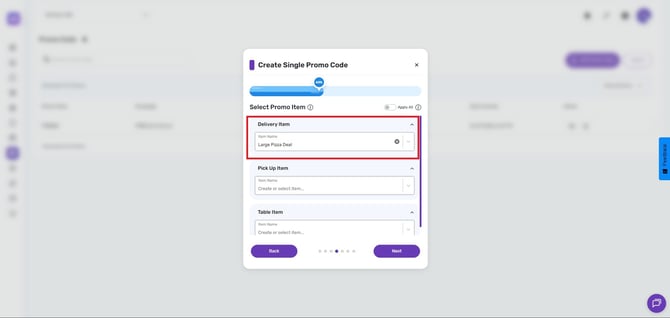
Select the Promo Item.
- Search for an existing deal item code.
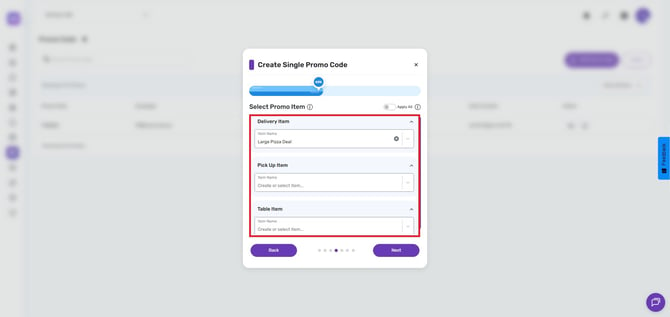
Assign the promo item to one or more order types:
-
Delivery
-
Pickup
-
Table (for QR table ordering)
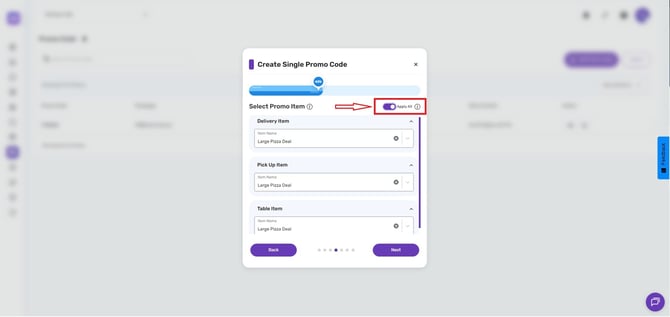
Or enable the Apply All option to apply the promo across all order types.
Configure Promo Code Rules
- Minimum Spend: Set a required order amount.
- Number of Codes Allowed: Total redemptions per customer.
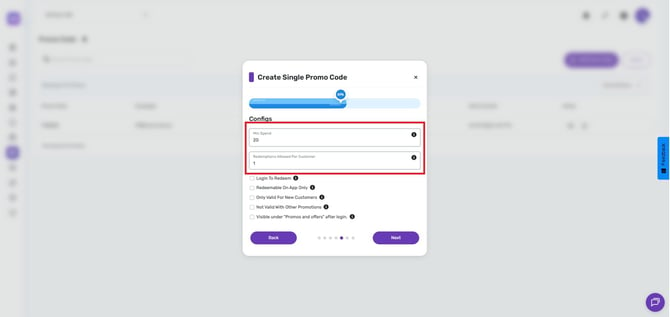
- Login to Redeem: Requires customer login or register to use the code
- Redeemable on App Only: Tick to limit to mobile app (leave unticked for both web & app)
- New Customers Only: Restrict use to first-time users
- Not Valid with Other Promotions: Prevent stacking with other offers
- Display Promo Code on Website and/or App: The code will be listed under promos and offers on your website.
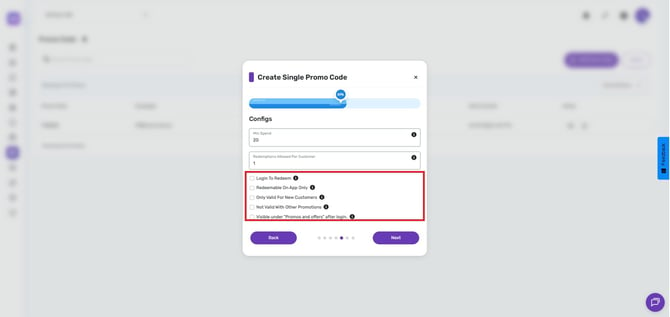
Click Next when done.
Multi-Store Deployment (Chain Stores Only)
- In the Store Selection section, all stores in your franchise will appear.
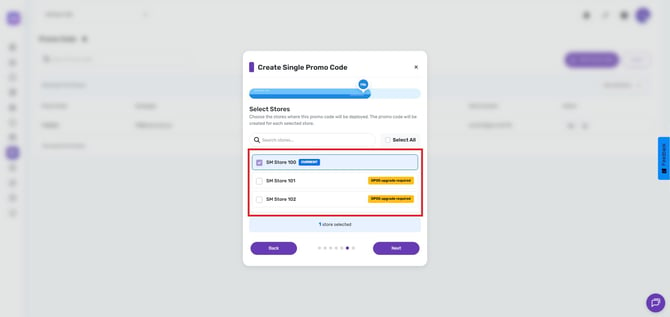
- Use the Search bar to find a specific store.
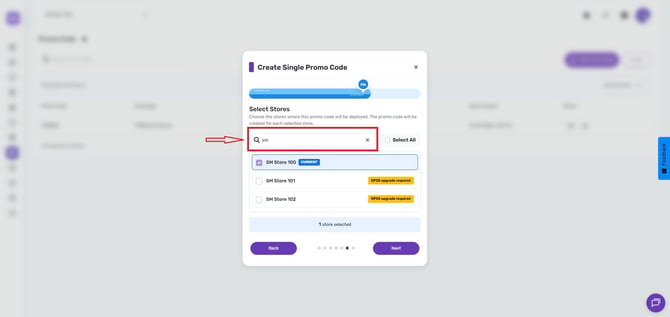
- Or click Select All to deploy the promo across all stores.
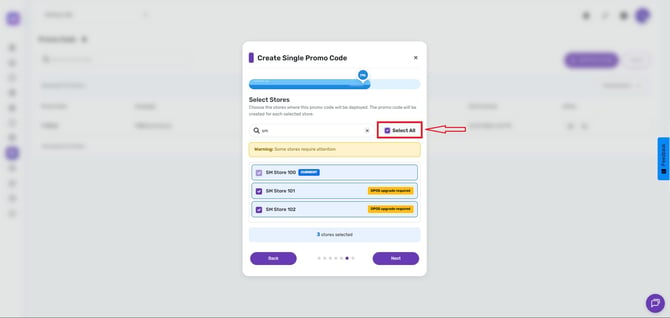
- A blue Current label indicates which store you are working on.
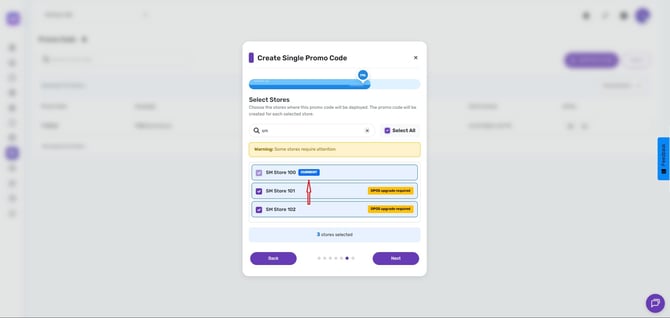
- Click Next to continue.
Store Compatibility Indicators
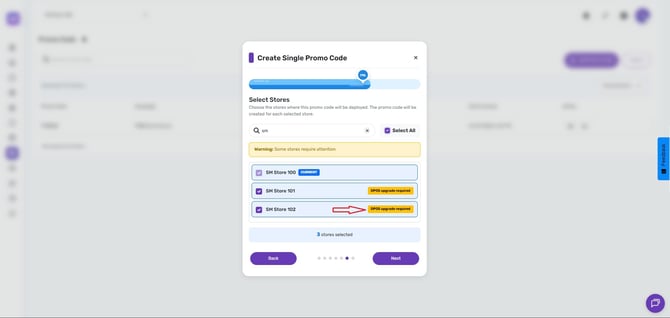
- Stores running DPOS versions below 02.20.43 will display a yellow DPOS Upgrade Required label.
- These stores can still use the promo code in Online Ordering; however, newly created items will not sync to their DPOS until upgraded.
Review Promo Code
- Campaign details
- Validity settings (dates, times, days)
- Discount configuration
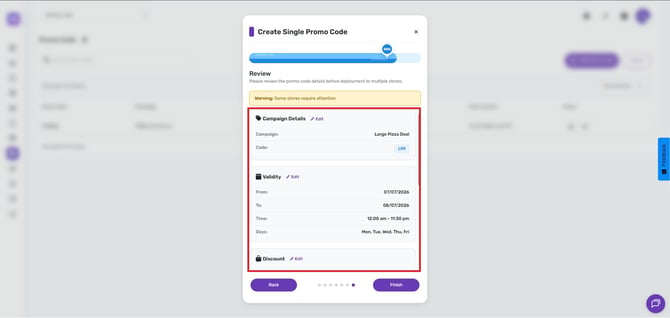
- Additional promo settings (Minimum Order Value, Maximum Codes Allowed, Show on Website Banner)
- Confirm target stores
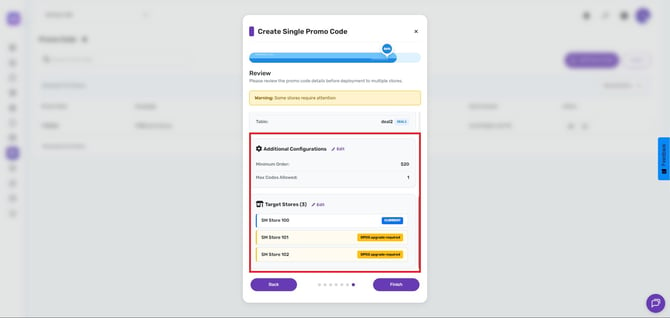
Click Finish.
- A confirmation message will appear showing that the promo code has been successfully created.
- Click Finish
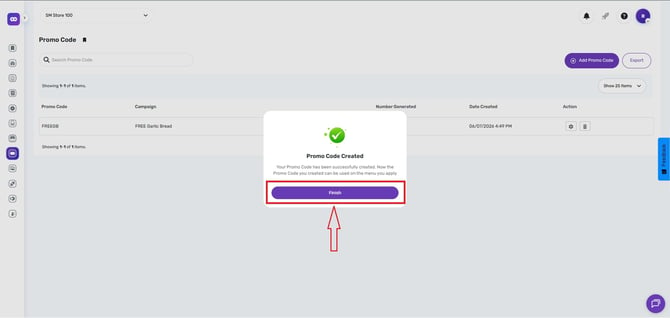
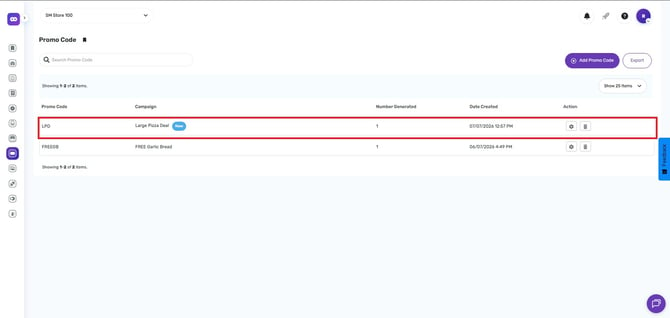
Note: Saving automatically deploys your updates
Test the promo code on your ordering site to make sure it works correctly
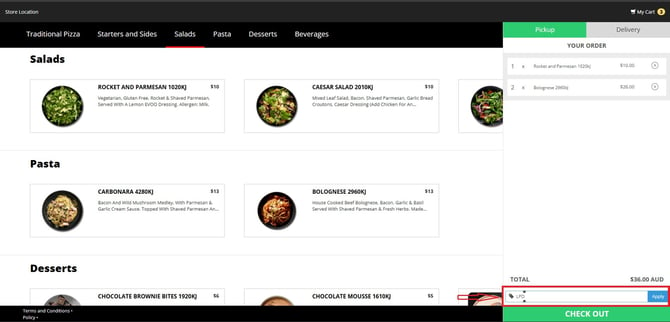
Complete the prompt
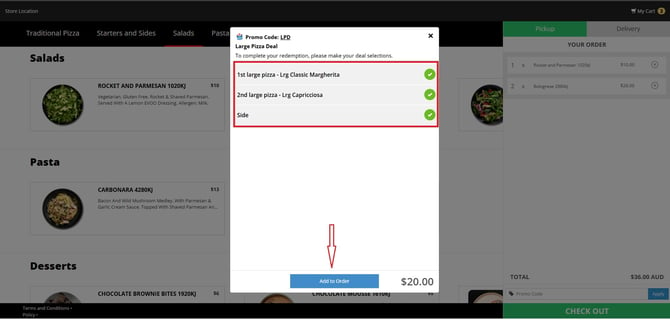
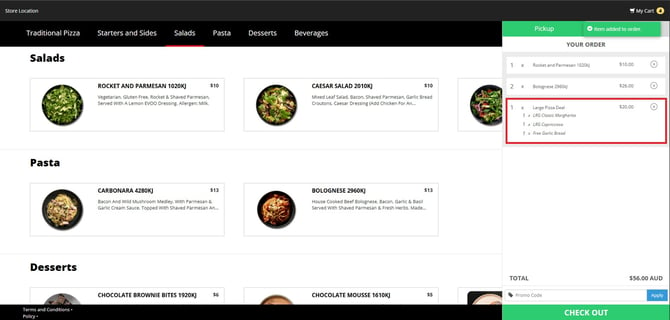
By following these steps, you can easily create and manage deal promo codes in Deliverit Studio to drive customer engagement and improve sales. If you need further assistance, simply click the blue chat icon at the bottom-right corner of the screen to connect directly with our Application Support Team.