
Note: This feature requires a USB Bar Code Scanner, please get in touch with our Application Support Team for setup assistance.
Step-by-Step: Allocate Delivery Orders
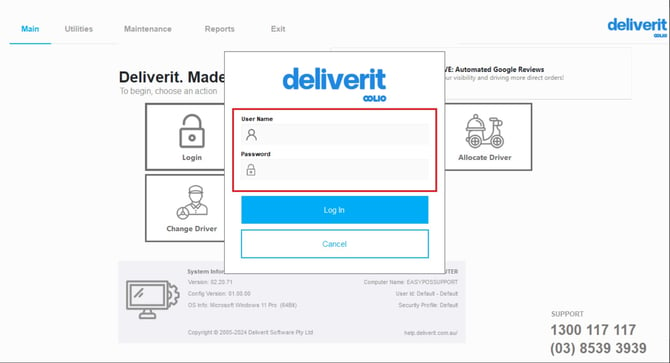
Log in to DPOS.
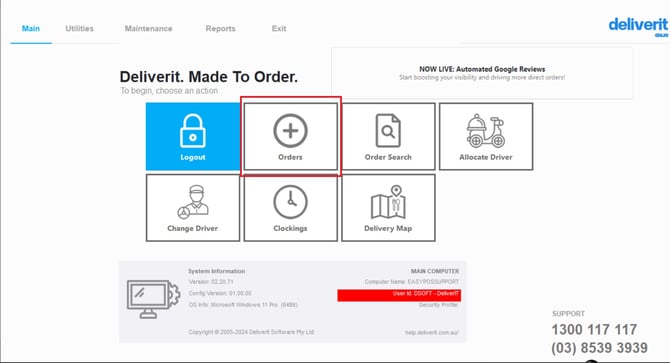
Go to the Order screen.
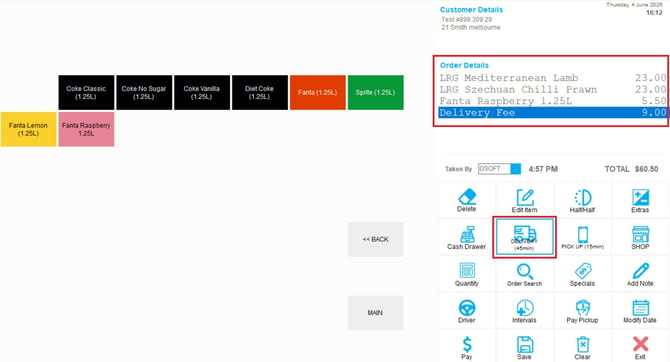
Create or select a delivery order, then click Save.
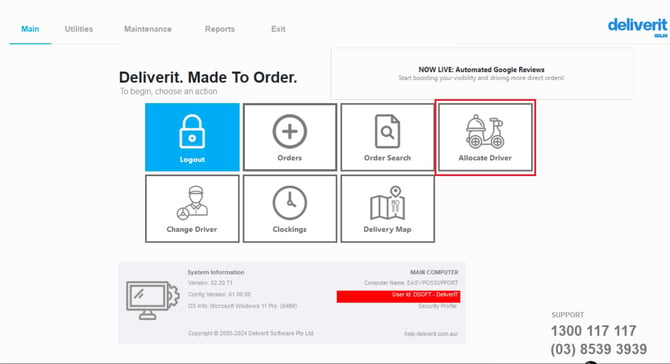
Click the Allocate Driver button.
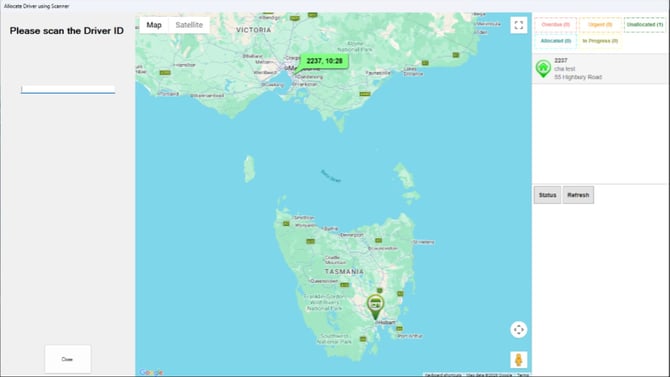
Using the barcode scanner:
-
Scan the Driver’s barcode
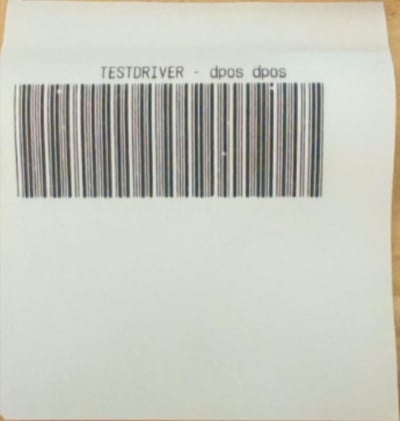
-
Then scan the Order barcode
Note: For instructions on creating a barcode, please click on this link.
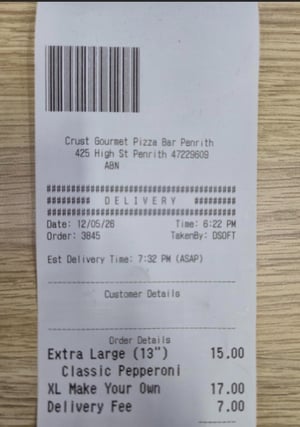
The system will automatically assign the order to the selected driver.
Tip: You can assign multiple deliveries to a single driver by scanning additional delivery dockets.
Once assigned, the driver will receive the order and begin the delivery run.
If you need further assistance, simply click the blue chat icon at the bottom-right corner of the screen to connect directly with our Application Support Team.