
Note: This feature requires a USB Bar Code Scanner, please get in touch with our Application Support Team for setup assistance.
Step-by-Step Guide
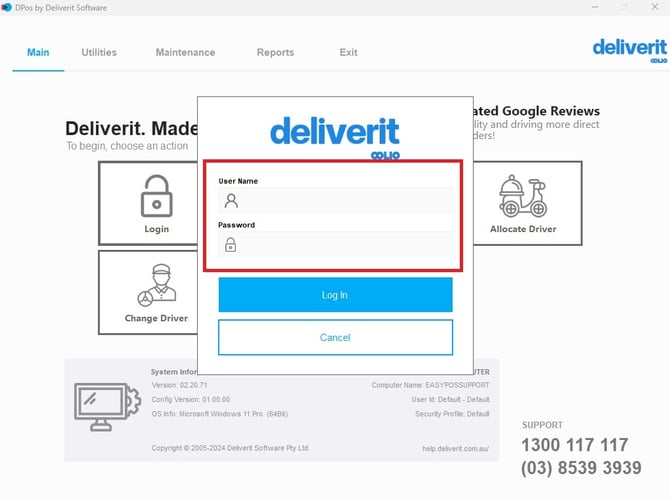
Log in to DPos
Open your DPos application and sign in with your account.
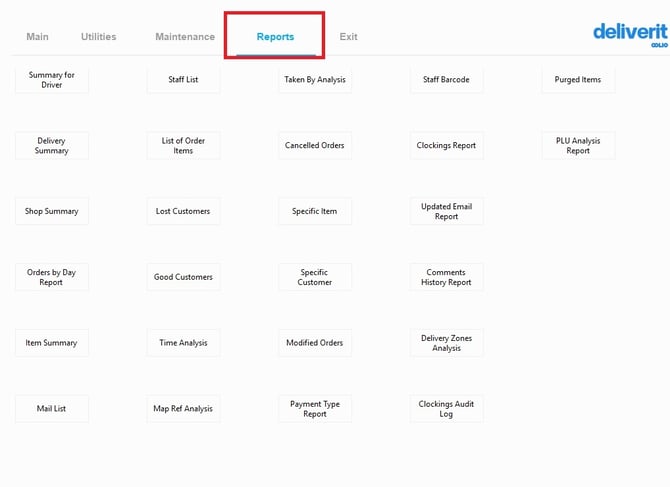
Go to the Reports Tab
From the main menu, navigate to the Reports section.
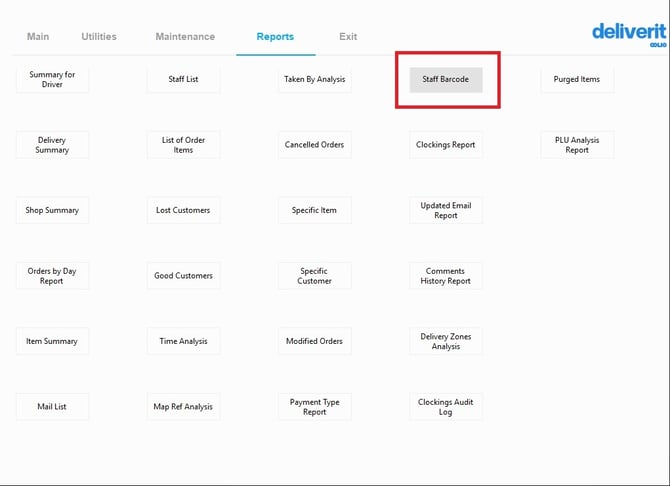
Select Staff Barcode
Click on the Staff Barcode option to access the barcode list.
Choose a Driver
Select the delivery driver you want to print a barcode for.
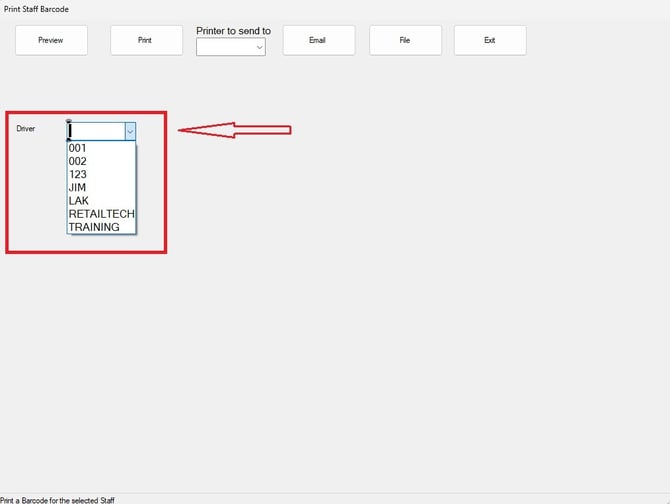
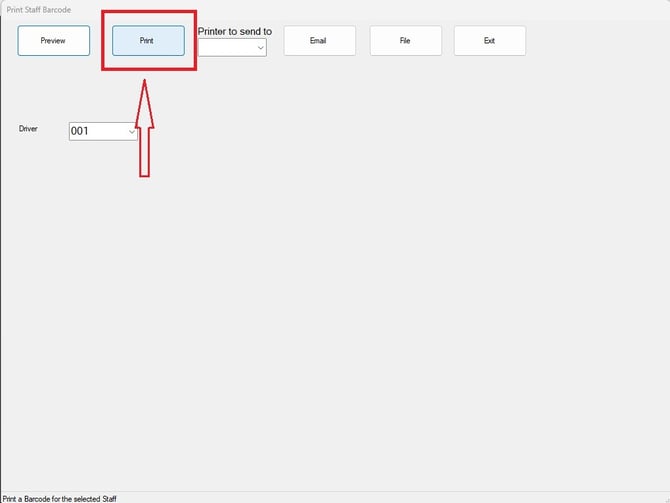
Print the Barcode
Click the Print button to generate and print the barcode.
Note: To allocate deliveries via barcode, click this link.
Ensure all drivers have their printed barcodes available during operations to enable fast and accurate delivery of assignments using the scanning feature. If you need further assistance, simply click the blue chat icon at the bottom-right corner of the screen to connect directly with our Application Support Team.