
Important:
Before creating or sending an SMS campaign, please contact our Marketing Team for guidance and approval.
-
Email: Marketing@Deliverit.com.au
-
Call: 1300 117 117
Accessing SMS Campaigns
Step-by-Step Guide
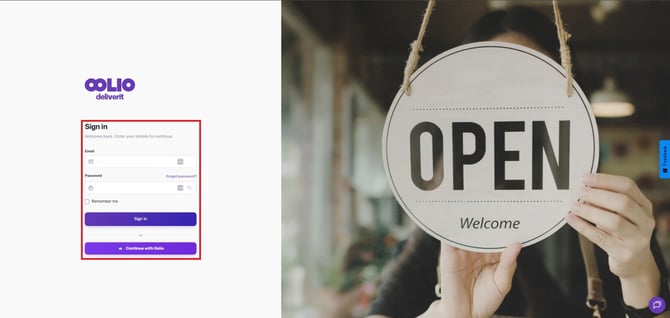
Log in to Studio
Start by signing in to your Studio dashboard.
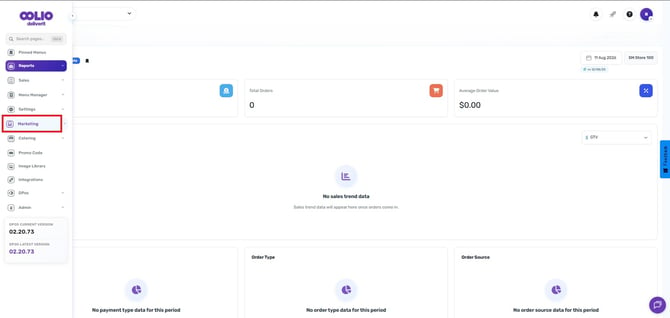
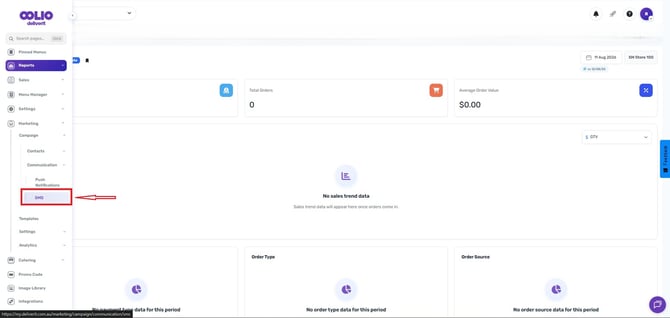
Go to Marketing
From the left-hand menu, click Marketing.
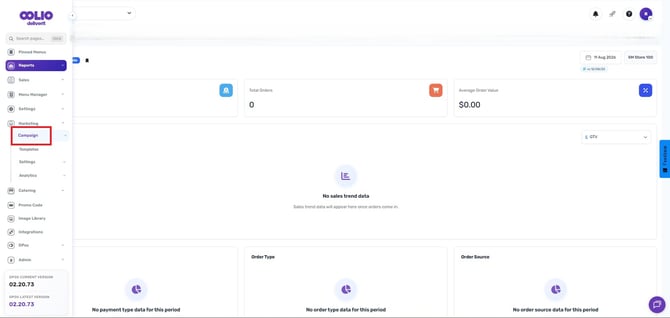
Open Campaign
Click on Campaign to access configuration options.
Choose Communication.
Under the campaign, choose communication.
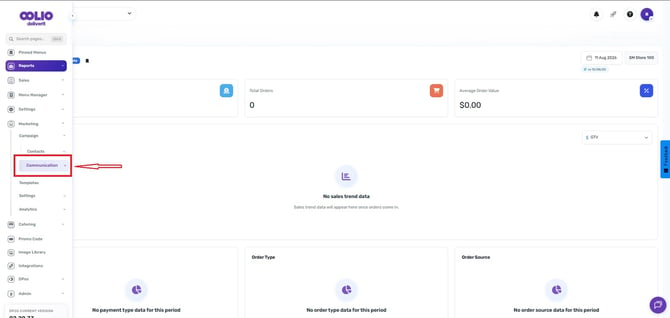
Go to the SMS tab
SMS Campaign Draft Feature
Studio allows you to save campaigns as drafts.
-
You can save a campaign at any stage and return to it later. Saved campaigns are automatically stored as drafts.
-
It can also be viewed, edited, or deleted at any time. All campaign details, including recipients, message content, tracking settings, and scheduling options, are saved automatically.
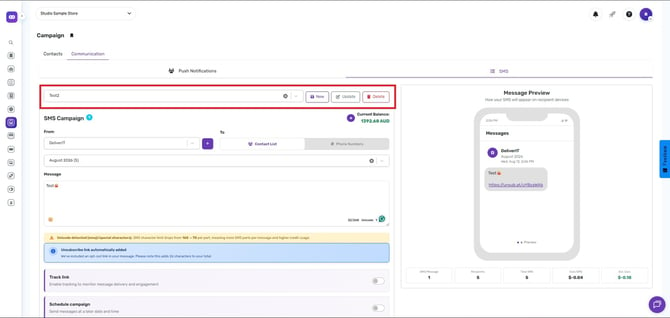
All campaign details are preserved, including:
- Sender ID
- Selected recipients
- Message content
- Tracking options
- Schedule settings
SMS Campaign
From (Sender ID)
- Displays a dropdown of available Sender IDs (Usually Store Name)
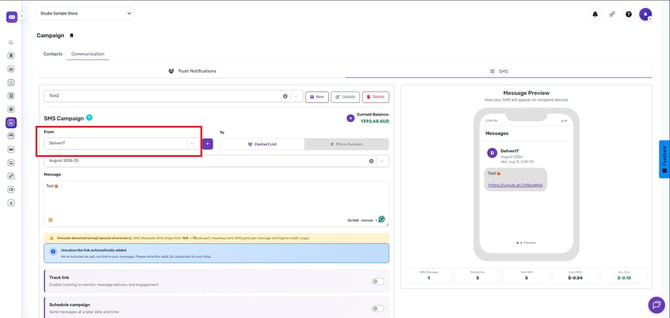
- Use the Plus “+” button to update the Sender ID
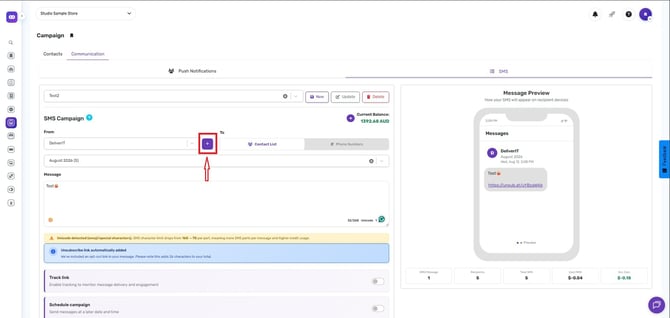
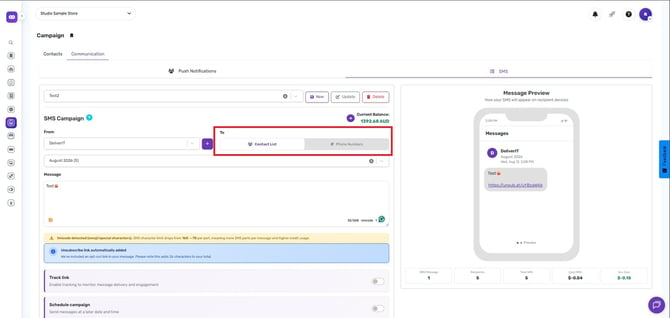
To (Recipients)
-
Users can select one or more Contact Lists
Note:
For step-by-step instructions on Creating a Contact List, click this link.
-
Or by the Phone Numbers.
Message Composition
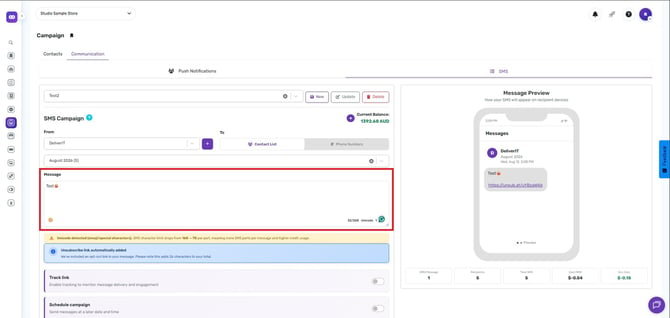
Message Field
- Users type their SMS message into the message box
- Placeholder text: “Type your SMS message here…”
- Emojis can be added using the emoji icon
Character & SMS Counter
Shows:
- Characters used
- Number of SMS messages required
- Helps estimate message cost before sending
Message Preview
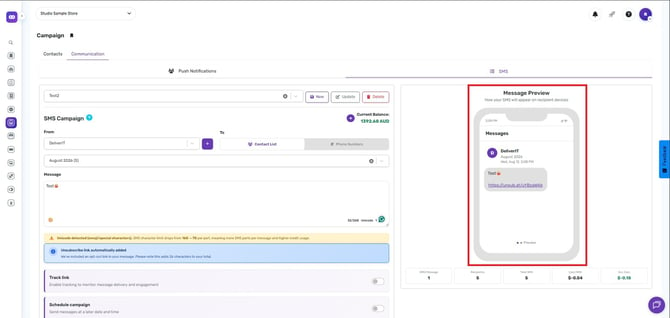
- Located on the right under Message Preview
- Shows how the SMS will appear on a recipient’s phone
Displays:
- Sender name
- Message content
- Timestamp
- Updates instantly as the message is edited
Credit Balance
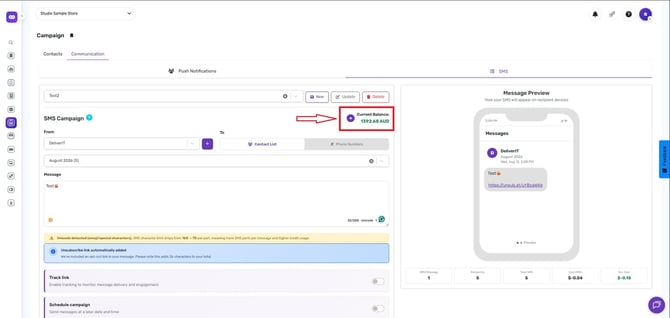
- The Current Balance is shown at the top of the campaign panel (e.g., 100 AUD)
- Reflects available SMS credits
- Credits are deducted automatically when messages are sent
Campaign Options
Each option is enabled using a toggle.
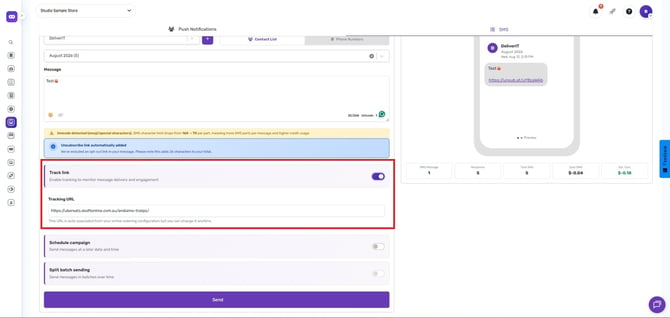
Track Link
- Automatically shortens links in the message
- Tracks link clicks for engagement insights
-
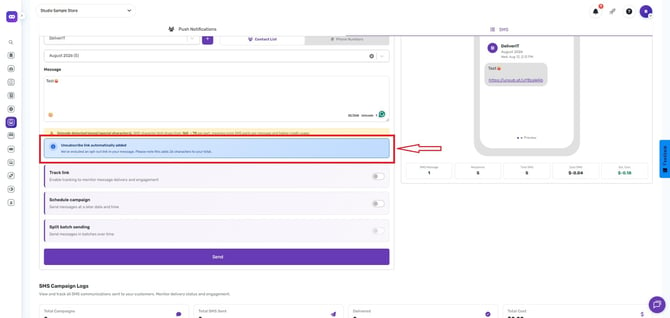
An unsubscribe link is automatically included in every message, allowing customers to opt out of future communications.
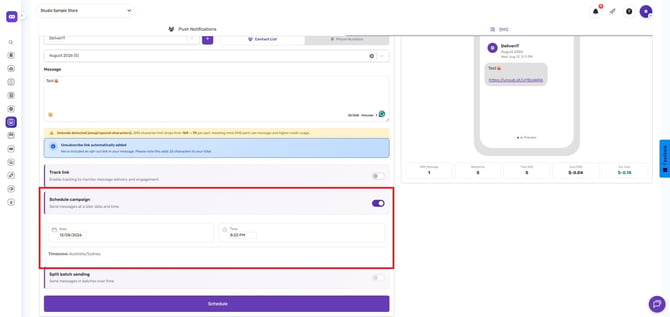
Schedule Campaign
- Allows messages to be sent at a future date and time
- Messages are dispatched automatically at the scheduled time
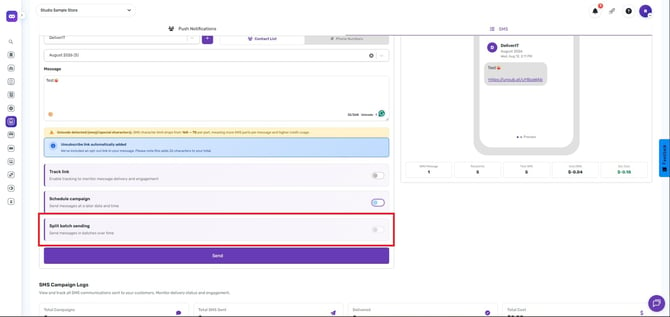
Split Batch Sending
- Sends messages in batches over time
- Recommended for large contact lists
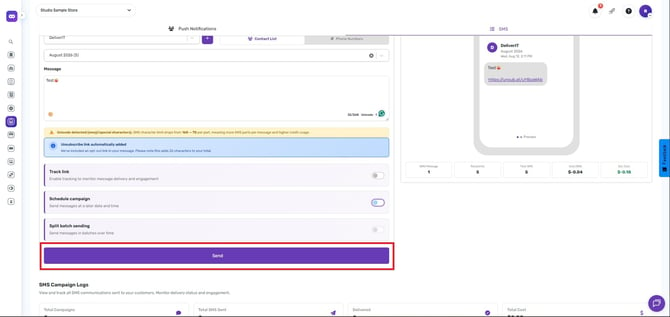
Sending the Campaign
Send Button Behavior
The Send button is enabled only when:
- A sender is selected
- At least one contact list is selected
- A message is entered
When Send Is Clicked
- The system validates all inputs
- A confirmation prompt is shown
- SMS credits are deducted based on recipient count and message length
- Messages are sent immediately or scheduled
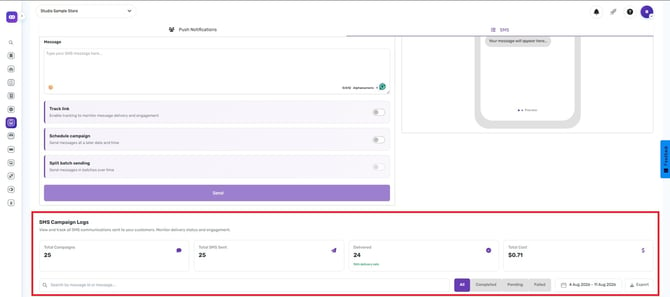
SMS Campaign Logs
View and track all SMS communications sent to your customer. Monitor delivery status and engagement.
-
Total campaigns
-
Total SMs Sent
-
Delivered
-
Total Cost
-
Search by message
-
If it is completed, pending, failed, or choose all
-
Choose the date range
If you need further assistance, contact our Marketing Team for guidance and approval. You can reach them at Marketing@Deliverit.com.au or call 1300 117 117.