
How Pre-Ordering Works
Pre-ordering is available before the store opens
As long as the store’s polling computer (online order receiver) is switched on before trading hours, customers can place their orders ahead of time.
For example, if lunch starts at 11:00 AM, customers may be able to order earlier in the morning for pickup or delivery at 11:00 AM.
Example: Let’s use a sample store with the following schedule:
- Lunch Trading Hours: Open until 2:30 PM
- Closed for Break: 2:30 PM – 5:30 PM
- Evening Trading Hours: Resume at 5:30 PM
What Happens at 2:30 PM?
At 2:30 PM, the lunch session ends, and orders for lunch will no longer be accepted.
Some stores enable this option to prevent orders from being placed during the break
Pre-Ordering During the Break (2:30 PM – 5:00 PM)
Even though the store is closed during this time, customers can still log in and place a pre-order.
From 2:30 PM to 5:00 PM, you can:
- Sign in to online ordering
- Choose a pickup or delivery time from 5:00 PM onward
Availability depends on the store’s default wait time.
During the break, immediate orders are unavailable. However, you can still schedule your dinner order in advance for added convenience.
How to Enable / Disable Pre-Ordering
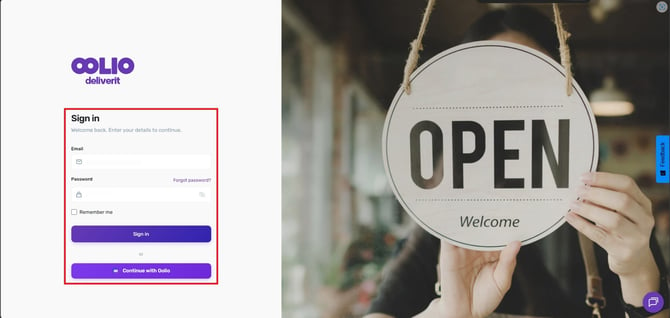
- Log in to Deliverit Studio https://my.deliverit.com.au/
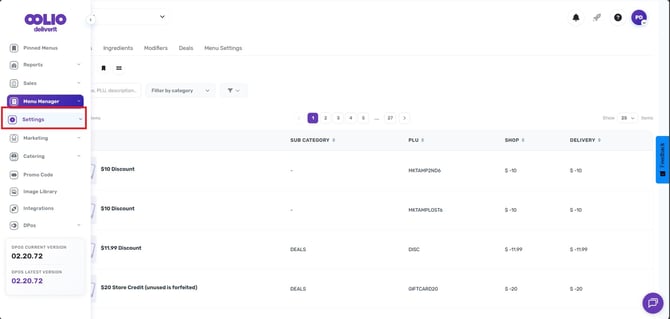
- Navigate to Settings on the left panel
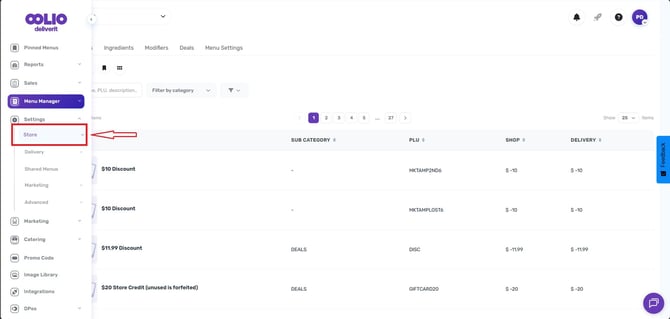
- Select the store
-
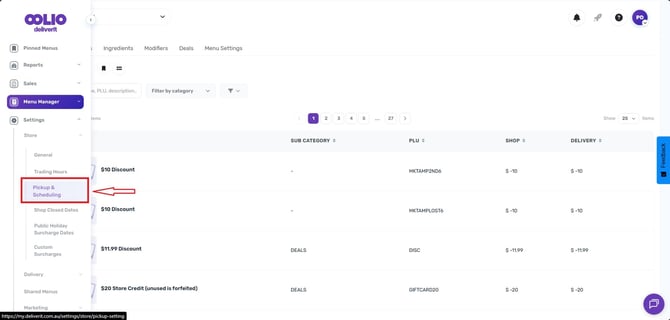
Go to the Pickup & Scheduling.
Order Type Toggle
Navigation: Use the menu at the top-right corner to check the current status.
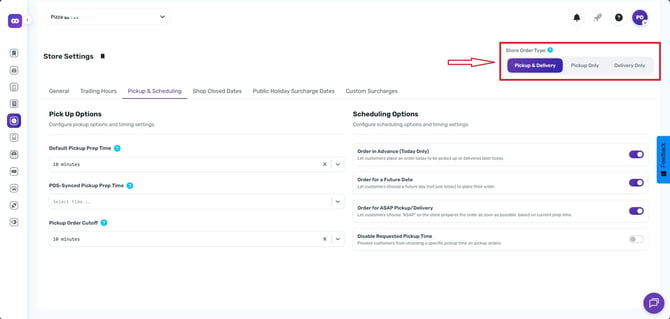
- Pickup & Delivery – Customers can place orders for both pickup and delivery.
- Pickup Only – Customers can place pickup orders only.
- Delivery Only – Customers can place delivery orders only.
Please note:
- This applies to online ordering only
- This setting takes effect immediately and will remain active until you manually update it.
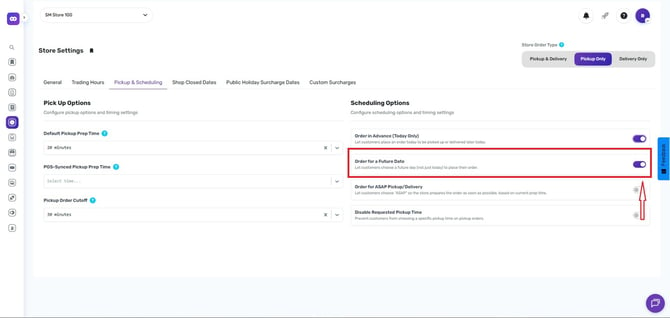
- Toggle the following:
Order in Advance - Let the customers place an order today to be picked up or delivered later for the same day (today)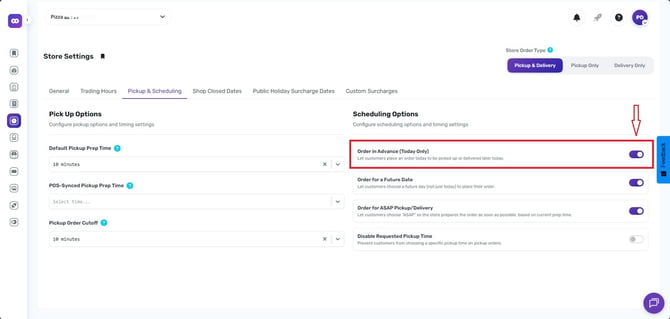
Order for a Future Date - Let the customers choose a future day to place their order.
Important: The polling PC must remain open and running in DPOS, even outside of trading hours, to ensure it can receive and process Online Ordering (OO) orders as they are placed. If the polling PC is closed or DPOS is not running, incoming online orders may not be picked up by the system.
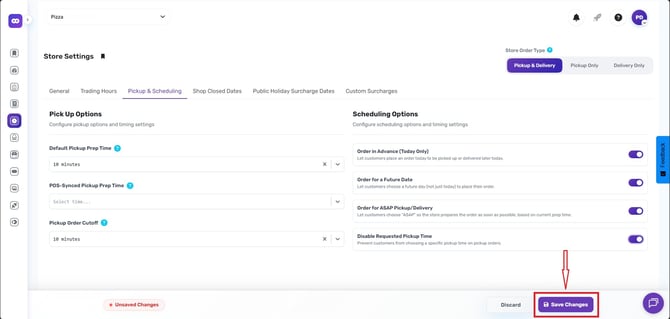
- Click Save
If you need further assistance, simply click the blue chat icon at the bottom-right corner of the screen to connect directly with our Application Support Team.