
Step-by-Step Guide
Check Status of the DPos Cloud Sync
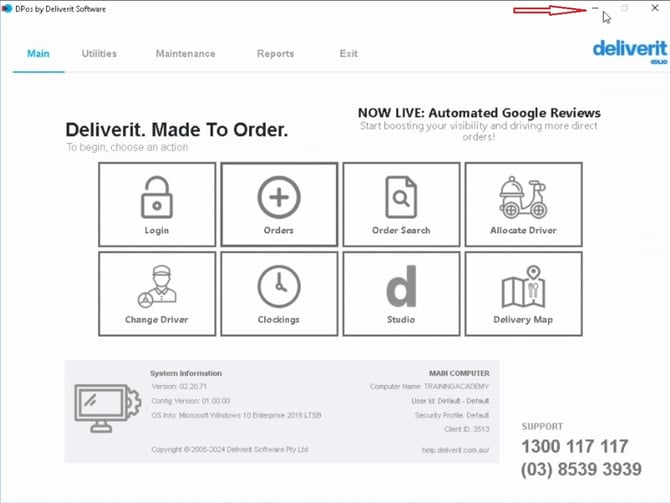
Minimise DPOS
On the Server computer (Main Computer), minimise the DPOS application.
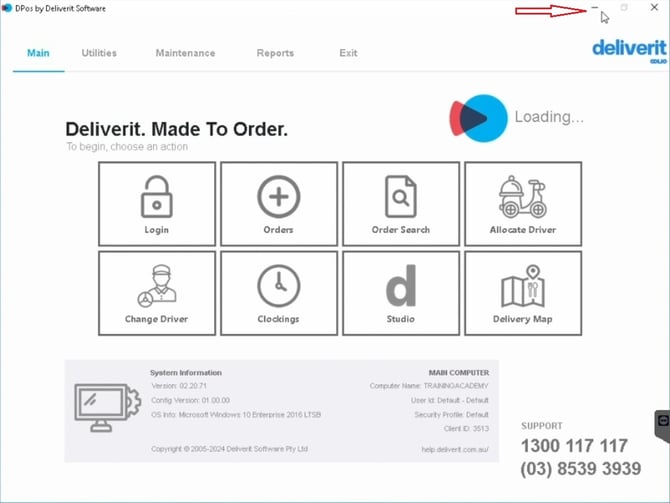
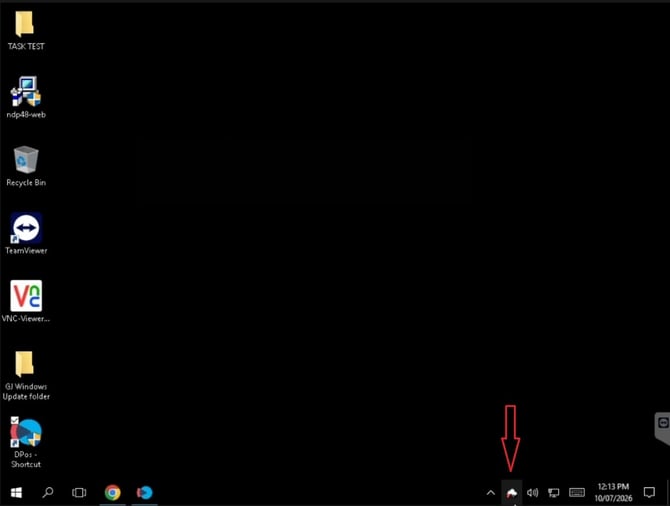
Locate the DPOS Cloud Sync Icon
Look for the DPOS Cloud Sync icon in the Windows taskbar notification area (system tray).
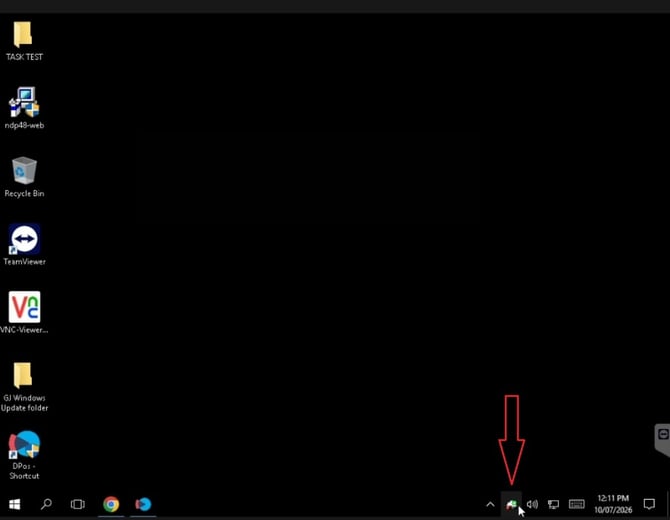
Tip:
If you cannot see the DPos Cloud Sync icon:
-
Open DPOS. The Cloud Sync icon should appear once DPOS has fully loaded.
- Verify you are on the Server (Main) Computer
Check the Cloud Sync Status
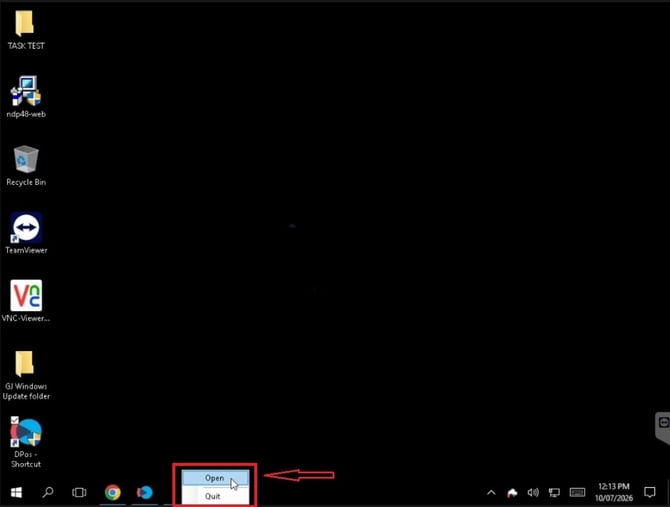
- Right-click the DPOS Cloud Sync icon.
- Select Open.
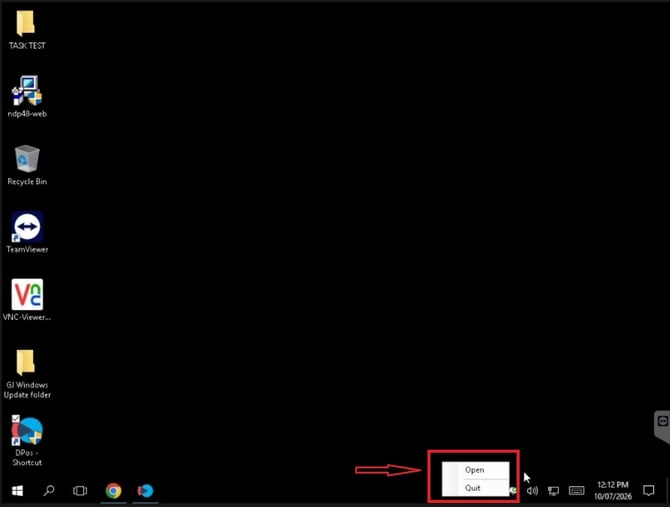
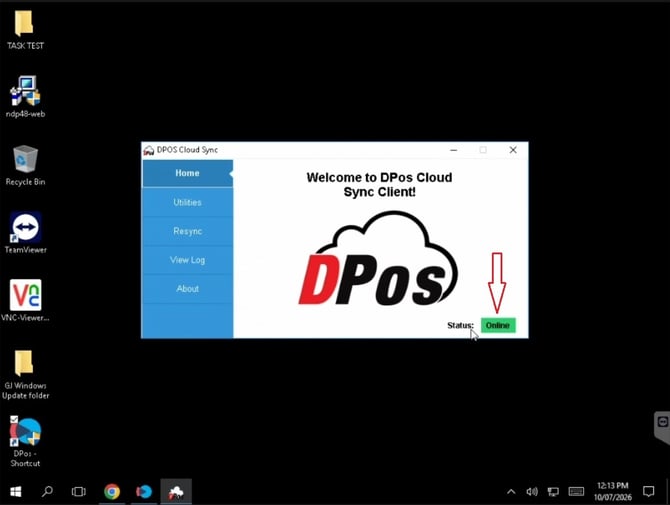
- Check the current connection status.
Status Indicators
- Online (GREEN)– The Cloud Sync service is connected and operating normally.
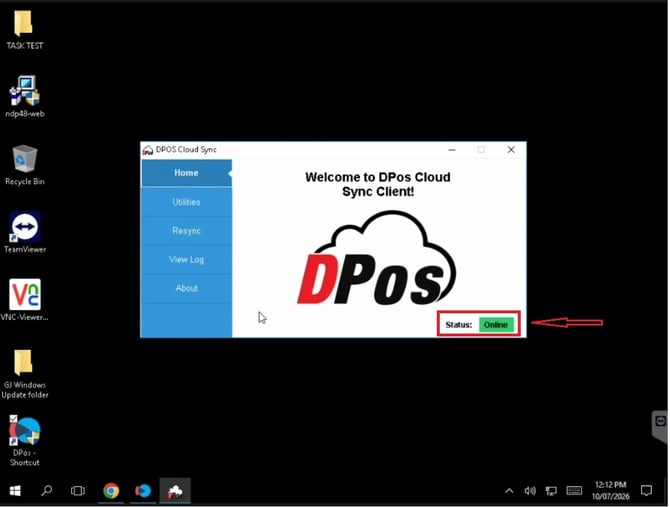
- Blue Sync Symbol – Data is currently being synchronised with the cloud.
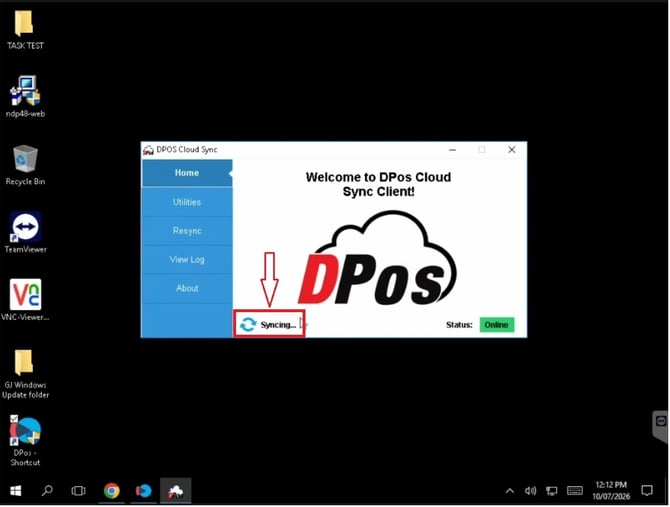
- Offline (RED) – The Cloud Sync service is not connected and needs to be restarted.
If the Status is Showing as Offline:
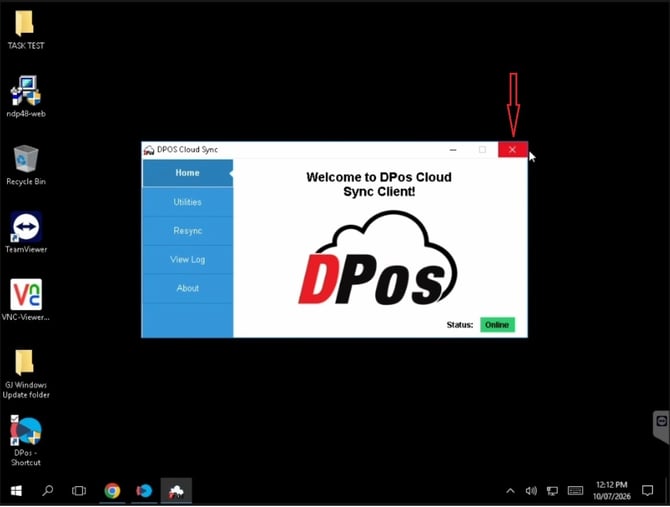
- Close the DPOS Cloud Sync by pressing the Red Cross
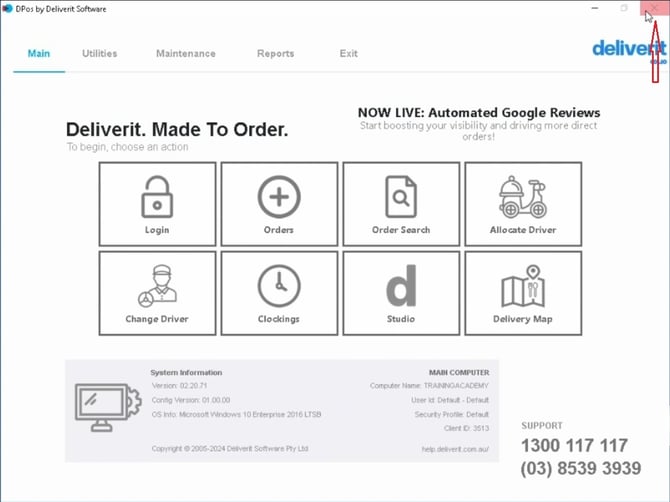
- Close the DPOS application completely by pressing the Red Cross.
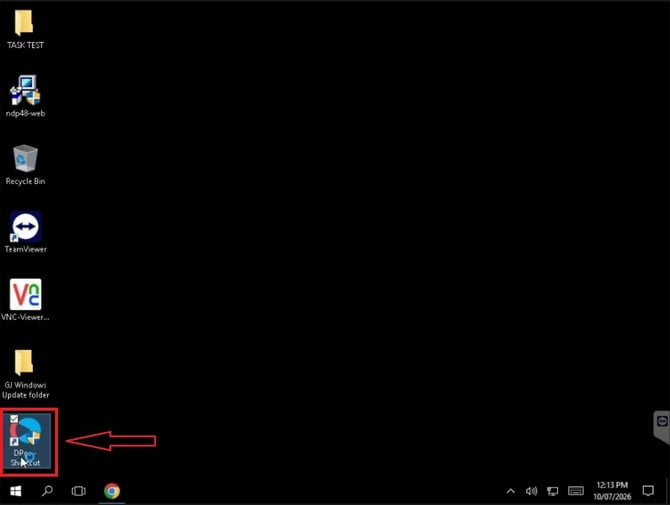
Re-Open DPOS
- Launch DPOS again.
- Wait for DPOS to finish loading and minimise
- Confirm that the DPOS Cloud Sync icon reappears in the taskbar.
Verify the DPos Cloud Sync Status:
- Right-click the DPOS Cloud Sync icon.
- Select Open.
- Check that the status now shows Online
- Any missing Sales data will commence syncing again.
If you see any error messages in the DPOS Cloud Sync window, please email support@deliverit.com.au with a screenshot of the error.