
Step-by-step guide to fix workstation connection issues
Check the DPOS Application Target Path
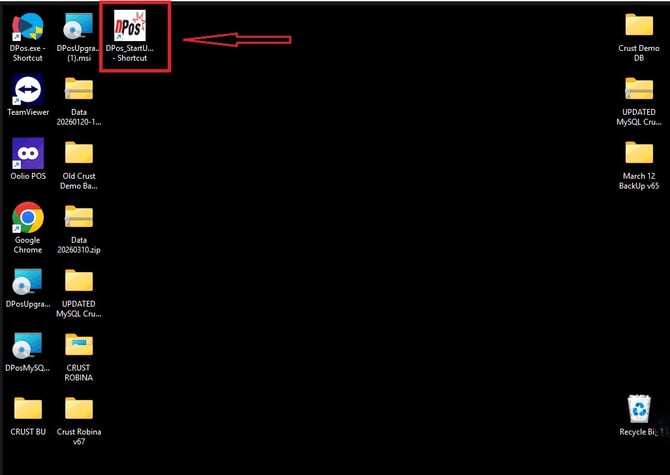
- Right‑click the DPos shortcut on the desktop.
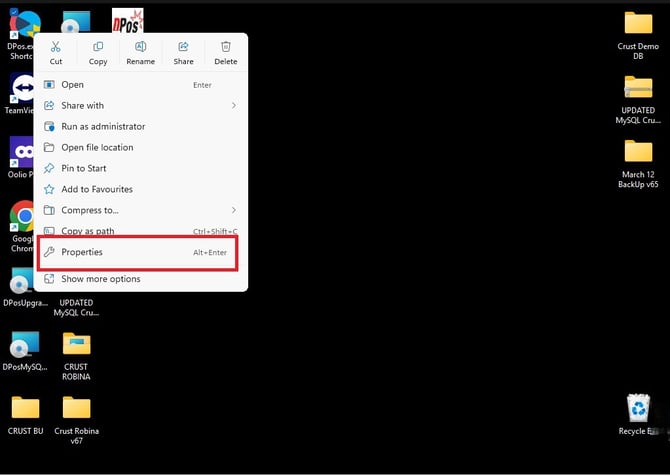
- Select Properties.
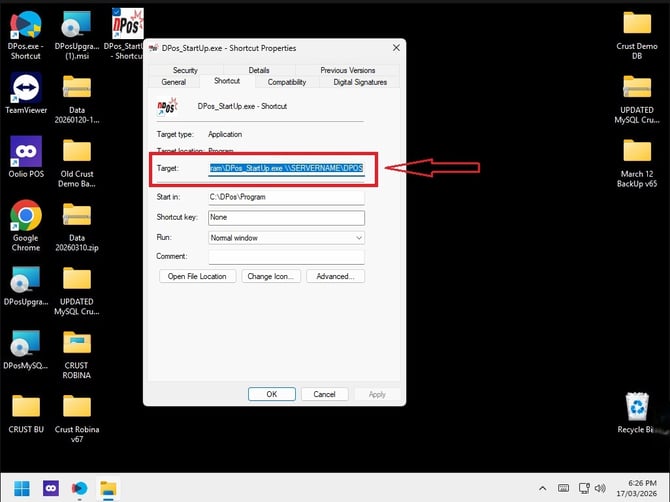
- Under the Shortcut tab, find the Target field.
- It must look exactly like this:
C:\DPos\Program\DPos_StartUp.exe \\SERVERNAME\DPOS
- If the server name is incorrect
- If the UNC path is missing
- If the path points to the wrong folder
…the workstation will fail to launch DPOS.
Confirm the Network Profile Is Set to Private
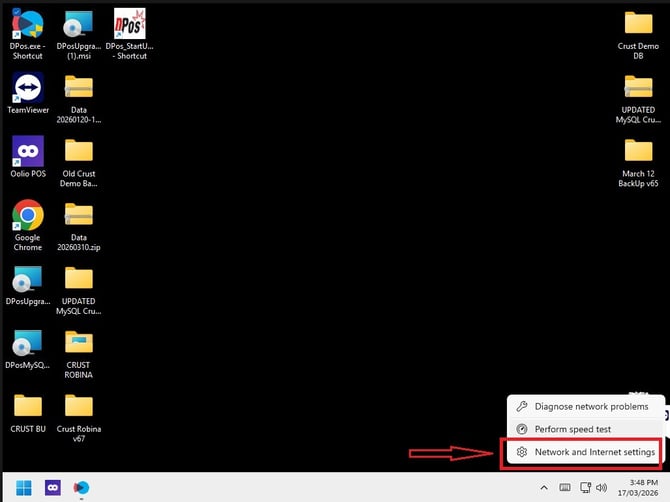
- Right‑click the internet icon on the taskbar.
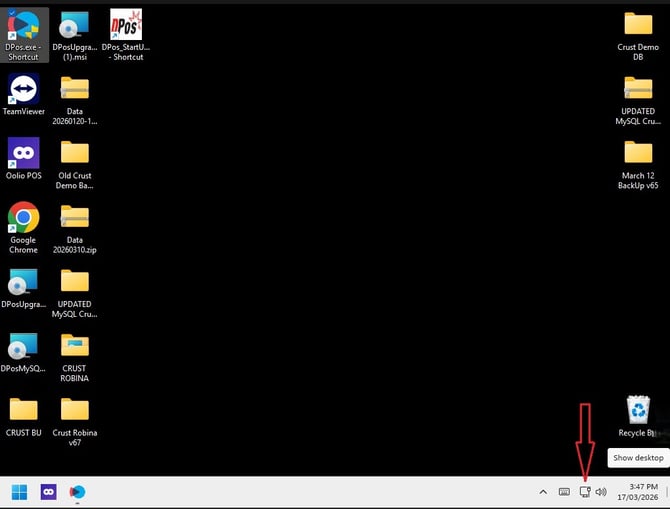
- Select Network & Internet Settings.
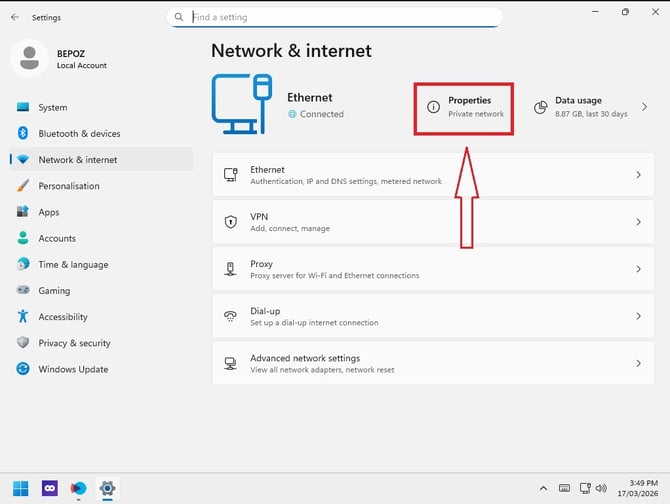
- Click Properties on your active network (Wi-Fi or Ethernet).
- Verify the Network Profile = Private.
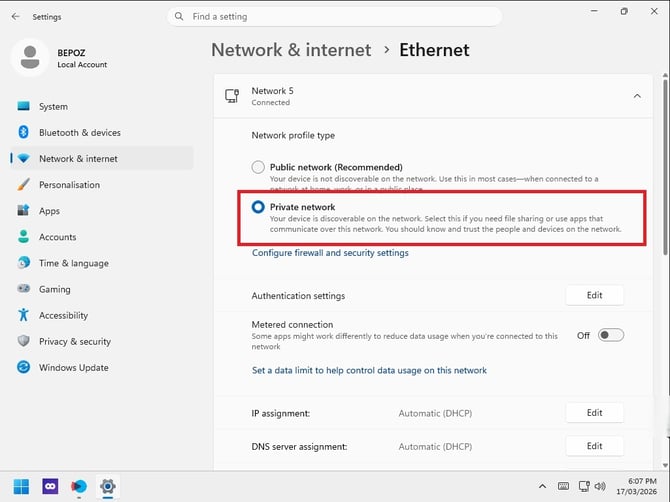
DPOS workstations cannot communicate with the server if the profile is set to Public.
Verify the Windows User Is a Local Administrator
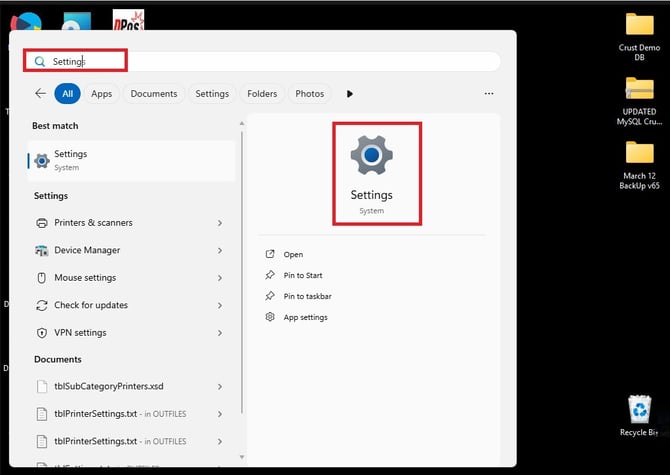
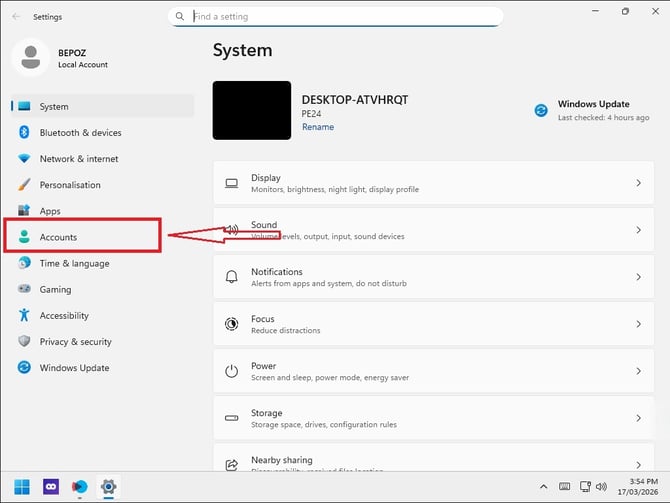
- Open Settings.
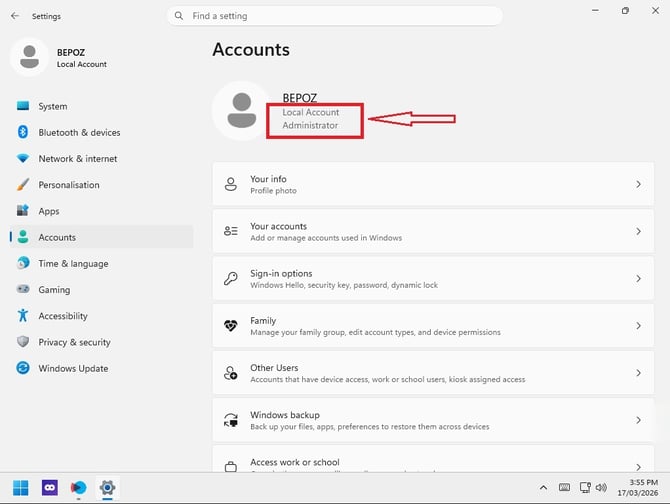
- Go to Accounts.
- Ensure the logged‑in user shows: Local Administrator.
Check Advanced Network Sharing Settings
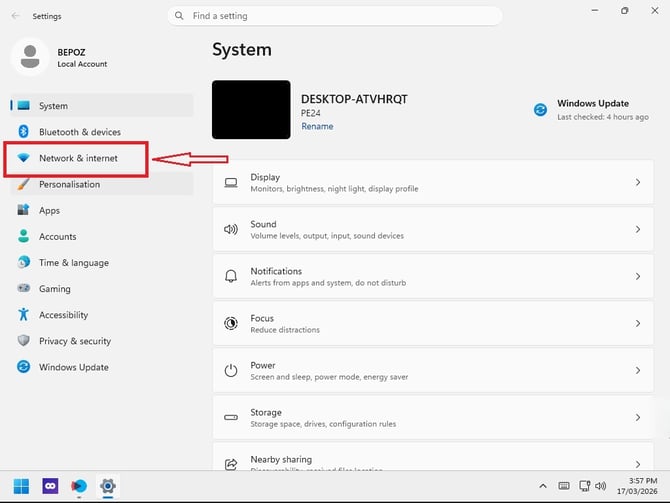
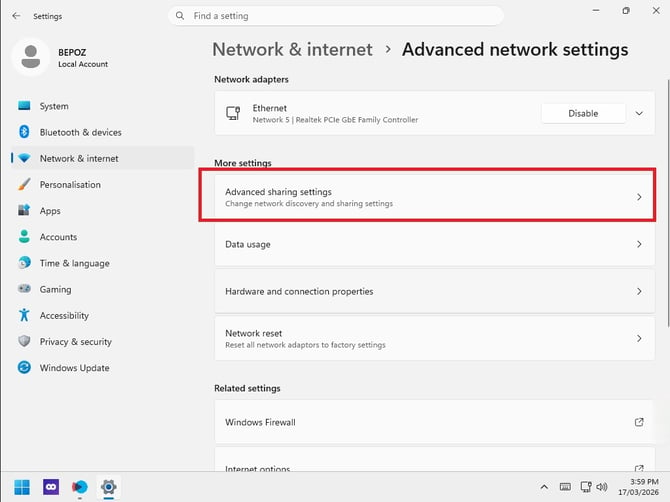
- Go to Settings → Network & Internet.
- Open Advanced Network Settings.
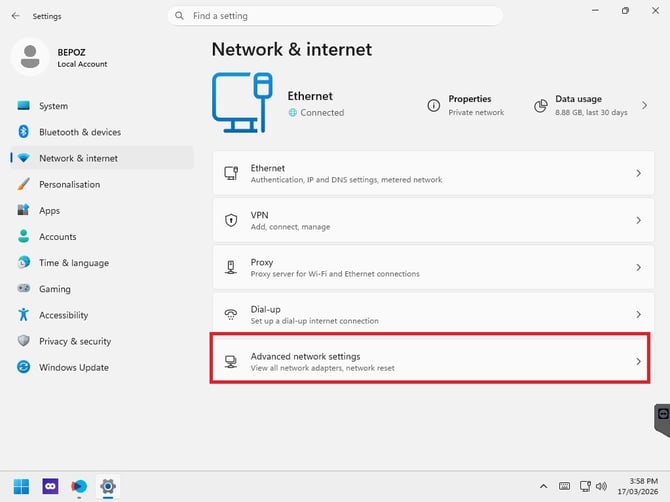
- Go to Advanced sharing settings.
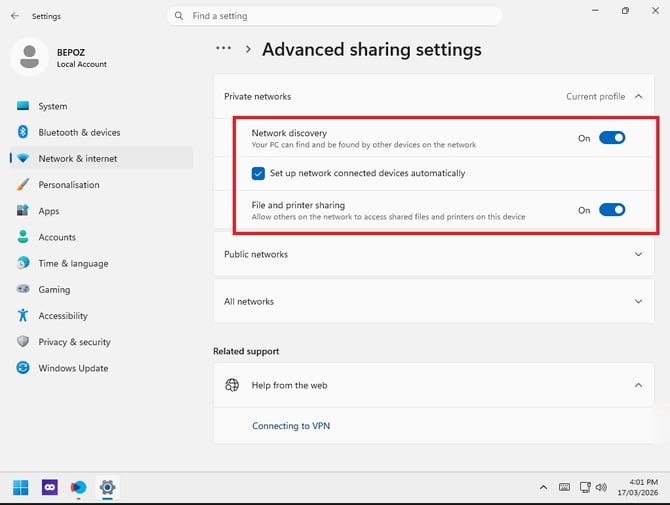
Under “Private Network” – everything must be ON:
- ✔ Network discovery
- ✔ File and printer sharing
- ✔ Set up network connected devices automatically is Ticked
Under “Public Network” – toggle ON except:
- ❌ Password protected sharing = OFF
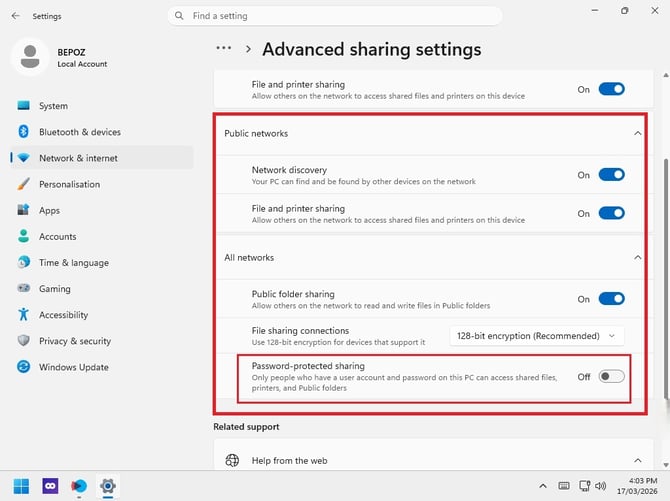
This allows the workstation to reach shared folders on the server.
Check Ethernet Settings (If Using a Wired Connection)
- Go to Settings → Network & Internet → Ethernet.
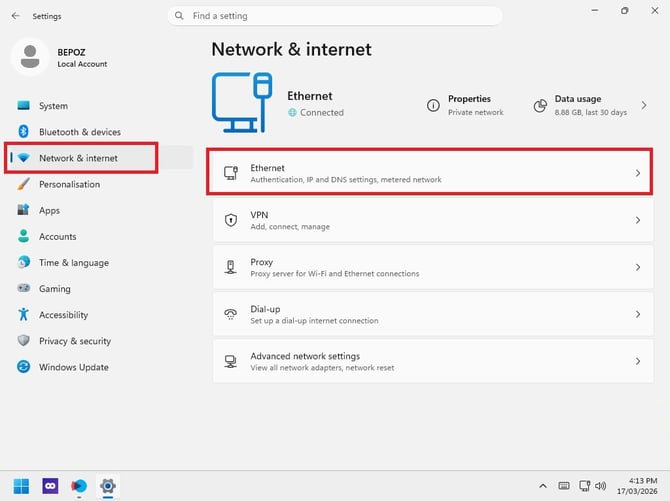
- Ensure the Ethernet network is set to Private.
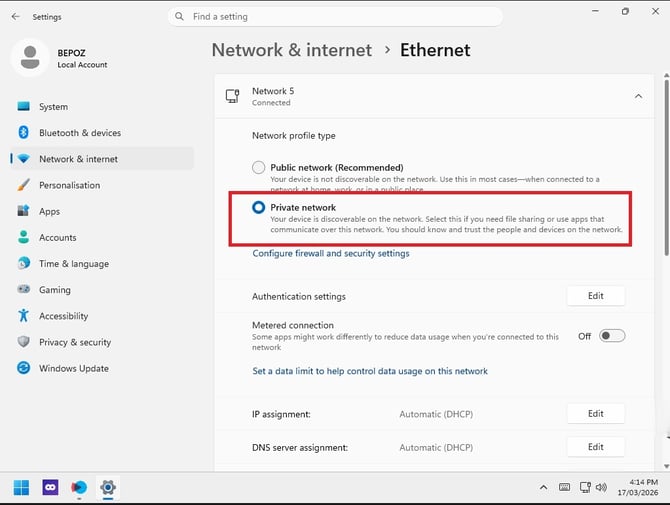
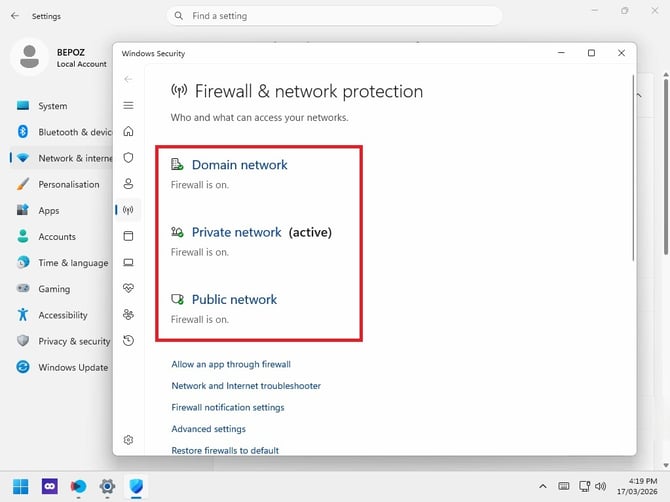
- Click Configure Firewall & Network Protection.
- Turn OFF all three firewall profiles:
Domain Network Firewall
Private Network Firewall
Public Network Firewall
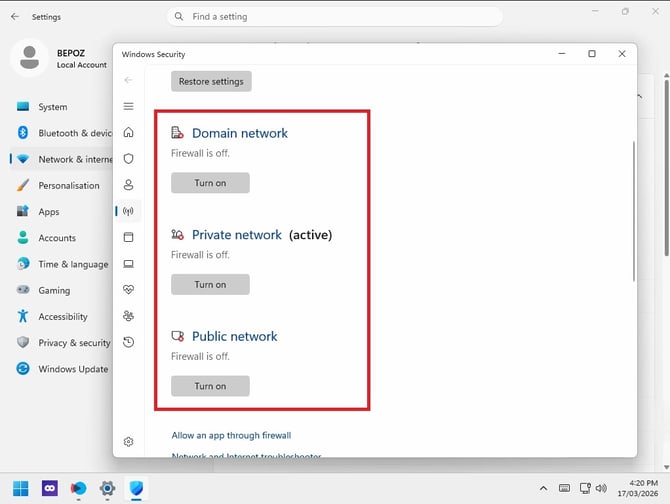
Some stores require firewall ON with exceptions—always follow store or IT policy.
Summary Checklist (Quick Review)
✔ Target path is correct
✔ Network set to Private
✔ User is Local Admin
✔ Network discovery ON (Private & Public)
✔ File & printer sharing ON
✔ Password protected sharing OFF
✔ Ethernet set to Private
✔ Firewall OFF (if allowed)
These steps resolve most Workstation issues caused by incorrect shortcuts, network profiles, user permissions, or firewall restrictions. After completing all steps, restart DPOS and test connectivity again.
If you need further assistance, simply click the blue chat icon at the bottom-right corner of the screen to connect directly with our Application Support Team.