![Deliverit_White.png]](https://help.deliverit.com.au/hs-fs/hubfs/Deliverit_White.png?height=40&name=Deliverit_White.png)
Step-by-Step Guide
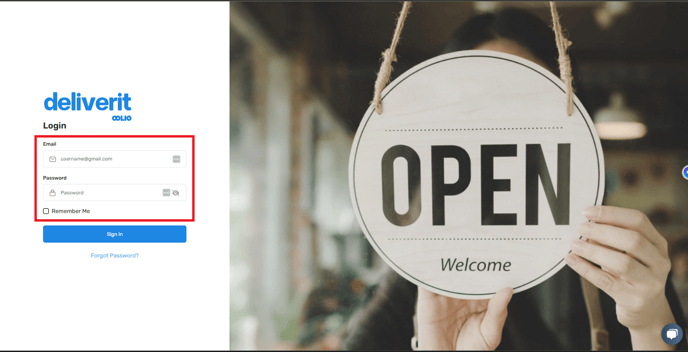
Log In to Deliverit Studio
- Visit https://my.deliverit.com.au.
- Enter your DPOS Cloud username and password.
Access the Item List
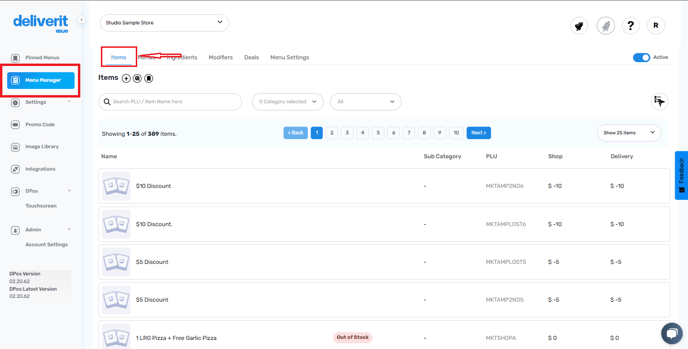
- Navigate to the Menu Manager from the left sidebar.
- Click on the Items tab.
Search for Items
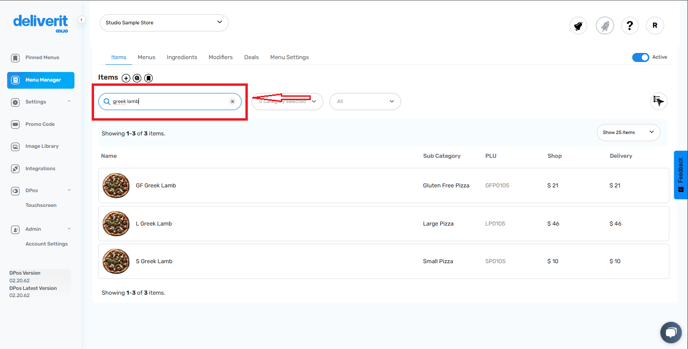
- Use the Search by Name or item descriptions to find the items you want to update.
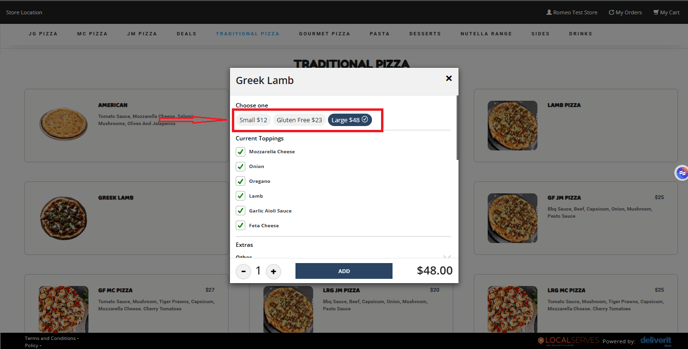
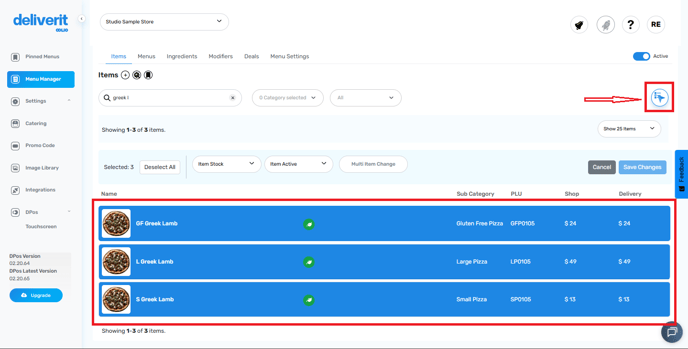
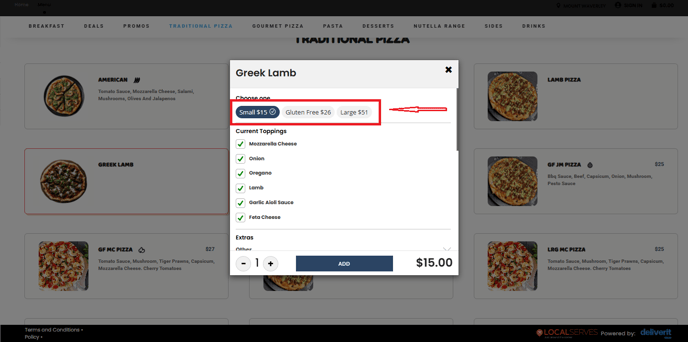
- For example: Small Greek Lamb = $12, Large Greek Lamb = $48, Gluten-Free Greek Lamb = $23.
Click the Multi Select button.
- Click the 'Multi Select' button, which activates the mode for selecting more than one item at a time.
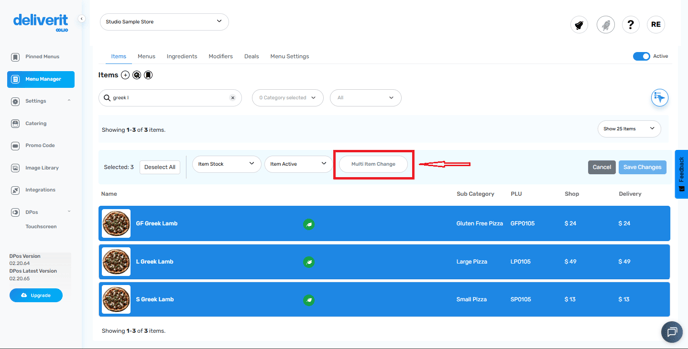
Open the Multi Price Change Tool
- Click the Change Multi Price button located above the item list.
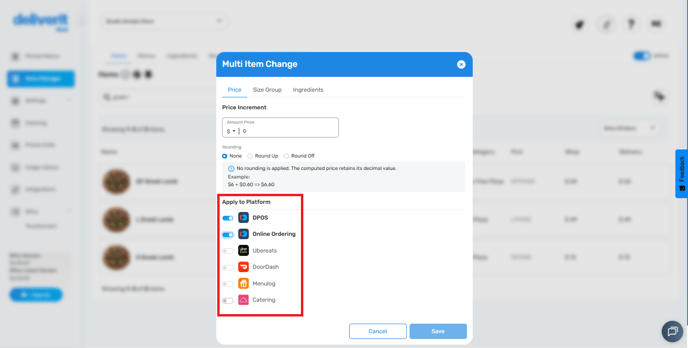
Select Platforms to Update
- Choose the platform(s) you want to apply the price changes to:
DPOS, Online Ordering, Integrated Platforms (e.g., UberEats, DoorDash.)
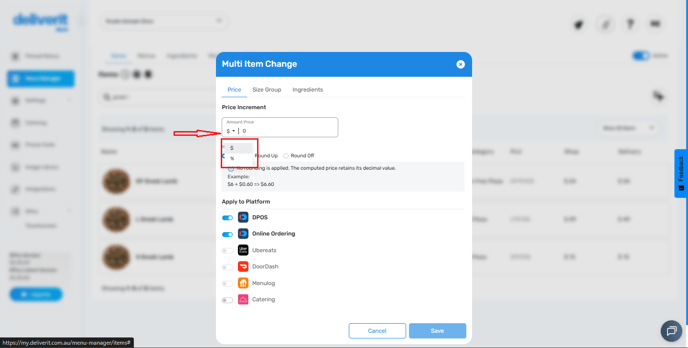
 Choose Your Adjustment Method
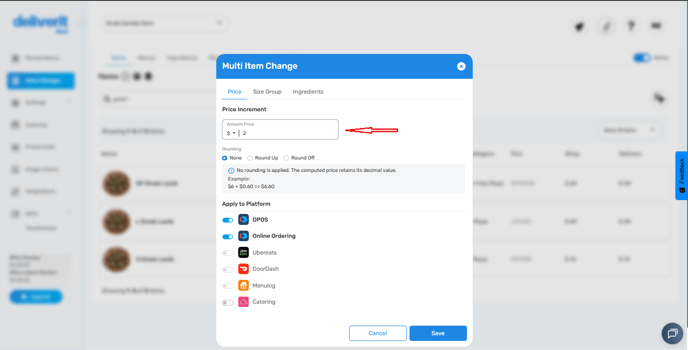
- $ (Dollar Amount): Apply a fixed amount increase or decrease. (Eg:$2.00)
- % (Percentage): Apply a fixed amount increase or decrease. E.g.: Increase by 1%)
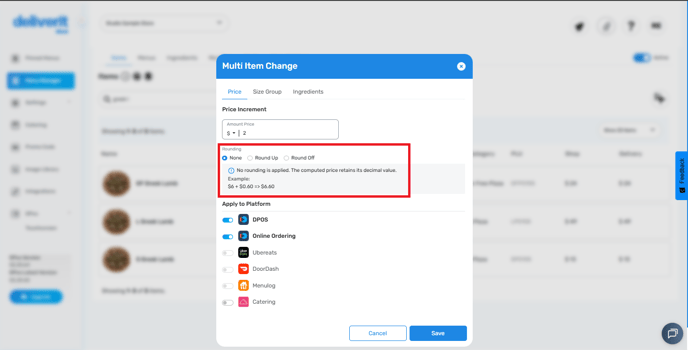
Set your rounding preference to either a fixed dollar amount or a percentage.
Choose one of the rounding settings:
- None: No rounding is applied. The computed price retains its decimal value.
(Example: $6 + $0.60 => $6.60) - Round Up: Result rounded up to the next whole dollar (no. xx).
(Example: $6 + $0.60 => $7.00) - Round Off: Result rounded to the nearest .50 or .00 (half‑dollar increments).
(Example: $6 + $0.60 => $6.50)
- Input the amount or percentage.
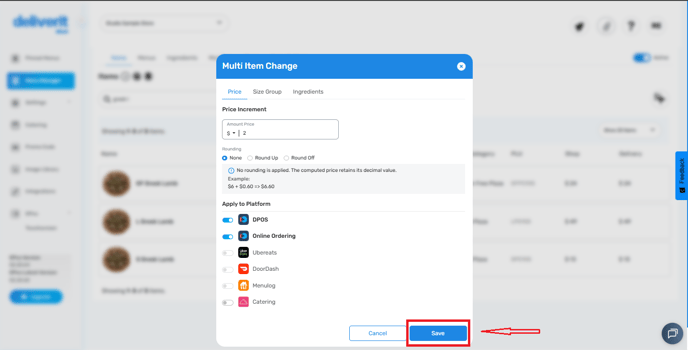
Apply and Save Changes
- Click Save once your updates are set.
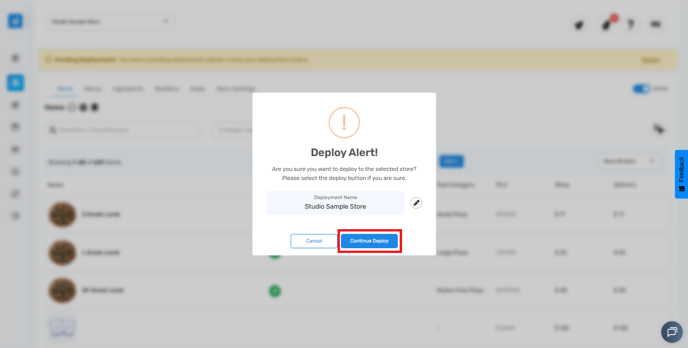
Deploy the Changes
- Click the Rocket icon at the top right of the screen.
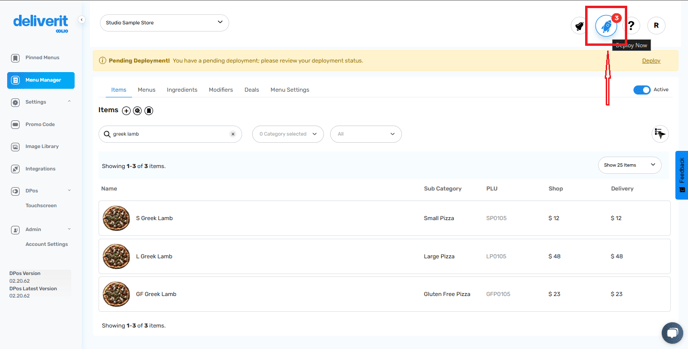
- Click Deploy to publish the updates.
Refresh Systems
- Restart your DPOS application.
- Reload your Online Ordering website.
- Updates show up in about 1 minute on DPOS and Online Ordering.
and may take up to 5 minutes on integrated platforms.
By following these steps, you’ve successfully updated multiple items in Deliverit Studio. If you need further assistance, simply click the blue chat icon at the bottom-right corner of the screen to connect directly with our Application Support Team.