![Deliverit_White.png]](https://help.deliverit.com.au/hs-fs/hubfs/Deliverit_White.png?height=40&name=Deliverit_White.png)
How to Set Up a Public Holiday Surcharge
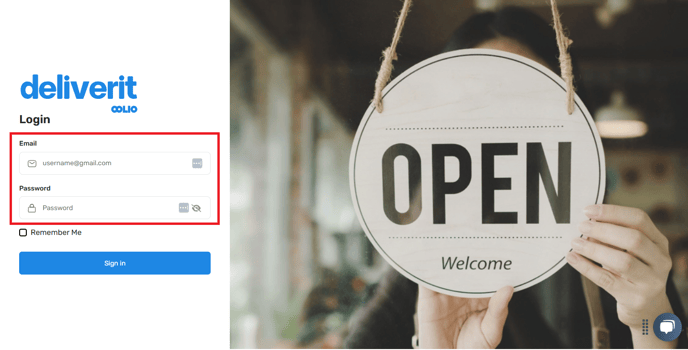
🟩 Log In
-
Sign in with your DPOS Cloud login
🟩 Go to Store Settings
-
Click Settings in the left menu
-
Then click Store
🟩 Select Surcharge Dates
-
Open the Public Holiday Surcharge Dates tab
Tip: Australian national public holidays are highlighted in red.
-
Choose the order type you want the updates to apply to:
Pickup and Delivery
Pickup Only
Delivery Only
-
Use the calendar to select each holiday
-
Click again to remove a date if needed
🟩 Check the PLU Code
-
Look at the top-right for the correct PLU (e.g.,
PUBHOLorPHS)
🟩 Save and Apply
-
Click Save
-
✅ Changes are automatically deployed
🟩 Refresh Your Website
-
Open your online ordering page
Press Refresh to confirm the surcharge is active
Note: This setup only impacts DPOS and Online Ordering. Surcharges will not appear on third-party platforms.
Log In
- Enter your DPOS Cloud username and password
Open Store Settings
- Click Settings on the left menu
- Then click Store

Set Public Holiday Dates
- Click the Public Holiday Surcharge Dates tab

Australian national public holidays are highlighted in red.
- Use the calendar to click on each public holiday.
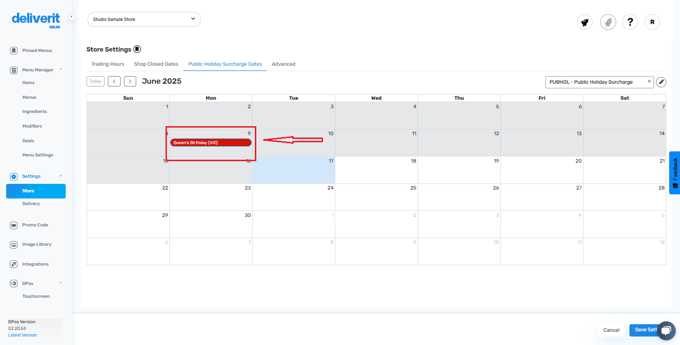
To remove a date, click it again
Check the Surcharge Code (PLU)
- Look at the top-right corner for the Surcharge Code (PLU) (e.g., PUBHOL or PHS.

Save and Apply Changes
- Click Save
- Your changes will be applied automatically

Refresh Your Online Ordering Site
- Open your online ordering page
- Press Refresh to see the surcharge in action
By following these steps, you can easily set up a public holiday surcharge in Deliverit Studio. If you need further assistance, simply click the blue chat icon at the bottom-right corner of the screen to connect directly with our Application Support Team.