
Note: To use this feature, your system must be running DPOS version V02.20.53 or above.
Step-by-Step Instructions
Log in to Deliverit Studio
Go to https://my.deliverit.com.au
Sign in using your admin credentials.

Navigate to the Touchscreen Section
In the left-hand menu, click DPOS.
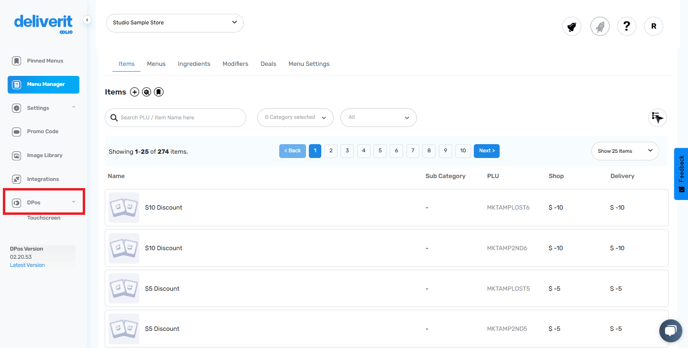
Then select Touchscreen from the submenu.

Select a Menu
Choose the menu that contains the buttons you want to move.
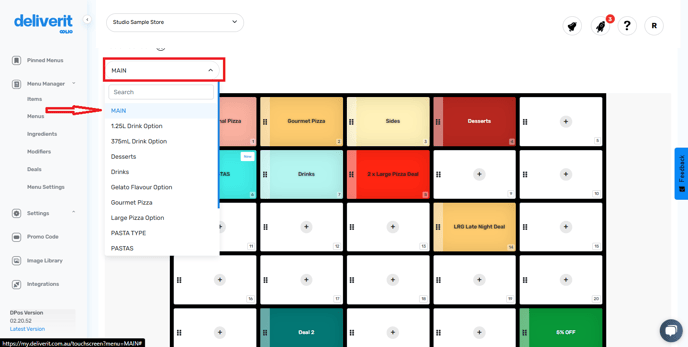
Reposition Buttons
Hover over the button you want to move.
Click and hold the six-dot icon on the left of the button.
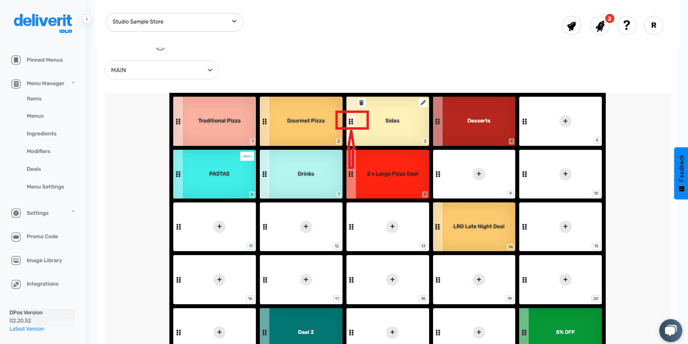
Drag the button to your desired location, then release it.
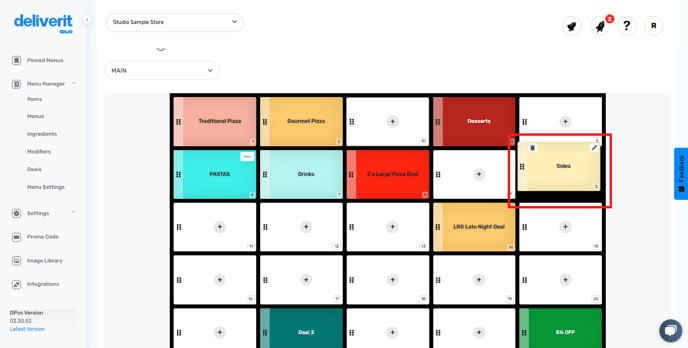
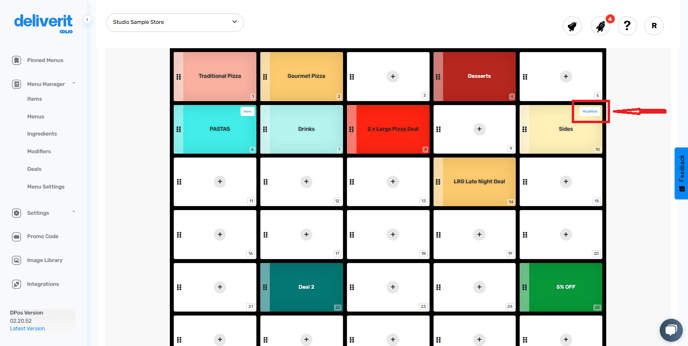
A "Modified" tag will appear to indicate the change
Deploy Changes
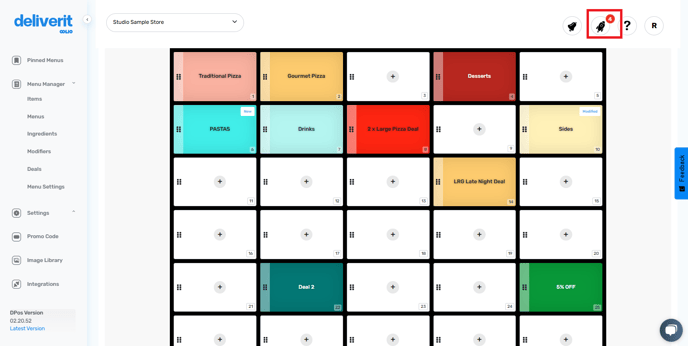
Click the rocket icon.
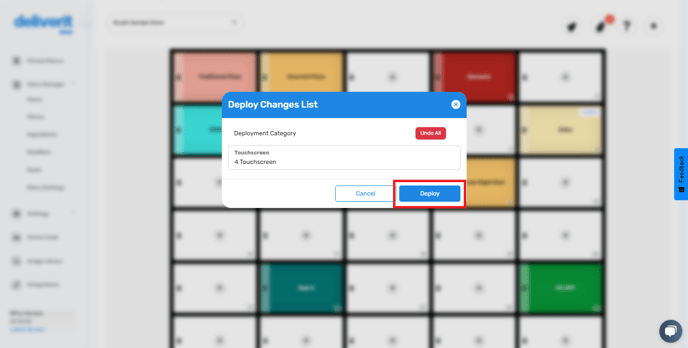
Hit the deploy button.
Note:
Changes to flow to your DPos application immediately. Please review the updates on your store terminals.
By following these steps, you will be able to easily reposition buttons on the DPos touchscreen using Deliverit Studio. If you need further assistance, simply click the blue chat icon at the bottom-right corner of the screen to connect directly with our Application Support Team.