![Deliverit_White.png]](https://help.deliverit.com.au/hs-fs/hubfs/Deliverit_White.png?height=40&name=Deliverit_White.png)
Step-by-Step Guide
Log In to Deliverit Studio
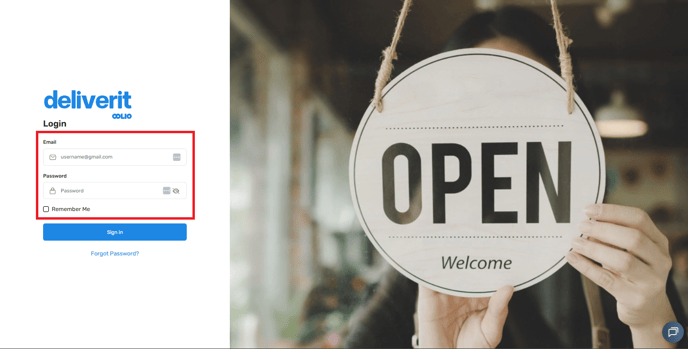
Open my.deliverit.com.au and sign in using your username and password.
Go to Menu Manager
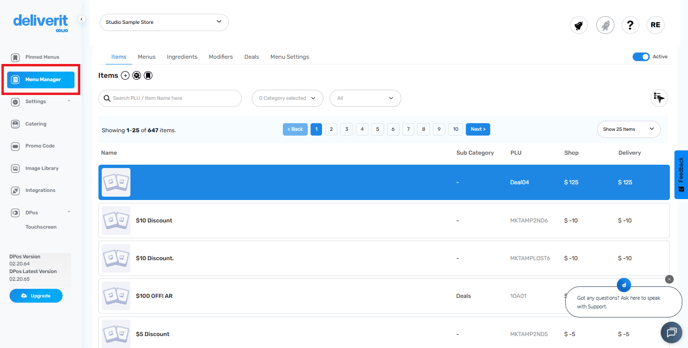
From the left-hand panel, click Menu Manager to view your menu setup options.
Open the Menus Tab
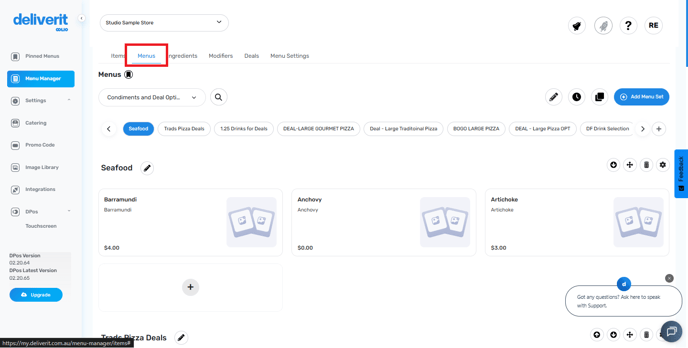
At the top of Menu Manager, select the Menus tab to see all available Menu Sets.
Select the Menu Set to Rename
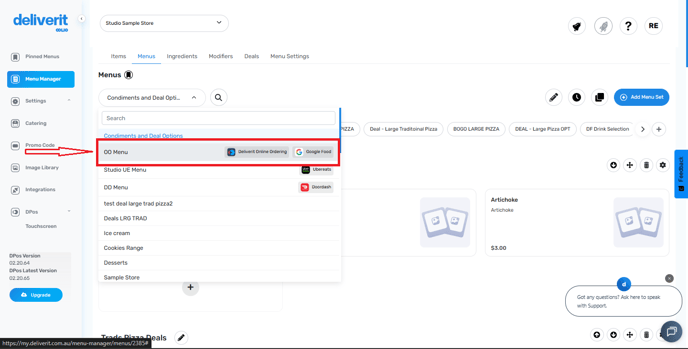
On the drop-down, find the Menu Set you want to update and click the pencil icon beside its name.
Enter the New Name
Type your desired menu name into the text field and save.
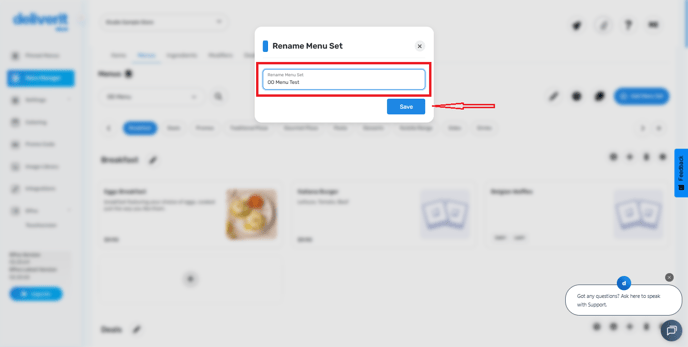
Save Automatically
Your changes will apply automatically—no additional save button required.
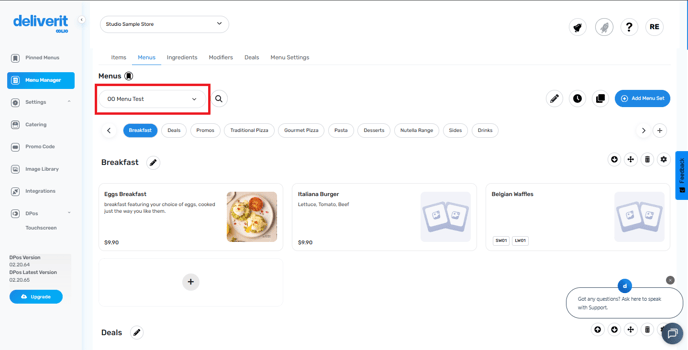
Renaming a Menu Set does not affect the items inside it. Always double-check the spelling of your new name before exiting the page.
By following these steps, you will be able to utilise the Add Item Wizard on Deliverit Studio efficiently. If you need further assistance, simply click the blue chat icon at the bottom-right corner of the screen to connect directly with our Application Support Team.