![Deliverit_White.png]](https://help.deliverit.com.au/hs-fs/hubfs/Deliverit_White.png?height=40&name=Deliverit_White.png)
How to Check the Number of Promocode Redemptions via Studio
Tracking the usage of promo code is essential for monitoring the success of marketing campaigns and ensuring customers are benefiting from the discounts. Follow this simple step-by-step guide to check how many times a promo code has been redeemed using Studio.
✅ Log in to Studio
-
Open your web browser and navigate to the Studio login page.
-
Enter your credentials and sign in to your account.
✅ Navigate to the Promocode Section
-
From the main dashboard, locate and click on the Promocode section.
✅ Check the Promocode Details
-
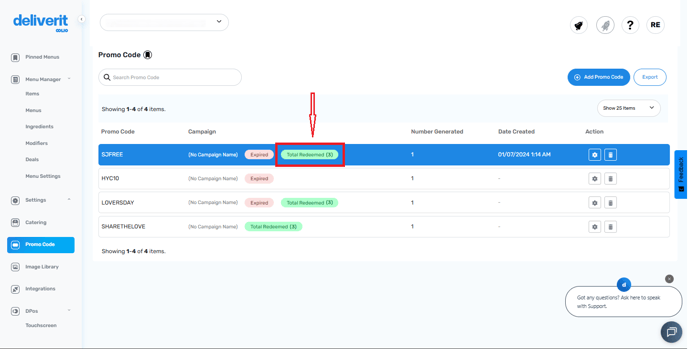
Under the Campaign section, you will see a list of active and expired promo codes.
-
Look for the promo code you want to check.
-
The status of the promocode is color-coded:
-
Red indicates that the promo code has expired.
-
Green shows how many times the promo code has been redeemed.
-
Step-by-Step Guide
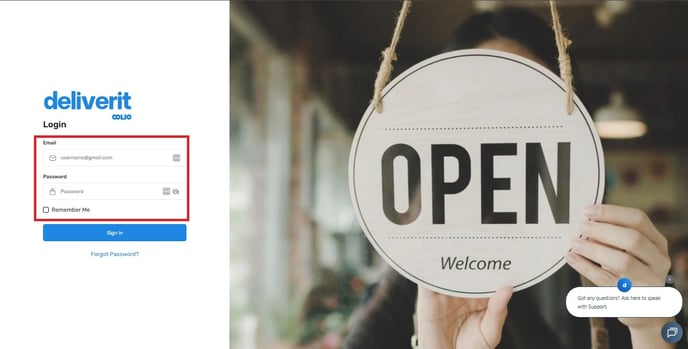
Log in to Studio
Open your web browser and navigate to the Studio login page.
Enter your credentials and sign in to your account.
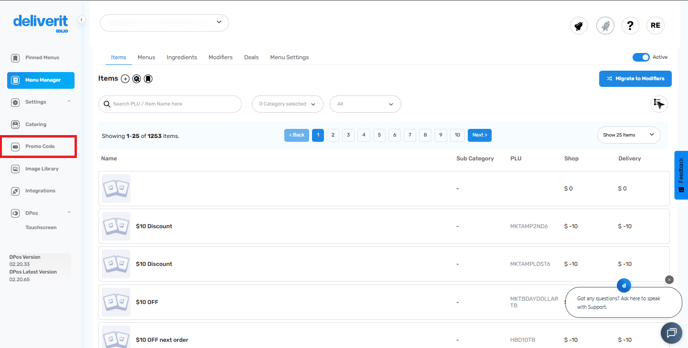
Navigate to the Promocode Section
From the main dashboard, locate and click on the “Promocode” section.
Check the Promocode Details
Under the Campaign section, you will see a list of active and expired promo codes.
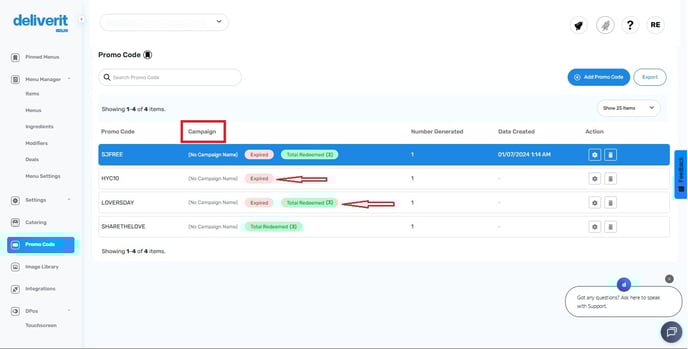
Look for the promo code you want to check.
The status of the promocode is color-coded:
- Red indicates that the promo code has expired.
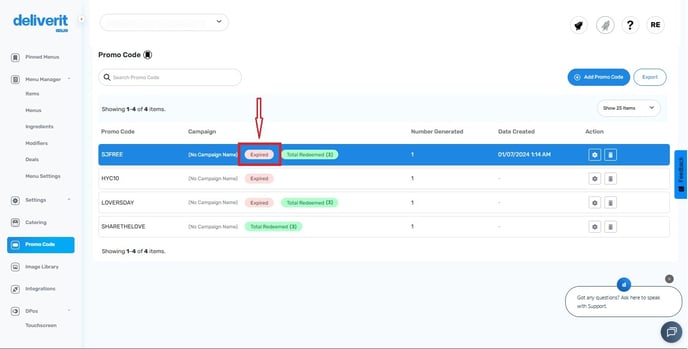
- Green shows how many times the promo code has been redeemed.
By following these simple steps, you can easily track the redemption count of any promo code in Deliverit Studio. If you need further assistance, simply click the blue chat icon at the bottom-right corner of the screen to connect directly with our Application Support Team.