![Deliverit_White.png]](https://help.deliverit.com.au/hs-fs/hubfs/Deliverit_White.png?height=40&name=Deliverit_White.png)
Step-by-Step Guide
Log in to Deliverit Studio
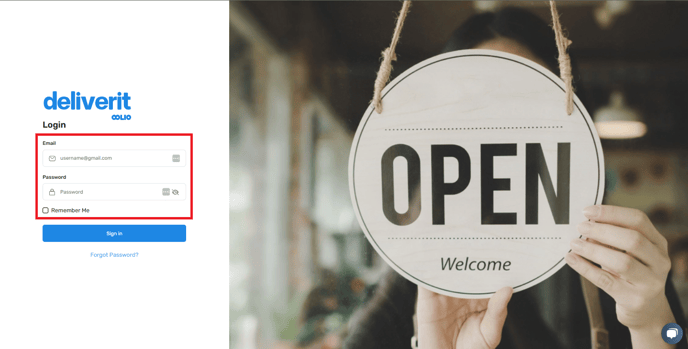
Go to https://my.deliverit.com.au and enter your DPOS Cloud username and password.
Open the Menu Manager
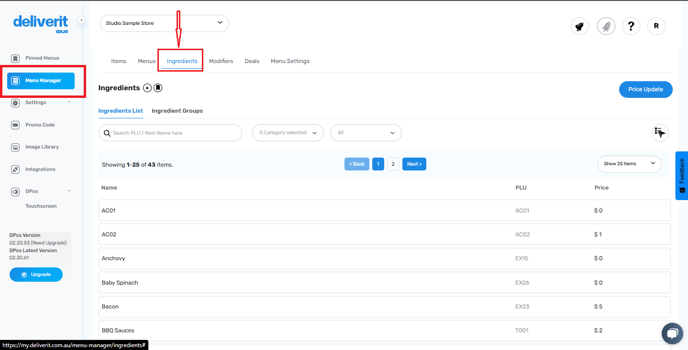
- From the left menu, click Menu Manager.
- Navigate to the Ingredients tab.
Add a New Ingredient
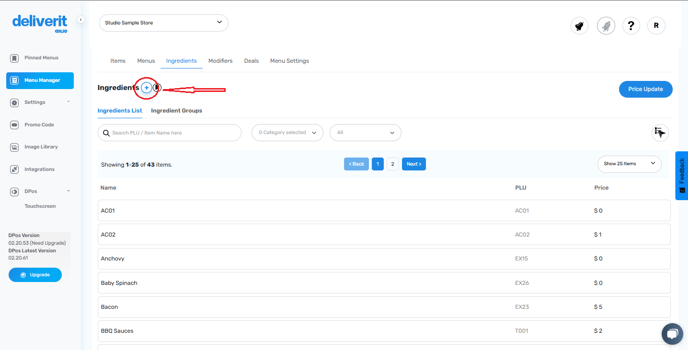
Click the ➕ Plus icon to begin adding a new ingredient.
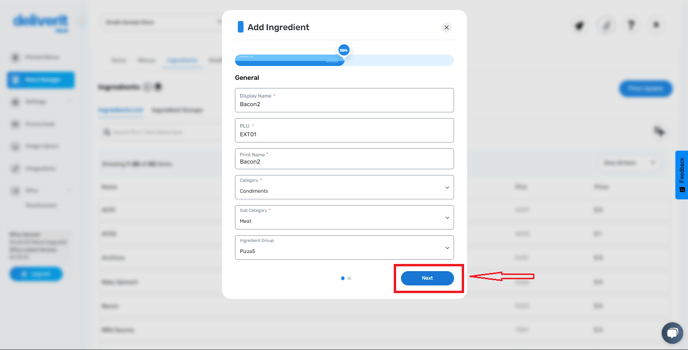
Enter Ingredient Details
Fill in the following required fields:
- Display Name – The name customers will see.
- Item Description – A short description of the ingredients.
- Print Name – The name that will appear on kitchen dockets.
- Category – Select Condiments.
- Subcategory – Choose an appropriate subcategory (e.g., Sauces, Toppings).
- Ingredient Group – Assign it to a relevant group for better menu organization.
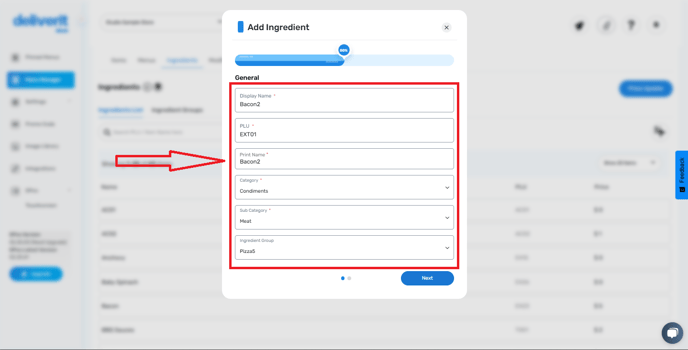
Click Next to proceed.
Set the Ingredient Price
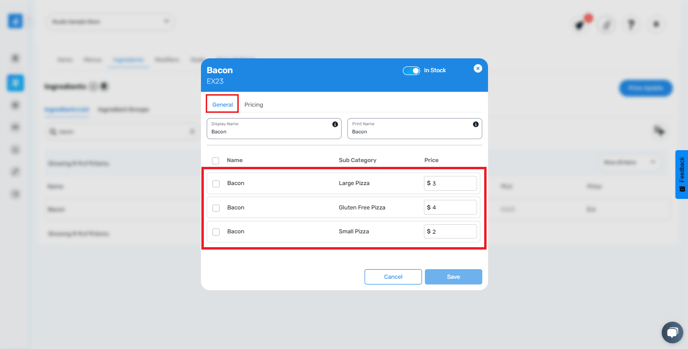
- Set the Ingredient Price. You have the option to set distinct prices for your ingredients based on their various sizes.
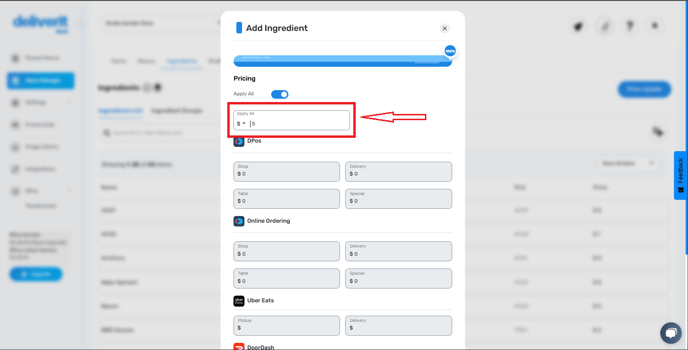
- Enter the price for the ingredient if it’s a paid add-on.
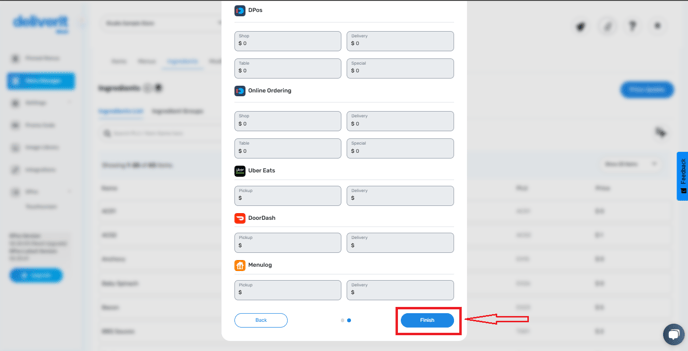
Save Your Ingredient
- Click the Finish button to complete the process.
Deploy Changes
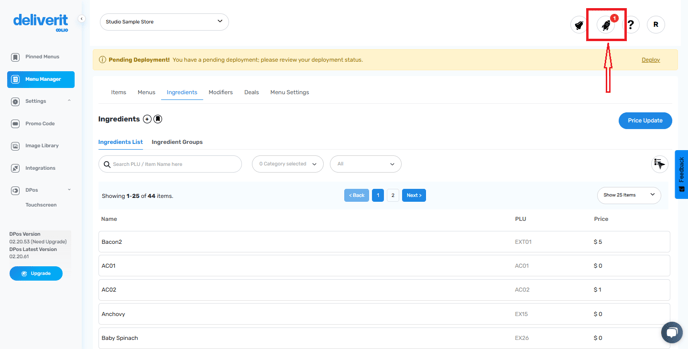
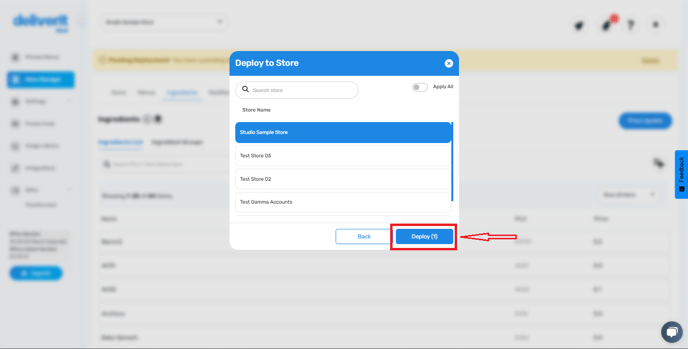
- Go to the rocket icon and hit the deploy button to apply the changes.
By following these steps, you will be able to utilise How to Add Ingredients on Deliverit Studio efficiently. If you need further assistance, simply click the blue chat icon at the bottom-right corner of the screen to connect directly with our Application Support Team.