![Deliverit_White.png]](https://help.deliverit.com.au/hs-fs/hubfs/Deliverit_White.png?height=40&name=Deliverit_White.png)
🟩 Log in to Deliverit Studio with your DPOS Cloud credentials
🟩 Go to Settings
🟩 Click the Advanced selection
🟩 Type your alert in the Global Alert Announcement banner field
🟩 Set the Start Date and End Date
🟩 Click Save Settings
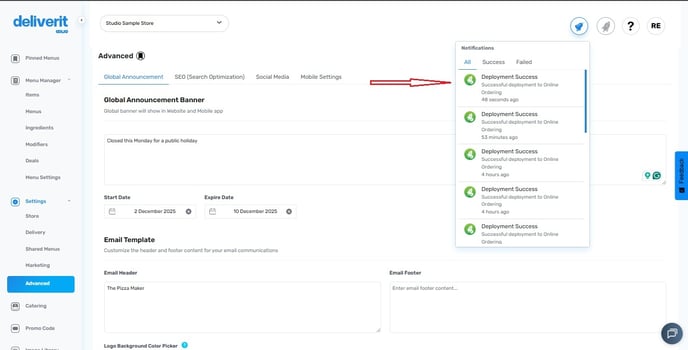
🟩 Check the 🔔 Notification Bell for confirmation
✔️ Success – Alert is live
❌ Failure – Contact support
Step-by-Step Guide
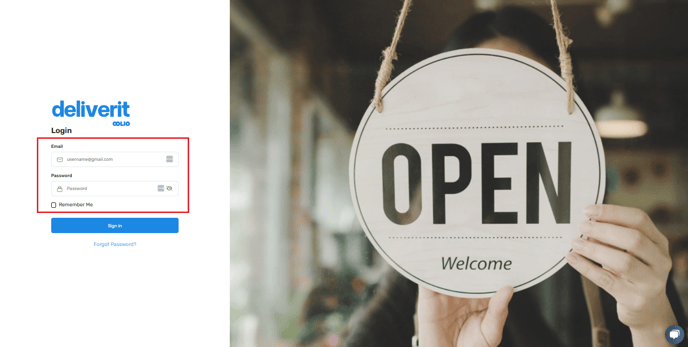
Log In to Deliverit Studio
Go to https://my.deliverit.com.au and sign in with your DPOS Cloud credentials.
Open Store Settings
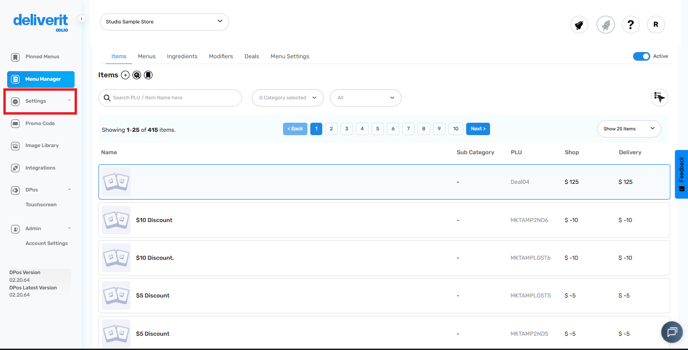
- Click Settings from the left-hand menu
Choose the Advanced Selection
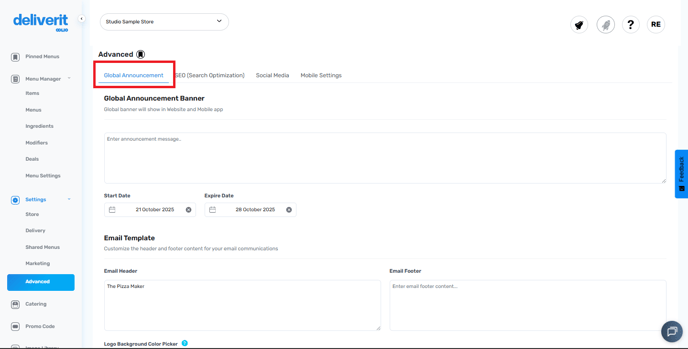
Under the Store Settings page, click on the Advanced selection.

Open the Global Announcements Tab
Go to the Global Announcements tab to access and manage your store-wide messages.
Enter Your Message
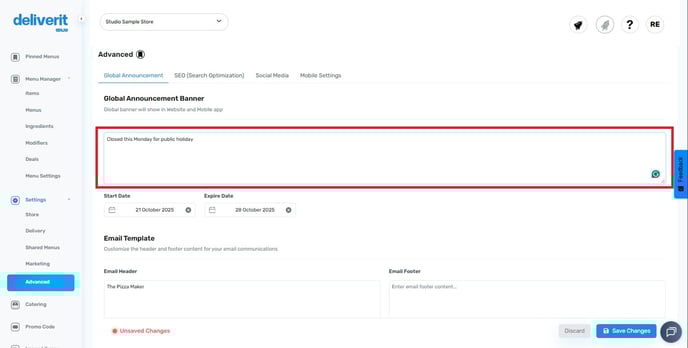
In the Global Announcement Banner field, type your custom notice (e.g., “Closed this Monday for public holiday”).
Set Start and End Dates
Select the Start and End Dates — this controls how long the alert stays visible to customers.
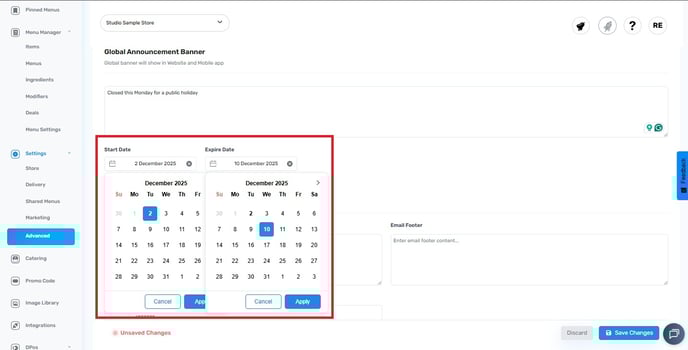
Save Your Changes
Click Save Settings to apply the alert.

Confirm the Update
Click the Notification Bell in the top-right corner:

- Success – Your alert is active
- Failure – Contact our support team

By following these steps, you will be able to display a custom alert message to customers on your online ordering site using Deliverit Studio. If you need further assistance, simply click the blue chat icon at the bottom-right corner of the screen to connect directly with our Application Support Team.