
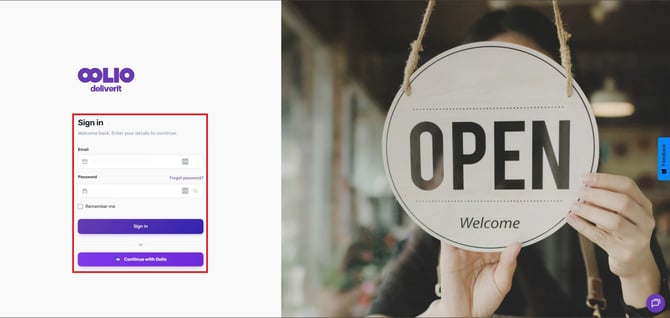
✅ Log in at my.deliverit.com.au
✅ Go to Settings → Store → Pickup & Scheduling
✅ Adjust Pickup Settings (Prep time, POS-sync, Cutoff, Pickup-only mode)
✅ Set Scheduling Options (Today only, Future date, ASAP Ordering)
Step-by-Step Guide
Log in to Deliverit Studio
- Open your browser and go to my.deliverit.com.au
- Enter your username and password
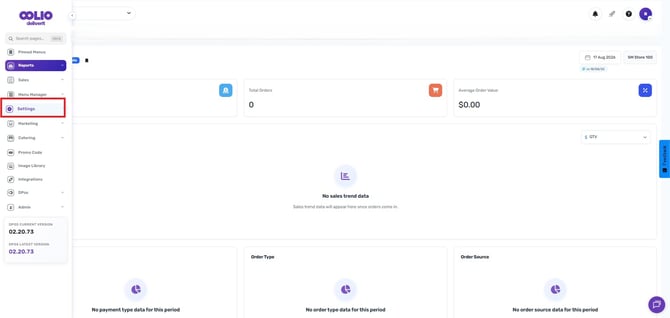
Navigate to Settings
- From the left menu, click Settings
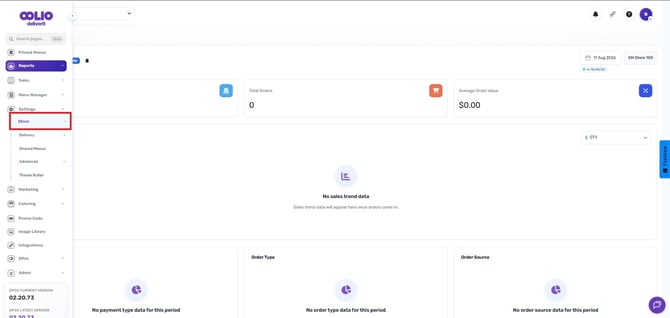
- Select Store
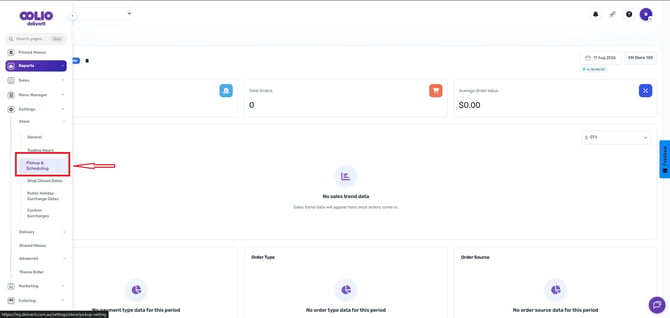
- Go to the Pickup & Scheduling tab
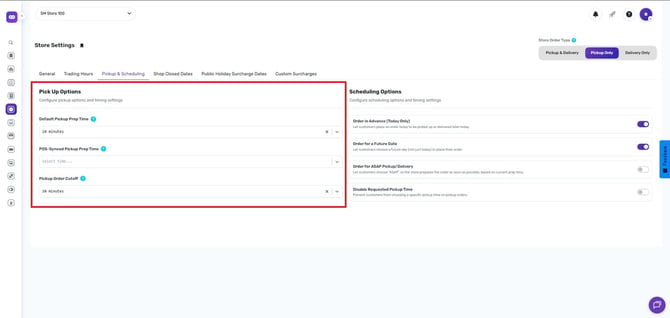
Pickup Settings
Here you can manage how pickup orders are handled:
- Default Pickup Prep Time – Set the average time it takes to prepare an order.
- POS-Synced Pickup Prep Time – Displays the live requested
- Pickup Order Cutoff – The Pickup Order Cutoff Time is the latest time a customer can place an order.(Example: 10 Mins prior to closing time)
Scheduling Options
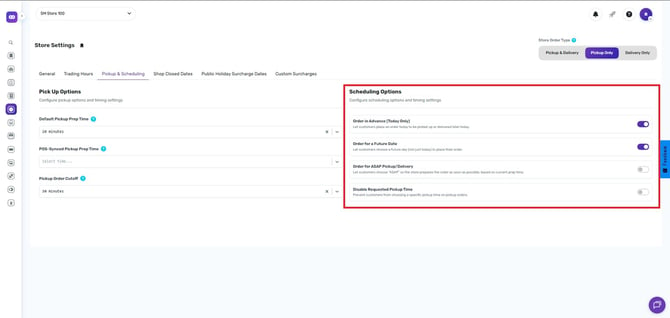
Decide how and when customers can schedule their orders:
- Order in Advance (Today Only) – Customers can place an order for later the same day.
- Order for a Future Date – Customers can schedule an order for a future date.
- Order for ASAP Pickup/Delivery– Allows customers to place orders for immediate pickup or delivery.
- Disable Requested Pickup Time - Prevents customers from selecting a future pickup or delivery time, limiting orders to ASAP only, giving the store full control over order flow.
Benefits of Setup
- Prevent or allow late-night or last-minute orders
- Keeps operations smooth during peak hours
- Gives customers more flexibility in scheduling
- Improves overall customer experience
By setting up Pickup & Scheduling parameters in Deliverit Studio, you’ll balance store efficiency with customer convenience. If you need further assistance, simply click the blue chat icon at the bottom-right corner of the screen to connect directly with our Application Support Team.