
How to Access Item Search Filters
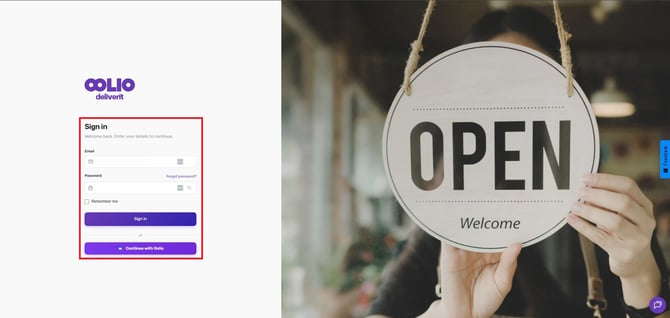
Log in to Studio
Go to my.deliverit.com.au and sign in to your Studio account using your credentials.
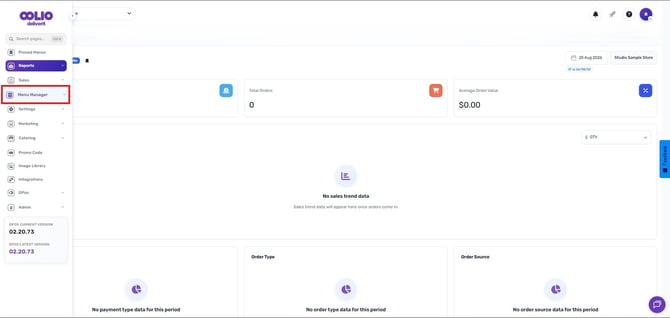
Open Menu Manager
From the main navigation menu, select Menu Manager.
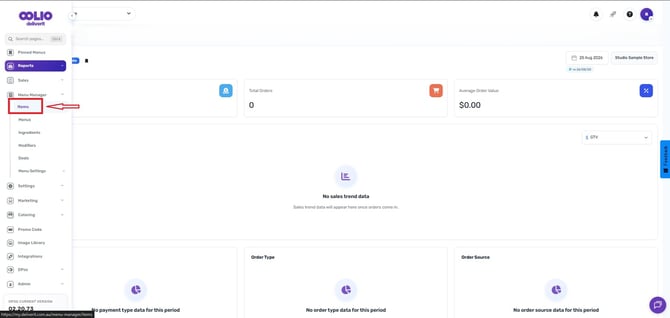
Go to Items
Click Items to view your item list.
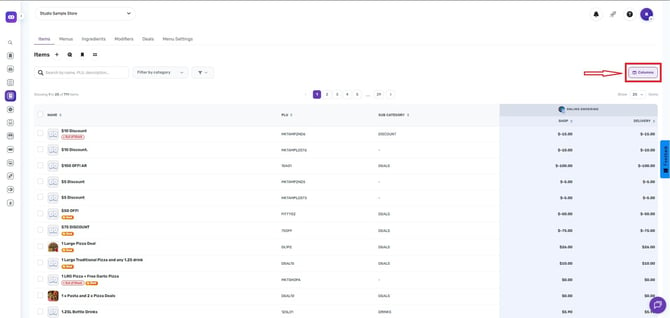
Open the Columns Menu
Click the Columns button located above the item list.
Select the Filters You Want to Display
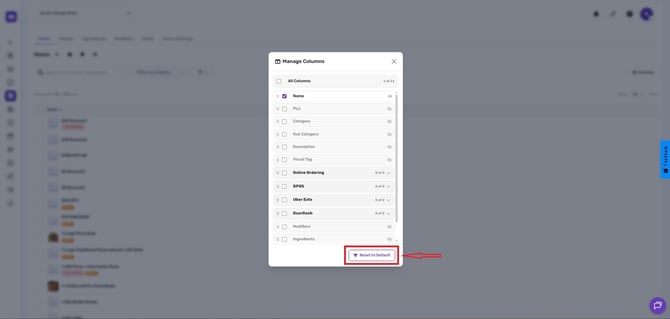
Manage your columns.
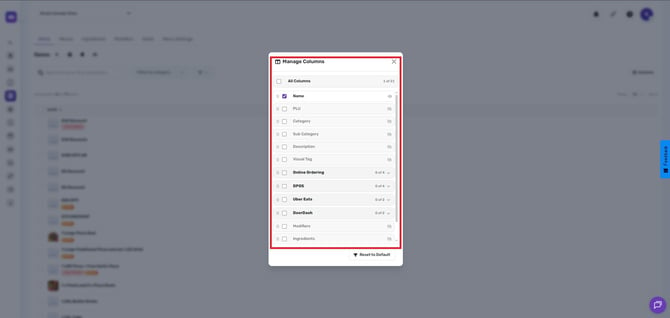
From the Columns menu, you can choose to display and filter items using the following fields:
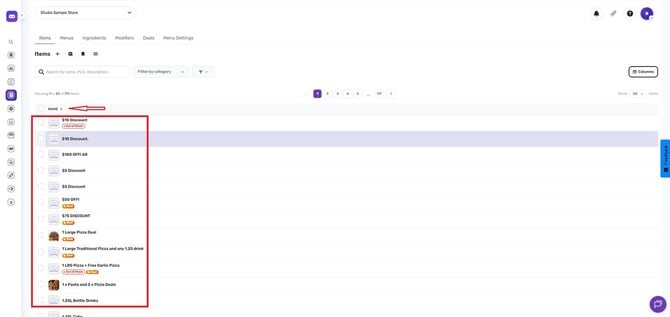
- Name
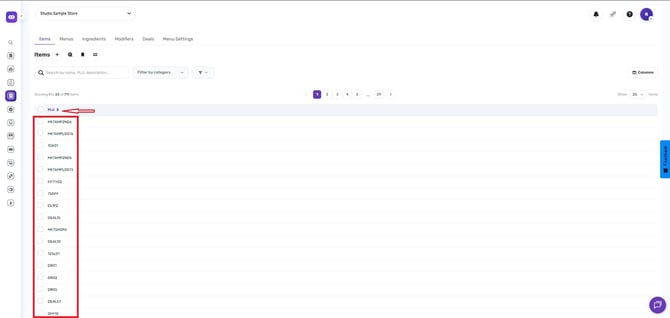
- Product Code
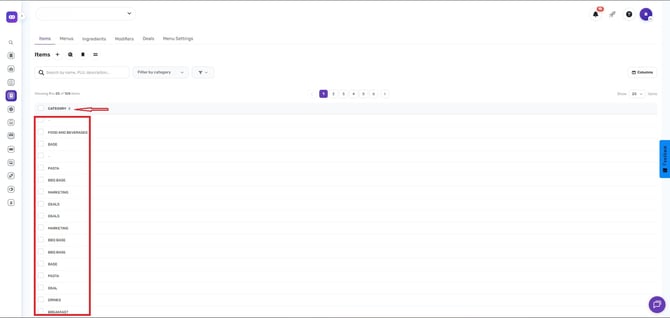
- Category
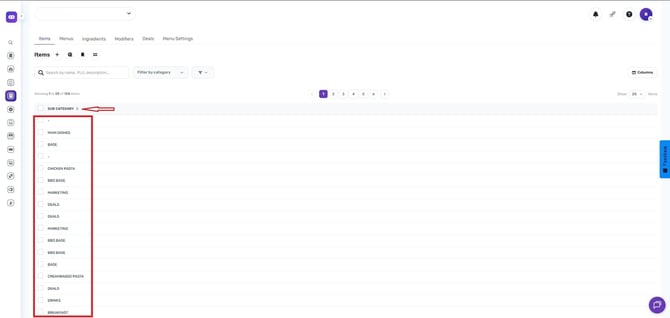
- Subcategory
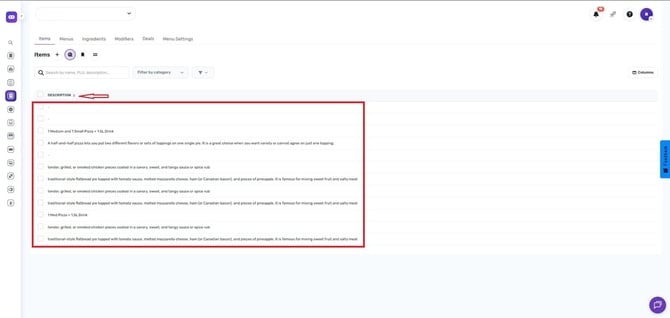
- Description
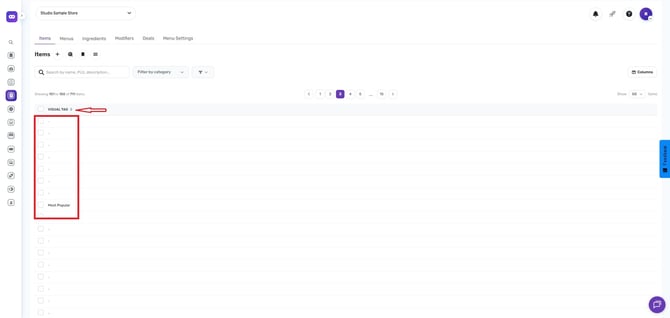
- Visual Tag
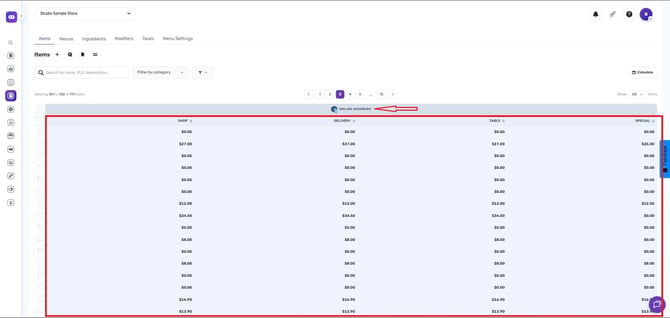
- Online Ordering (Pickup and Delivery)
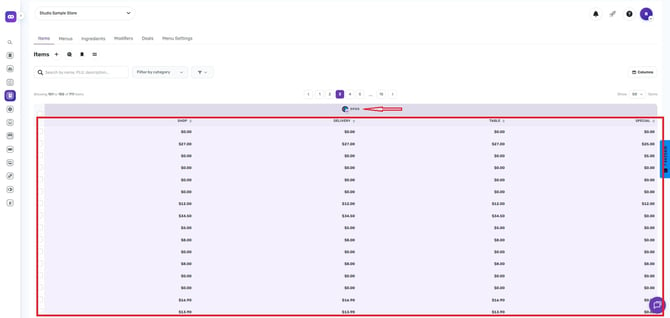
- DPOS (Shop, Table, Pickup and Delivery)
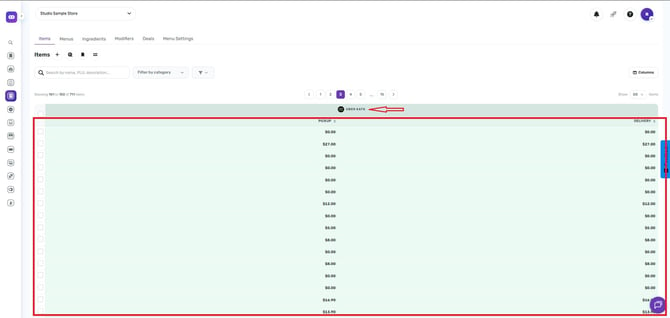
- Uber Eats
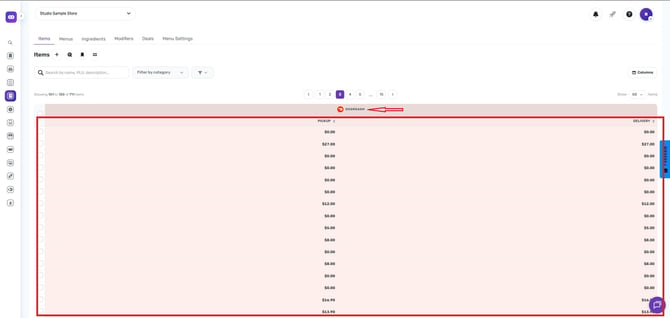
- DoorDash
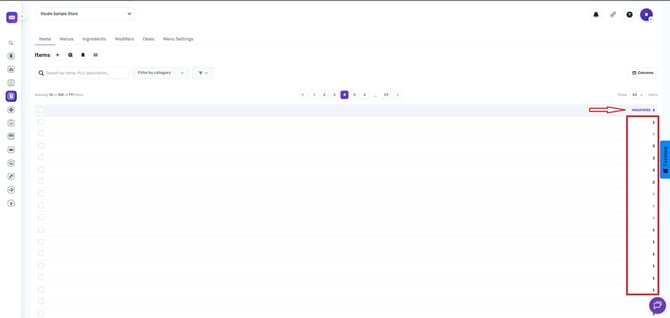
- Modifiers
- Ingredients
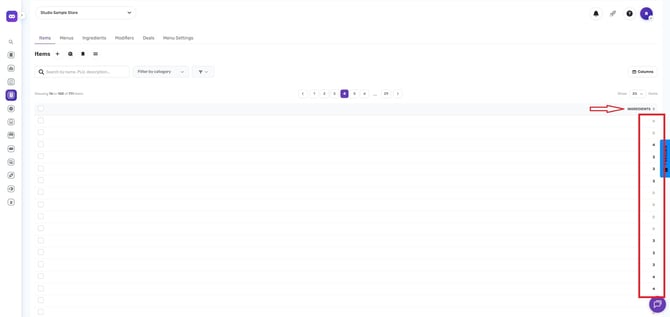
- Image
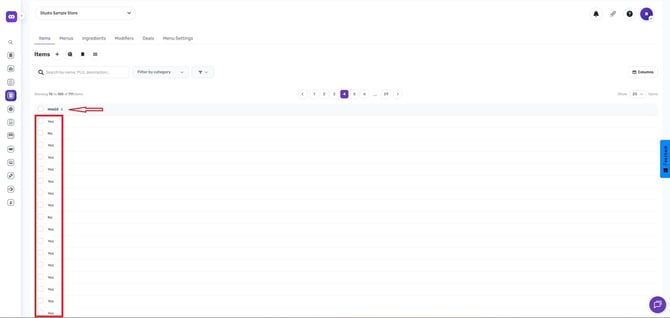
Once selected, the chosen columns will appear in the item list, making it easier to search for and manage your menu items.
-
If you want to restore the default column layout, simply click the Reset to Default button at any time.
Customizing your item columns can significantly improve menu management by helping you quickly locate items based on specific attributes and integration settings. If you need further assistance, simply click the blue chat icon at the bottom-right corner of the screen to connect directly with our Application Support Team.