
Step‑by‑Step Guide
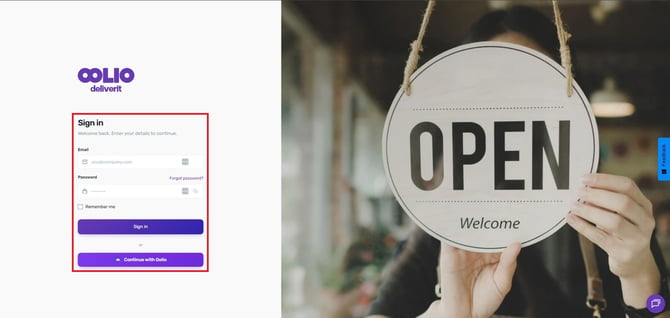
Log in to Deliverit Studio
- Open your browser and go to https://my.deliverit.com.au
- Enter your DPOS Cloud username and password
- Log in to access Deliverit Studio
Open the Item List
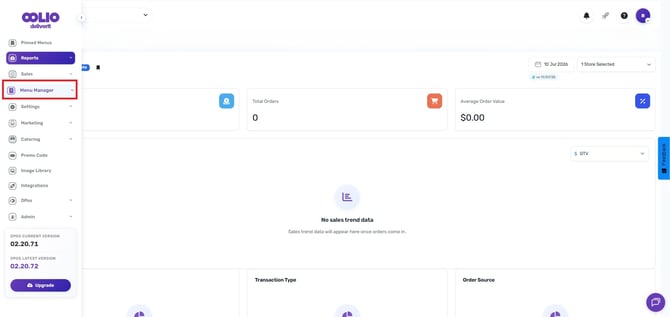
- From the left‑hand sidebar, click Menu Manager
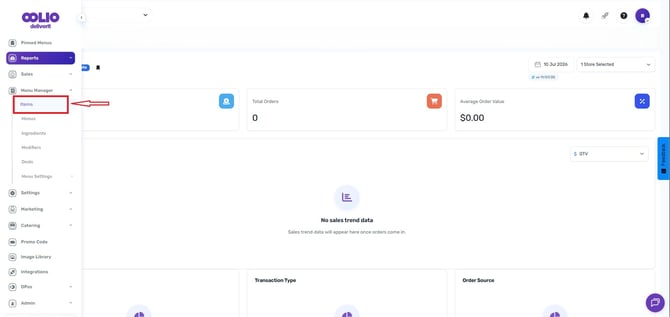
- Select Items to view your item list
Find the Items You Want to Update
- Use Search by Name or PLU to quickly locate items.
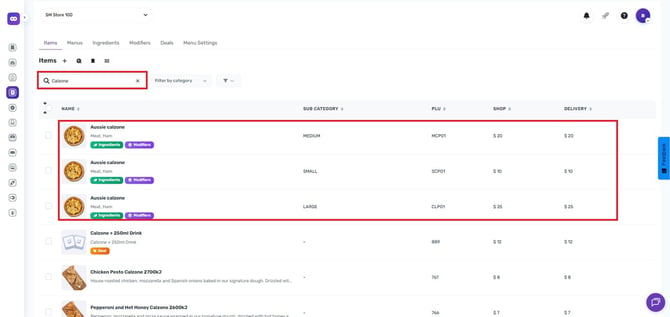
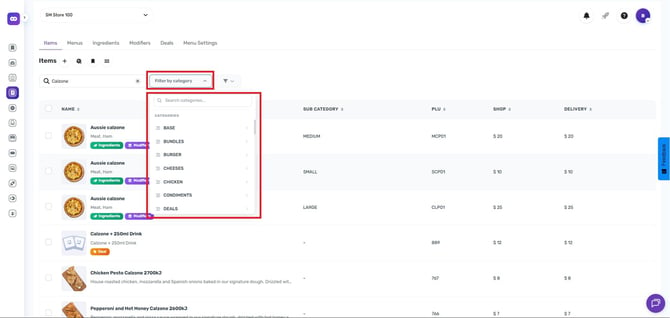
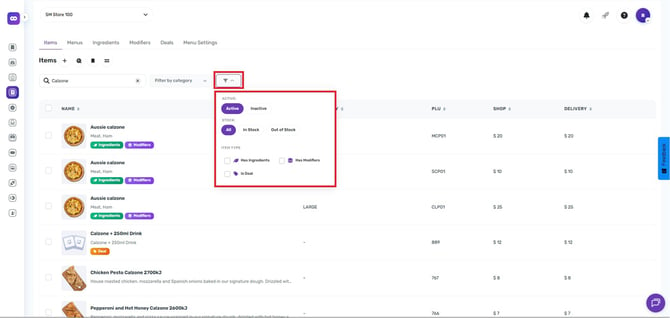
You can also narrow your results using filters such as:
- Category
- Item status (Active or Inactive)
- Stock availability (In Stock or Out of Stock)
- Item type
-
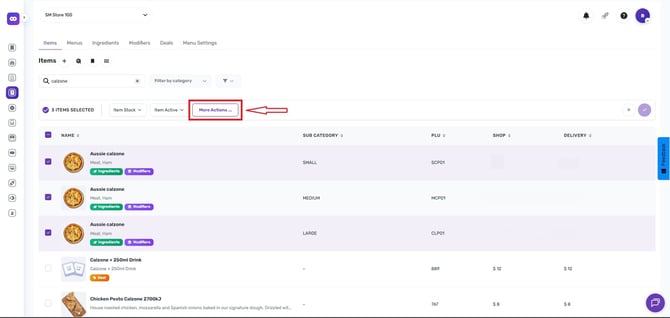
Select the item by ticking the checkbox next to it.
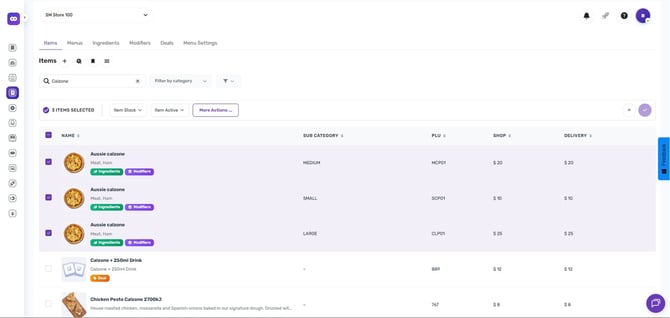
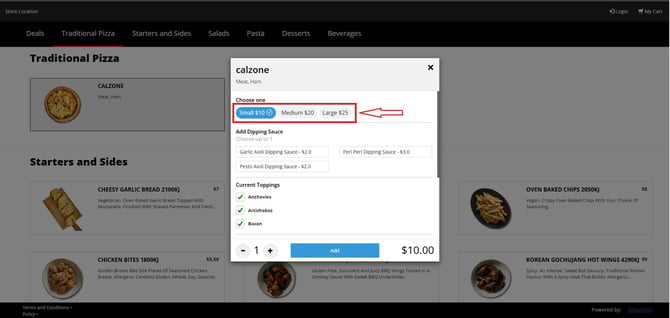
Example item's price before update:
-
Small Calzone – $10
-
Medium Calzone – $20
-
Large Calzone – $25
Enable Multi-Item Change Mode
- Click the More Actions button
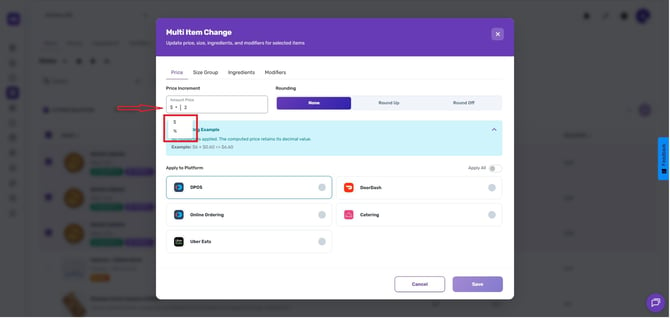
Choose How You Want to Change Prices
Under the Price Box dropdown, select your adjustment type:- $ (Dollar Amount): Add or subtract a fixed amount
- % (Percentage): Increase or decrease prices by a percentage
-
Enter the amount or percentage you wish to apply
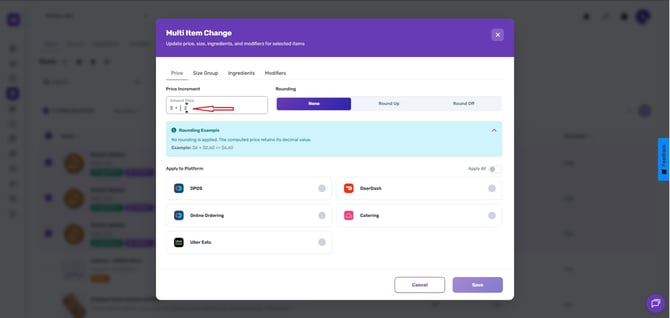
Please note: The price entered is an incremental price adjustment, not the full price for each option.
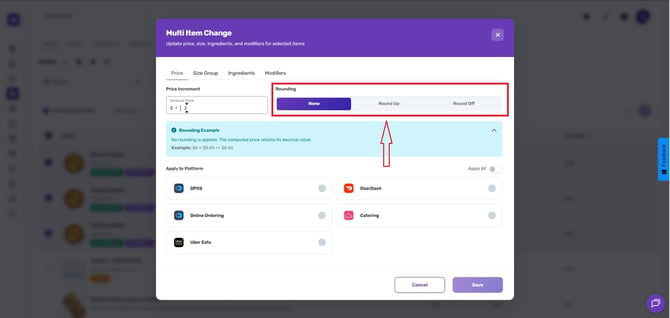
Select a Rounding Option (Optional)
Choose how the final prices should be rounded:
- None – No rounding is applied
- Round Up – Price rounds up to the next whole dollar
- Round Off – Price rounds to the nearest .50 or .00
Example: $6 + $0.60 = $6.50
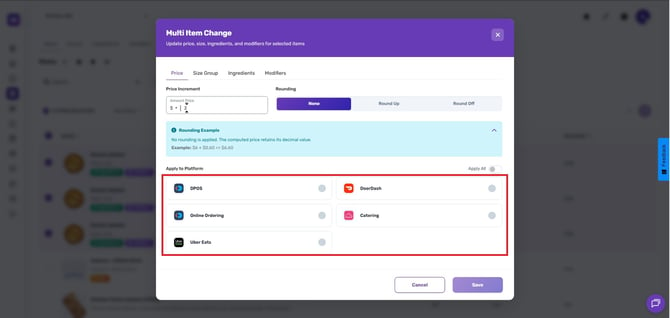
Select Platforms to Apply the Changes
Choose where the price updates should apply:- DPOS
- Online Ordering
- Integrated Platforms (e.g., Uber Eats, DoorDash)
-
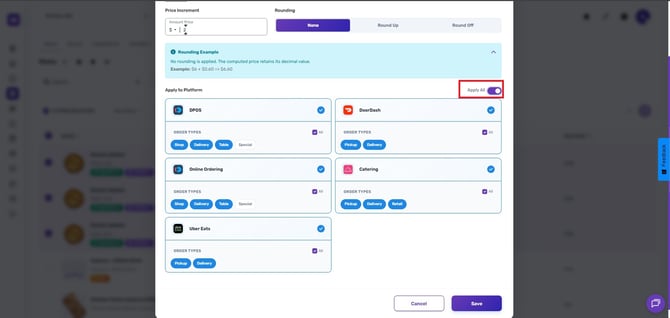
Enable the Apply All button to apply the changes across all platforms.
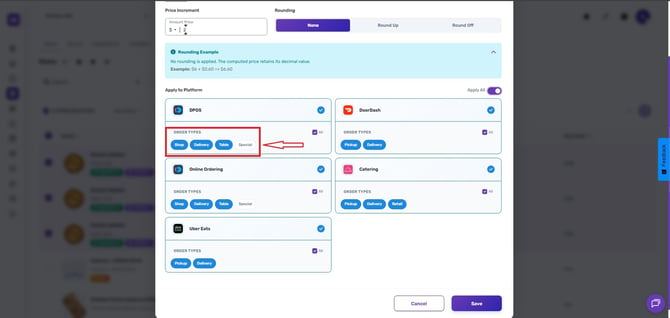
- Select the applicable order types (e.g., shop, delivery, table service)
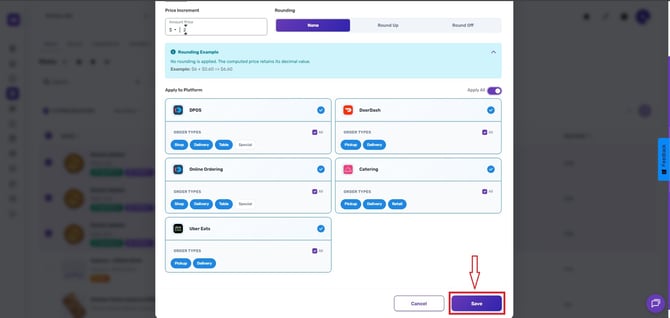
Save the Changes
- Review your settings carefully
- Click Save to confirm the price updates
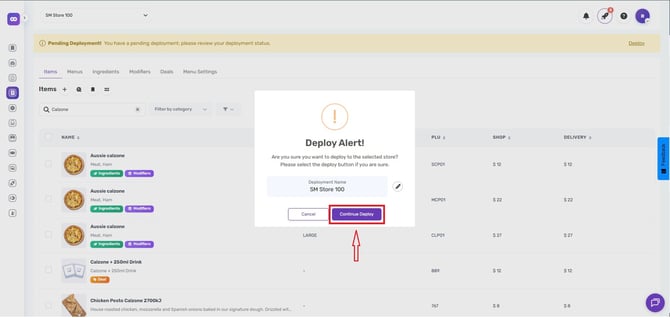
Deploy the Changes
- Click the Rocket icon in the top‑right corner
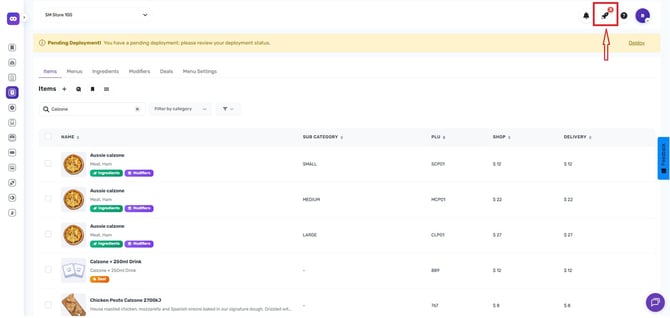
- Select Next, then Deploy to push the updates live
Refresh Your Systems
- Restart the DPOS application
- Reload your Online Ordering website
Price updates should appear:
- Within 1 minute on DPOS and Online Ordering
- Within up to 5 minutes on integrated platforms
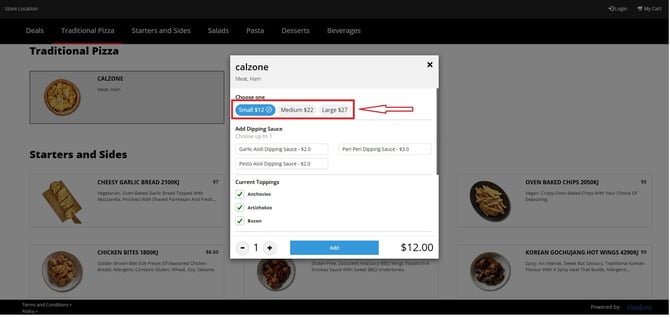
By following these steps, you’ve successfully updated multiple items in Deliverit Studio. If you need further assistance, simply click the blue chat icon at the bottom-right corner of the screen to connect directly with our Application Support Team.