
Step-by-Step Guide
Open the Orders Screen
- From the POS home screen, go to the Orders section.
- This can also be applied to current or open orders.
- Select the order you want to void.
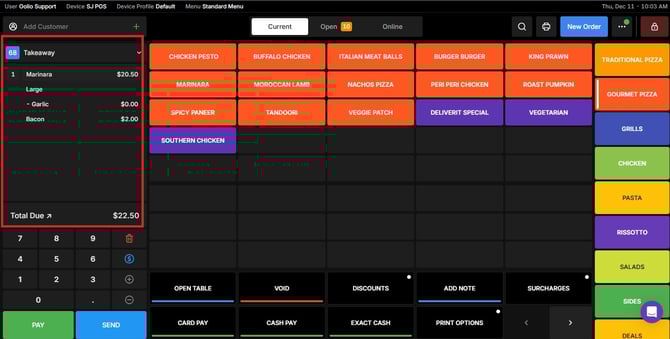
Void the Order
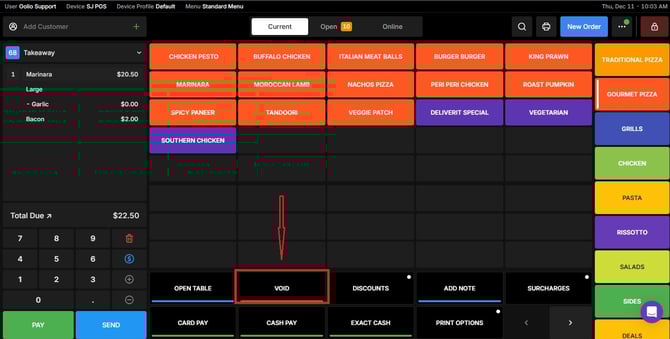
- Tap the Void button.
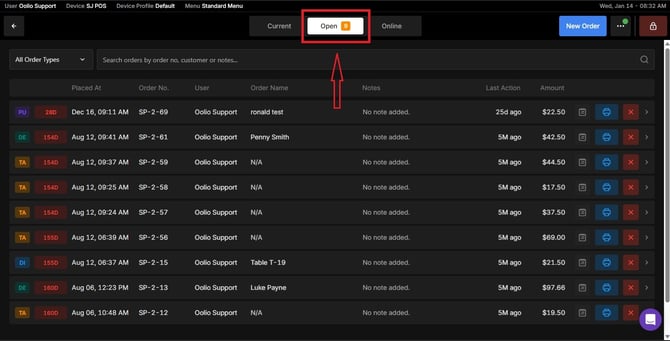
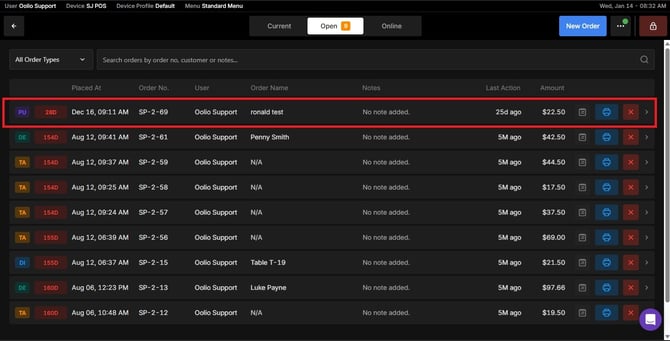
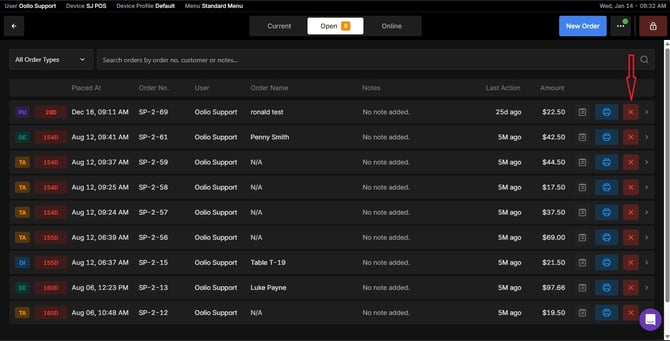
Or you can select an order from the open orders list and click on the red cross
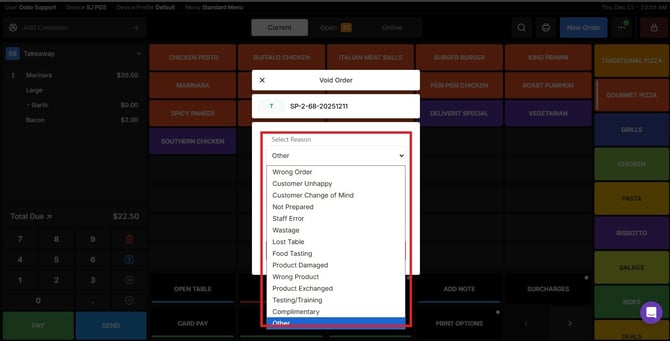
- Select a reason from the dropdown list or type a custom reason if needed.
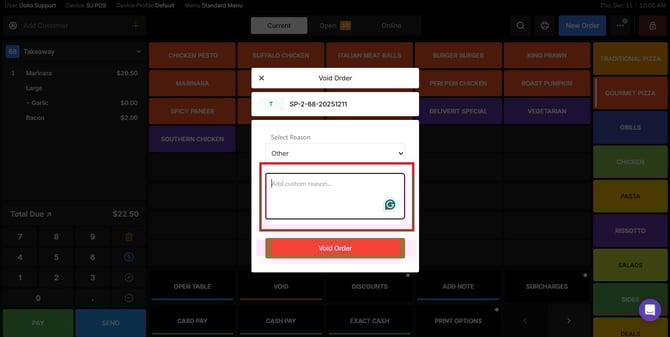
- Once done, click Void Order to confirm.
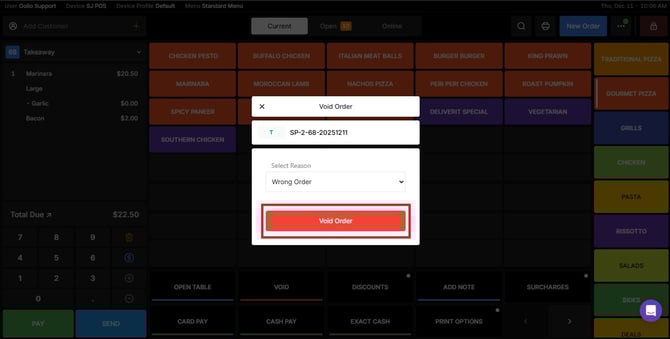
The order will now be removed from the current list and marked as void.
If you need further assistance, simply click the blue chat icon at the bottom-right corner of the screen to connect directly with our Application Support Team.