
Step‑by‑Step: Viewing the Transaction List
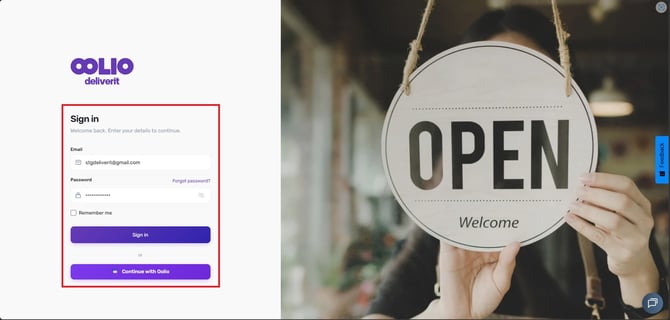
Log in to Studio
- Log in to Studio using your credentials.
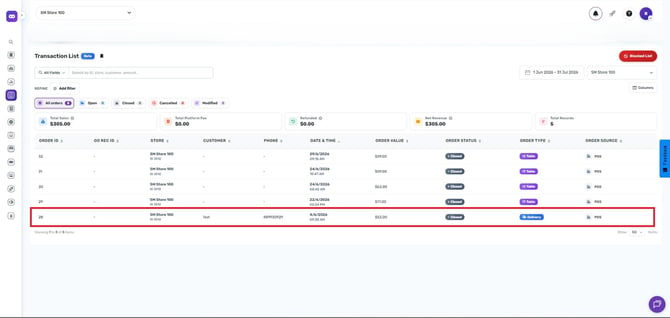
Open the Transaction List
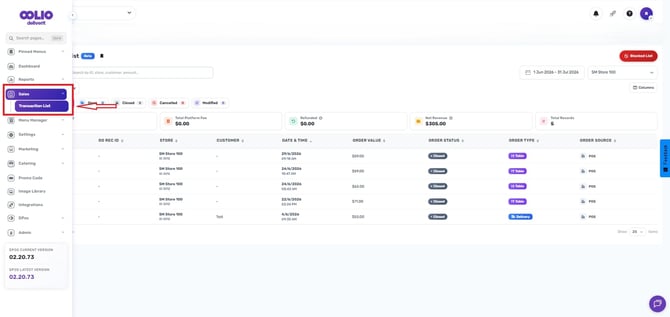
- Navigate to Sales.
- Select the Transaction List.
Set Your Search Criteria
Use the available options to narrow down the transactions you want to view:
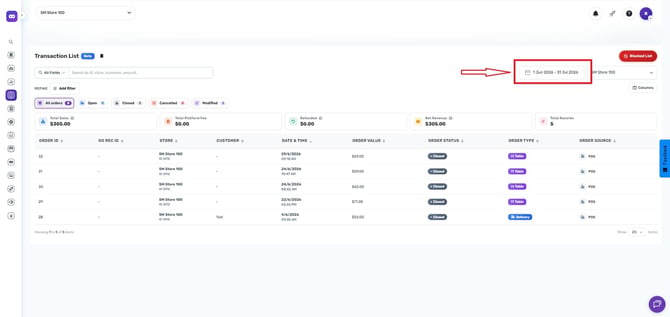
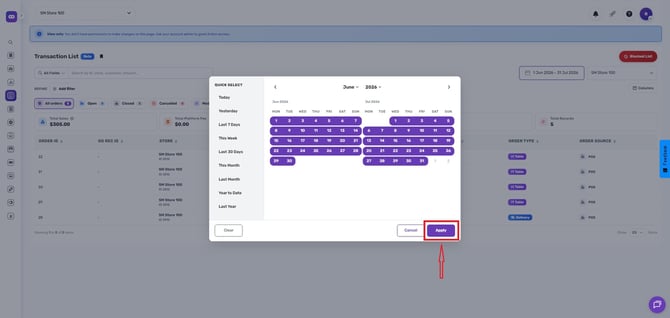
- Set the date range.
- Select the store or stores you want to review.
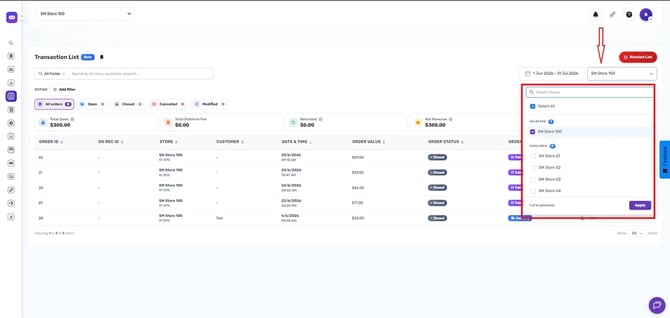
- Use the search bar to look up specific orders.
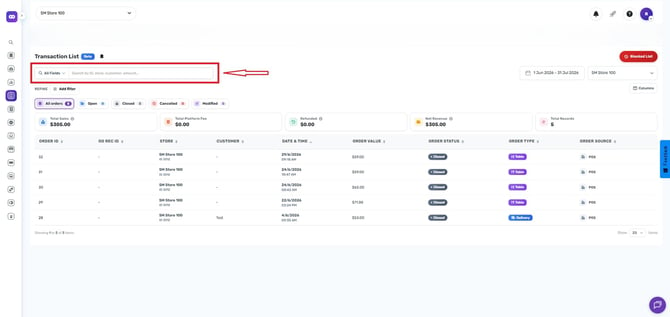
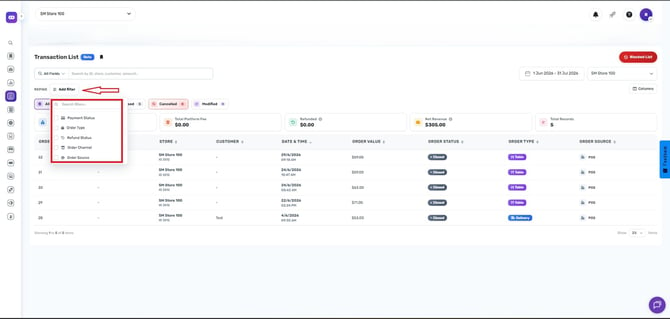
Apply Filters (Optional)
You can further refine the results using filters such as:
- Payment Status
- Order Type
- Refund Status
- Order Channel
- Order Source
Or filter by the following:
-
All Orders
- Open Orders
- Closed Orders
- Cancelled Orders
- Modified Orders
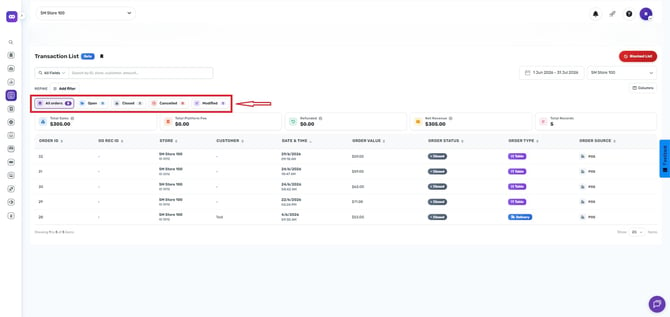
These filters help you quickly locate specific transactions.
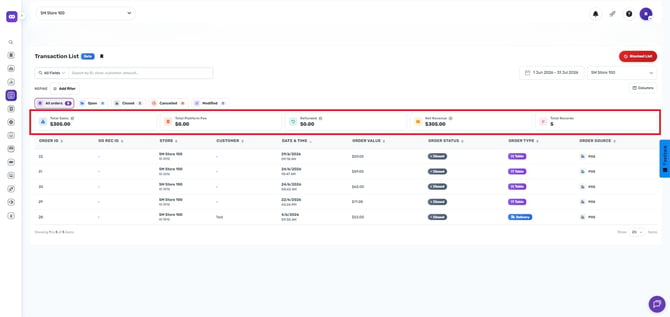
Here you will see the:
-
Total sales
- Tota Platform Fee
- Refunded
- Net Revenue
- Total Records
Customise the View
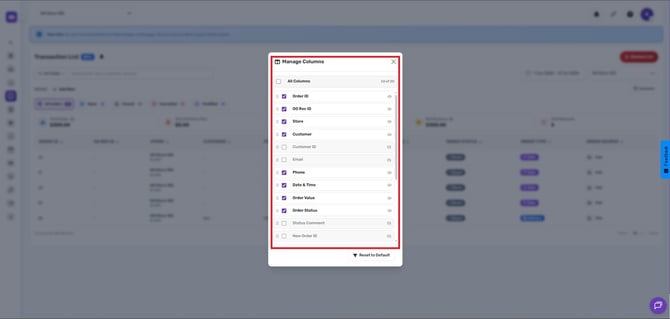
Adjust which columns are displayed and rearrange them based on your preference.
-
Order ID
-
OO Rec ID
-
Store
-
Customer
-
Customer ID
-
Email
-
Phone
-
Date and Time
-
Order Value
-
Order Status
-
Status Comment
-
New Order ID
-
Platform Fee
-
Payment Type
-
Processor
-
Paid
-
Order Type
-
Order Source
-
Delivered By
-
Taken By
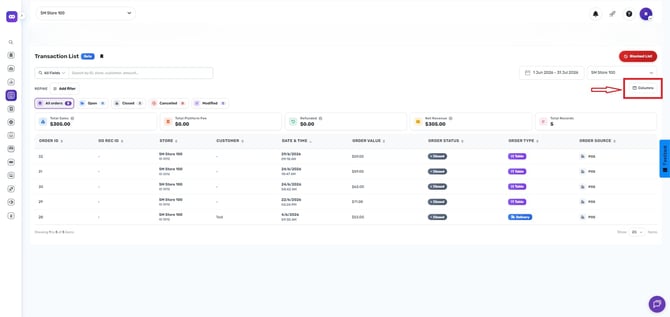
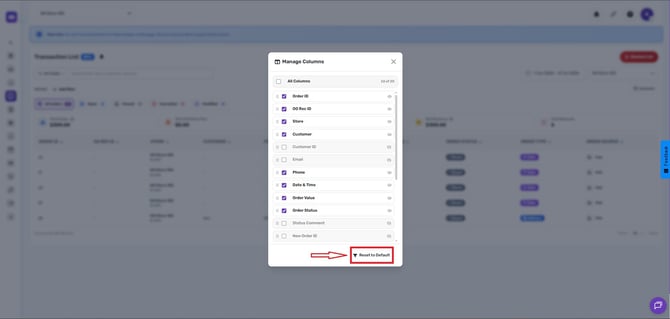
- Or Rest to Default
View Transaction Details
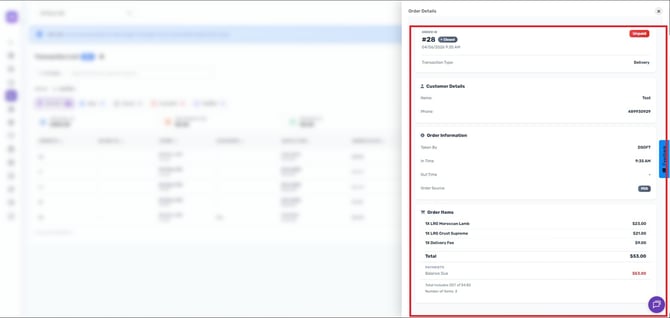
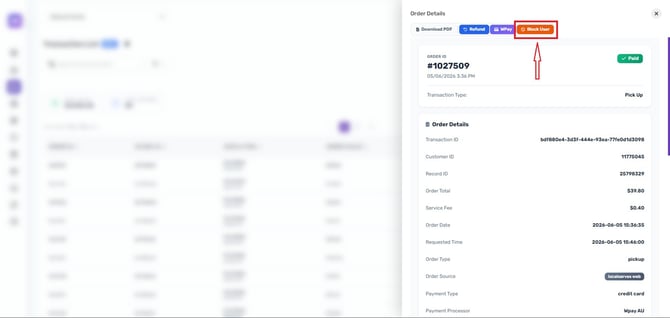
Click on any transaction to open its detailed view.
Here you can see the Order Details such as:
- Order ID
- Transaction Type
- Customer details
- Order information
- Order Items
- Delivery Details
- Technical details
- Total
- Items ordered and totals
- Order Notes
Manage the Transaction
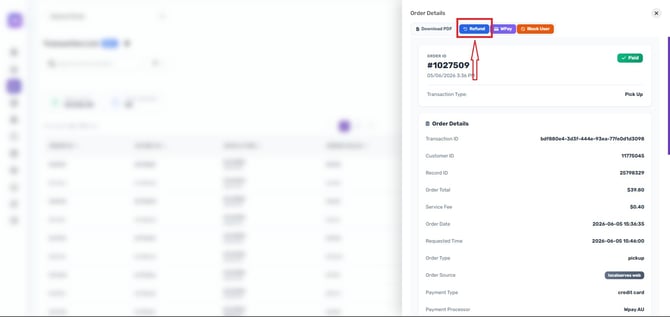
Within the order details, you can:
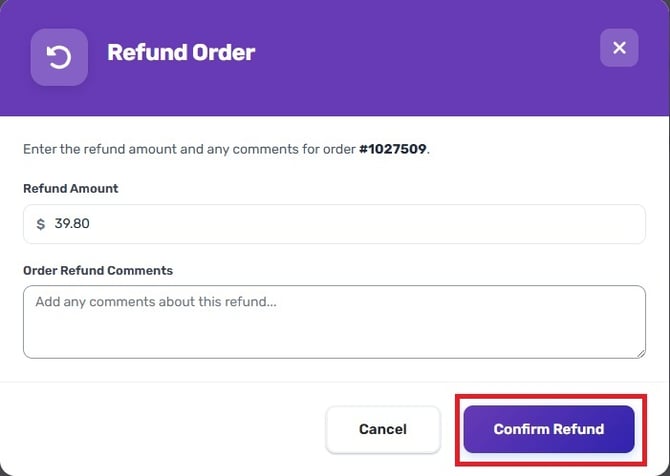
- Process a refund, either full or partial (Online Orders Only)
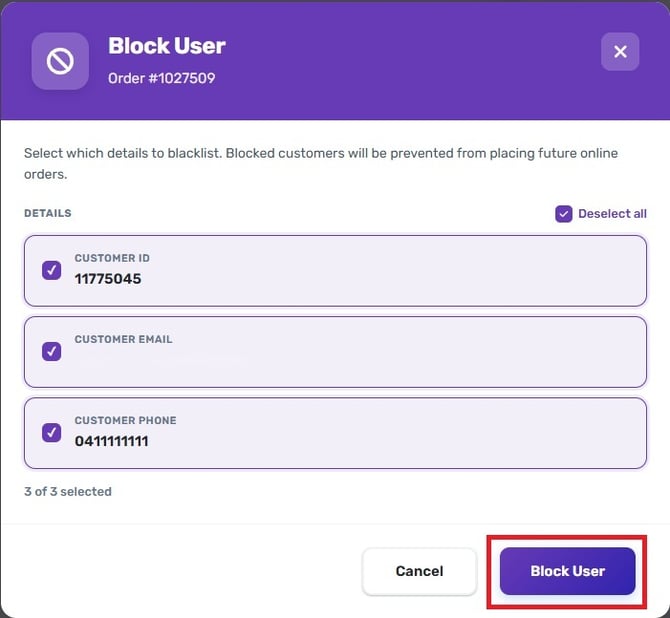
- Blocking Customer (Online Orders Only)
Exporting reports can be useful for audits, reconciliation, or sharing information with your finance team. If you need further assistance, simply click the blue chat icon at the bottom-right corner of the screen to connect directly with our Application Support Team.