
Open the Orders Screen
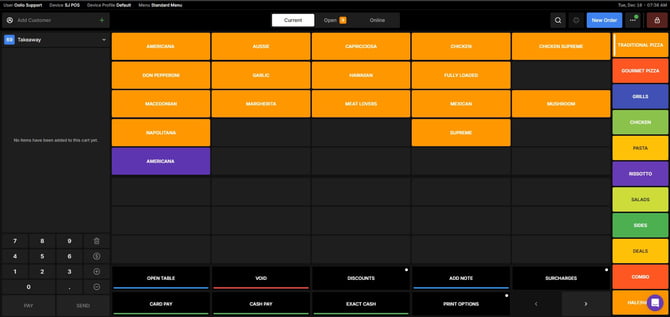
- From the POS Home Screen, navigate to the Orders section.
- This is where you can view all current and open orders.
 Open the Navigation Menu
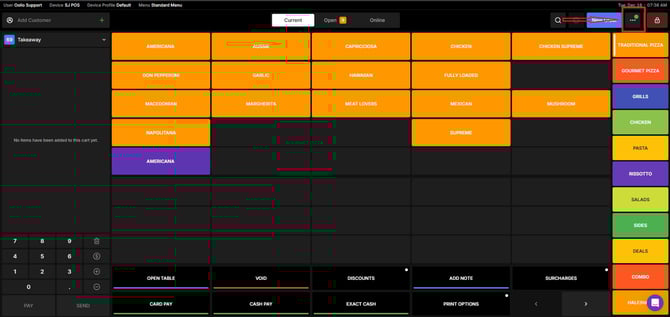
- Look for the Navigation button located at the upper-right corner of the page.
- Click on it to expand the advanced options.
Go to the Customers Section
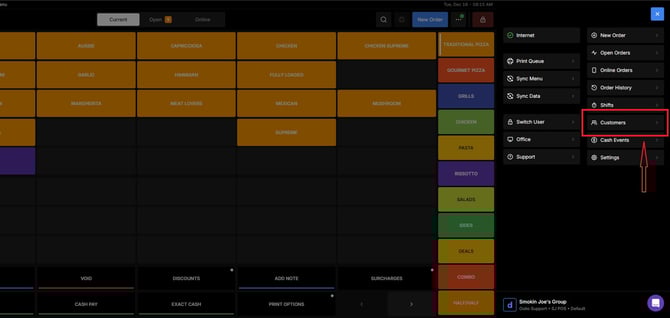
- From the navigation menu, select Customers.
- This will take you to the customer management screen.
 View and Manage Customers
- See all existing customers
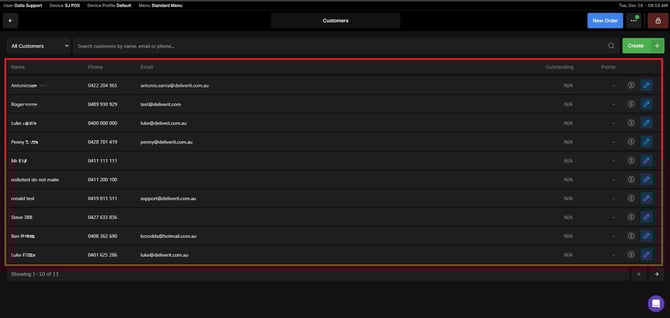
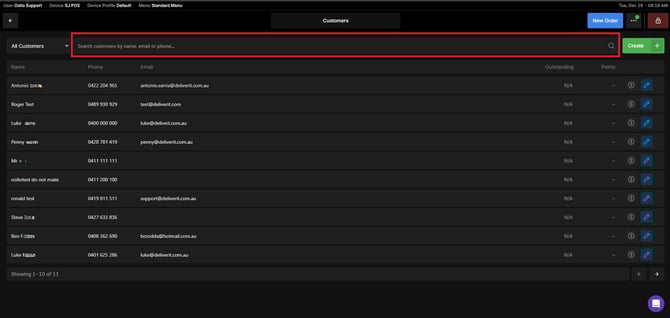
- Search for a specific customer using the search bar
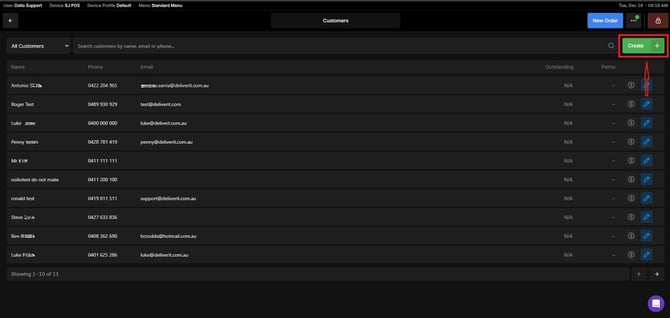
- Create a new customer profile if needed
-
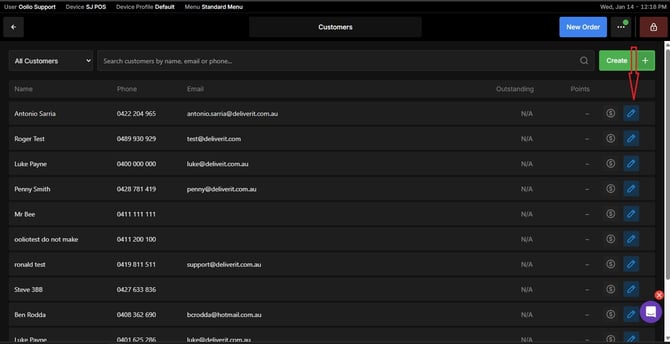
Click the edit button.
-
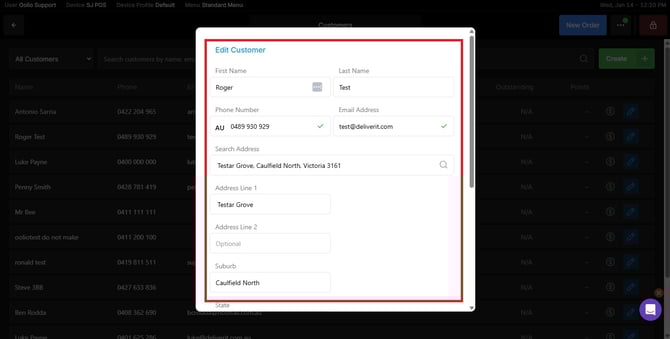
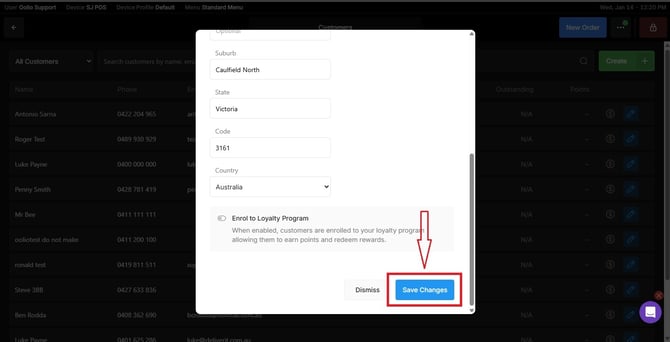
Make your changes.
-
When finished, click save.
Managing customers in Oolio POS is straightforward and helps you maintain accurate records for better service. If you need further assistance, simply click the blue chat icon at the bottom-right corner of the screen to connect directly with our Application Support Team.