
Log in to Studio
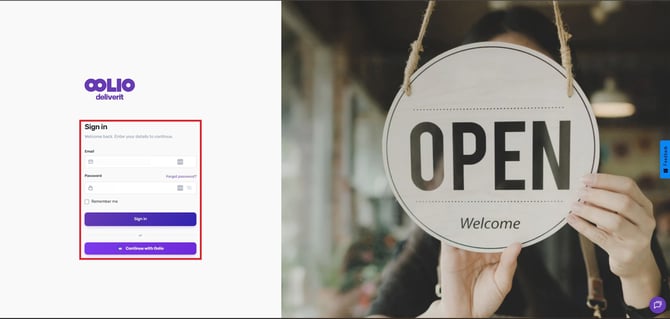
- Go to my.deliverit.com.au.
- Sign in using your Deliverit Studio account credentials.
Navigate to Items
- Click Menu Manager from the left-hand navigation menu.
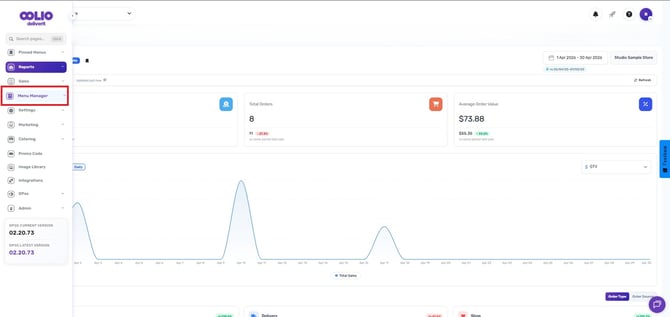
- Select the Items tab.
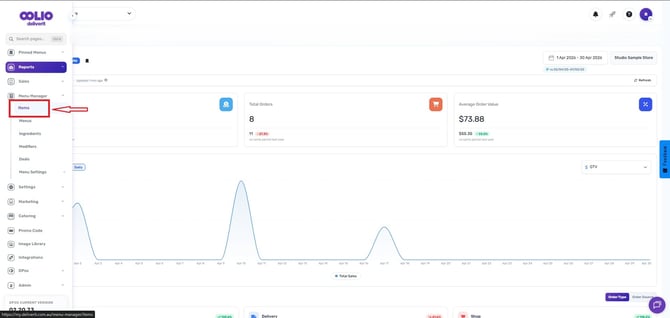
Locate the Item
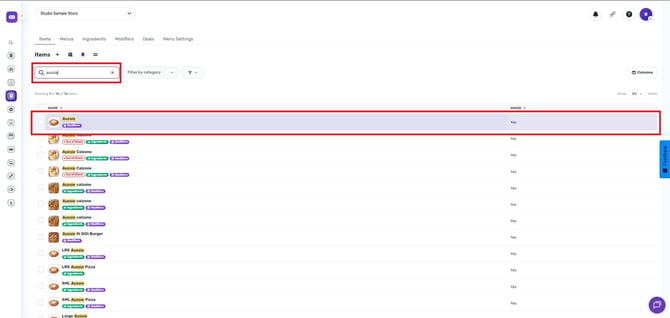
- Search for the item you would like to update.
- Click the item to open its settings.
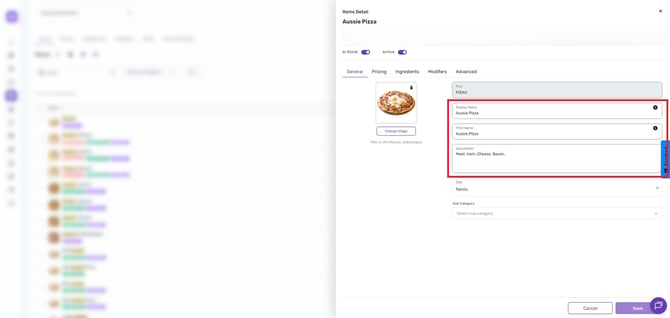
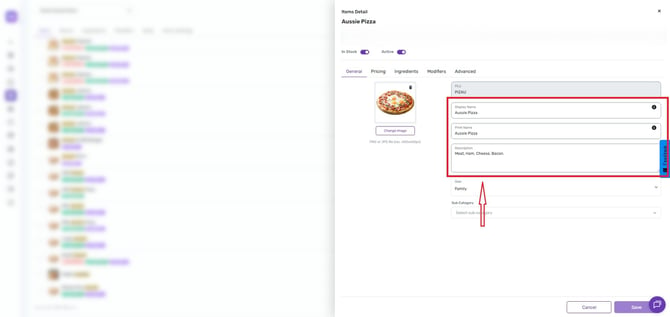
Update the Name and Description
- Open the General tab.
- Scroll to the Description section.
- Enter or update the following:
- Display Name = Shown on Online Ordering, UberEats, DooDash
- Print Name = Shown on DPOS printouts.
- Description = Online Ordering, UberEats, DooDash
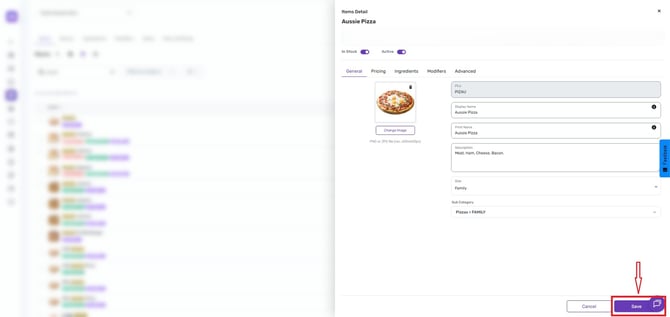
Save Your Changes
- Click Save to apply the changes.
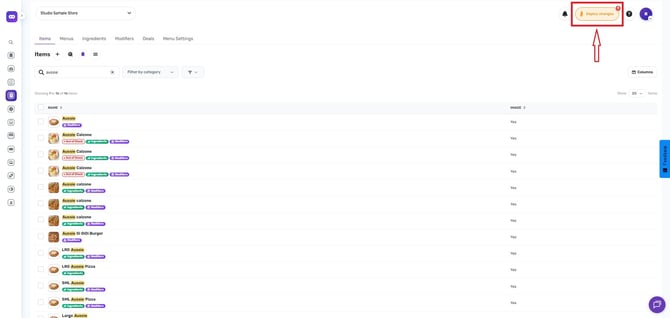
Deploy the Update
- Click the Rocket icon in the top-right corner of Studio.
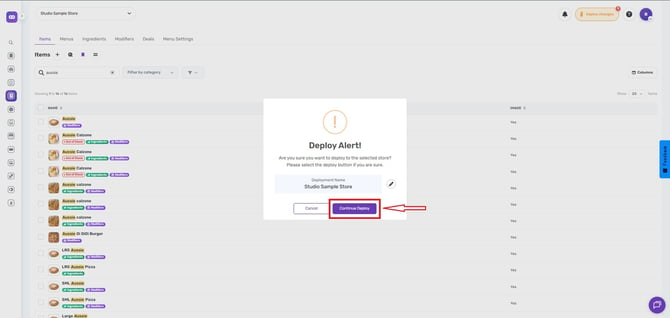
- Select Deploy to publish the updated description.
Item descriptions can be updated at any time to reflect menu changes, promotions, or additional details.
Updated Description.
If you need further assistance, simply click the chat icon at the bottom-right corner of the screen to connect directly with our Application Support Team.