
Step‑by‑Step: Updating Website Wait Times
Go to the Crust Polling PC
- Access the Crust Polling PC at your store.
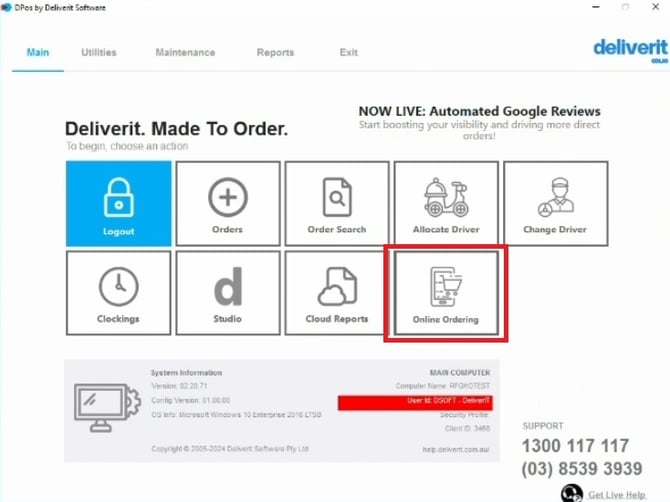
Open Online Orders
- Select the Online Order button from the main screen. (Usually managed by the Server PC)
Adjust Pickup and Delivery Times
- Use the sliders to increase or decrease wait times for:
- Pickup
- Delivery
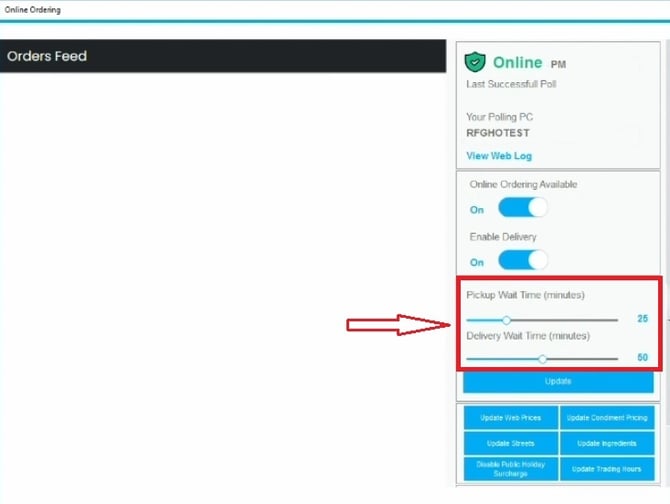
Adjust the sliders based on your current store capacity and demand.
Save Your Changes
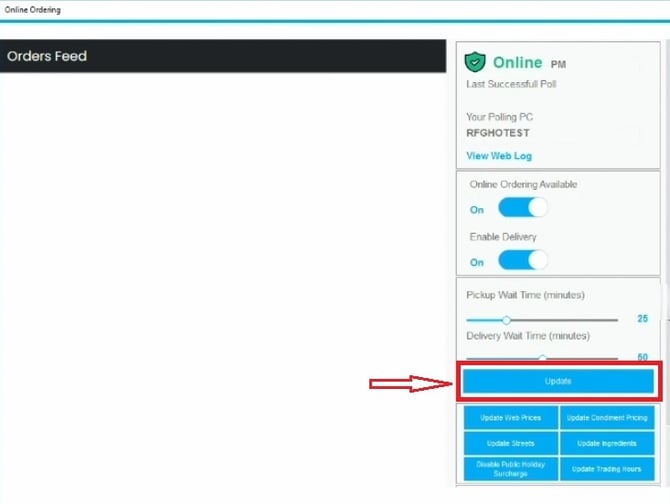
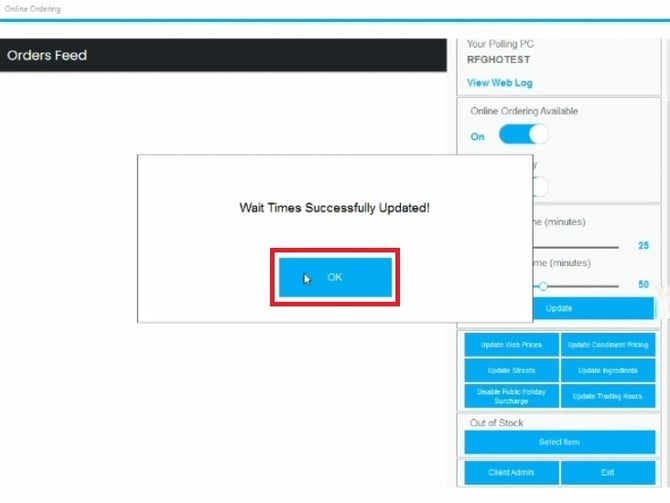
- Click Update, then ok to apply the wait times.
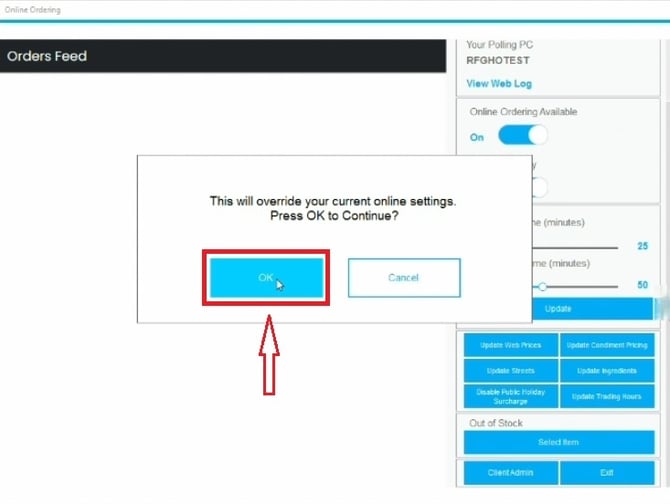
The updated wait times will be applied immediately and displayed on the Crust website for customers to see.
Reminder:
Remember to revert times back to their default settings once peak periods are over.
Regularly review and adjust wait times during peak hours or unexpected busy periods to maintain smooth operations and improve customer satisfaction. If you need further assistance, simply click the blue chat icon at the bottom-right corner of the screen to connect directly with our Application Support Team.