
Step-by-Step Process
Go to the 3PA Polling PC
-
Start by accessing the computer that is designated as your 3PA Polling PC, where your aggregator connections are managed.
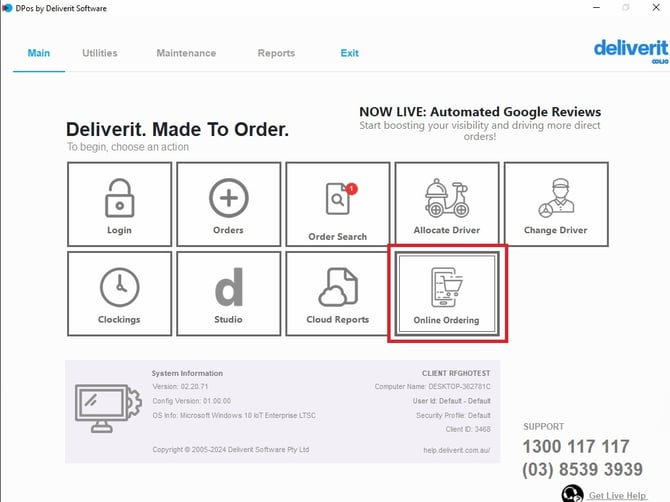
Open the Online Ordering Button
-
On the DPOS screen, locate and click the Online Ordering button.
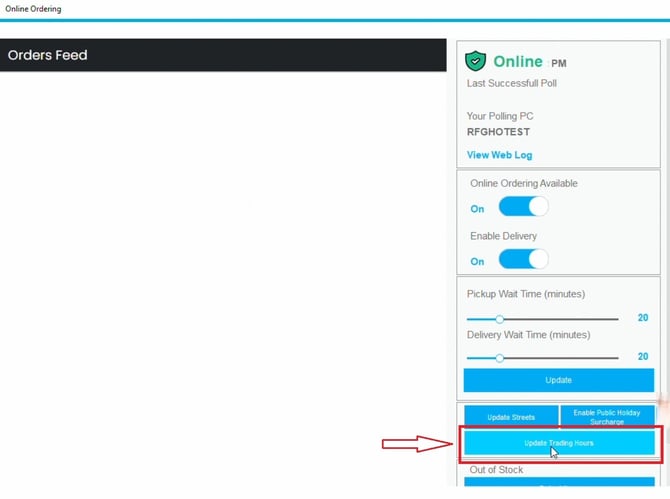
Navigate to Trading Hours
- Inside the OO section, select Trading Hours.
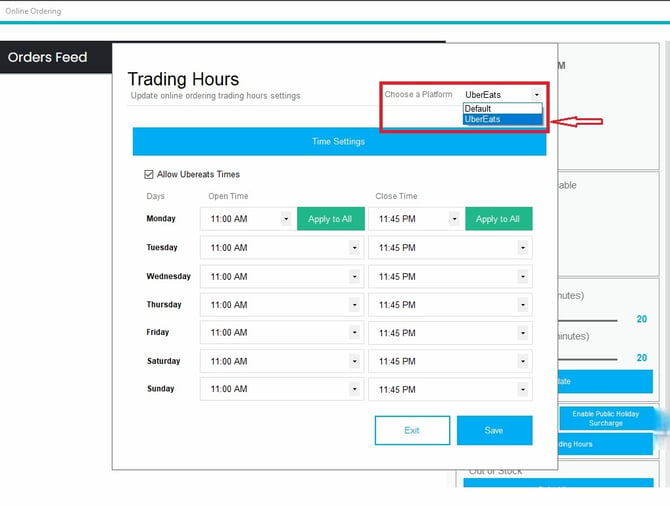
Select the Platform
-
Use the dropdown menu to switch between the different 3PA platforms (e.g., Uber Eats, DoorDash).
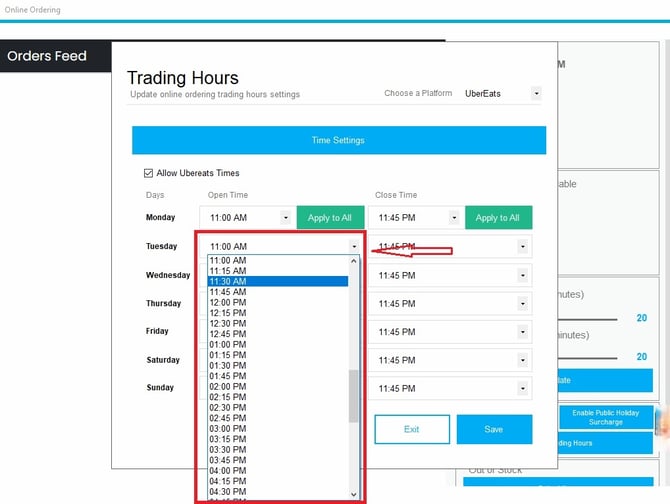
Update the Trading Hours
-
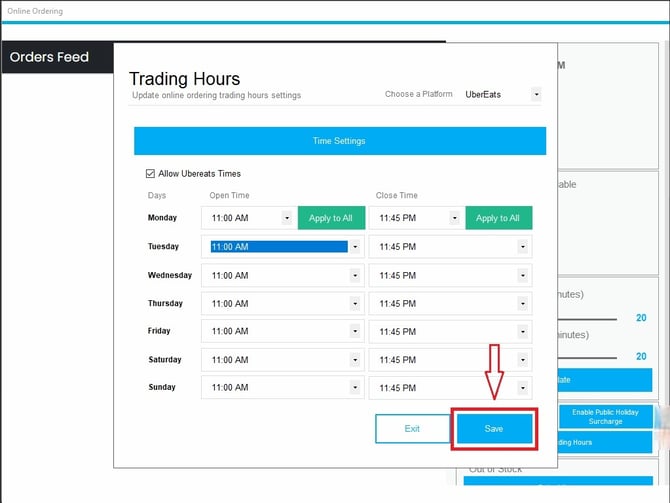
Use the toggle controls to adjust your opening and closing times as needed.
Save Your Changes
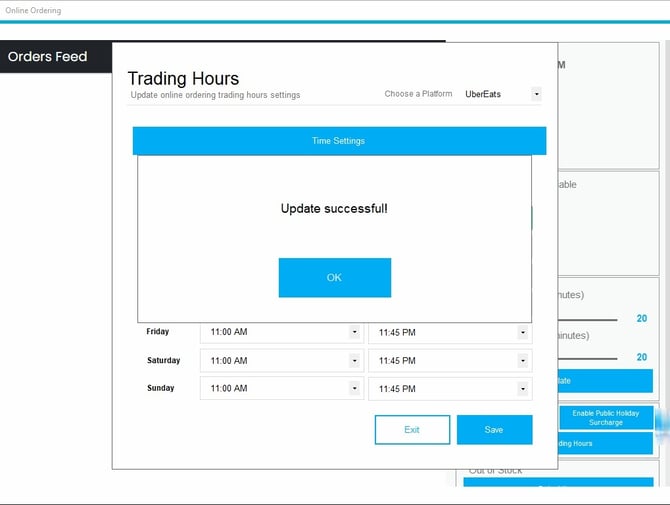
- Once you’ve made the necessary updates, click Save to apply the changes.
Verify on the 3PA Platform
- Confirm that the updated trading hours are reflected correctly.
Always double-check your trading hours after saving to ensure they are properly synced with your 3PA platforms. If you need further assistance, simply click the blue chat icon at the bottom-right corner of the screen to connect directly with our Application Support Team.