
Step-by-Step Guide
Open the Orders Screen
Navigate to the Orders section.
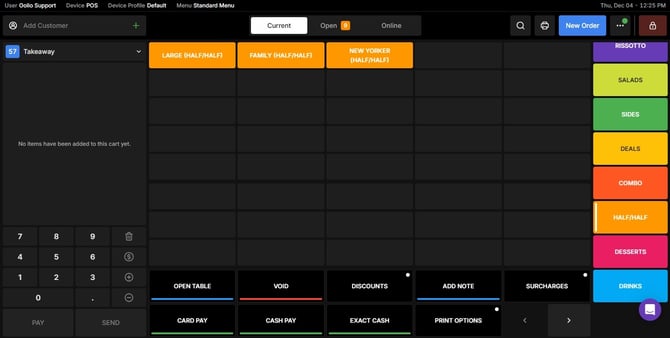
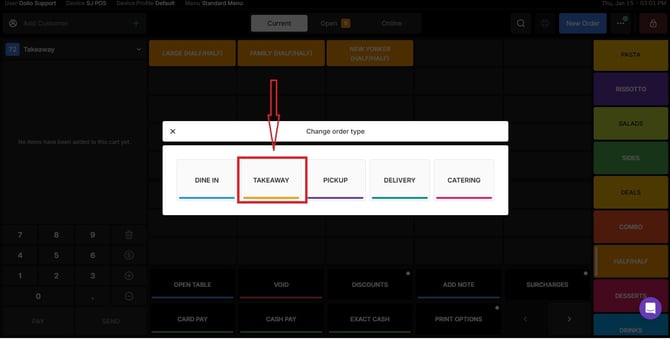
Choose the transaction type
Choose the appropriate transaction type to proceed.
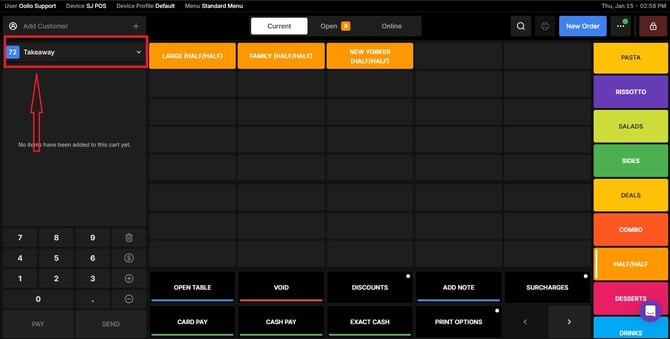
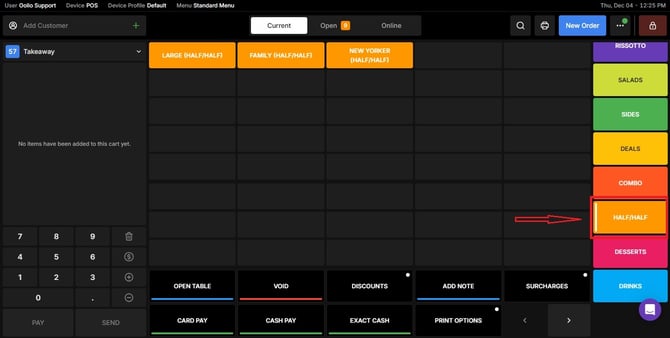
Select the Half and Half Category
Choose Half and Half from your menu categories.
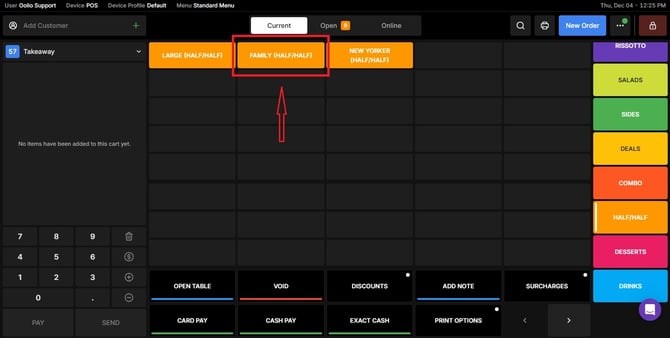
Choose the Size
Select the size variation required for the order.
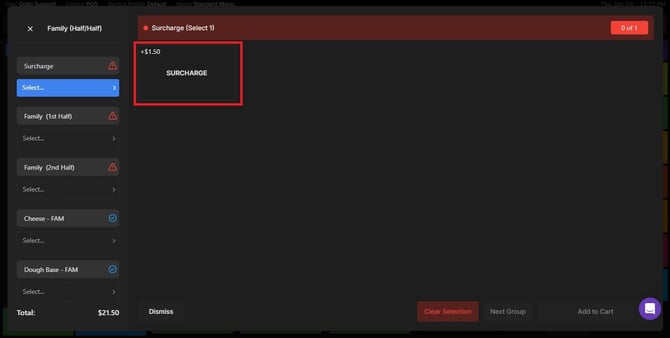
Select the Surcharge (Optional)
If a surcharge applies to the selected size or combination, choose the appropriate surcharge option.
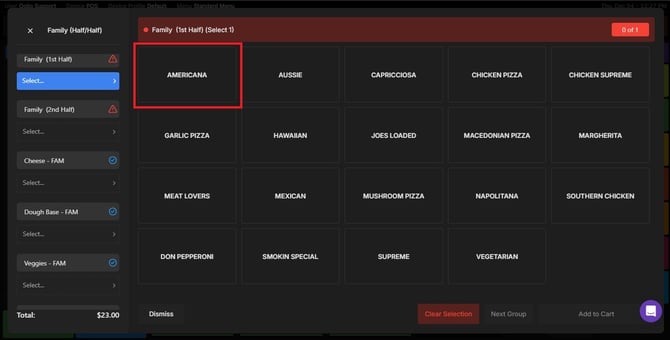
Choose the First Half
Select the first variation for the Half and Half.
Add Ingredients / Modifiers (Optional)
Adjust ingredients if the customer wants to add or remove anything.
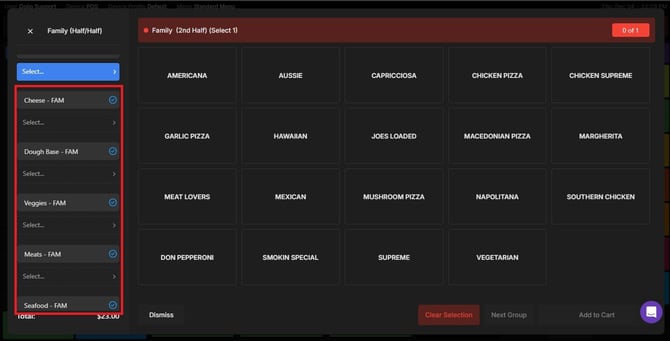
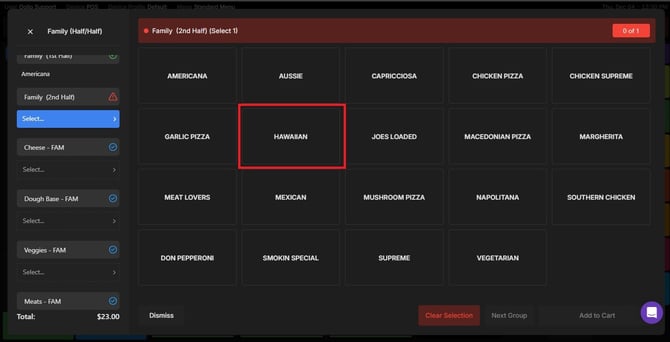
Choose the Second Half
Select the second variation option
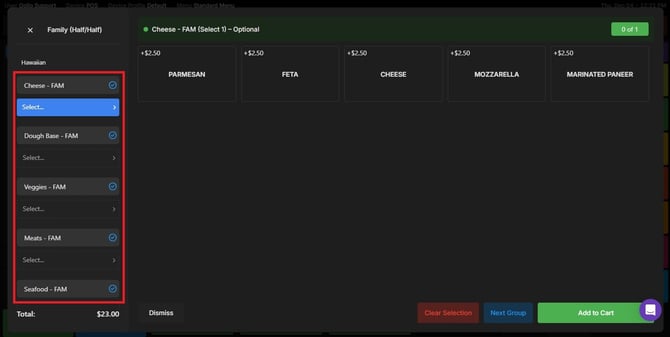
Add Ingredients / Modifiers (Optional)
Make any ingredient adjustments needed for the second half.
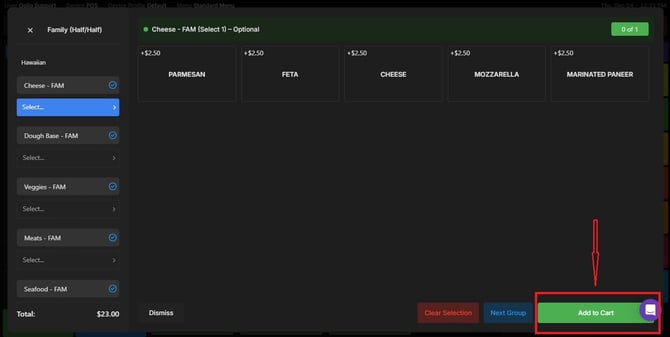
Add to Cart
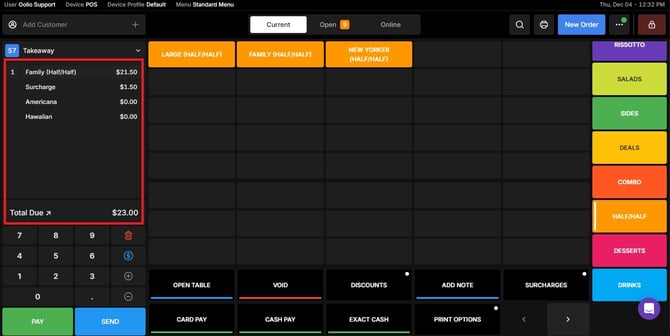
Once both halves are configured, tap Add to Cart to place the order.
If you need further assistance, simply click the blue chat icon at the bottom-right corner of the screen to connect directly with our Application Support Team.