
Step-by-Step Guide
Log in to Deliverit Studio
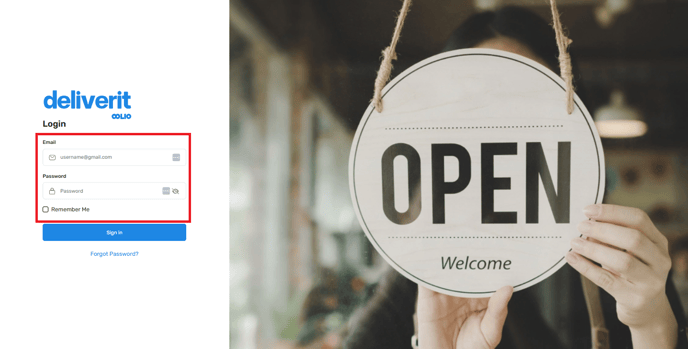
Go to https://my.deliverit.com.au.
Enter your Cloud username and password, then click Log In.
Open the Menu Manager
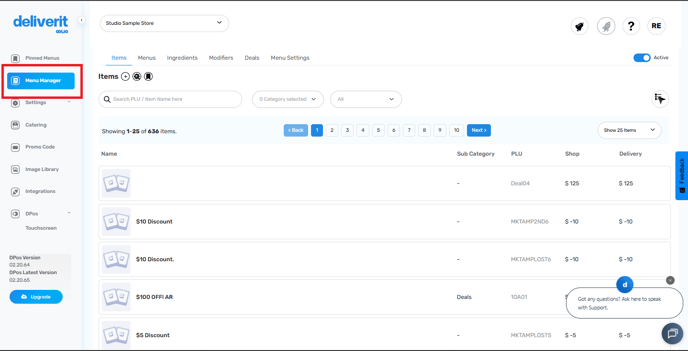
From the left-hand menu, click Menu Manager to access your menu setup.
Select an Item
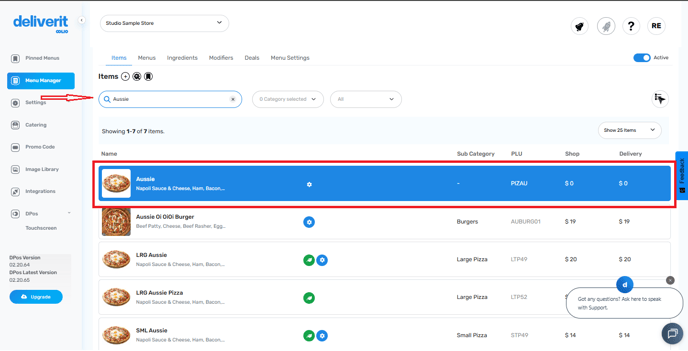
Click the Items tab.
Search for the item you want to edit, then click it to open its settings.
Go to the Modifiers Tab
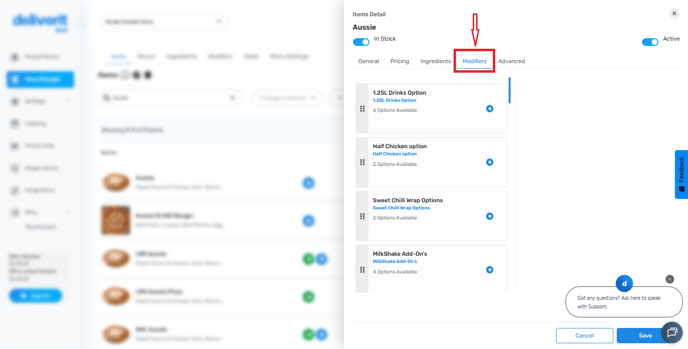
In the item settings window, select the Modifiers tab.
Here, you can assign or edit modifiers for that item.
Assign Modifiers
Choose the modifier or modifier group you want to link to the item.
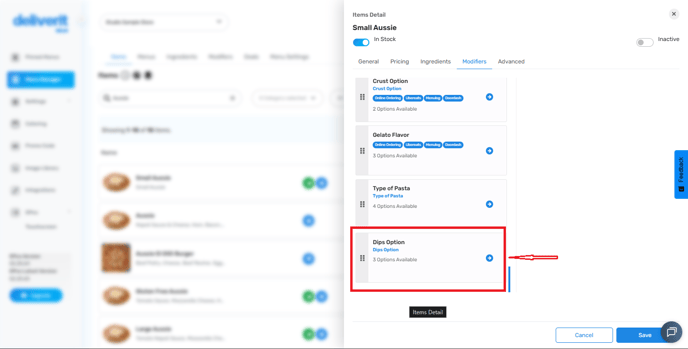
Once assigned, you can set how many of each modifier the customer can select.
For detailed steps on adding a new Extras (Condiment) Group, please refer to this guide. Link
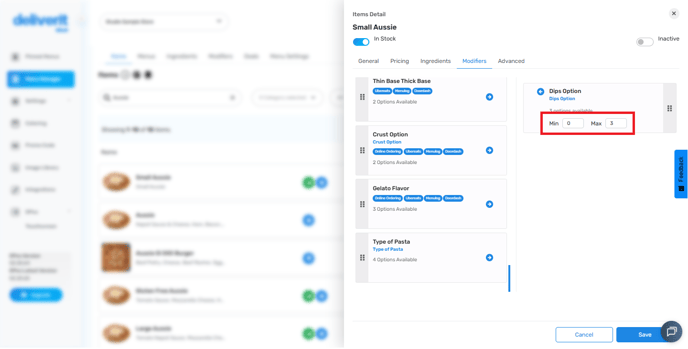
Set Minimum and Maximum Limits :
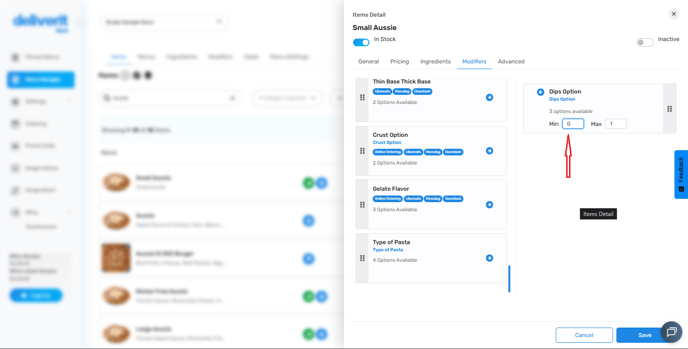
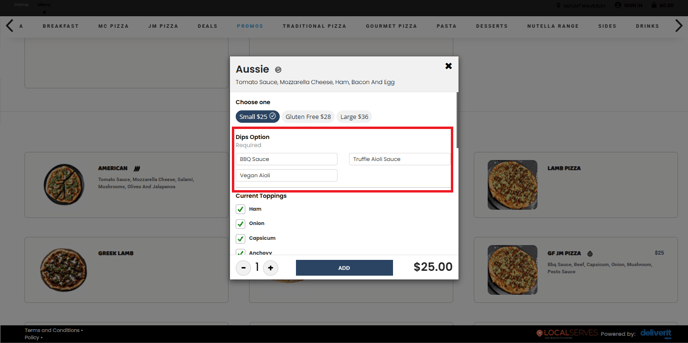
Minimum – The smallest number of modifiers a customer must select.- By default, this is set to 1, meaning customers must choose at least one modifier.
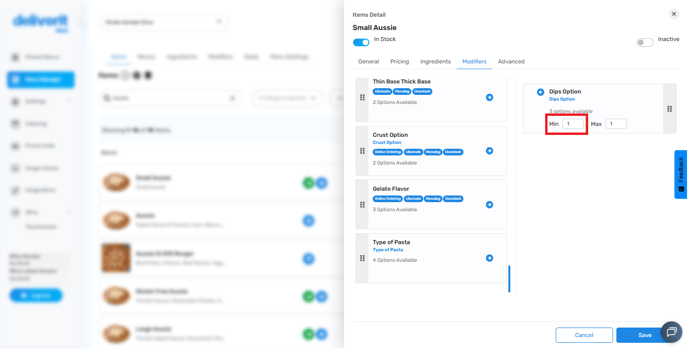
- To make the modifier optional, set the minimum to 0.
Maximum – The largest number of modifiers a customer can select.
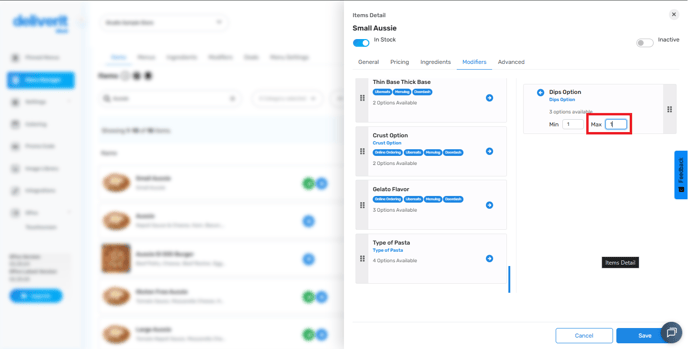
Set this based on the number of options you want to allow (for example, a maximum of 3 dipping sauces).
Save and Deploy Changes
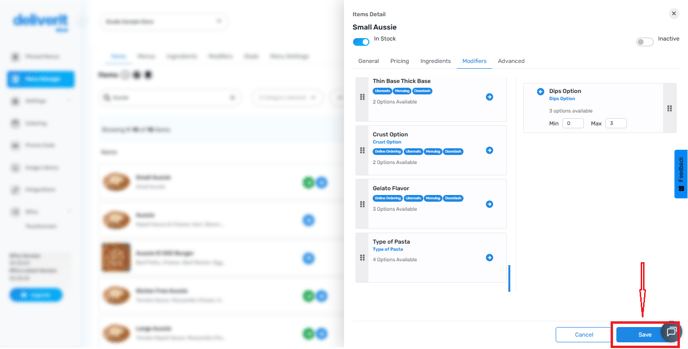
When you’re done, click Save to confirm your settings.
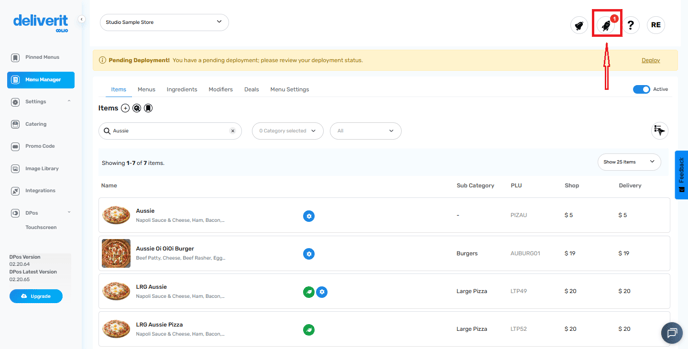
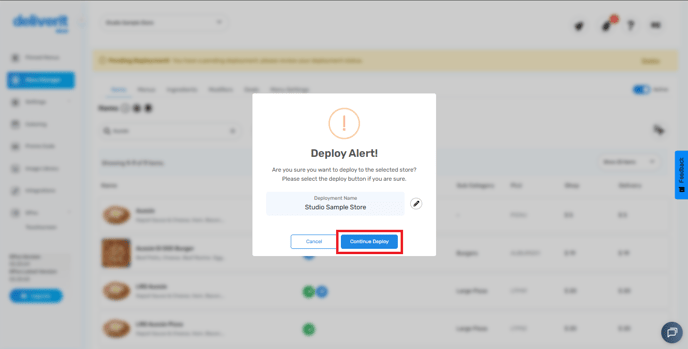
Then, click the Rocket icon and select Deploy to apply the changes to your POS system.
By following these steps, you will be able to set up and manage modifier limits in Deliverit Studio efficiently. If you need further assistance, simply click the blue chat icon at the bottom-right corner of the screen to connect directly with our Application Support Team.