
Open the Orders Screen
- From the POS Home Screen, navigate to the Orders section.
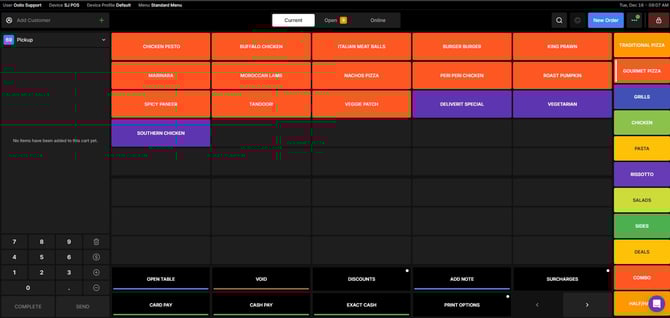 Add or Create a Customer
- Before taking the order, ensure that you select an existing customer or create a new customer profile.
- This helps keep records organised and linked to the correct customer.
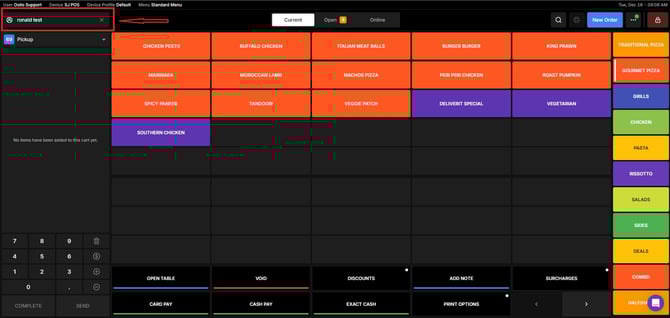 Choose the Order Type
- Select the appropriate order type (e.g., dine-in, takeaway, delivery) based on the customer’s request.
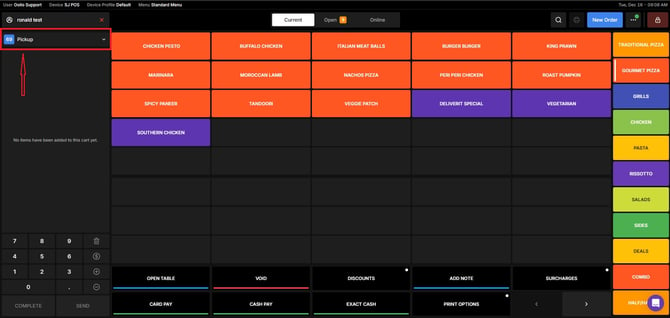
Take the Order
- Add the items your customer wants to purchase.
- Review the order details to ensure accuracy.
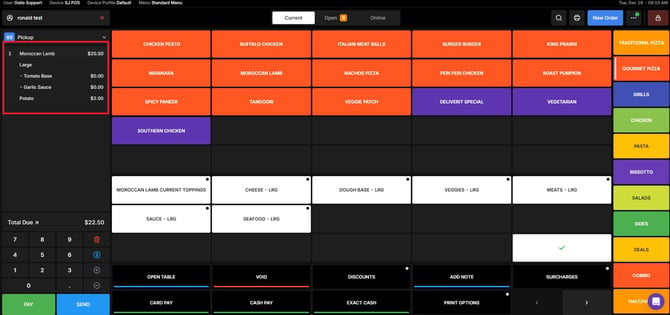 Send or Save the Order
- Once the order is complete, click the Send button.
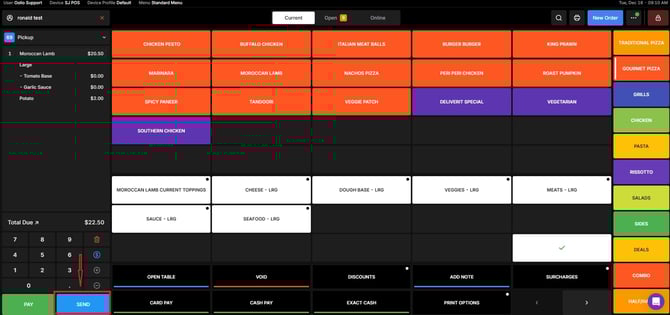
- The order will now be printer and stored in the system and is ready for further processing.
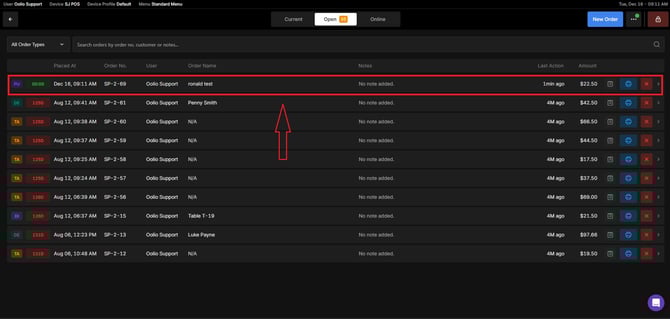
Sending or saving orders in Oolio POS is quick and easy when you follow these steps. Accurate order management improves customer satisfaction and keeps operations running smoothly. If you need further assistance, simply click the blue chat icon at the bottom-right corner of the screen to connect directly with our Application Support Team.