
Step-by-Step Guide
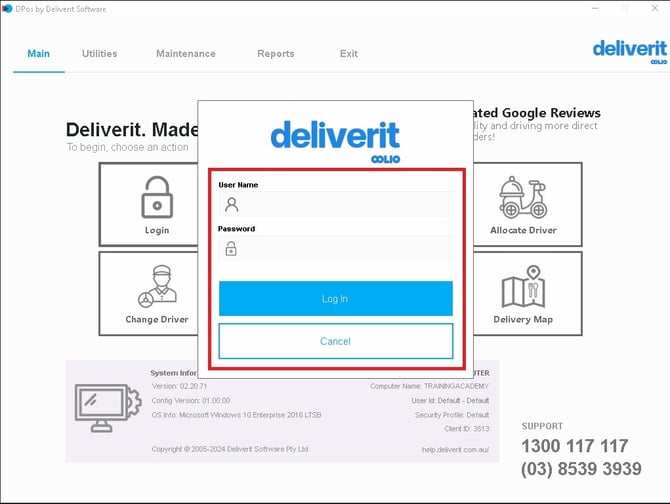
Log in to DPOS
Open your DPOS application and log in using your credentials.
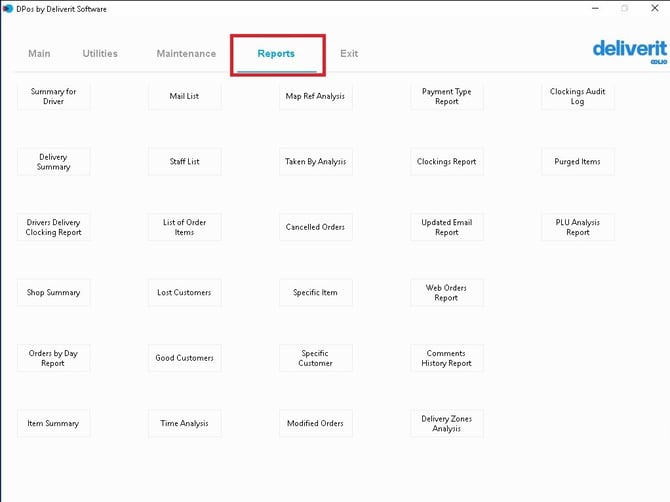
Navigate to Reports
From the main menu, click on the Reports tab.
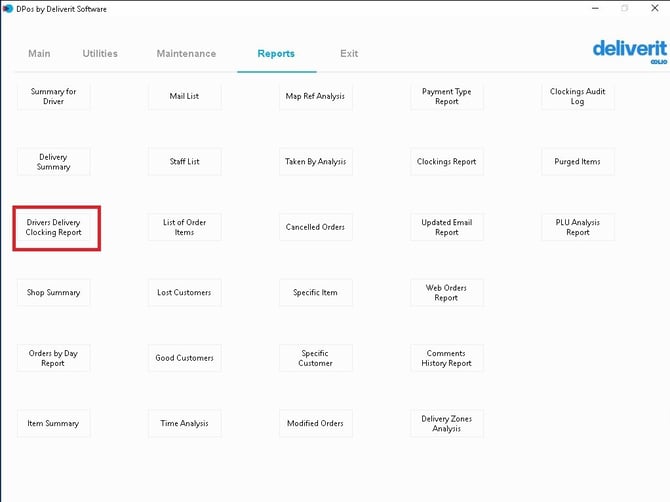
Select Delivery Clocking Report
Locate and choose Driver Delivery Clocking Report from the list of available reports.
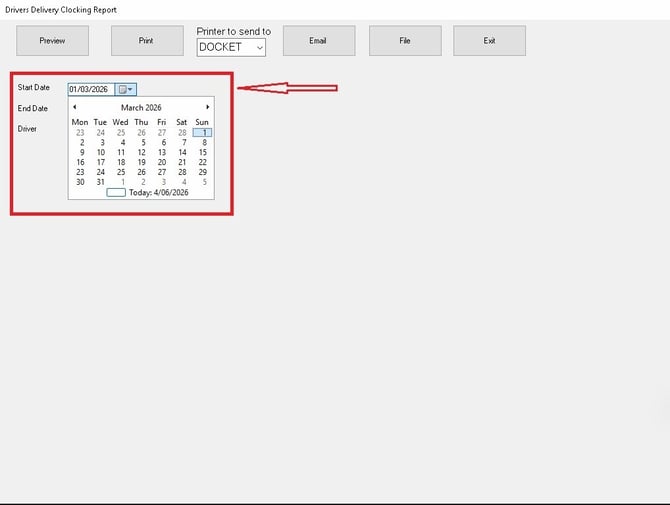
Set the Date Range
Enter the start and end date to define the period you want to review.
Apply Driver Filter
Select All Drivers to view a complete report
Or choose a specific driver to narrow down the results
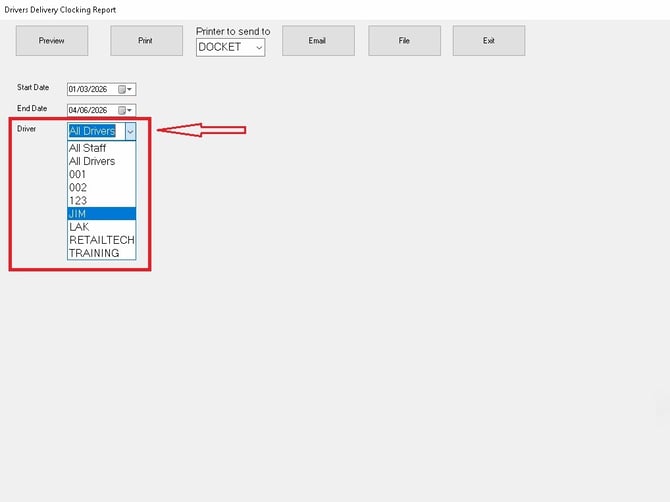
Click Preview
Select Preview to generate the report.
Report Details
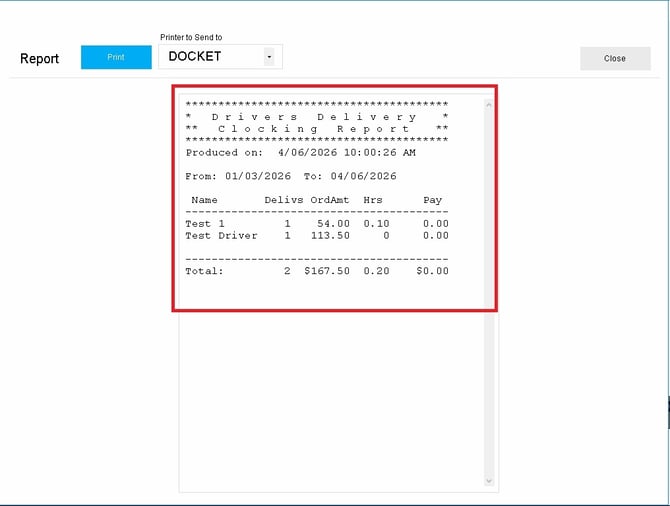
Once the report is generated, you will see the following information:
-
Name – Driver’s name
-
Deliveries – Total number of orders delivered
-
Order Amount – Total value of deliveries handled
-
Hours – Total clocked working hours
-
Total Pay (optional) – Calculated earnings based on deliveries and time worked
Regularly reviewing the Delivery Clocking Report helps monitor driver productivity and performance effectively. If you need further assistance, simply click the blue chat icon at the bottom-right corner of the screen to connect directly with our Application Support Team.