
Important:
From 1 October 2026, customers must not be charged an additional fee simply for paying by card. Please check and remove any payment surcharge configured in your DPOS.
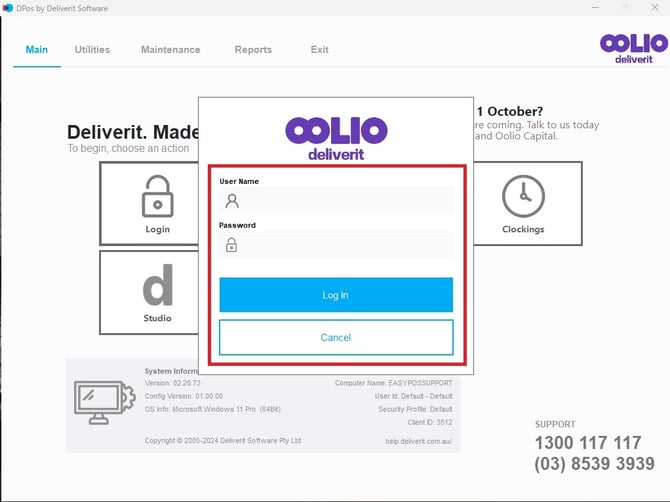
Log in to DPOS
Sign in to your DPOS system using your account credentials.
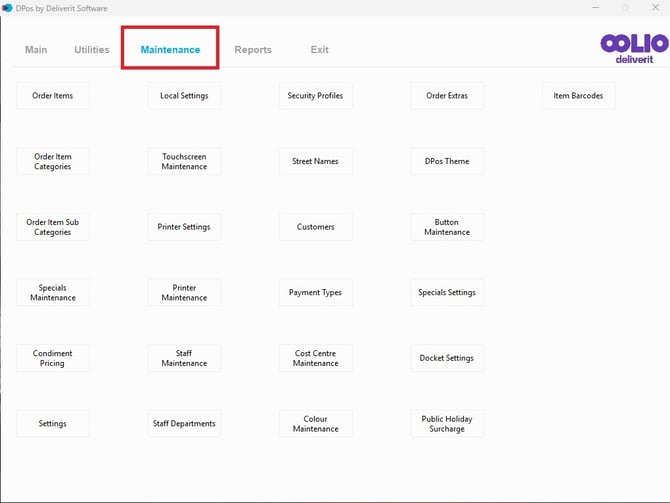
Open Payment Types
- Navigate to the Maintenance tab.
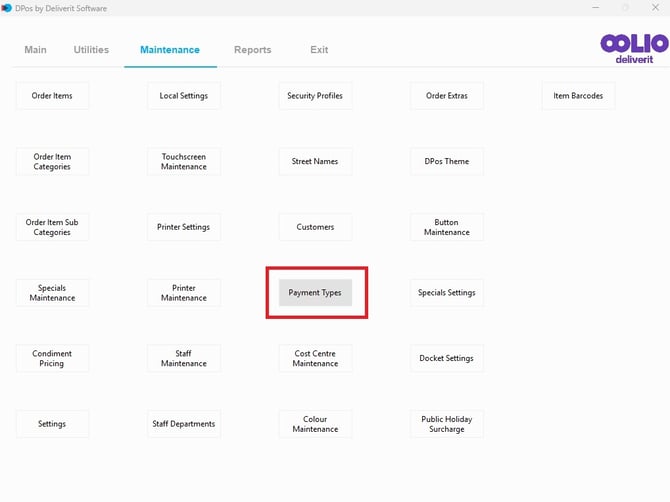
- Select Payment Types.
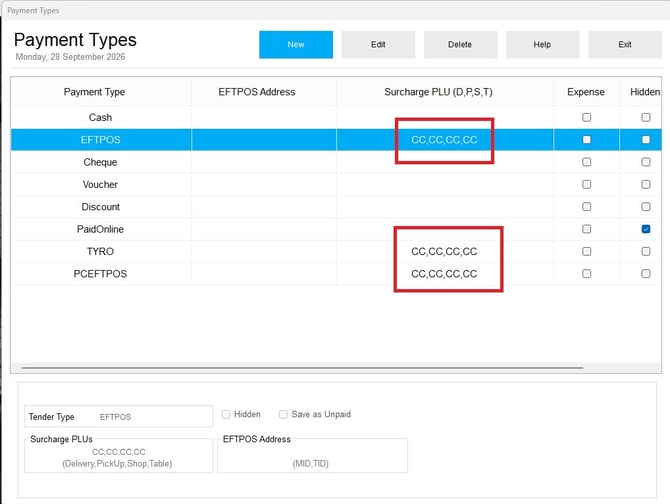
Review Payment Methods
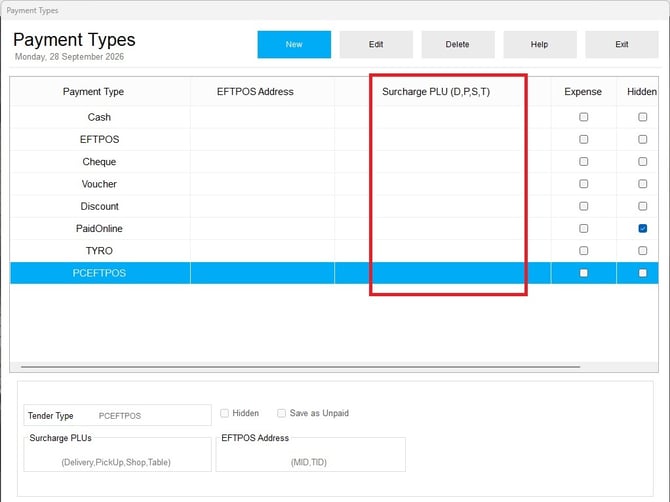
Check all payment types that may contain a value in the Surcharge PLU field,
Remove the Surcharge
- Select each payment type. (Examples: EFTPOS, PCEFTPOS(LINKLY), TYRO)
- Locate the Surcharge PLU field and press the Edit button.
-
If you receive the error message show below, please reach out to our Application Support Team on 1300 117 117 for further assistance.
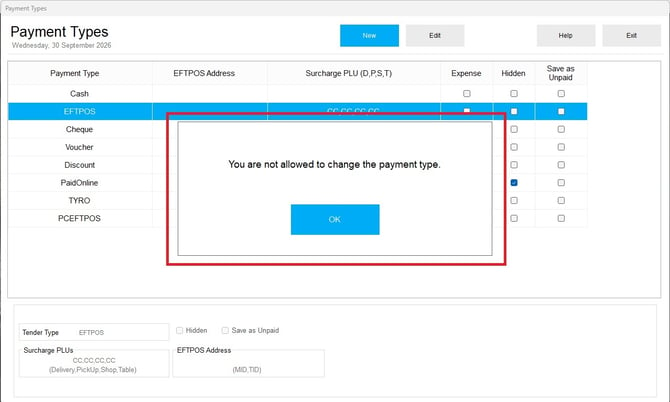
- Clear the existing values from the surcharge field.
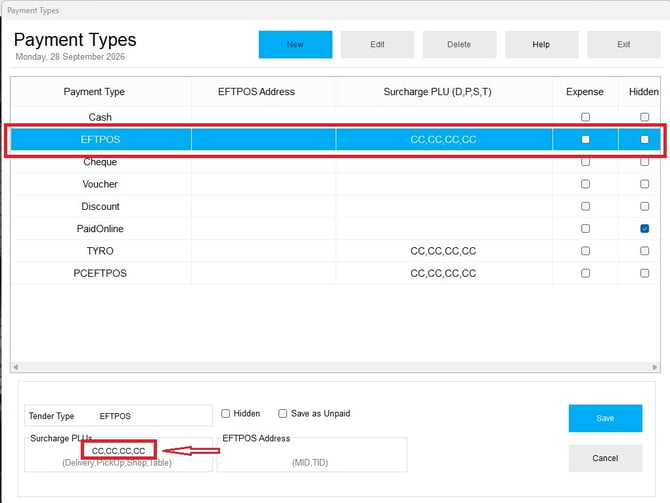
Repeat this process for all payment methods that have a surcharge code assigned.
Save Your Changes
Once all surcharge codes have been cleared, click Save.
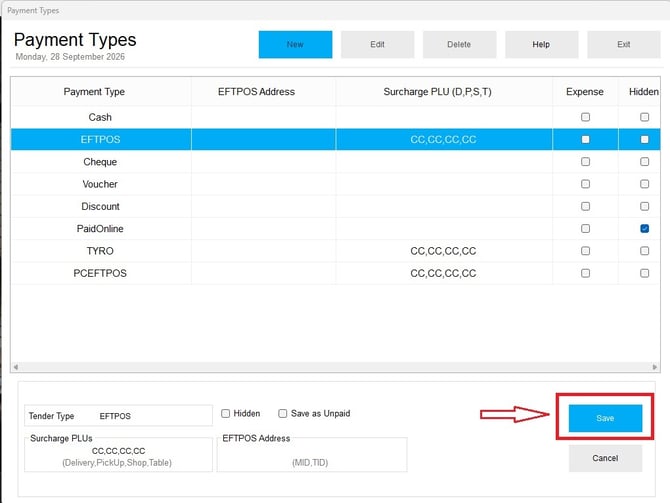
After making the changes, restart the DPOS Application on the Server PC and any other workstations to ensure the updated settings are applied correctly.
If you need further assistance, simply click the chat icon at the bottom-right corner of the screen to connect directly with our Application Support Team.