
How to Apply Discounts / Surcharges to Table Order (Restaurant Module)
-
✅ Log in to DPOS
-
✅ Create PLU items for discounts/surcharges
-
✅ Declare PLU codes under TableDiscountSurcharge setting
-
✅ Go to Modify Bill before closing a table
-
✅ Apply the PLU (discount or surcharge) to the order
-
✅ Finalise and close the table
Step-by-Step Instructions
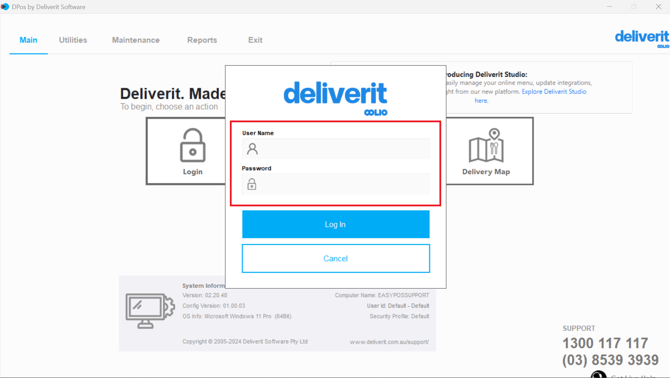
Log in to Dpos.
Using your credentials, log in to your DPOS account.
Create Discount/Surcharge PLUs
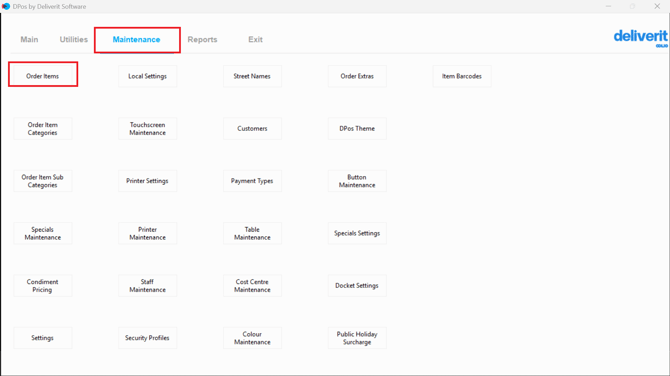
Go to the Maintenance tab and select the Order Item button.
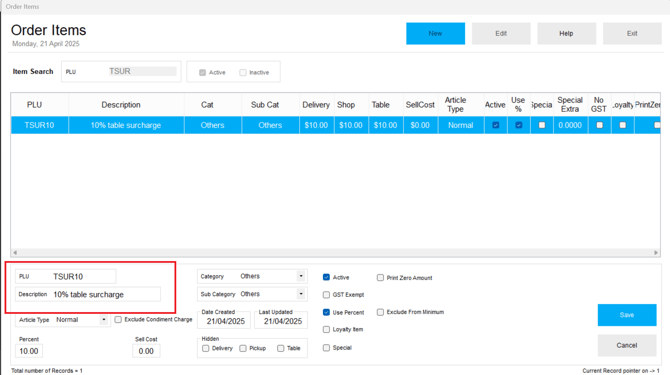
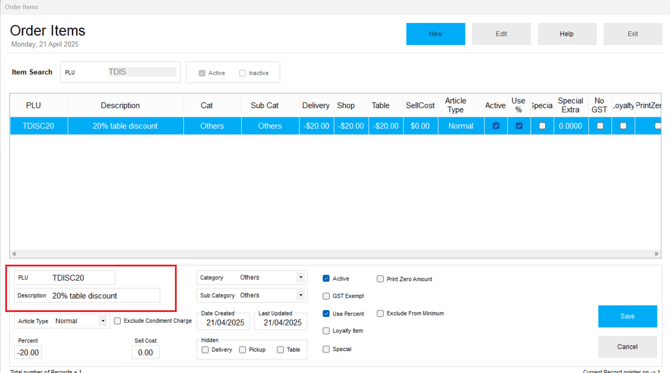
Create new PLU items for the required discounts or surcharges.
Example:
TSUR10 – 10% table surcharge
TDISC20 – 20% table discount
Declare the PLUs in Global Settings
Navigate to Maintenance > Settings.
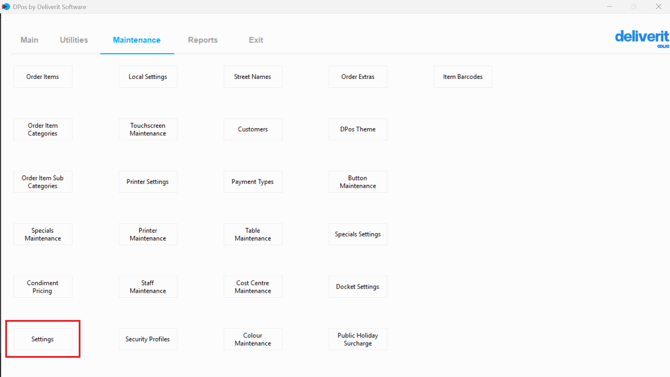
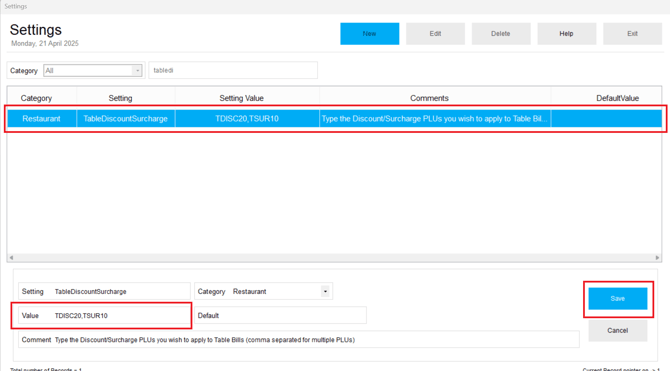
Search for TableDiscountSurcharge.
Enter the PLU codes you created, separated by commas.
Example: TSUR10,TDISC20
Save your changes.
Apply to the Order
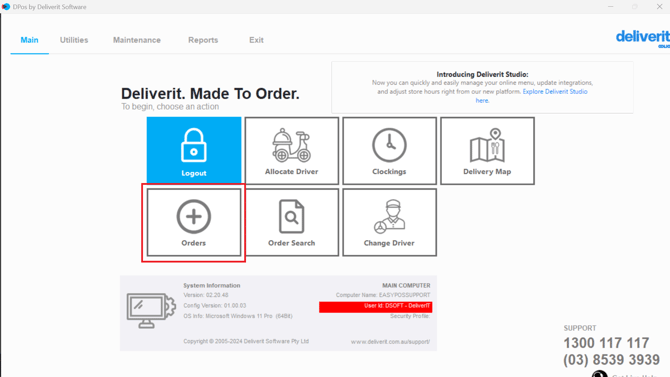
Navigate to the Orders Section
From the DPOS main screen, tap on Orders to begin.
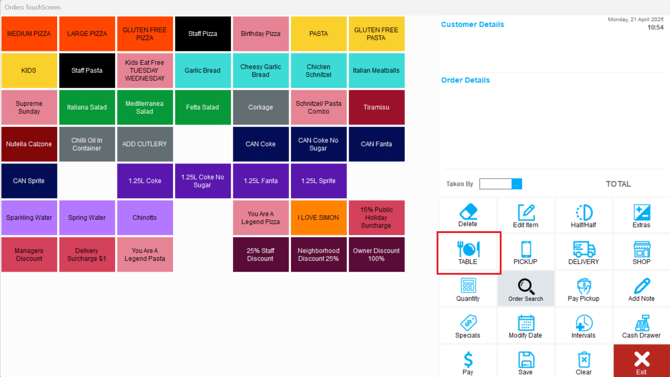
Go to Table Transaction
Within the Orders section, select Table Transaction to view and manage active table orders.
Select the Table.
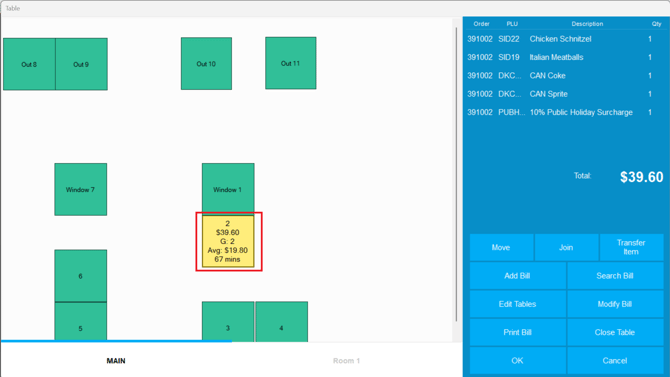
Go to the Modify Bill screen before closing the table.
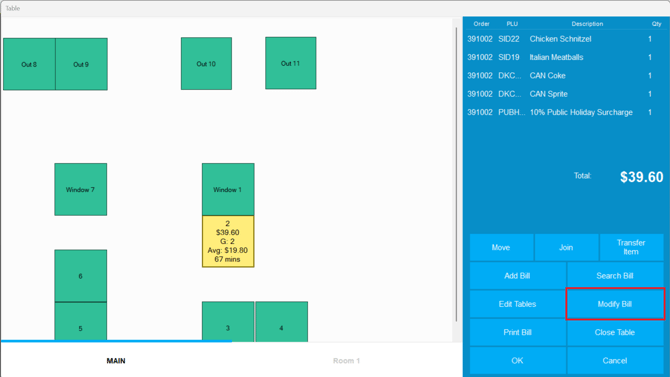
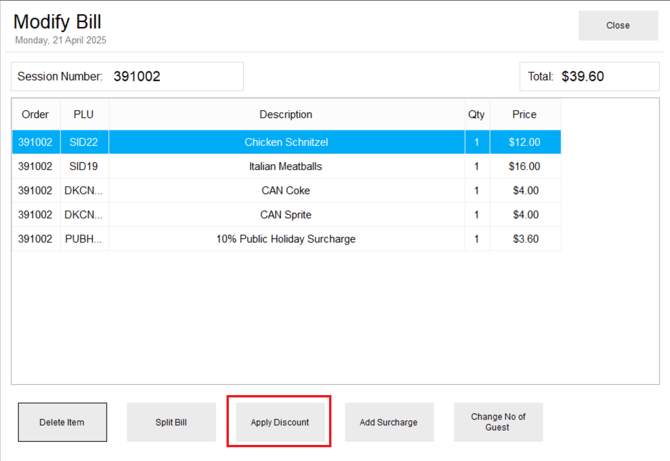
You will now see the declared discount/surcharge PLUs listed.
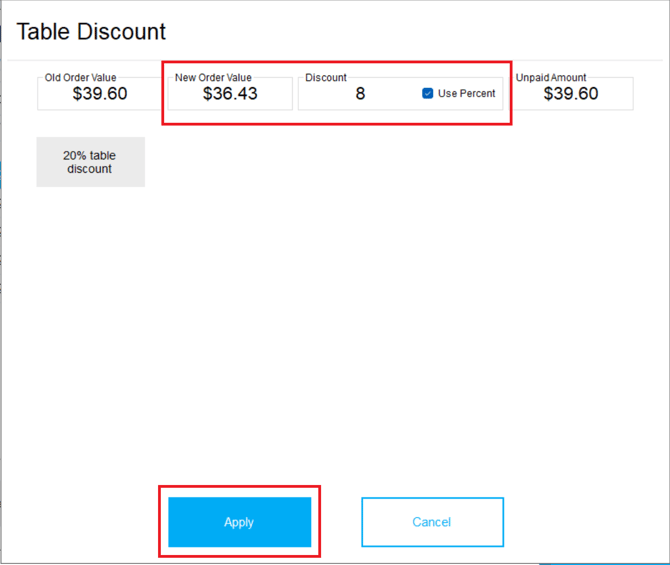
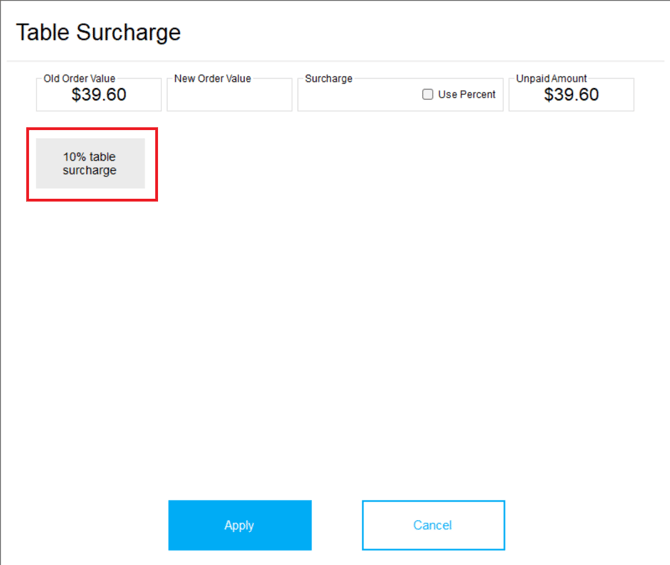
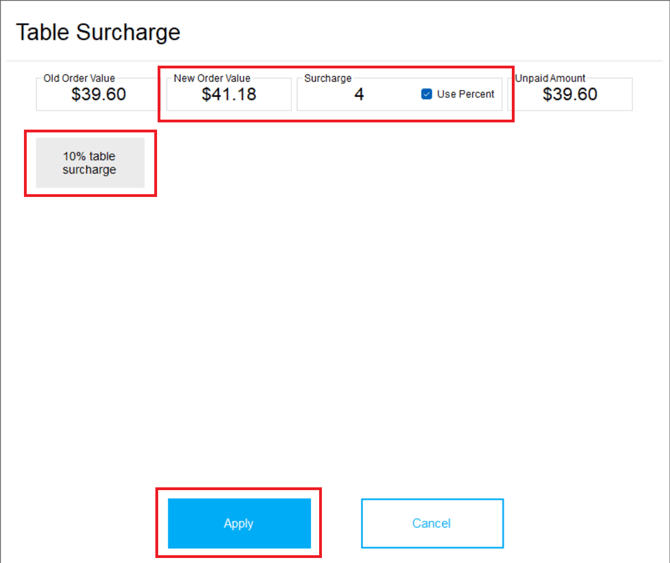
Select and apply the appropriate PLU to the table's bill.
TDISC20:
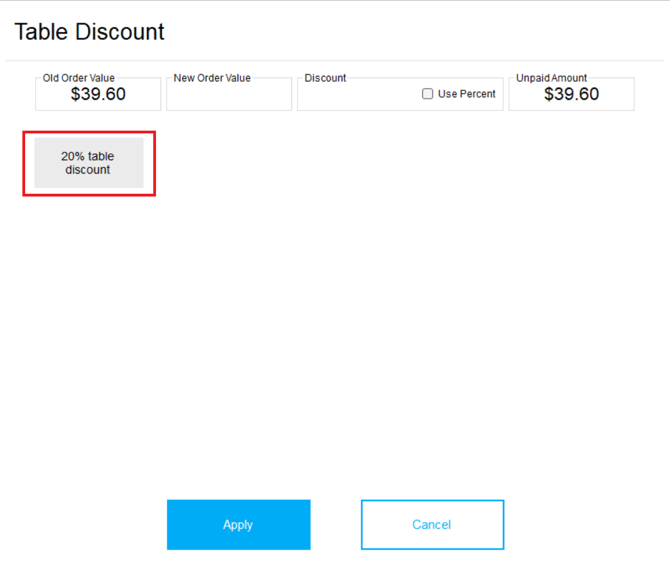
TSUR10:
Finalize the Table
Review the updated total with the discount or surcharge applied.
Proceed to close and pay off the table.
By following these steps, you will be able to apply discounts and surcharges to restaurant orders in DPOS with ease. If you need further assistance, simply click the blue chat icon at the bottom-right corner of the screen to connect directly with our Application Support Team.