
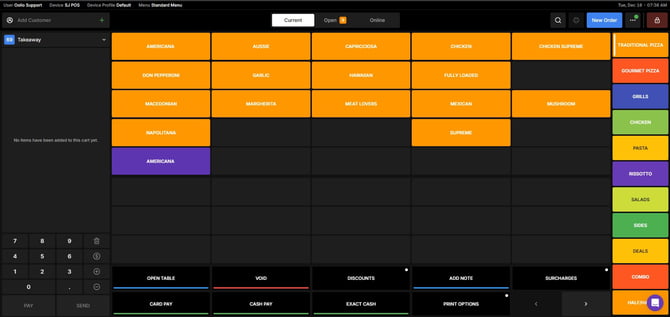
Open the Orders Screen
- From the POS Home Screen, navigate to the Orders section.
- This is where you can view all current and open orders.
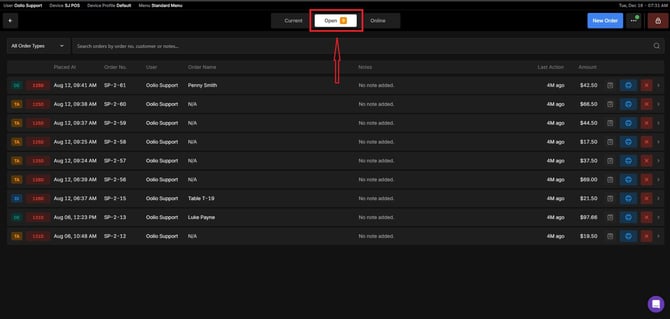
Go to the Open Orders Tab
- Click on the Open Orders tab to see all active orders that can be modified.
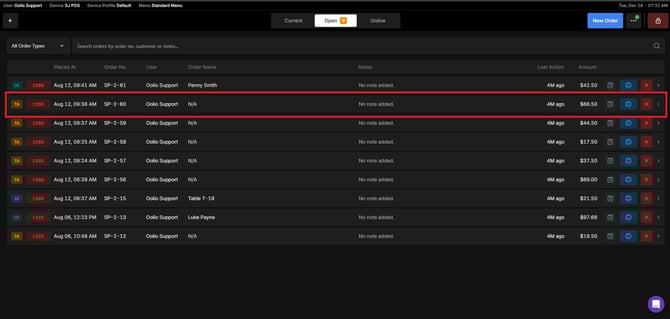
Select the Order You Want to Modify
- Browse through the list and choose the order you need to update.
- Click on the order or select View Order to open its details.
Make the Necessary Adjustments
- Once the order details are open, you can:
- Add or remove items
- Change quantities
- Update item details as needed
- Confirm your changes before saving.
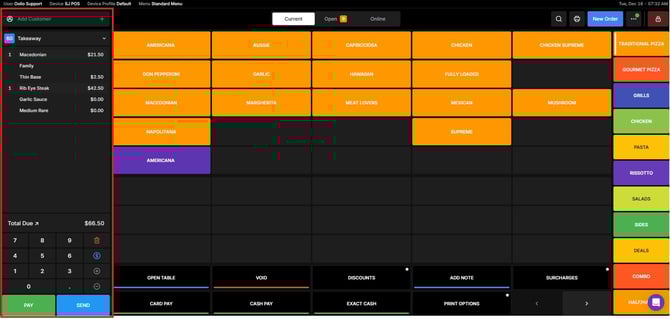 Save the Updated Order
- After making adjustments, click Send to Confirm the changes.
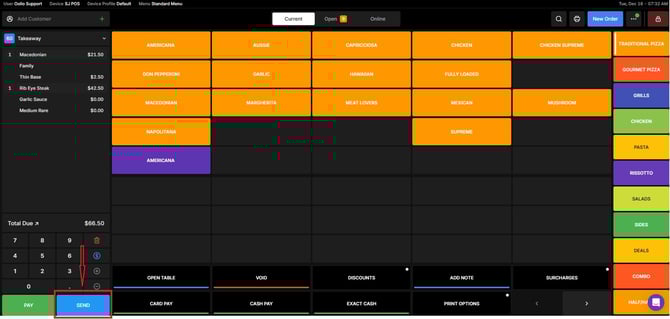
-
The order has been updated with the new details while retaining the original Order ID.
Modifying orders on Oolio POS is simple when you follow these steps. Keeping orders accurately ensures better customer satisfaction and smoother operations. If you need further assistance, simply click the blue chat icon at the bottom-right corner of the screen to connect directly with our Application Support Team.