
Step‑by‑Step Instructions
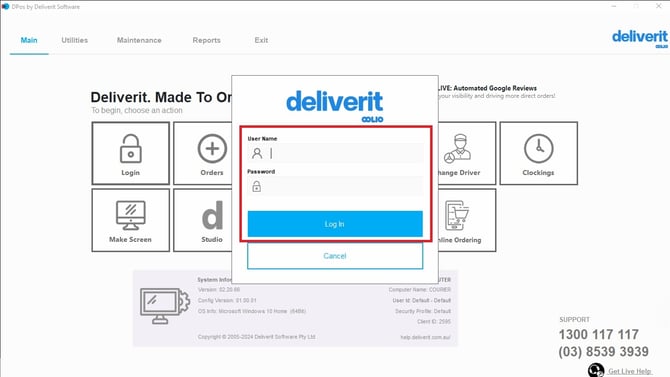
Log In to DPos
- Open DPos on your device.
- Enter your login credentials.
- Click Log In to proceed.
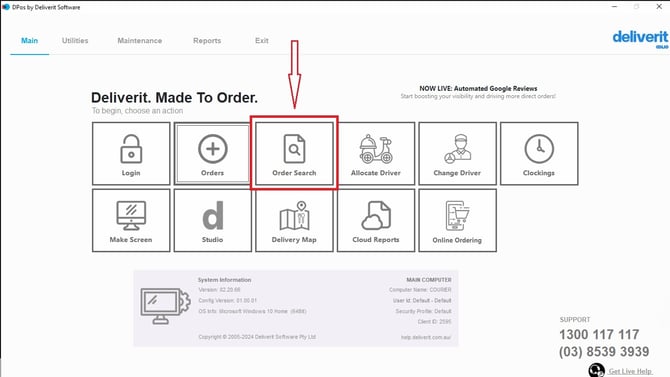
Go to Order Search
- From the main screen, select Order Search.
- Browse the list or use the search field to find the order you need to modify.
- Select the required order from the list.

Modify the Order
- Once the order is open, click the Modify button.

- You can now make updates to the order, such as:
-
Adding new items
-
Removing existing items
-

- A prompt will pop up where you can choose the reason for the modification.

- After selecting an option, click OK.

Save Your Changes
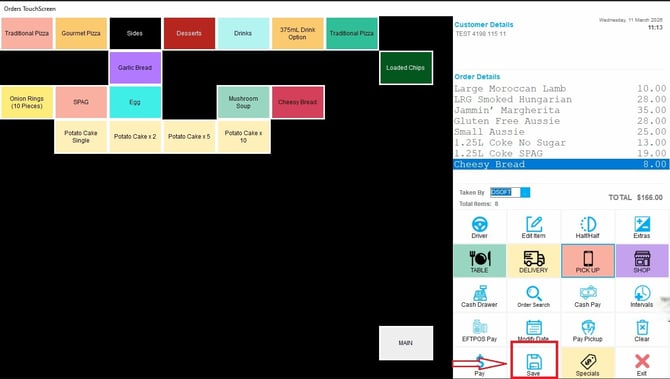
- After making adjustments, ensure the updated order details are correct.
- Click Save to apply the changes.
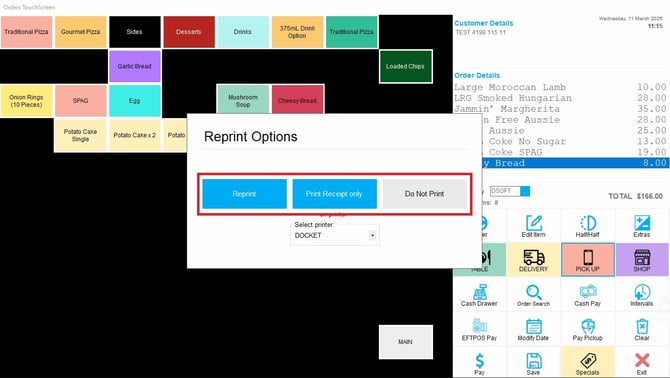
- A prompt will be displayed, allowing you to select your reprint options.
Note:
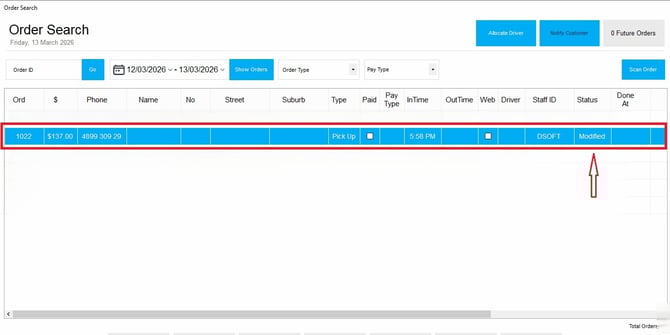
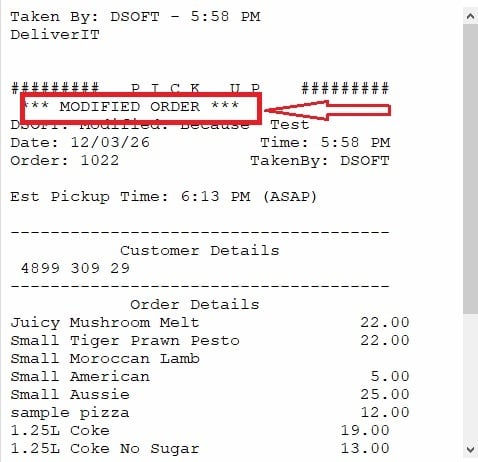
When items are added, the system retains the original order number and will flag the original order as modified. However, if items are removed, the system automatically generates and prints a new order.
Sample Added Item Order:
Sample Removed Item Order:

Modifying an order ensures accuracy before payment or fulfillment. If you need further assistance, simply click the blue chat icon at the bottom-right corner of the screen to connect directly with our Application Support Team.