
Step-by-Step Guide
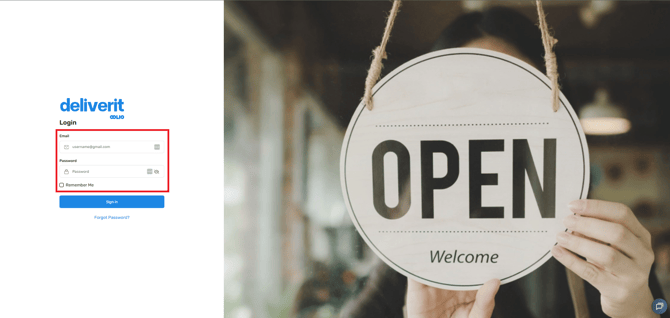
Log in to Deliverit Studio
- Go to my.deliverit.com.au.
- Log in using your Deliverit Cloud credentials.
Navigate to Settings
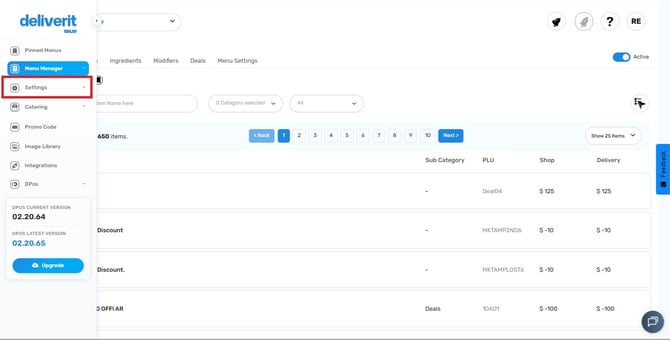
- From the left-hand menu, go to Settings.
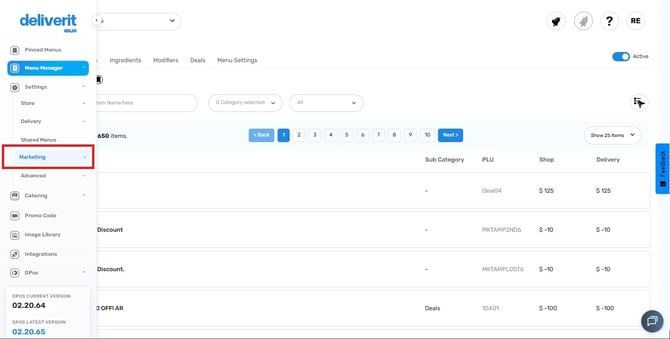
- Select Marketing.
- Click on the SEO (Search Optimization) tab.
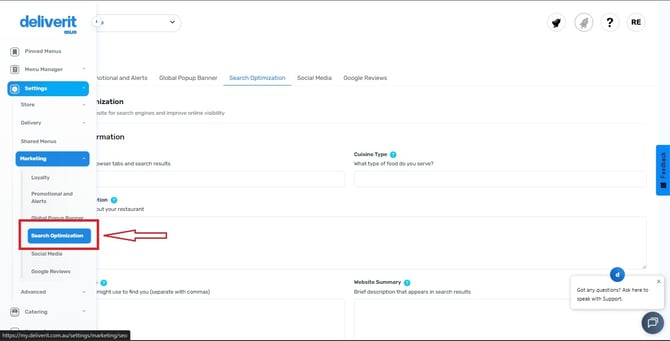
You’ll now see all SEO configuration options available within Studio.
What You Can Do in the SEO Section
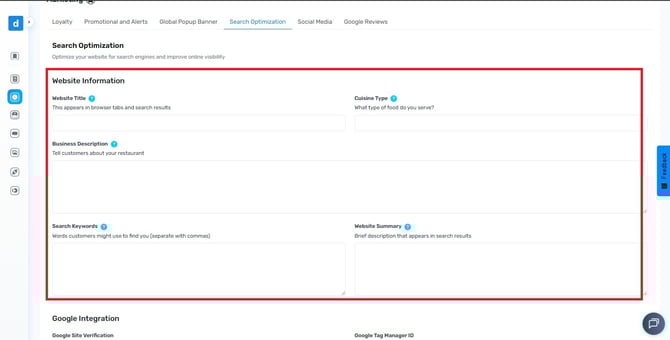
Search Optimization
Manage how your website appears in search results.
-
Website Title - This appears in browser tabs and search engine results.
- Cuisine Type - Lets customers know the type of food you serve.
- Business Description - A longer description that tells customers about your restaurant, concept, and what makes you unique.
- Search Keywords - Helps customers find you online through search engines.
- Website Summary: Update your meta descriptions and preview how your site appears on search engines.
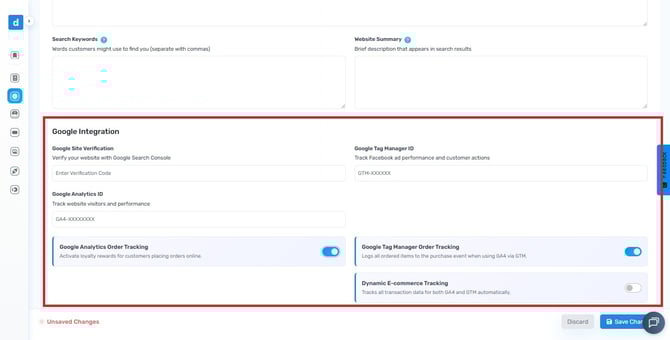
Google Integration (Optional)
Connect your website with Google tools to improve visibility and track performance. (Paid Service)
- Google Site Verification: Link your website to Google Search Console for indexing and monitoring.
- Google Analytics ID (GA4): Add your GA4 tracking ID to measure site traffic and user behavior.
- Google Analytics Order Tracking: Enable order tracking for deeper insights into online ordering performance.
- Google Tag Manager (GTM): Manage advanced tracking tags and events without editing your website code.
-
Google Tag Manager Order Tracking
When enabled, this logs all ordered items directly to the GA4 purchase event through GTM. -
Dynamic E-commerce Tracking
This feature tracks all transaction data automatically for both GA4 and GTM.
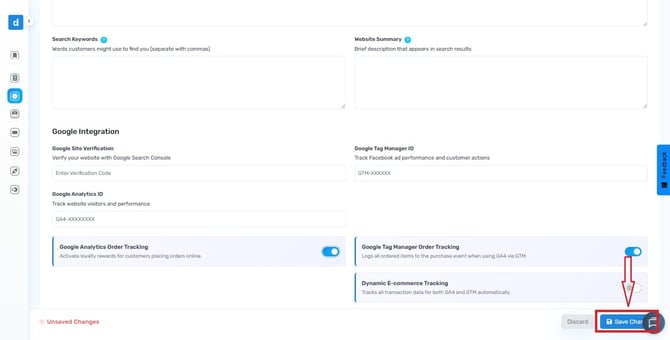
Save and Confirm Changes
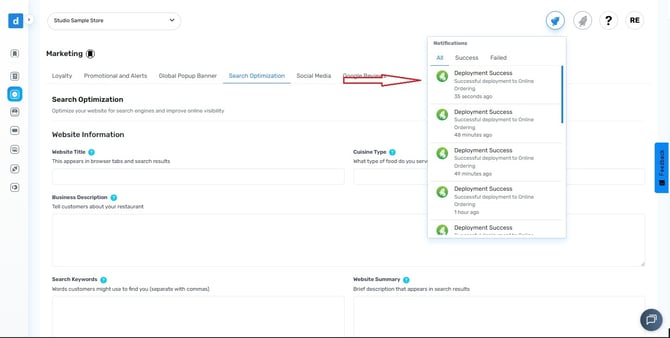
- After making updates, click Save to apply your new SEO configurations.
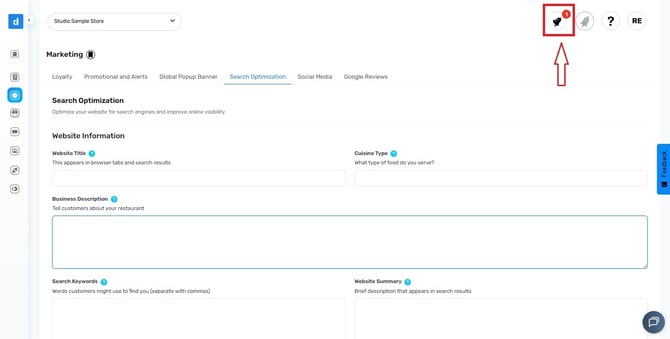
- Then, click the notification bell 🔔 at the top-right corner of Studio to confirm your changes have been successfully deployed.
By managing your SEO settings directly in Deliverit Studio, you can easily enhance your online visibility, track performance, and improve customer reach — all from one platform. If you need further assistance, simply click the blue chat icon at the bottom-right corner of the screen to connect directly with our Application Support Team.