
Step‑by‑Step Guide
Log in to Oolio
Sign in to your Oolio POS account using your username and password.
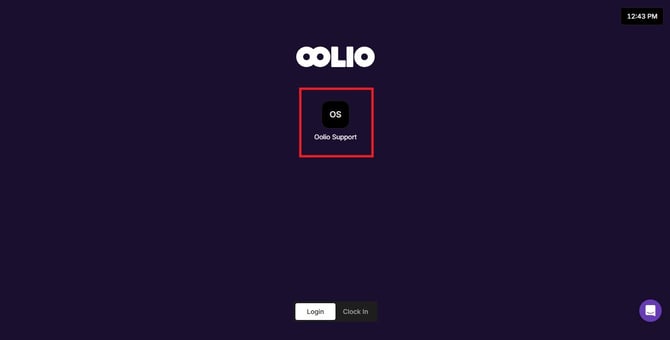
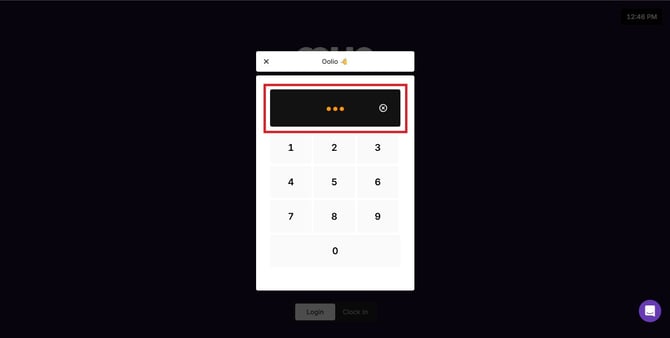
Open the Navigation Menu
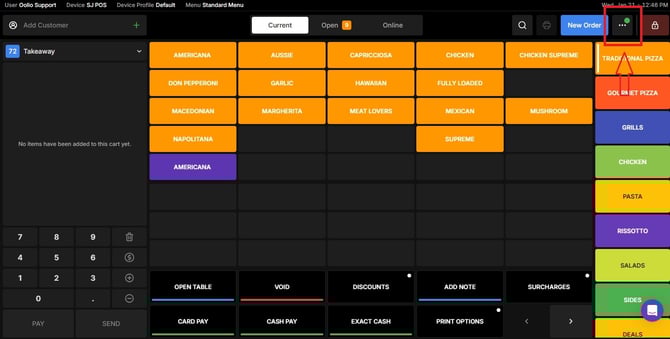
- Once logged in, click the navigation button located at the top-right of the page.
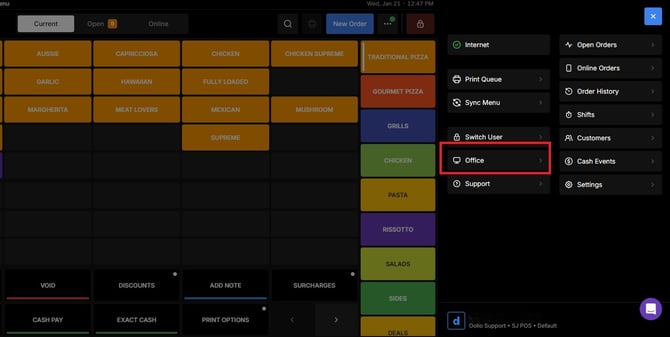
- From the dropdown, click Office.
Open the App Launcher
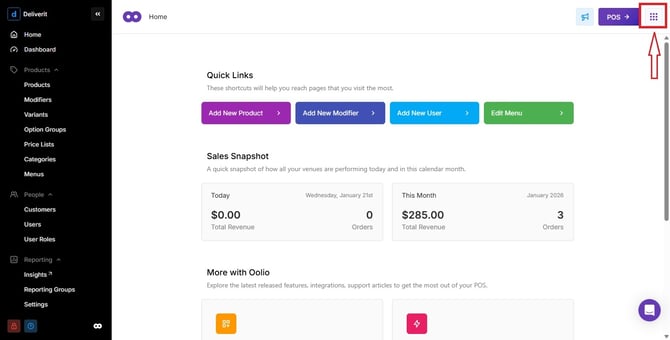
- In the top‑right corner, click the App Launcher (the 9‑dot grid icon).
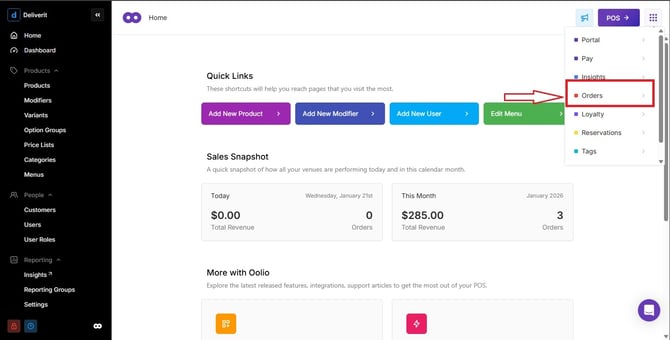
- Select Orders from the available apps.
Open the Stores Section
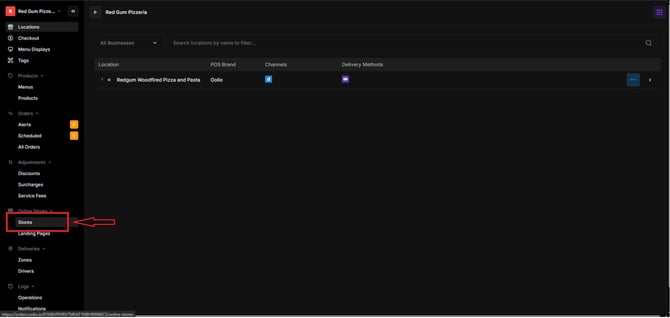
Using the left-hand navigation panel, click Stores.
Choose the Store to Update
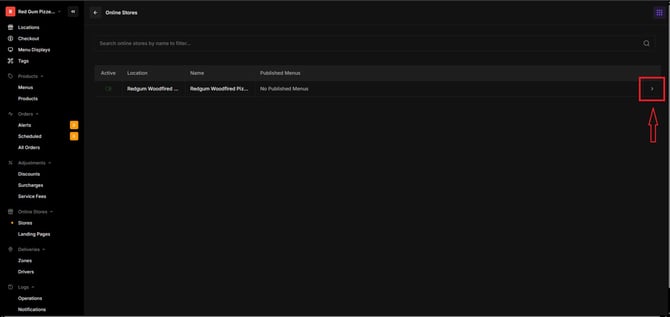
Click the arrow icon beside your store name to open all configuration settings.
Go to the Hours Tab
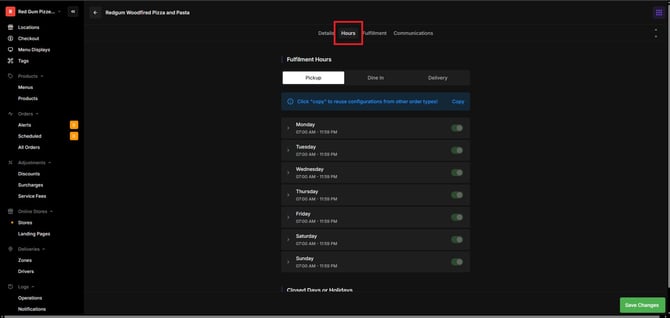
Scroll down until you see the Closed Days or Holidays area.
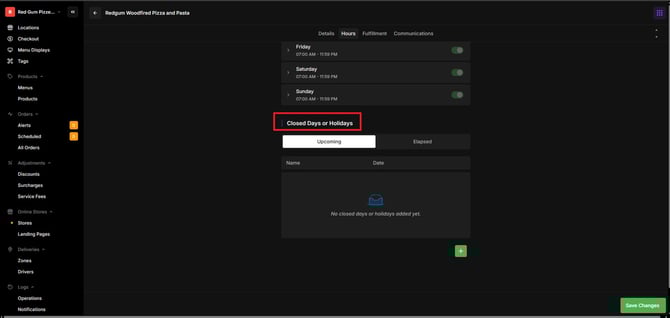
Managing Closed Days or Holidays
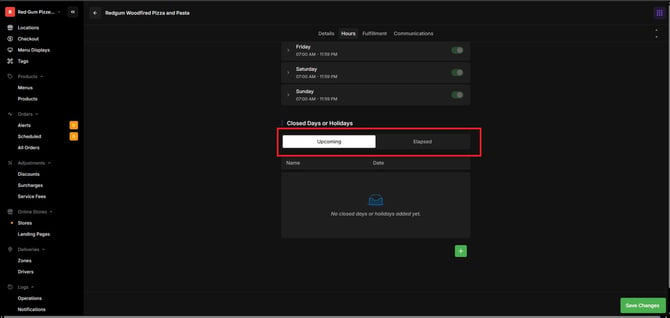
Understand the Tabs
You will see two tabs:
- Upcoming – scheduled closures that are yet to happen
- Elapsed – closures that have already passed
Add a New Closed Day
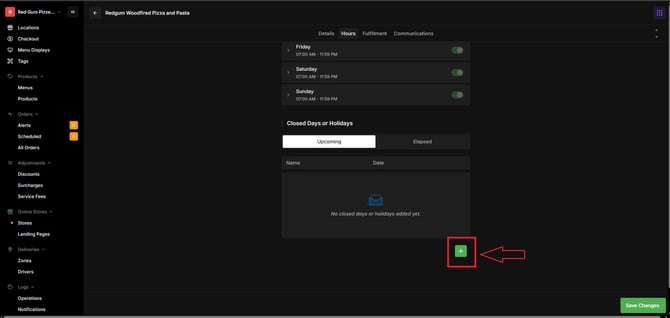
If the list is empty, a placeholder will appear.
To add a new closure:
- Click + Add Closed Day.
- Enter a Name (e.g., “Christmas Day”, “Store Maintenance”).
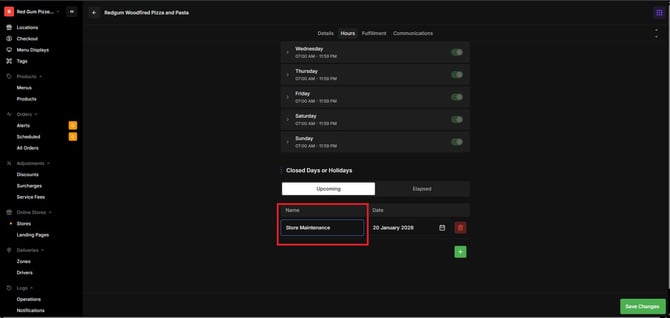
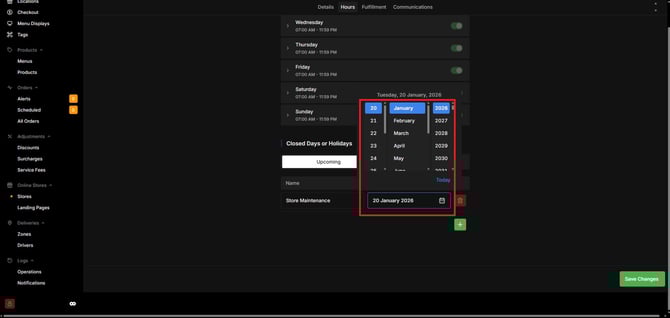
- Choose the Date your store will be closed.
Save All Changes
After adding or editing your closed days, click Save to apply your changes to the online ordering system.
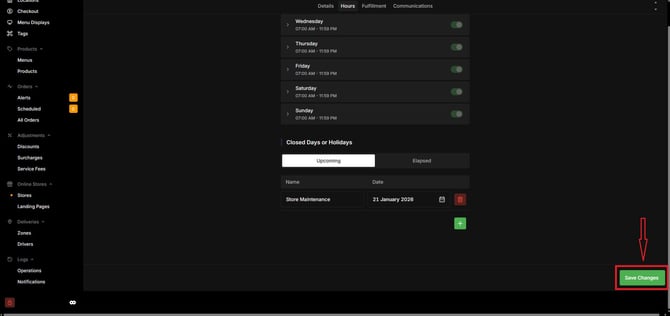
Your added closure will now appear under the Upcoming tab.
If you need further assistance, click the blue chat icon at the bottom‑right corner of the screen to chat with our Application Support Team.