
Step‑by‑Step: Making an Item Out of Stock
Go to the Crust Polling PC
- Access the 3PA Polling PC at your store.
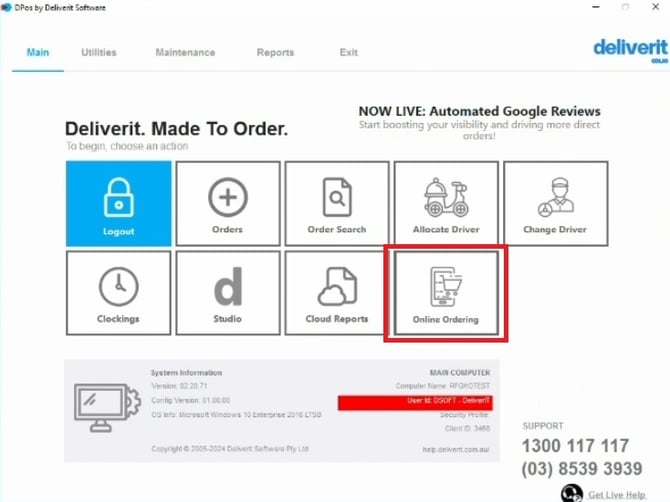
Open Online Orders
- From the main screen, select the Online Order button.
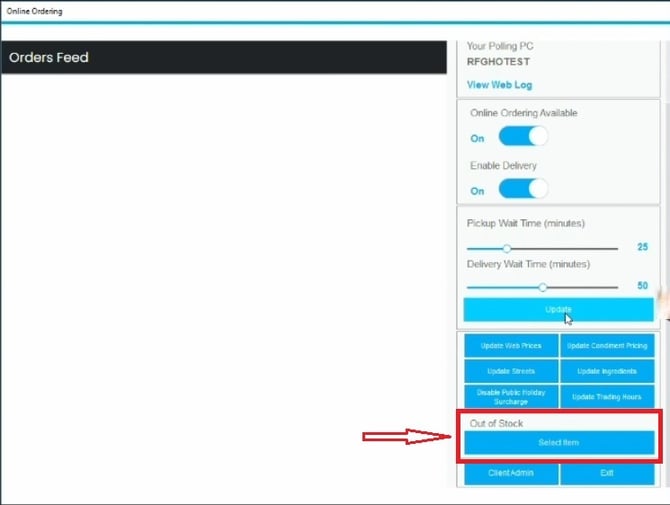
Open the Out‑of‑Stock Section
- Locate the Out‑of‑Stock section at the bottom‑right of the screen.
- Click Select Item.
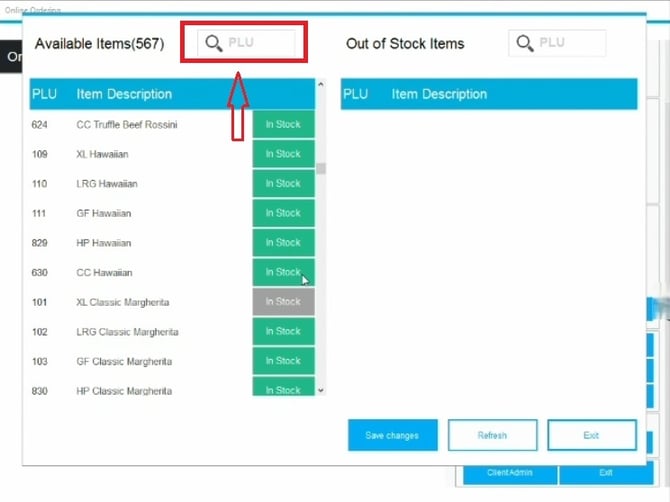
Select the Item
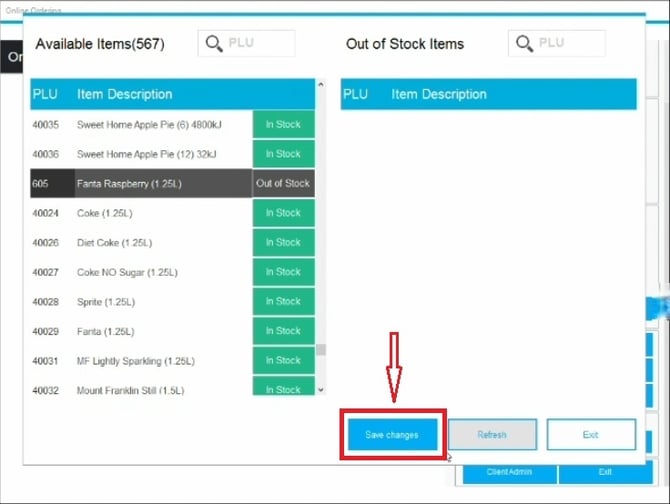
- In the Available Items section, choose the item you want to mark as unavailable.
- Scroll through the list or use the search box to find items.
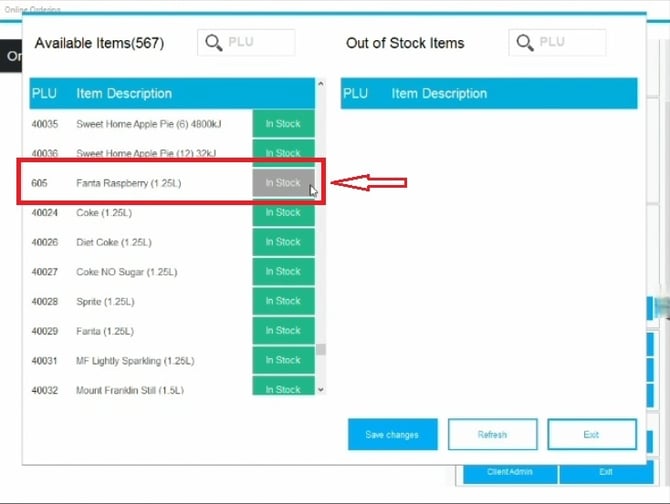
- Click the In‑Stock button to move it out of stock.
Save Changes
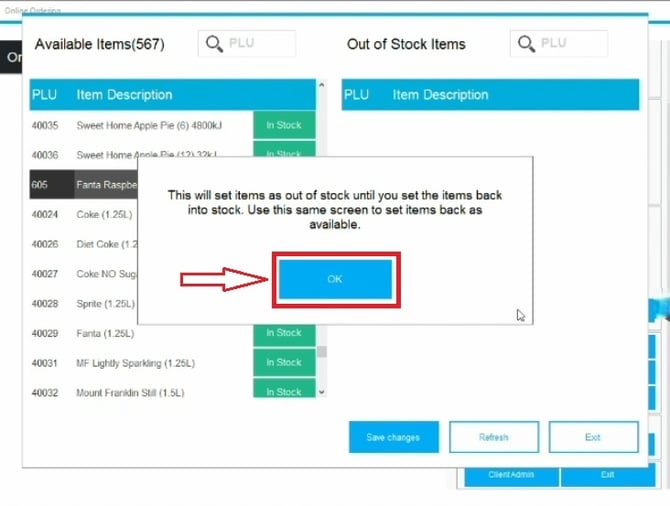
- Click Save, then select OK to confirm.
Confirm the Update
- The item will now appear in the Out‑of‑Stock section on the right.
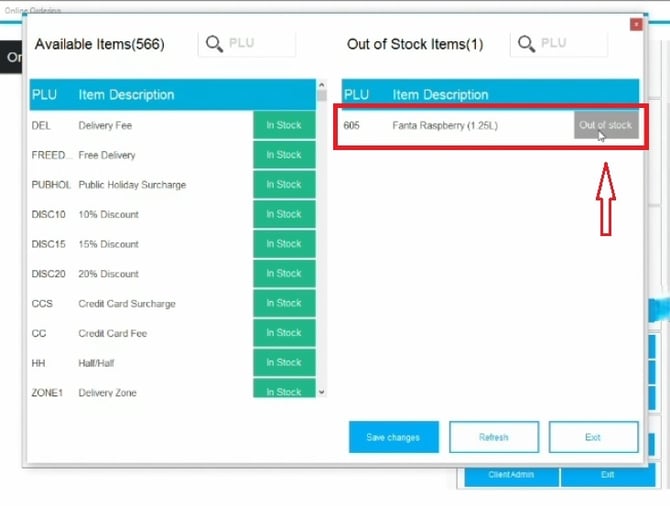
Changes are applied immediately across 3PA platforms (UberEats and DoorDash)
Making an Item Available Again
- To make the item available again, simply click the Out‑of‑Stock button next to the item.
- Follow the same process and then save.
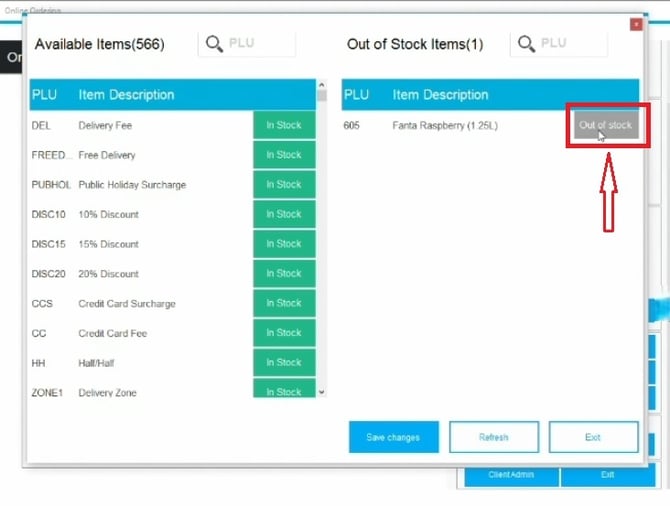
The item will return to the available list and be visible to customers.
Reminder:
When items become available, ensure they are moved back to the Available list.
Regularly review your out‑of‑stock list, especially during busy periods. If you need further assistance, simply click the blue chat icon at the bottom-right corner of the screen to connect directly with our Application Support Team.