
Step‑by‑Step Instructions
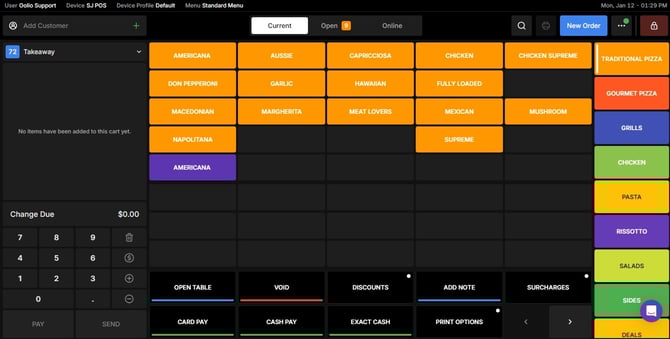
Open the POS Order Screen
Log in to Oolio POS, then navigate to the POS Order Screen.
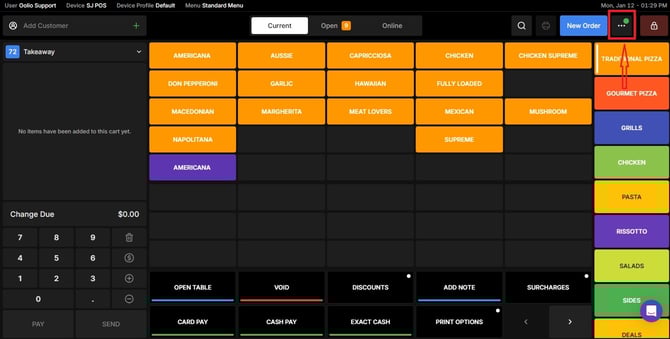
Open the Navigation Menu
In the top‑right corner of the screen, click the Navigation Menu.
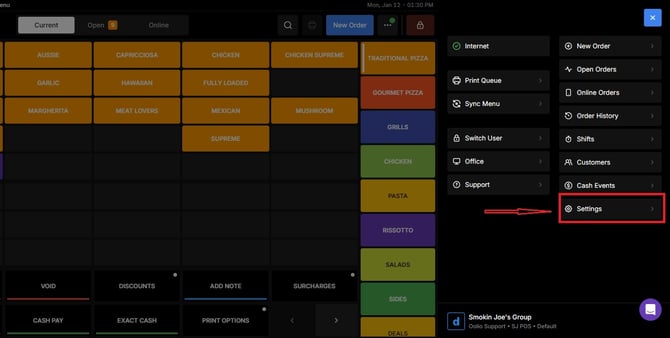
Go to Settings
From the navigation menu, select Settings.
Locate the Appearance Section
Scroll down the Settings page until you find the Appearance section.
Locate the Options Grid Size option and make the necessary adjustments, then save.


If you need further assistance, simply click the purple chat icon at the bottom-right corner of the screen to connect directly with our Application Support Team.