
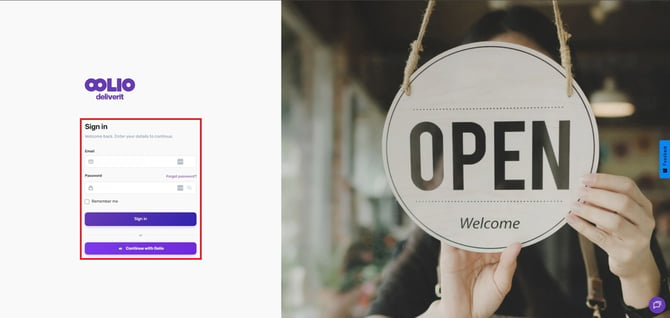
Log in to Deliverit Studio
- Go to Deliverit Studio.
- Enter your username and password.
- Click Log In to access your account.
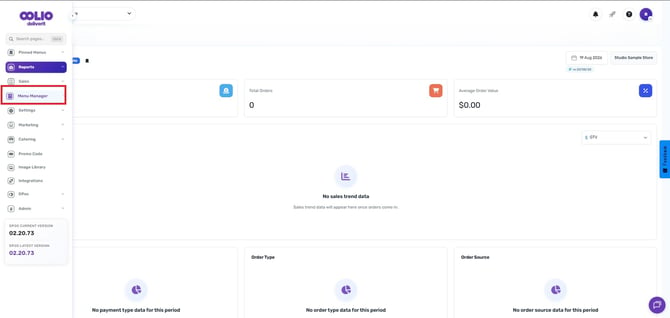
Step 2: Navigate to Menu Manager
- On the left-hand panel, click Menu Manager.
- This is where you can view and manage all items, menus, and ingredients.
Locating an Item
There are two ways to find an item:
Option 1: Using the Items Section.
- Go to the Items.
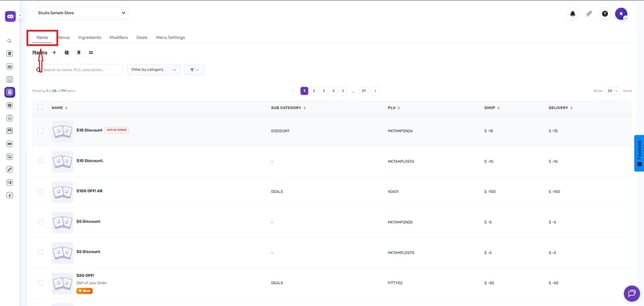
Type the item name into the Search Bar.
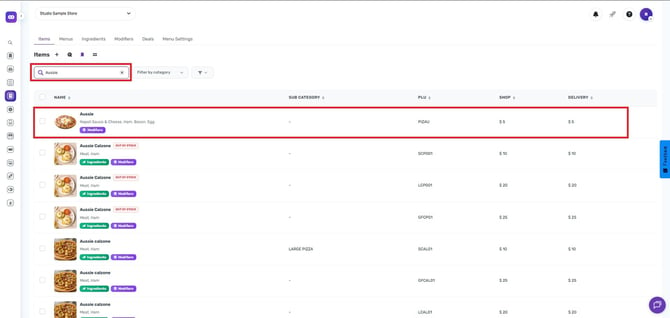
- To narrow down the results, you can use the Categories and Subcategory filters.
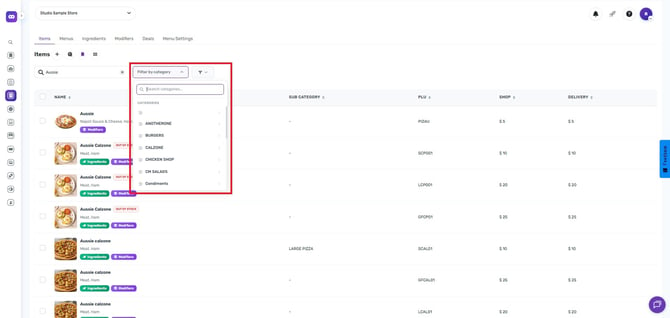
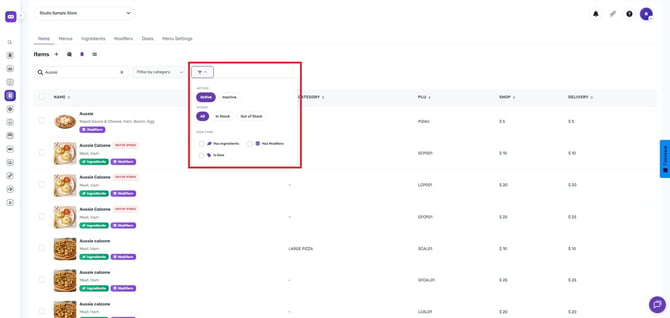
- You can also filter items by status (active or inactive), availability (in stock or out of stock), or item type (has ingredients, modifiers, or is a deal).
Option 2: Using the Menus Tab
- Click on the Menus tab.
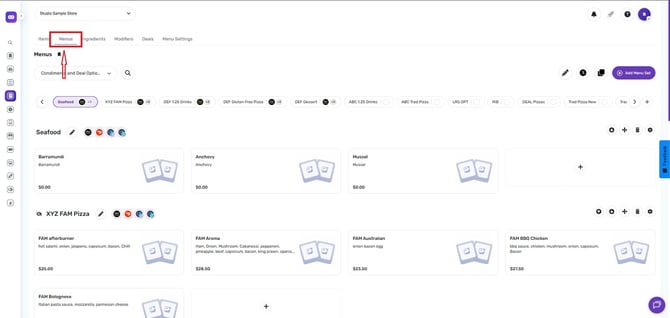
- Select a menu from the Drop-Down List.
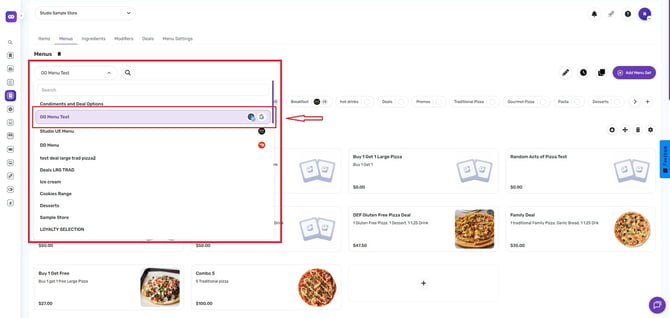
- Click the Search Icon on the right side of the menu.
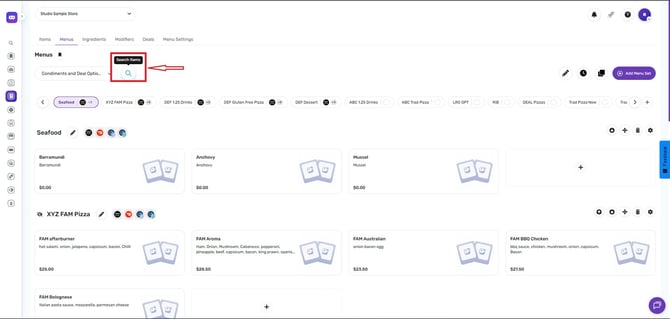
- Enter the item name and click Enter to quickly locate it.
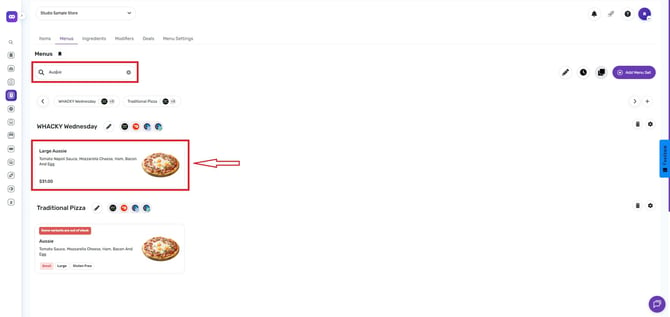
Locating an Ingredient
You can also find ingredients using two methods:
Option 1: Using the Menus Tab
- From the menu drop-down, select Condiments and Deals.
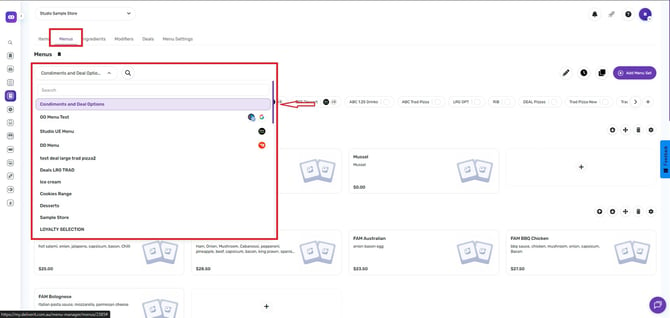
- Click the Search Icon on the right side of the menu.
- Enter the ingredient name in the search bar and hit enter.
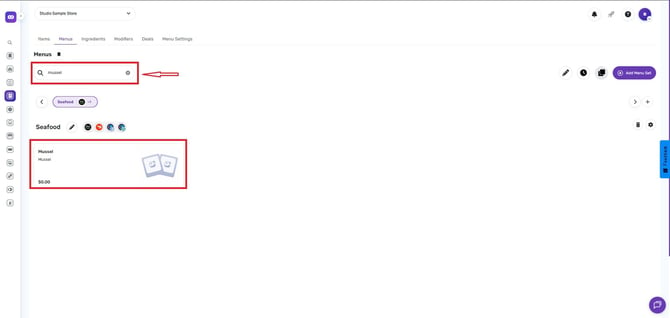
Option 2: Using the Ingredients Tab
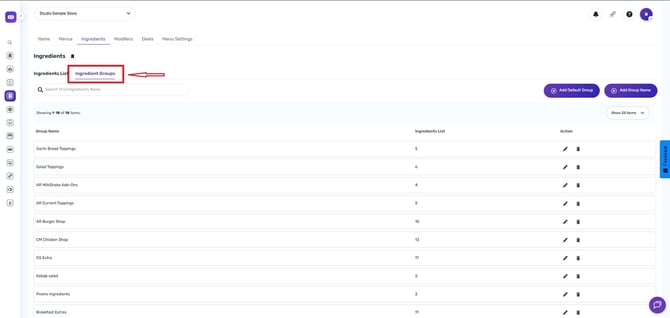
- Go to the Ingredients tab.
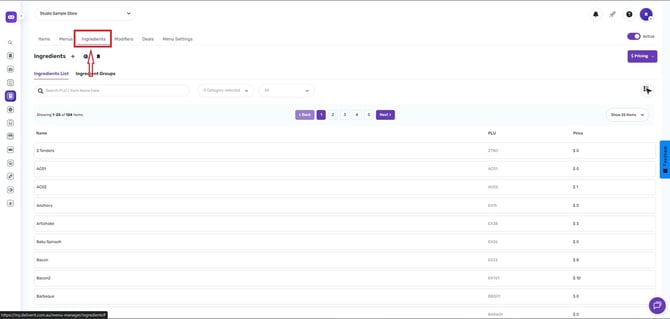
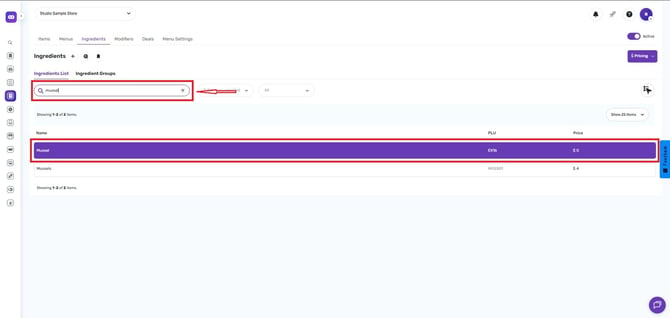
- Type the ingredient name into the Search Bar.
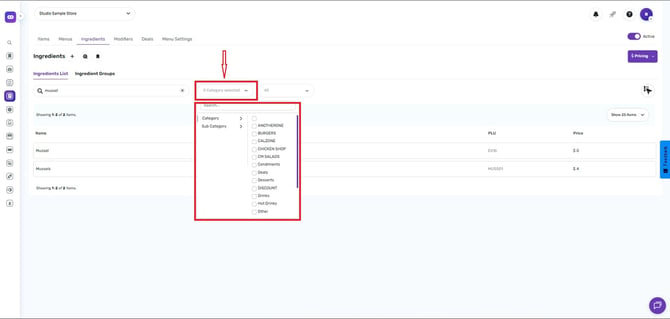
- Use the Category or Subcategory filters to narrow down the results.
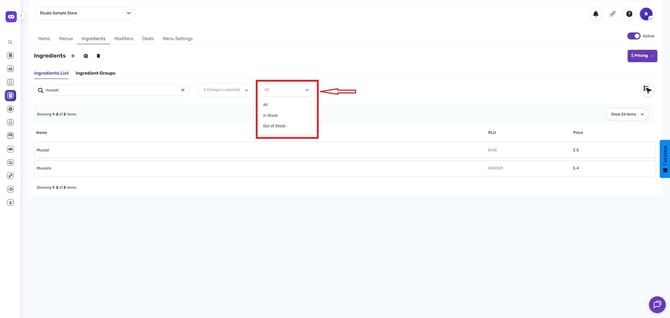
- By the items' availability.
- You can also search for an Ingredient Group for a more organized view.
By following these steps, you’ll be able to easily locate any item or ingredient in Deliverit Studio. If you need further assistance, simply click the blue chat icon at the bottom-right corner of the screen to connect directly with our Application Support Team.