
Step-by-Step Guide
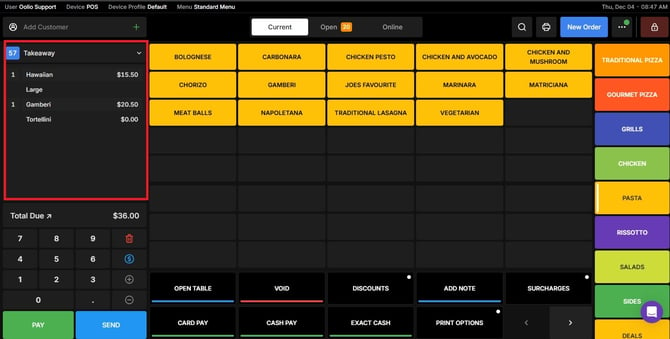
Open the Orders Screen
Navigate to the Orders section from your POS dashboard.
Select the Item You Want to Modify
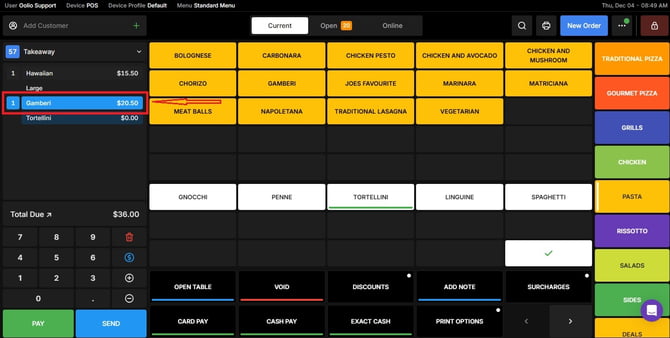
Tap the order item you want to adjust.
This will open the item details panel.
Increase the Quantity
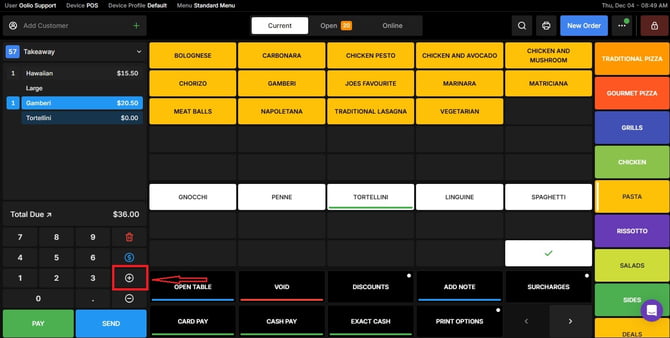
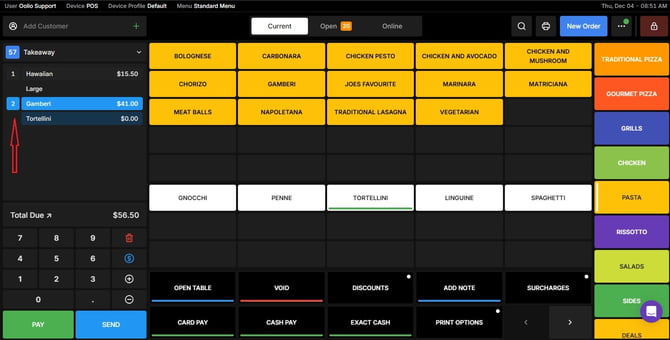
Tap the Plus button to add more units of the item.
Decrease Quantity
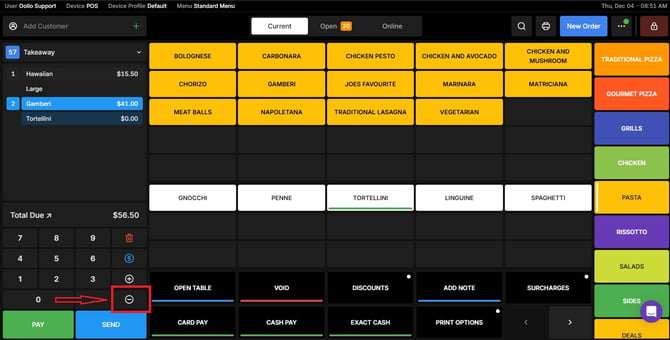
If you need to reduce the quantity, tap the Minus (–) button.
Notes
- Changes update instantly in the order summary.
- If you reduce the quantity to zero, the item will be removed from the order.
If you need further assistance, simply click the blue chat icon at the bottom-right corner of the screen to connect directly with our Application Support Team.