
Step-by-Step Guide
Log In to Your DPOS Cloud Account
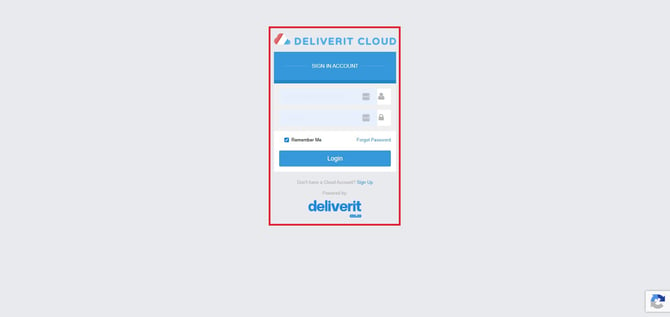
Open your browser and visit the DPOS Cloud login page.
Enter your login credentials and click Log In.
Access the Reports Section
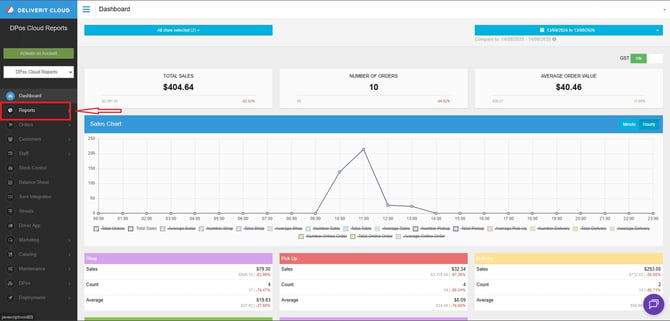
Once logged in, find the left-hand side menu.
Click on Reports to open the reporting dashboard.
Open the Web Sale Report
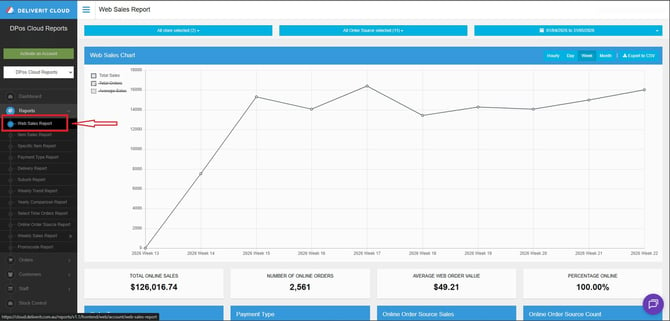
Inside the Reports section, click on Web Sale Report.
This will display your online sales data.
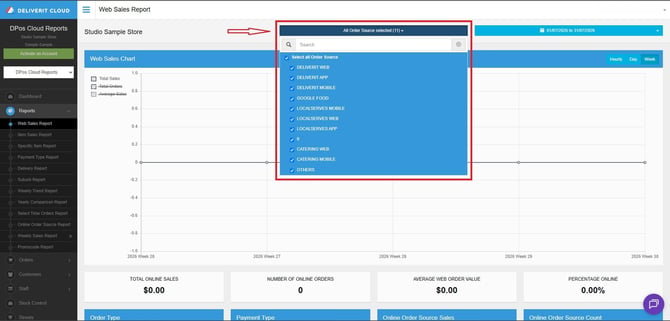
Filter by the Order Source.
-
Deliverit Web
-
Deliverit App
-
Deliverit Mobile
-
Google Food
-
Localserves Mobile
-
Localserves AppCaterig Web
-
Catering Mobile
-
Others
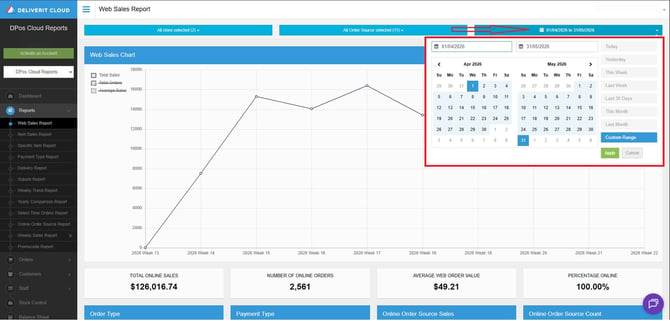
Set the Date Range
At the top of the Web Sale Report page, select the date range you want to view.
This filters the data to match the period you're interested in.
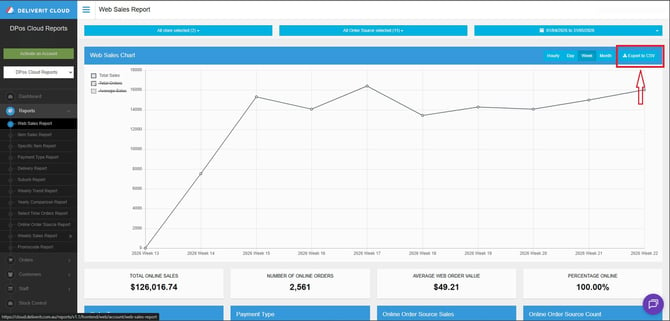
Export to CSV
Look for the Export to CSV button at the top right of the page.
Click it to download the report as a CSV file to your computer.
By following these steps, you will be able to export the Web Sales Report from Deliverit Cloud efficiently. If you need further assistance, simply click the blue chat icon at the bottom-right corner of the screen to connect directly with our Application Support Team.