
Step-by-Step Guide
Log in to DPos Cloud Reports
-
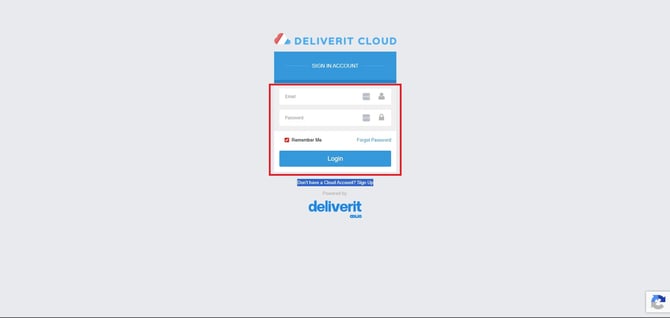
Open your browser and log in to your https://cloud.deliverit.com.au/
Go to the Reports Section
-
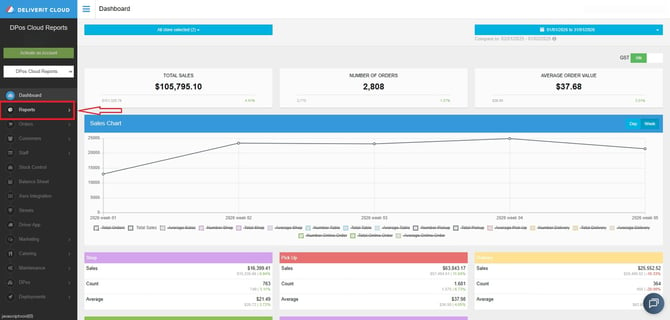
From the main menu, navigate to the Reports section.
Select “Specific Item Report”
-
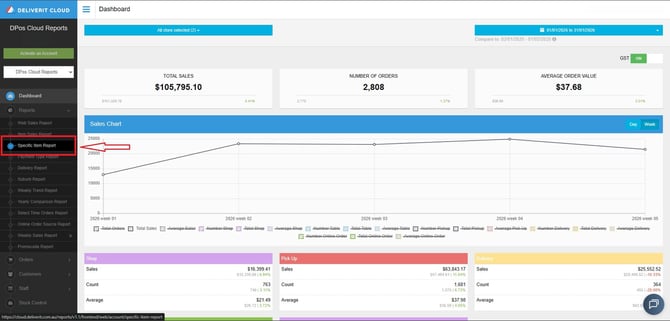
Locate and click on Specific Item Report from the list of available reports.
Choose the Store
-
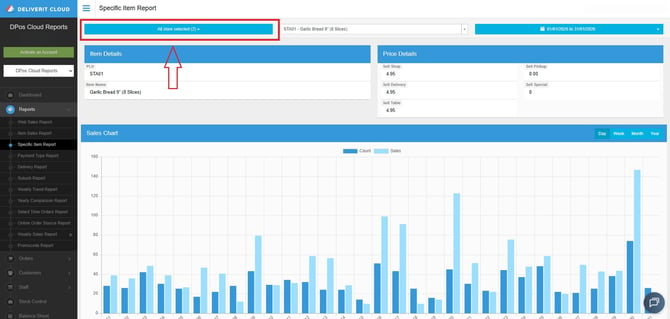
Select the store you want to generate the report for.
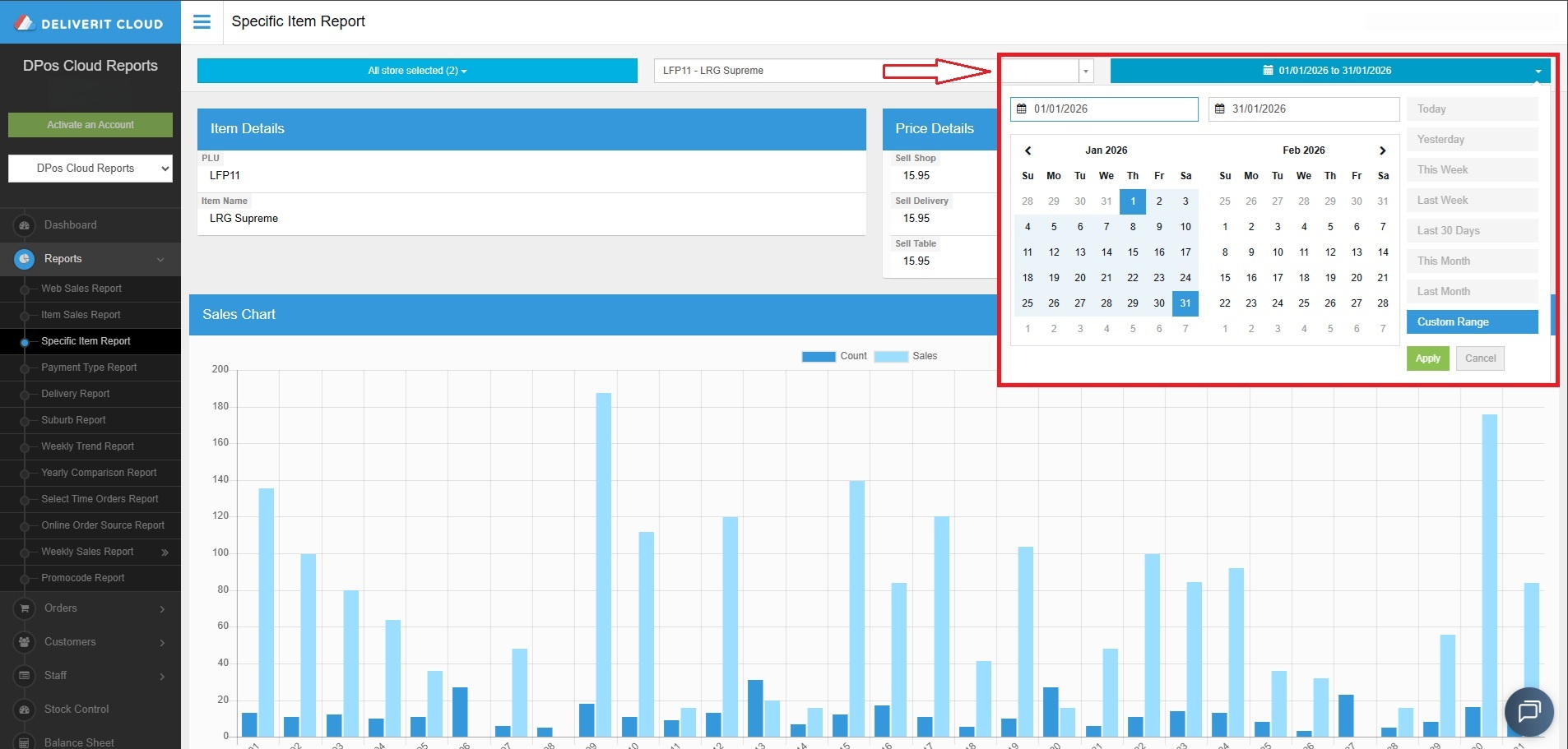
Set the Date Range
-
Define the date range to filter the report (e.g., daily, weekly, monthly).
Select the Item
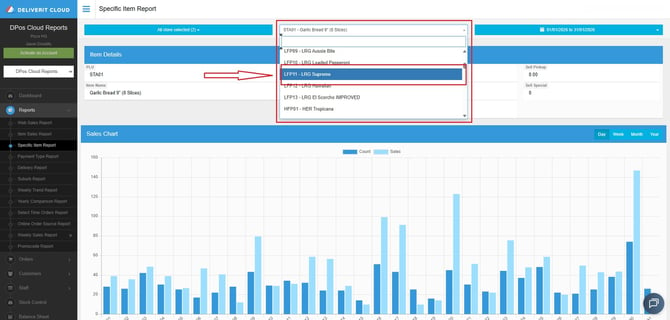
-
Choose the specific item you want to review.
Review the Report
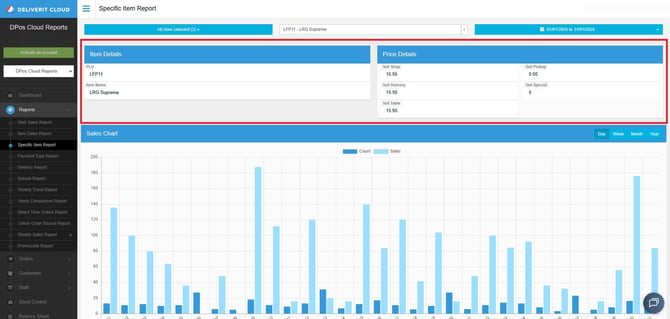
Once generated, the report will display:
- Item Details – Basic product information
- Price Details – Pricing data for the selected item
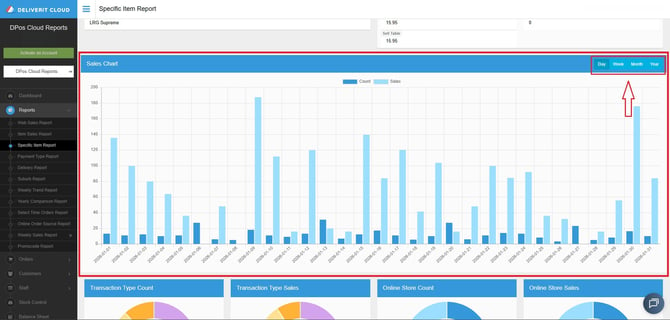
- Sales Chart – Performance over time (daily, weekly, monthly, yearly)
View Transaction Breakdown
- Total Count – Number of items sold
- Total Sales – Revenue generated
- Online Store Count – Number of online orders
- Online Store Sales – Revenue from online orders
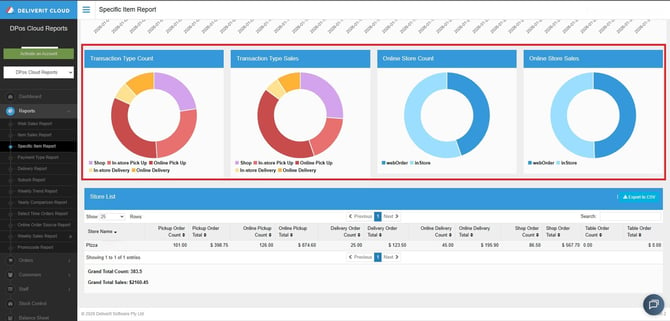
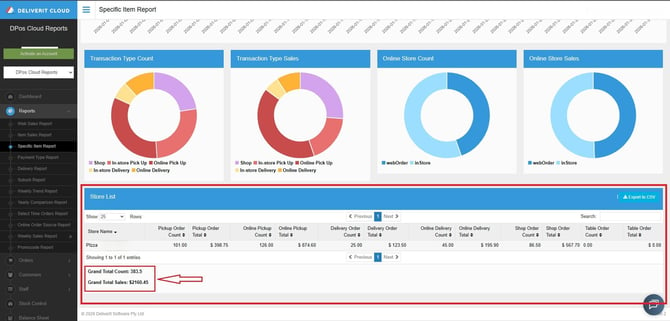
Check Store Totals
- Under the Store List section, you will see:
- Grand Total Count
- Grand Total Sales
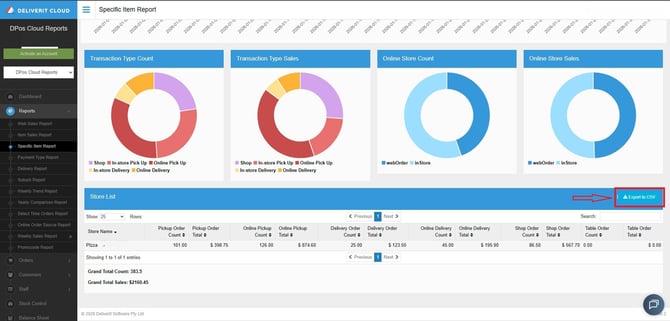
Export the Report
-
Click Export to CSV to download the report for further analysis or sharing.
Keeping track of specific item performance helps you identify trends, manage inventory, and improve sales strategies. If you need further assistance, simply click the blue chat icon at the bottom-right corner of the screen to connect directly with our Application Support Team.