
Step-by-Step Guide
Log in to Deliverit Studio
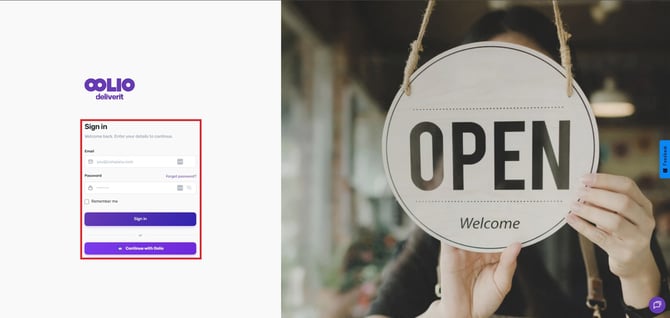
Go to https://my.deliverit.com.au.
Enter your Cloud username and password, then click Log In.
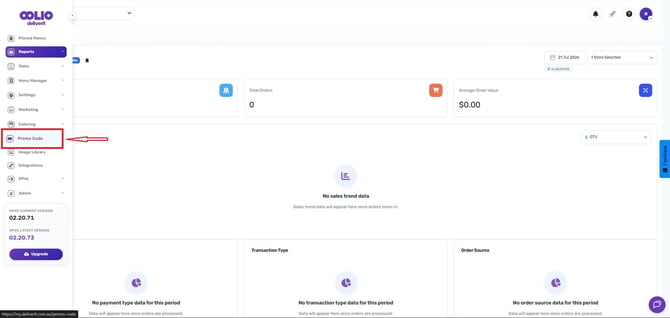
Open the Promo Code Section
From the left-hand menu, click Promo Code to view all your existing promotions.
Find the Promo Code to Extend
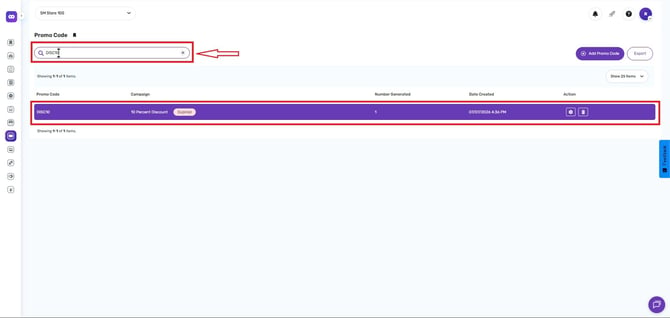
Use the search bar to locate the promo code you wish to extend.
Select the item to open the settings window.
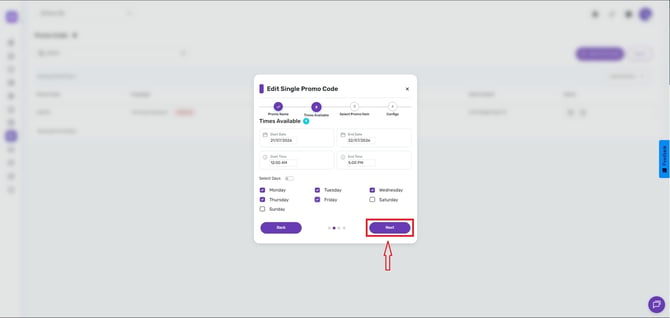
In the Times Available section, update the Dates and Times
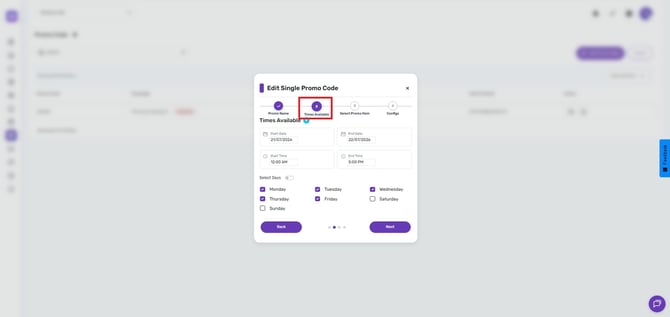
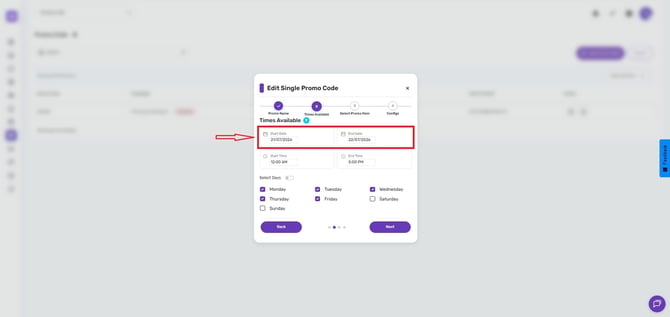
Adjust the Start Date and End Date to extend the promo period.
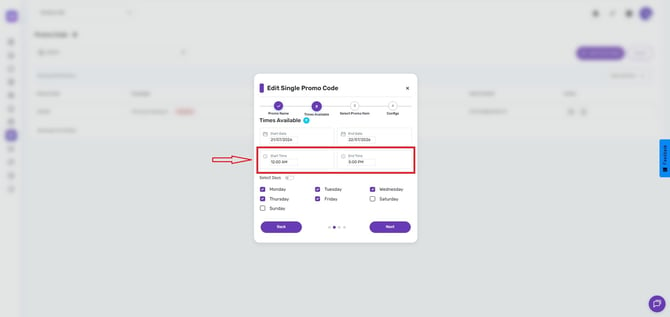
You can also update the Start Time and End Time if needed.
Set Day Availability
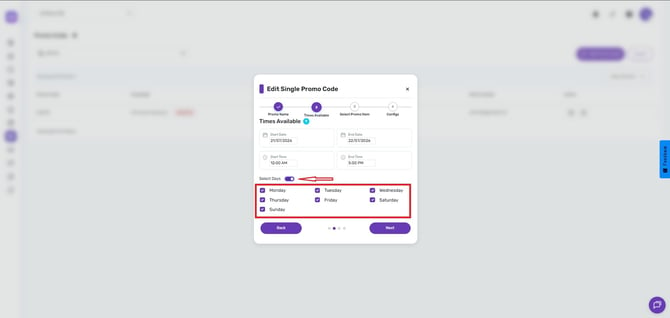
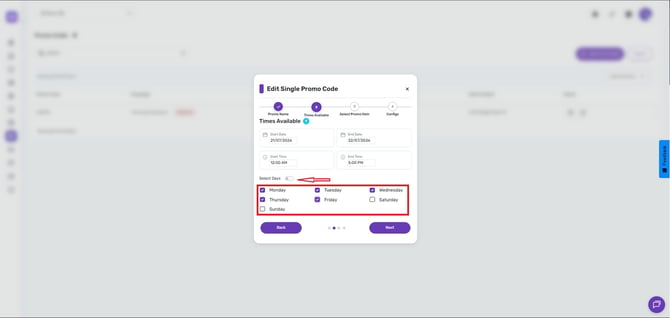
Select the days you want the promo to remain active.
You can toggle Select Days to make it available all week,
Or toggle off for specific days as needed.
When done, click Next.
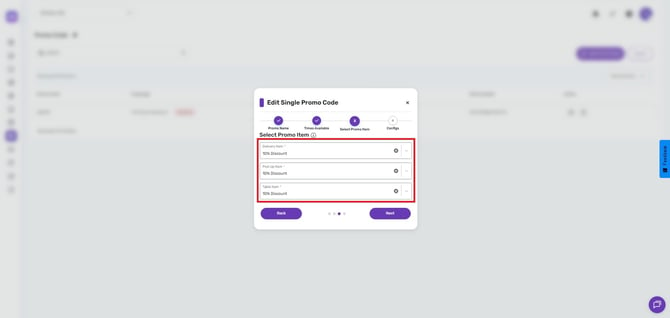
Select the Promo Items, then click Next
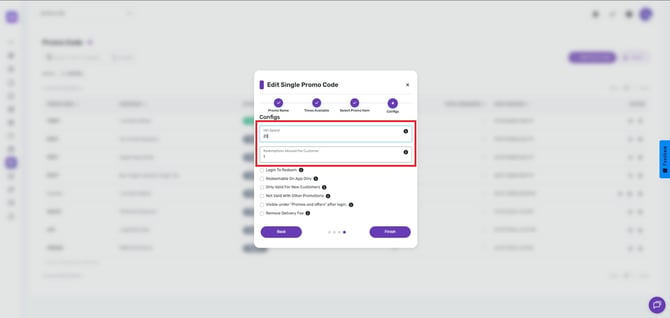
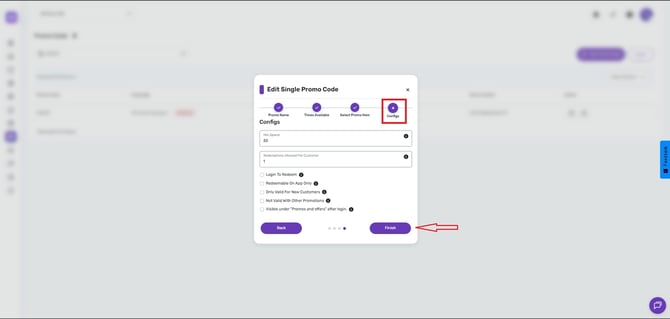
Configure Promo Code Rules
- Minimum Spend: Set a required order amount.
- Number of Codes Allowed: Total redemptions per customer.
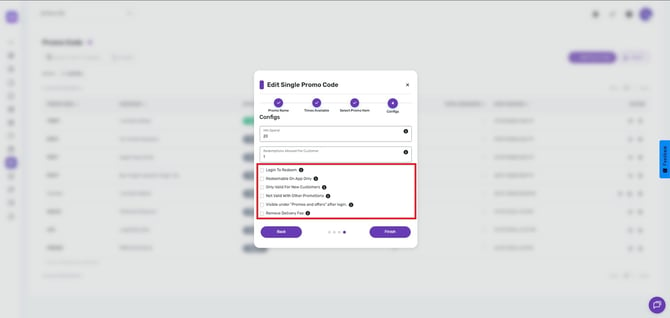
- Login to Redeem: Requires customer login or register to use the code
- Redeemable on App Only: Tick to limit to mobile app (leave unticked for both web & app)
- New Customers Only: Restrict use to first-time users
- Not Valid with Other Promotions: Prevent stacking with other offers
- Visible under "Promos and offers" after login. : The code will be listed under promos and offers on your website.
- Remove Delivery Fee - Enable this option to remove the delivery fee from customer orders, allowing delivery charges to be waived when needed.
Save Your Changes
when done, click Finish.
A pop-up will appear saying that the promo code has been updated. Click finish
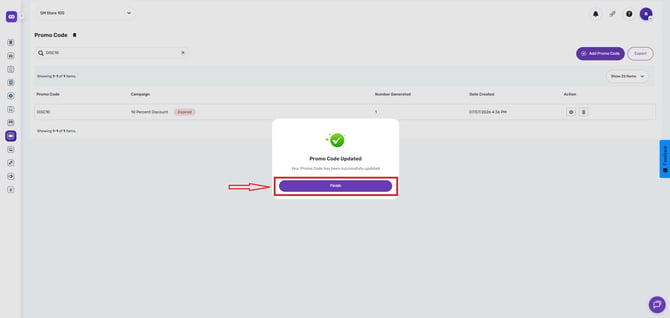
Your changes will be saved and applied automatically.
Now, the promo code is updated.
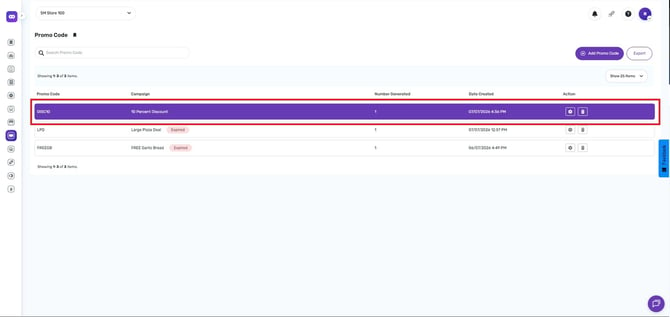
By following these steps, you will be able to extend existing promo codes in Deliverit Studio efficiently. If you need further assistance, simply click the blue chat icon at the bottom-right corner of the screen to connect directly with our Application Support Team.