
Step-by-Step Guide
Log in to Studio
Go to my.deliverit.com.au.
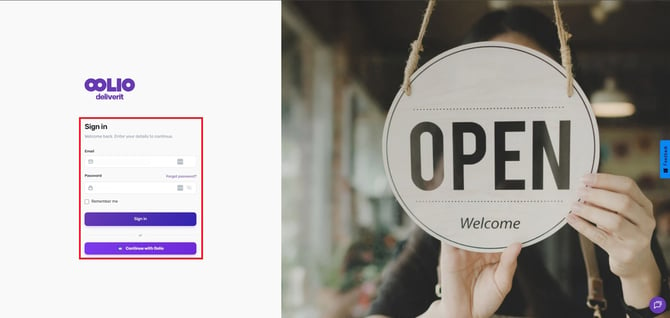
Ensure that the item has been created and that its price is set to zero. If it has not been created yet, please use the following link to create one.
Item Code: TIP01
Item Description: Driver's Tip
Value: 0.00
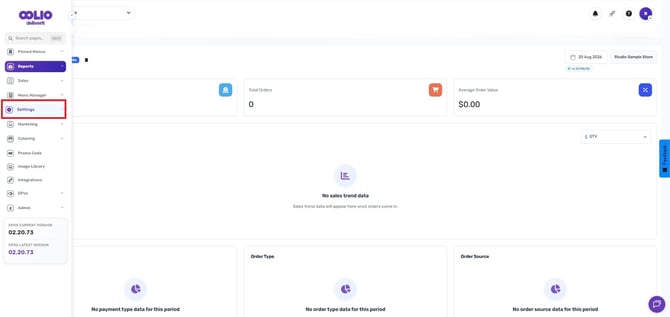
Go to Settings
From the left-hand menu, click Settings.
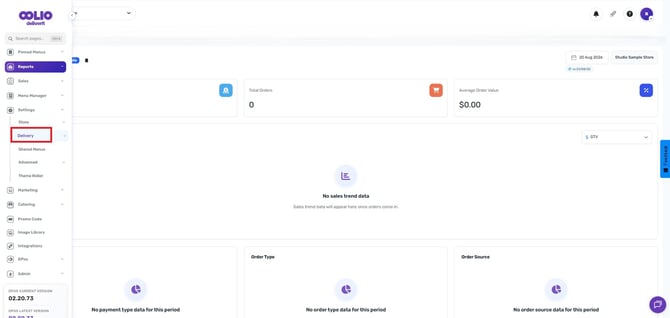
Select Delivery
Inside the Settings menu, choose Delivery.
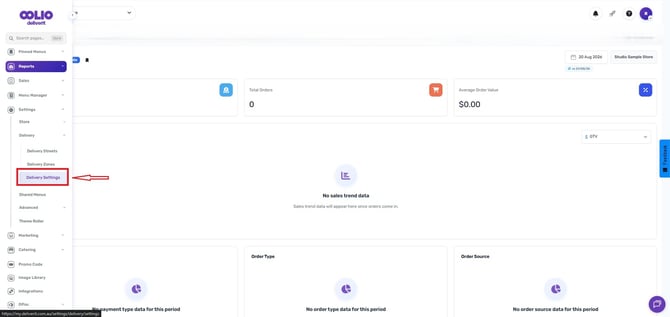
Open Delivery Settings
Click on Delivery Settings to access configuration options.
Find the Driver Tip Option Section
go to the Delivery Options section.
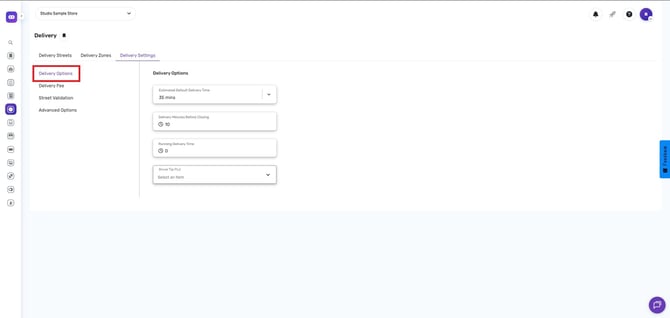
Scroll down to the Delivery Tip Product Code.
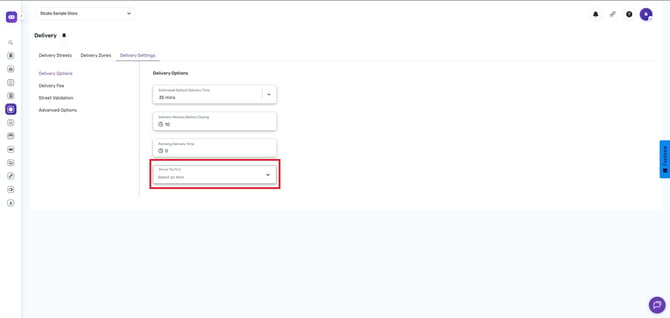
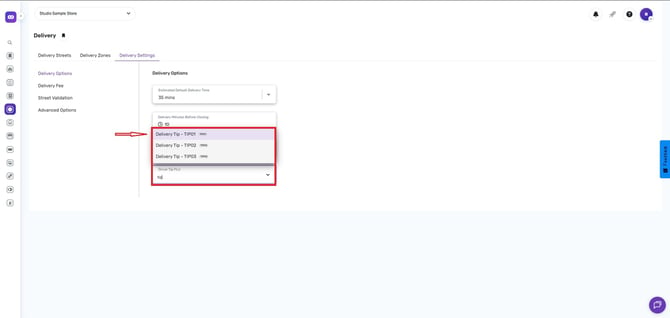
Choose an Item Code
Select the Item Code you want to use for driver tips.
This item code will be used when a customer adds a tip during checkout.
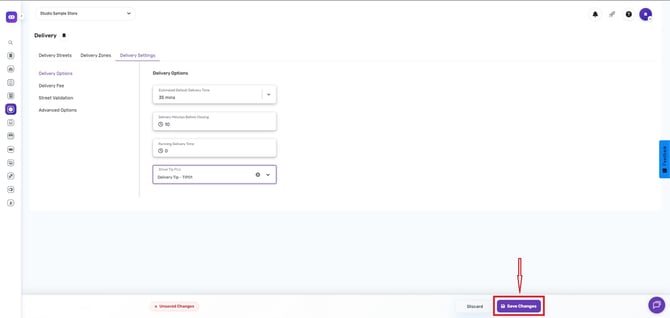
Save Your Changes
After selecting the item code, click Save.
Once saved, the Driver Tip Window will Popup will automatically appear when the customer clicks Checkout, before payment confirmation.
Customers will see options such as:
- Pre-set tip amounts (e.g., $2, $5, $10)
- Or Custom Value
- Not Now – skip tipping
- Continue – confirm tip and proceed
.png?width=670&height=317&name=image%20(12).png)
Your Driver Tip function is now complete.
If you need further assistance, simply click the blue chat icon at the bottom-right corner of the screen to connect directly with our Application Support Team.