
Step‑by‑Step Guide
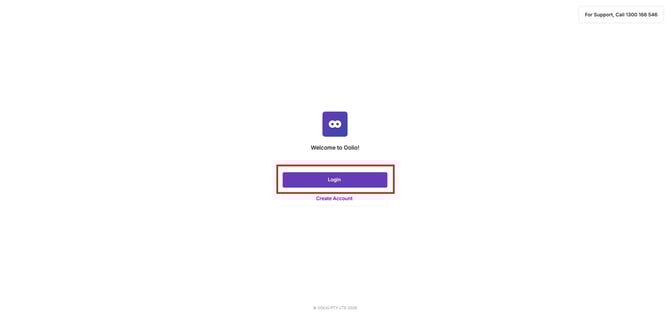
Log in to Oolio
Sign in to your Oolio POS account using your login credentials.
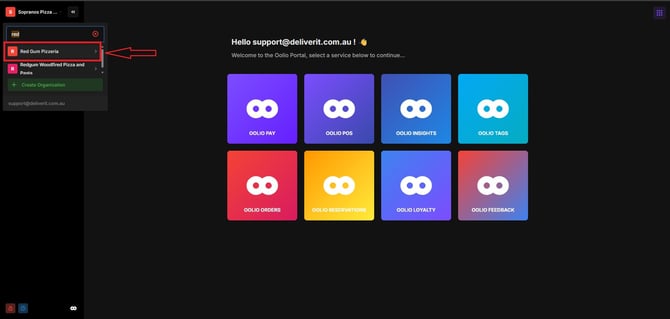
Select Your Store
At the top of the screen, open the dropdown menu and choose the store you want to manage.
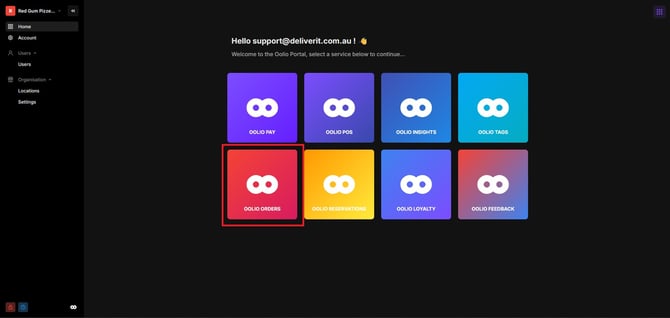
Navigate to Oolio Orders
Click on Oolio Orders from the application options.
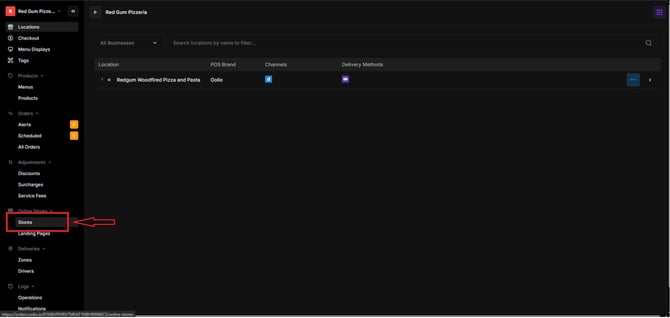
Open the Stores Section
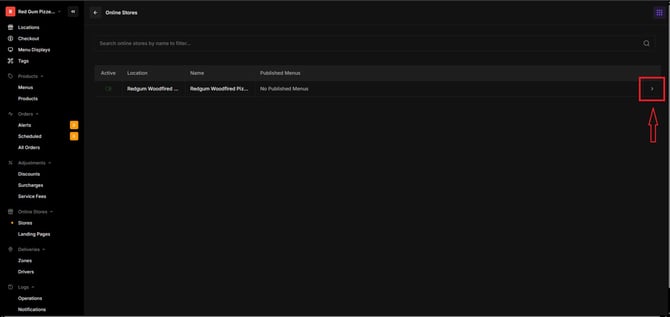
Using the left-hand navigation panel, click Stores.
Choose the Store to Update
Click the arrow icon beside your store name to open all configuration settings.
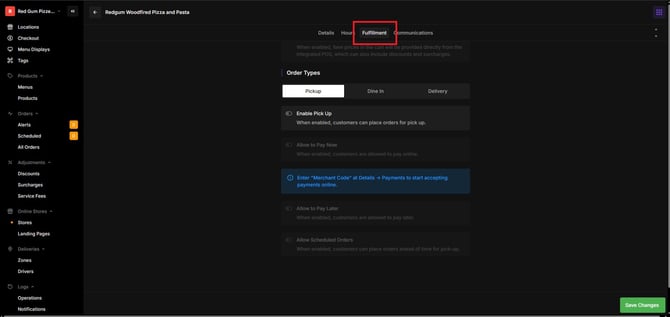
Go to the Fulfillment Tab
Inside your store settings, click the Fulfillment tab.
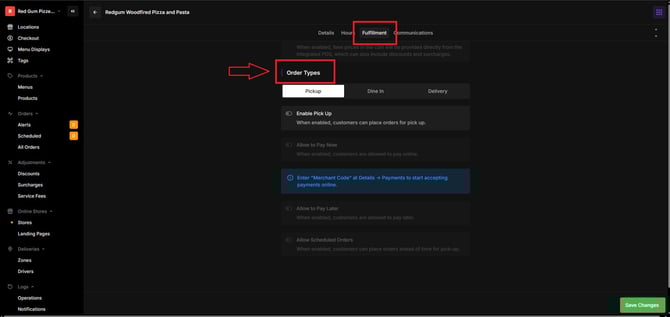
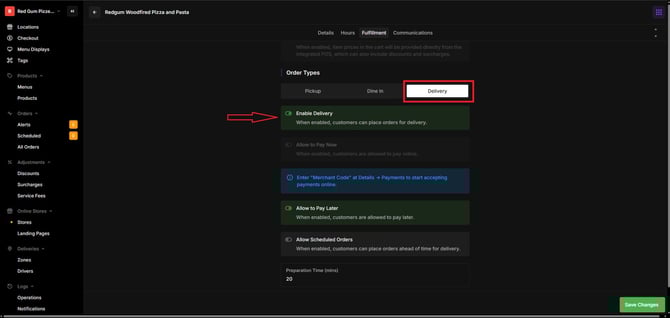
Locate the Order Types Section
Scroll down until you find the Order Types section.
This is where you can turn different order methods on or off.
Toggle the Order Types
Enable or disable the order types you want to offer:
- Delivery
- Pickup
- Dine-In
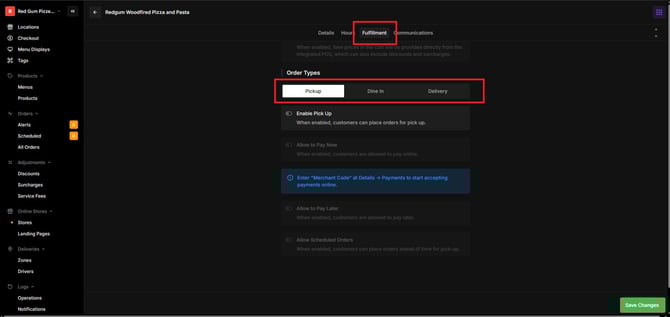
Simply switch each option ON or OFF depending on your store’s needs.
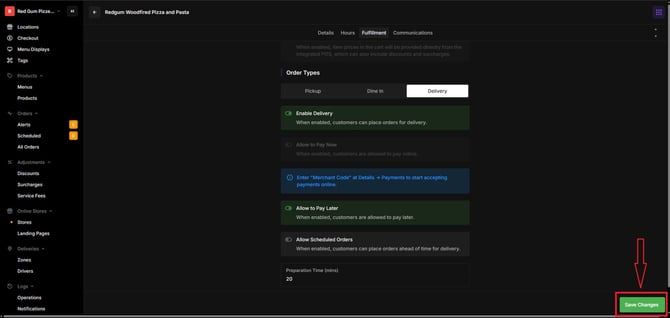
Save Your Changes
When you’re finished updating the order types, click Save to apply your changes.
If you need further assistance, simply click the blue chat icon at the bottom-right corner of the screen to connect directly with our Application Support Team.