
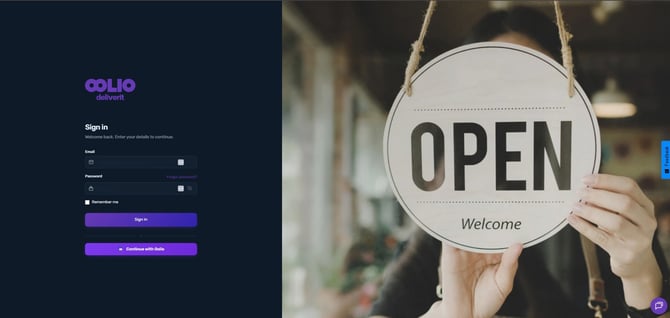
Log in to Studio
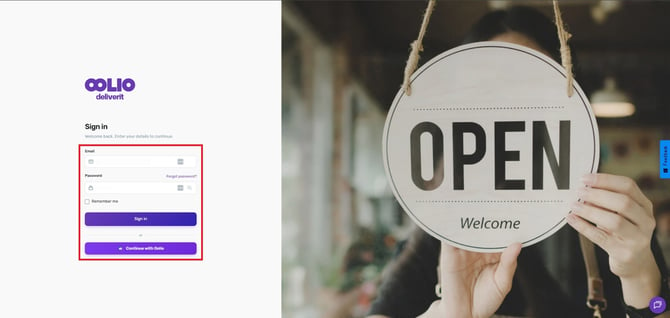
- Go to my.deliverit.com.au.
- Sign in using your Studio account credentials.
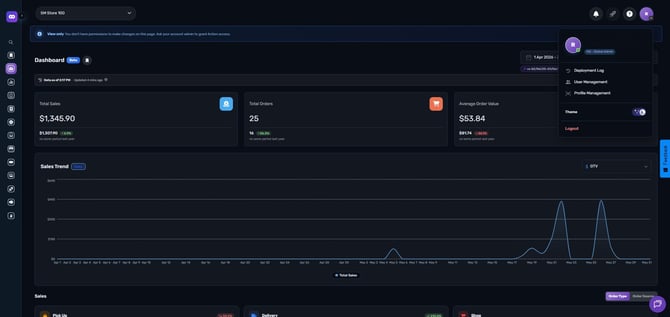
Open Your Profile Settings
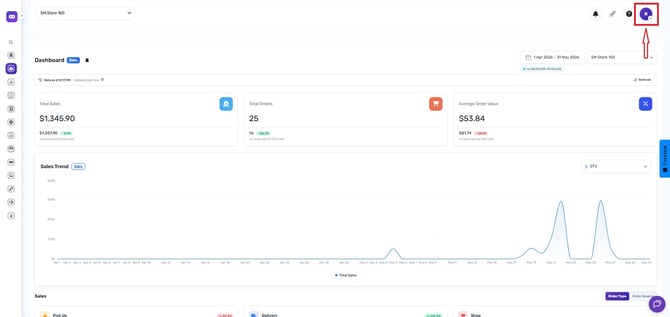
- Click your Profile icon in the top-right corner of the page.
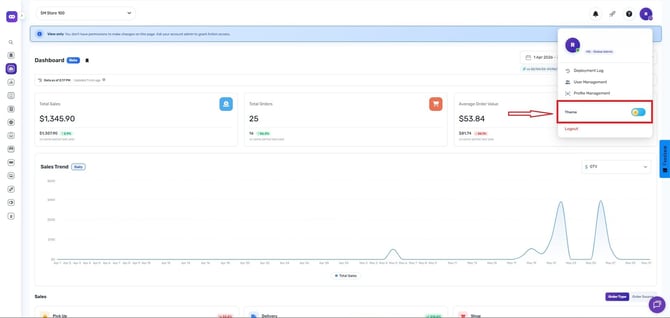
- Locate the Theme section.
Enable Dark Theme
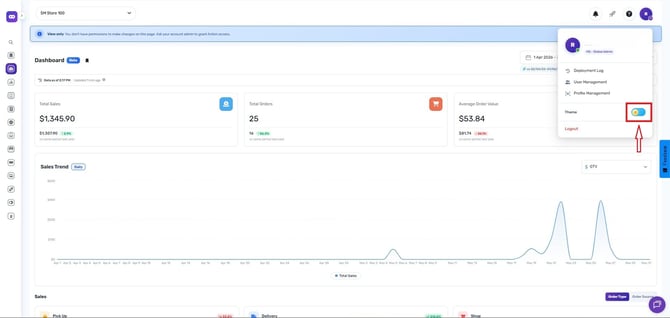
- Turn on the Dark Theme toggle.
- The change will be applied immediately across Studio.
You are now using Dark Theme.
Tip: You can switch back to the default light theme at any time by disabling the Dark Theme toggle.
By following these steps, you will be able to utilise the Dark Theme on Studio efficiently. If you need further assistance, simply click the chat icon at the bottom-right corner of the screen to connect directly with our Application Support Team.