
Step-by-Step Guide
Go to the Order Screen
Start by navigating to the main order screen on your Oolio POS system.
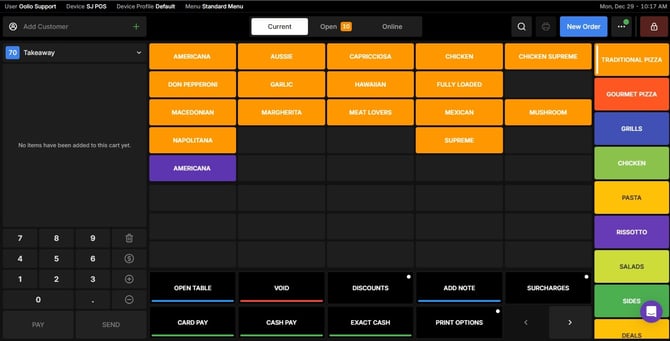
Search for an Existing One
Or navigate to the Open tab.
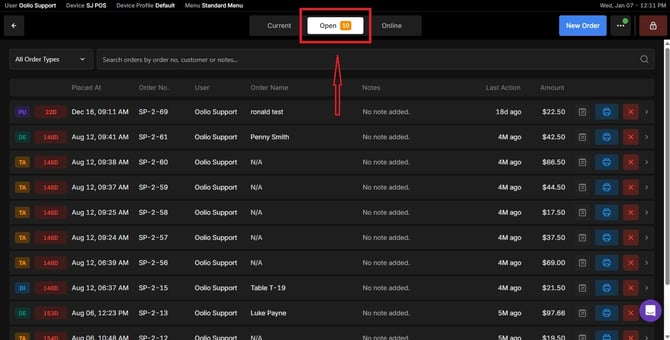
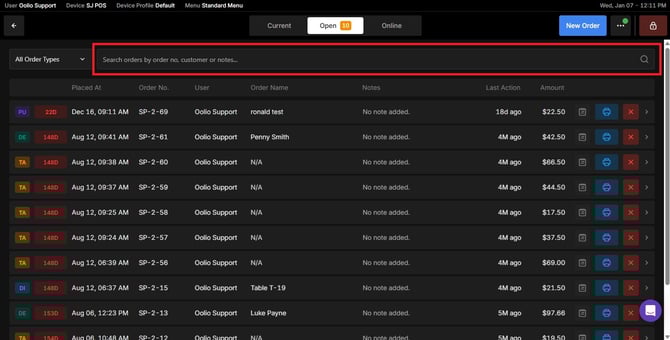
Use the search bar to find an existing order.
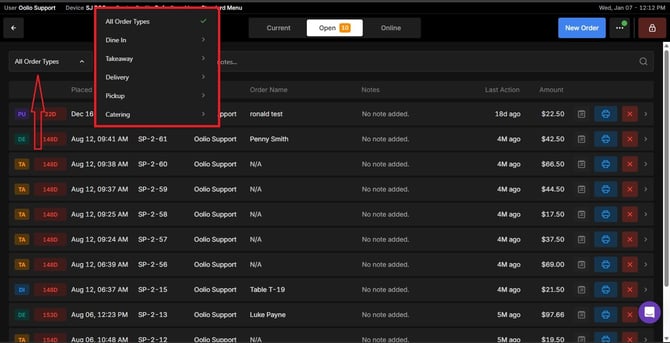
You can narrow down your results by selecting an order type.
Or, Create a new order
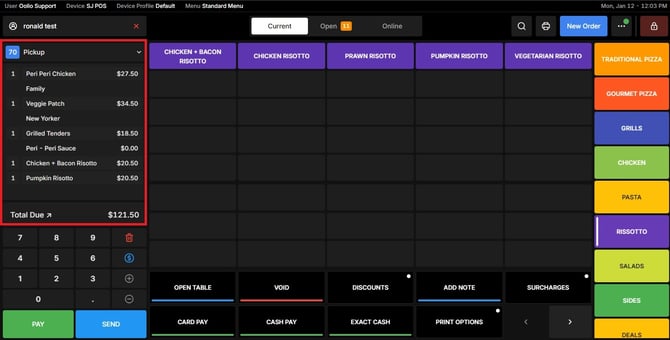
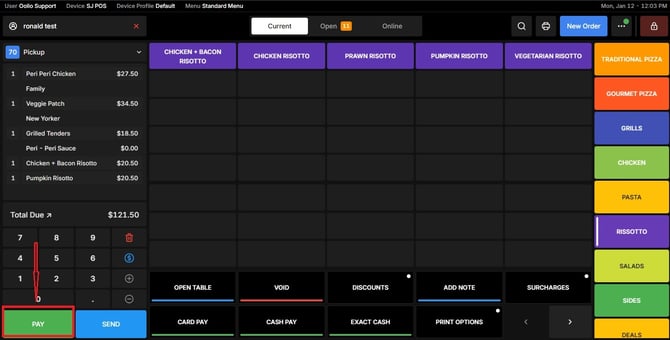
Click the Pay Button
Once the order is ready, tap the Pay button to proceed to payment options.
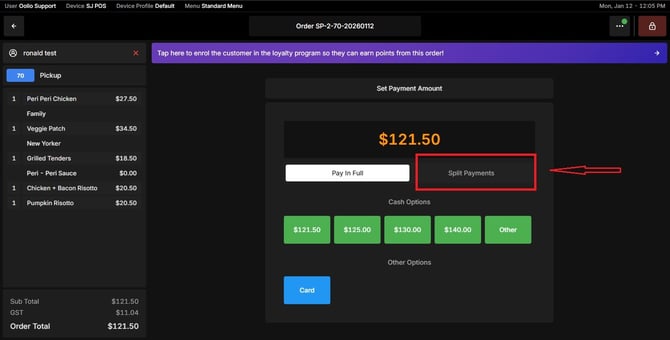
Choose the Split Payments Option
Select the Split Payments option to process the transaction.
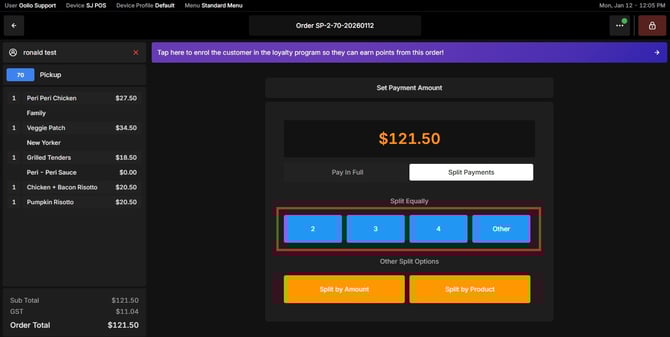
Select your Split Method
You can:
- Split by Equality – Divide the total equally among payers.
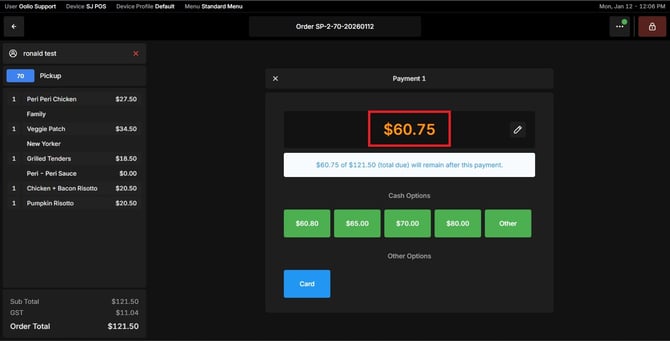
- After the first payment is processed, the system will automatically prompt for subsequent payments until the full transaction amount is reached.
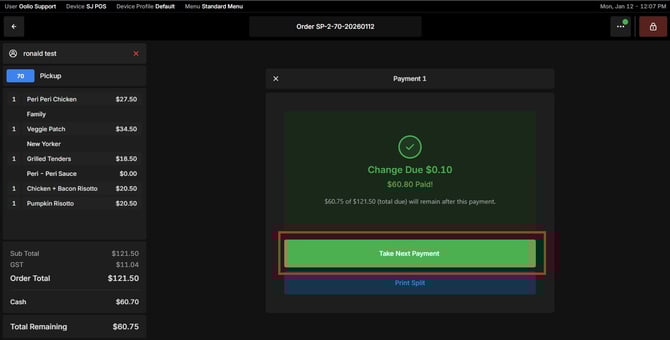
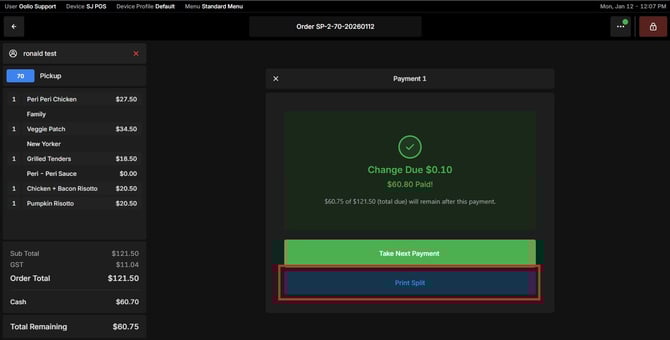
-
The system also allows you to print each split payment separately.
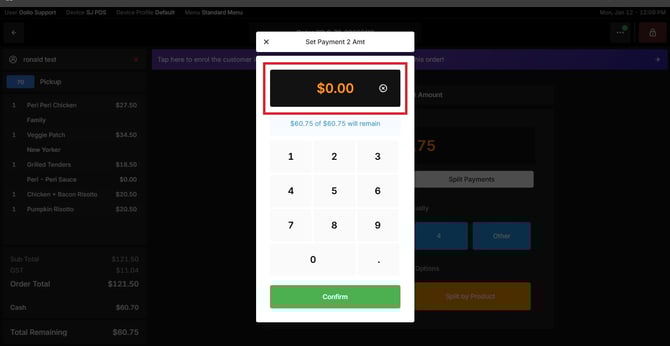
- Split by Amount – Assign specific amounts to each customer
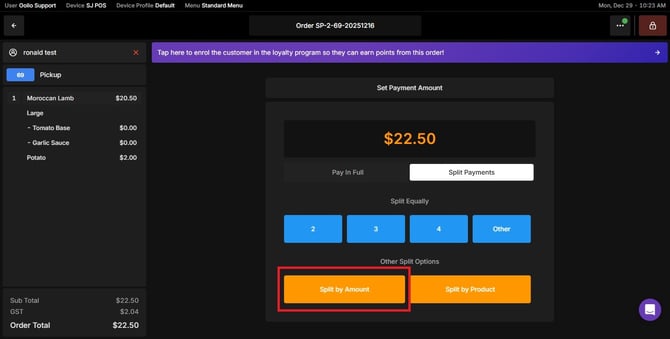
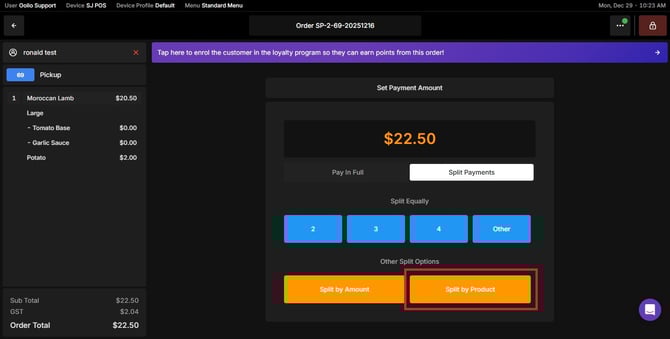
- Split by Product (Item) – Allocate payments based on individual items.
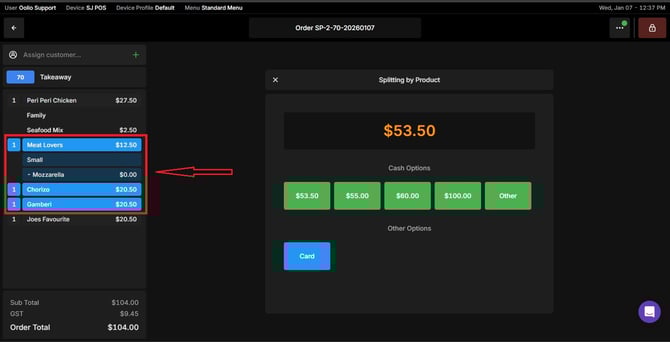
- When splitting an order by items, you can select more than one item at the same time.
You have successfully paid the order Split Payment. If you need further assistance, simply click the blue chat icon at the bottom-right corner of the screen to connect directly with our Application Support Team.