
Step-by-Step Guide
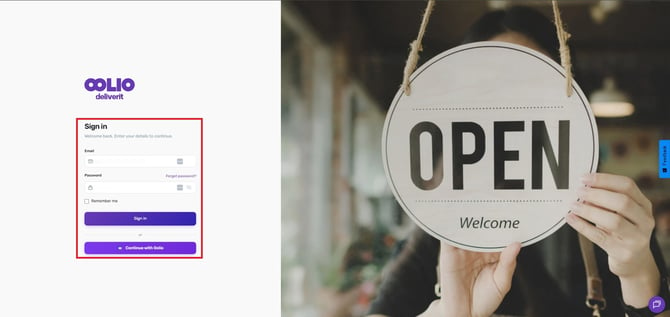
Log In to Studio
Sign in to your Studio account to access your menu settings and deployment tools.
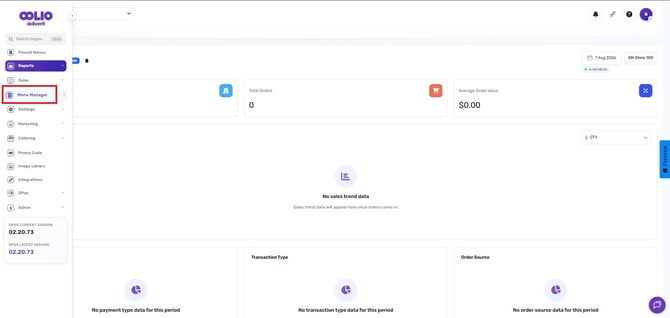
Navigate to Menu Manager
On the left-hand menu, click Menu Manager to open your menu configuration area.
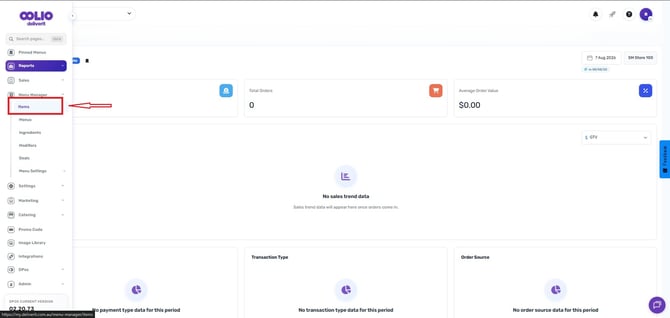
Go to the Items Tab
Inside Menu Manager, select the Items tab to view all menu items.
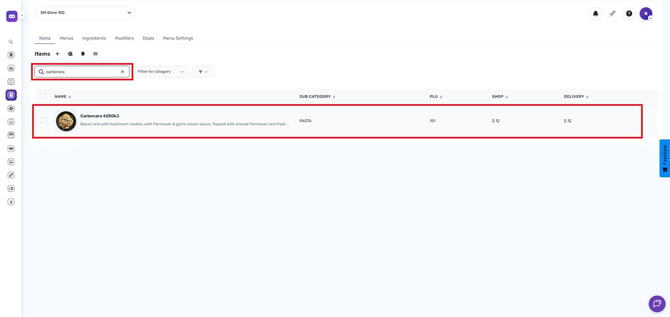
Select an Item
Choose the item you want to update and click on it to open the item details.
Open the Modifiers Tab
Inside the item settings, click on the Modifiers tab to view or manage the modifiers assigned to that item.
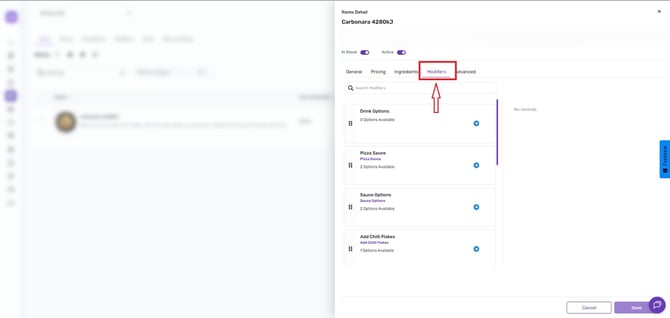
Assign or Edit Modifiers
Add new modifiers or adjust existing ones based on what you want to deploy.
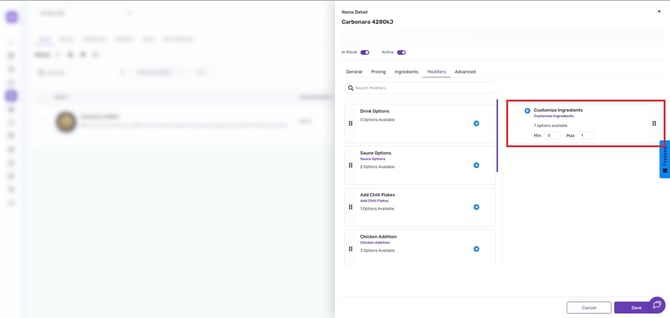
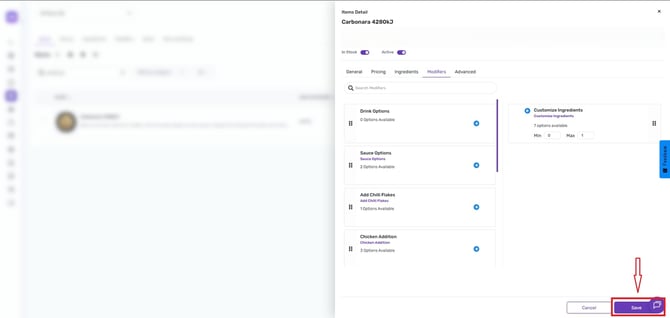
Save Your Changes
Once you’re done making updates, click Save.
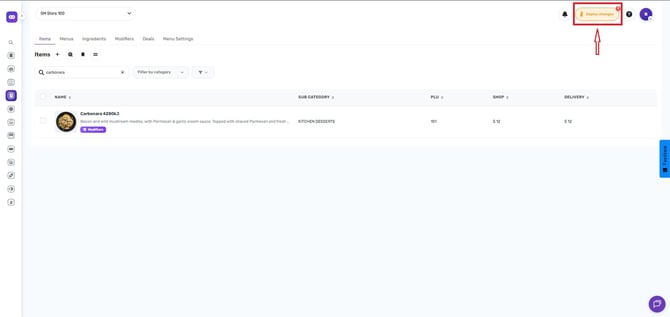
Click the Rocket Icon
After saving, click the rocket icon to start the deployment process.
This will launch the multi‑deploy tool.
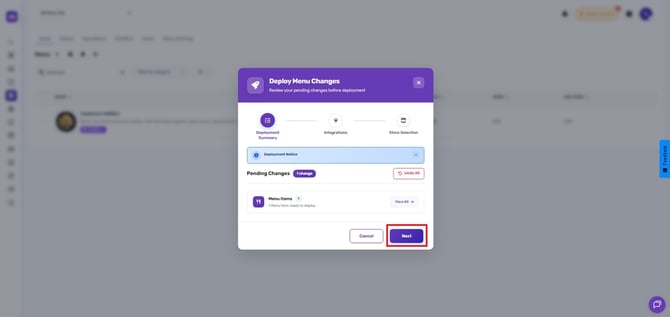
Click Next.
Confirm and then click the Next button.
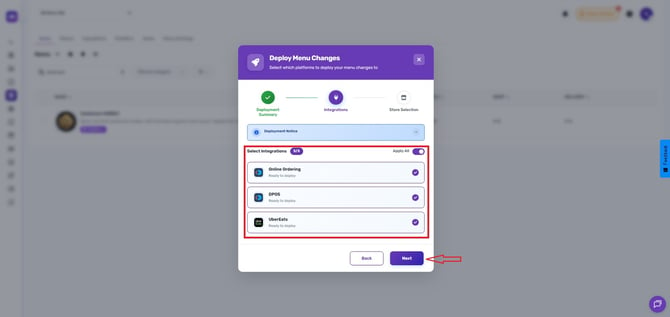
Choose Integrations
Select the integrations where your changes should apply, then click Next.
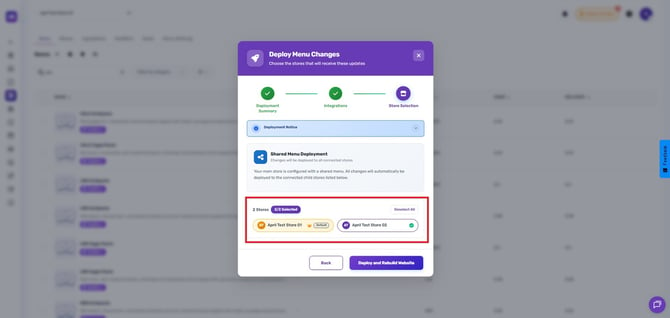
Multi‑Deploy Setup
You now have two ways to select stores for deployment:
- Click on the store(s)
Confirm Deployment
Once your stores are selected, click 'Deploy and Rebuild Website'.
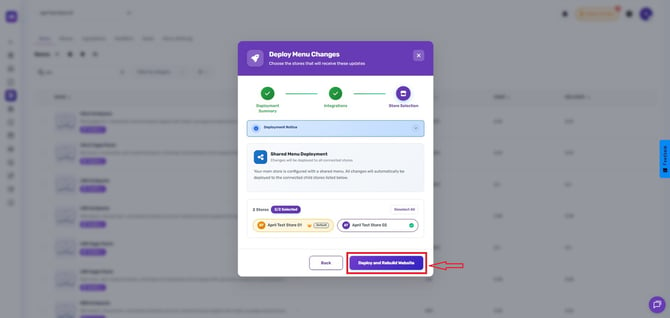
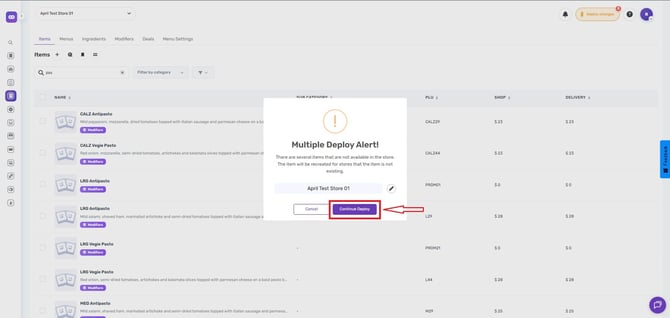
Your modifiers will now be applied to all chosen locations.
Multi‑Deploy helps keep your menu consistent across all stores with minimal effort. Always double‑check your selected stores before deploying to ensure accuracy.
If you need further assistance, simply click the blue chat icon at the bottom-right corner of the screen to connect directly with our Application Support Team.