
Step-by-Step Guide
Log In to Deliverit Studio
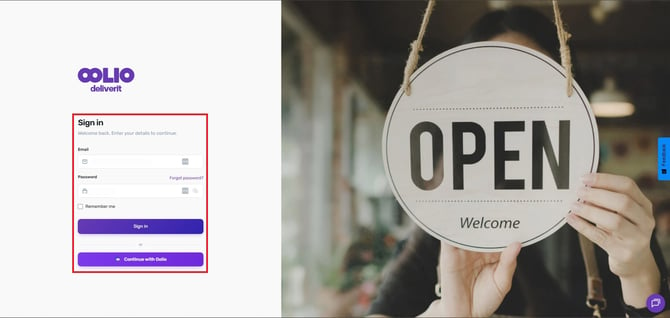
Go to https://my.deliverit.com.au and log in using your DPOS Cloud credentials.
Go to Menu Manager
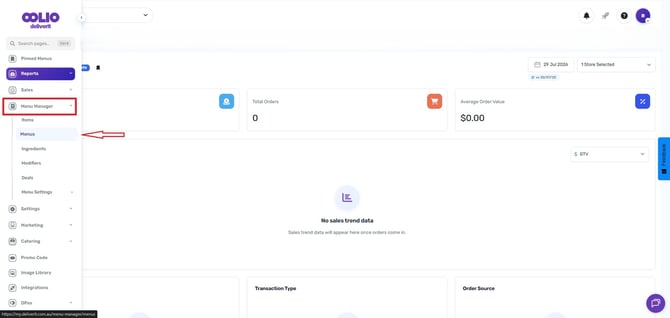
From the left-hand navigation menu, click Menu Manager, then select the Menus.
Click “Add Menu Set.”
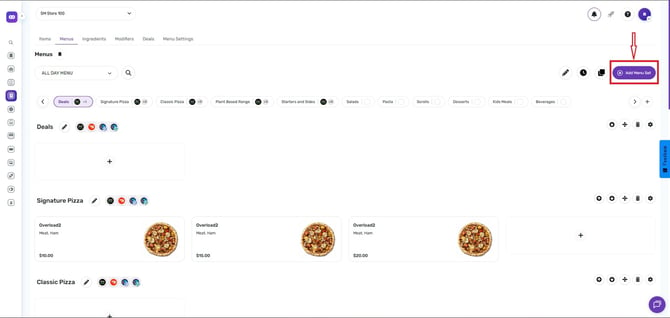
In the top right corner, click the Add Menu Set button.
Name Your New Menu Set
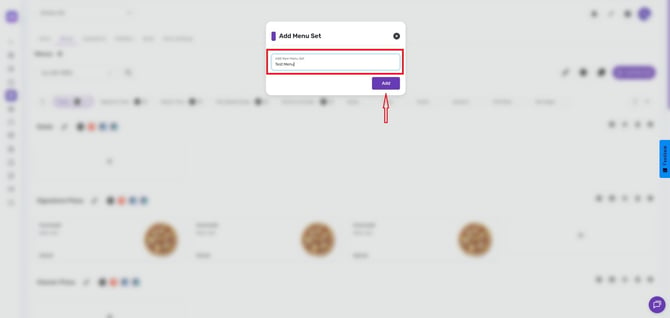
Type in the name for your new menu set, then click the Add button to save.
Verify the Menu Set
Your new menu set will automatically appear in the Menu dropdown list, ready to be configured.
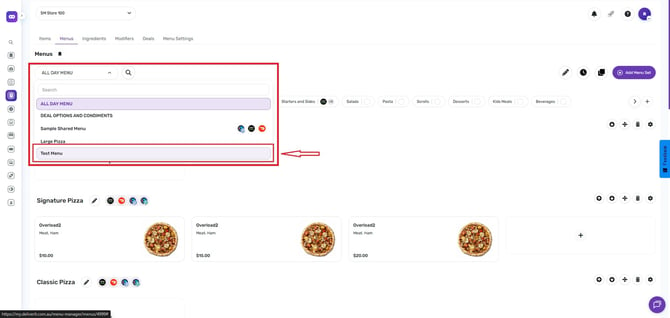
By following these steps, you will be able to create a new menu set in Deliverit Studio with ease. If you need further assistance, simply click the blue chat icon at the bottom-right corner of the screen to connect directly with our Application Support Team.