
Step-by-Step Guide
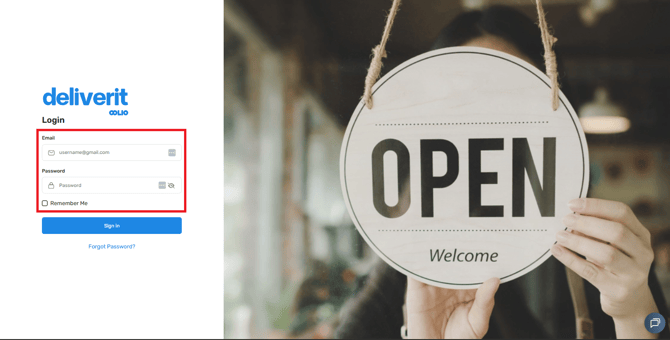
Log in to Deliverit Studio
- Go to my.deliverit.com.au.
- Enter your Deliverit Cloud credentials and click Login.
Access Social Media Settings
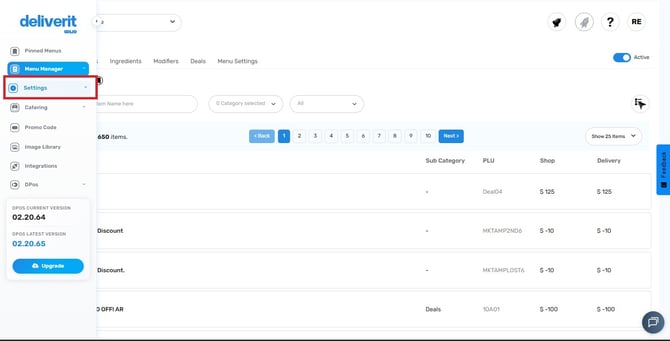
- From the left-hand menu, click on Settings.
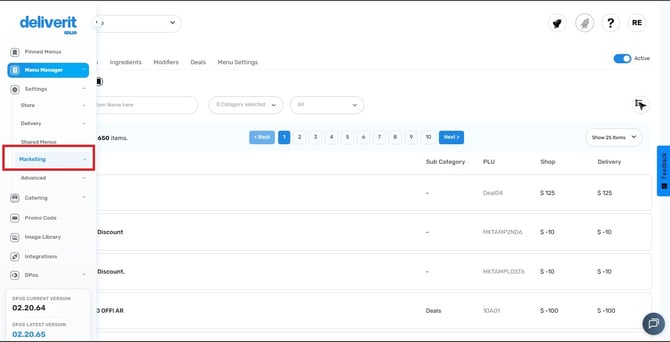
- Go to the Marketing section.
- Select Social Media tab.
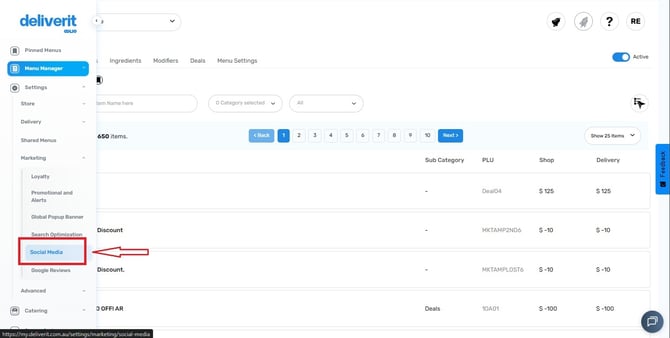
You’ll now see the configuration options for multiple platforms, including Facebook, X, and Instagram.
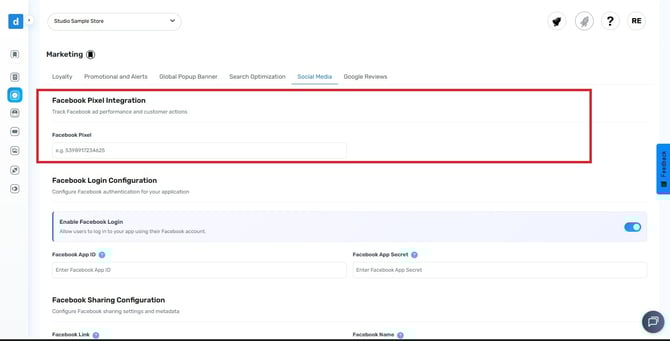
Facebook Pixel Integration
Track Facebook ad performance and customer actions across your online ordering site.
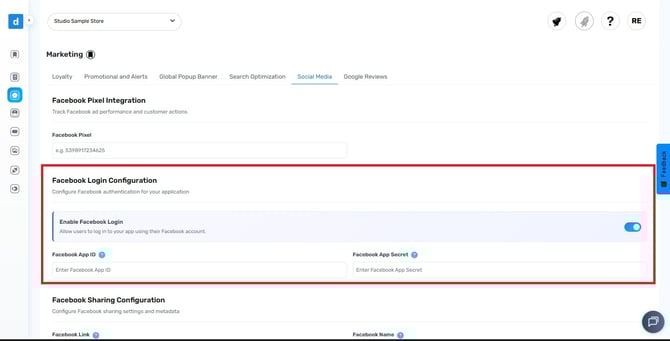
Facebook Login Configuration
Configure Facebook authentication for your application
- Enable Facebook Login - Toggle this option to allow Facebook login for your application.
- Facebook App ID - Enter the App ID generated from your Facebook Developer account.
- Facebook App Secret - Enter the App Secret associated with your Facebook App.
This is required for secure authentication.
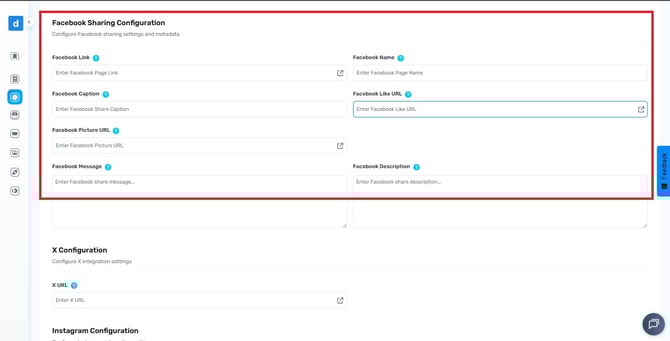
Facebook Sharing Configuration
Configure how your website’s content will appear when shared on Facebook.
Fill out the fields below:
- Facebook Link - Enter your official Facebook Page URL.
- Facebook Name - Input the name of your Facebook Page.
- Facebook Caption - Add a short caption that appears when your website link is shared.
- Facebook Like URL - Enter the URL where users can Like or Follow your Facebook Page.
- Facebook Picture URL - Provide the URL of the image you want shown when your website is shared on Facebook.
- Facebook Message - Write the message that appears when users share your site or promotions.
- Facebook Description - Enter a brief description that displays under the shared content preview.
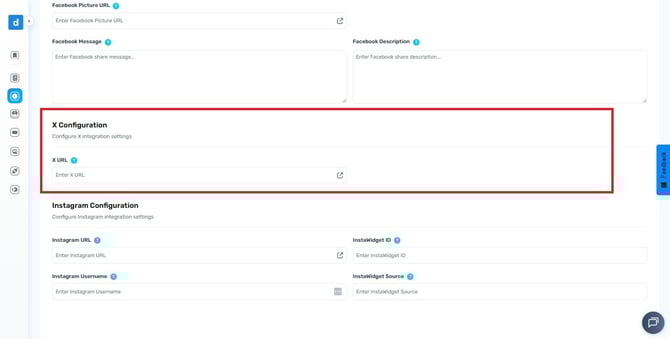
X (Twitter) Configuration
To connect your X (formerly Twitter) profile:
- Enter your X URL (your business Twitter profile link).
Example:
https://twitter.com/YourStoreName
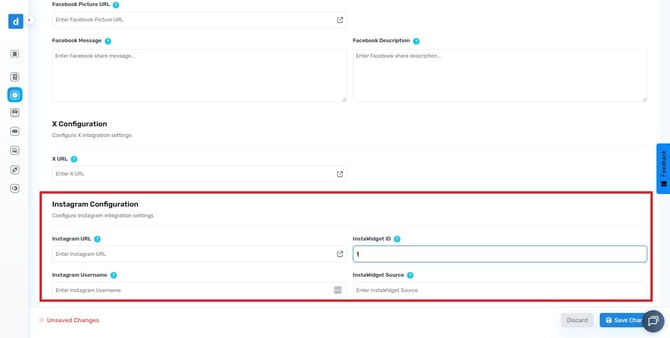
Instagram Configuration
To link your Instagram business profile and display Instagram content on your website:
- Instagram URL: Enter your Instagram profile link.
- Instagram Username: Type your Instagram handle.
- InstaWidget ID: Add your widget ID if you’re using a feed display widget.
- InstaWidget Source: Enter the source link for your widget if applicable.
Save and Confirm Changes
Once all fields are completed:
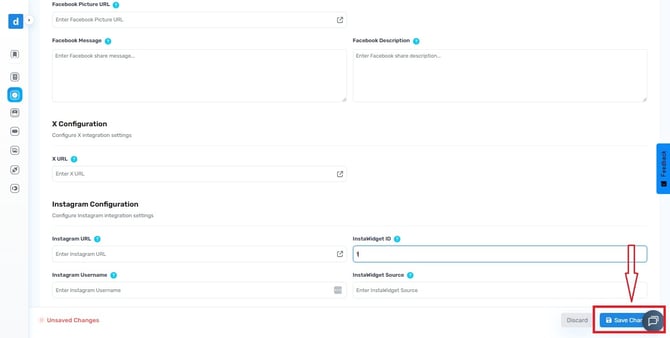
- Click Save to apply your settings.
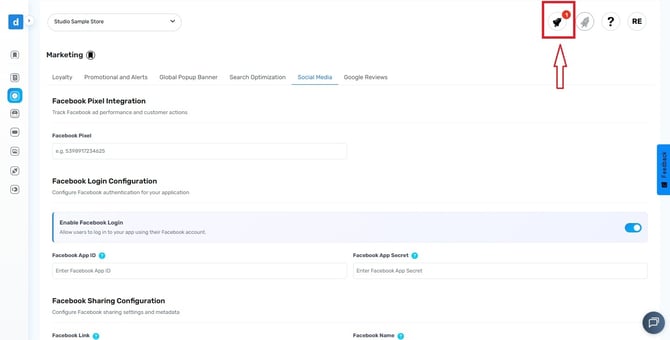
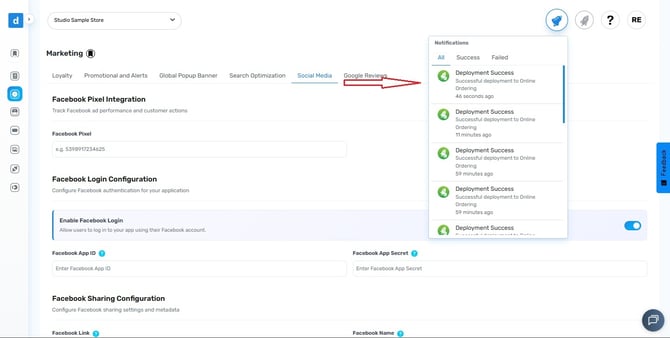
- Click the notification bell 🔔 at the top-right corner to confirm that your changes have been successfully saved.
By configuring your Social Media settings, your store’s website and app can connect seamlessly with major platforms—making it easier for customers to log in, share, and engage with your brand online. If you need further assistance, simply click the blue chat icon at the bottom-right corner of the screen to connect directly with our Application Support Team.