
Step-by-Step Guide
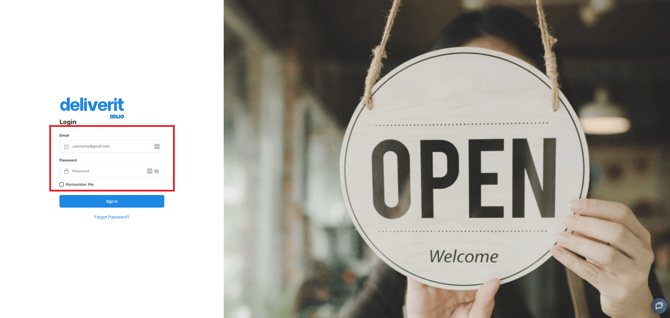
Log in to Deliverit Studio
Use your credentials to log in to the Deliverit Studio platform.
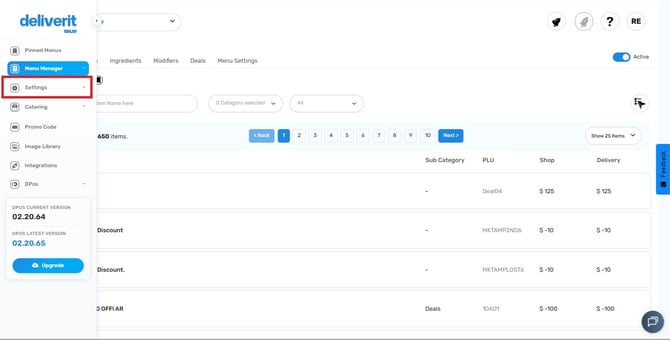
Navigate to Settings
Once logged in:
- Click on the Settings tab from the main dashboard.
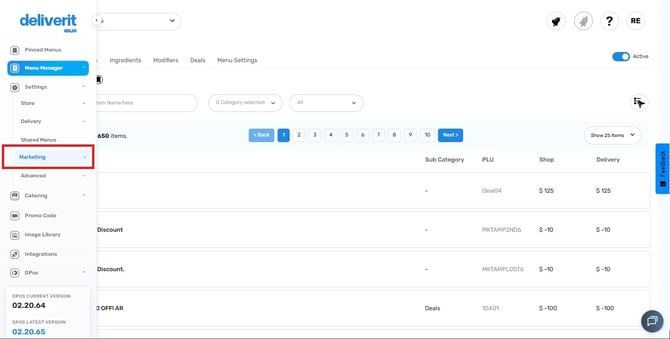
Open the Marketing Section
- Inside Settings, select Marketing.
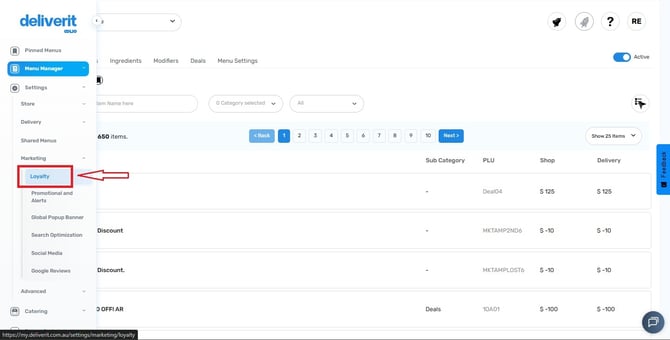
- Then click on Loyalty to access the loyalty program configuration.
Enable the Loyalty Program
- Web and Mobile App – activates the program on both platforms.
- Mobile App Only – Activates the program on mobile only.
- Disable – turns the feature off.
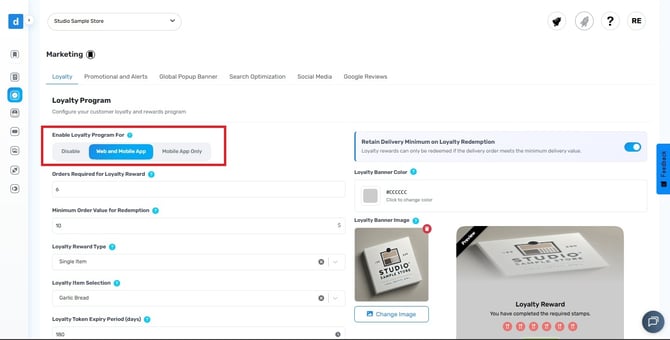
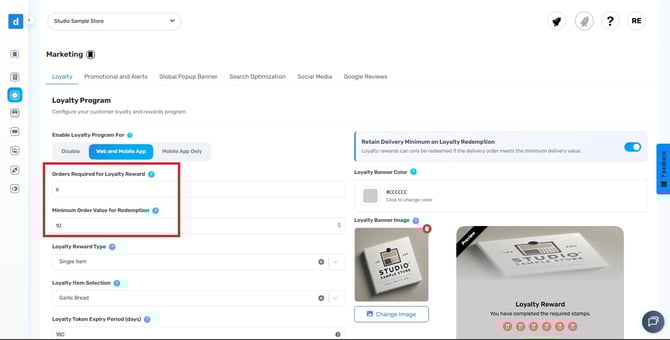
Set the Number of Orders Required for Loyalty Reward
Enter the number of orders a customer must complete before earning a reward.
Example: If the number orders is set as 5, the Reward will be unlocked on the 6th order.
Set the Minimum Order Value for Redemption
Minimum value is required and must be 0.01 or greater, as per store requirements.
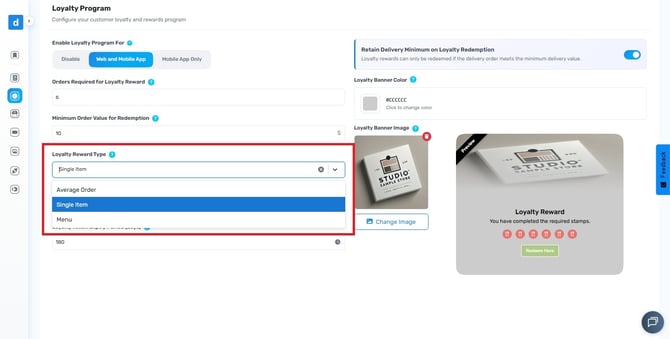
Choose the Loyalty Reward Type
- Average Order – Rewards are based on the average value of the customer’s previous orders. For instance, if the customer’s average spend for the last 5 orders is $50, the reward applied to the 6th order will be a $50 discount.
- Single Item – The customer receives one specific menu item as a reward (e.g., a free pizza or drink).
- Menu Selection – Allows the customer to choose their reward from a pre-defined list of eligible menu items.
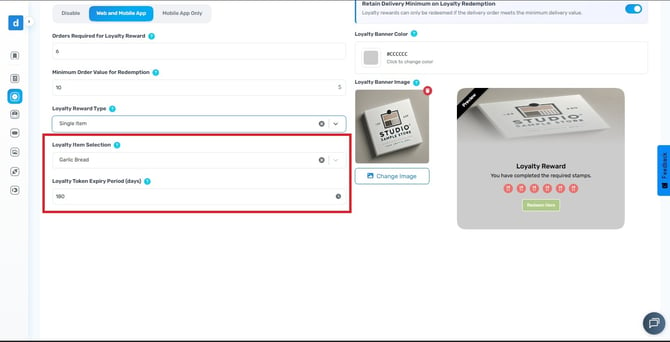
Select the Loyalty Item (Single Item Method)
Choose the item that will be used as the loyalty reward (e.g., LGP01).
Set the Loyalty Token Expiry Period
Enter the number of days before the loyalty token expires. (90-360 days recommended)
Example: Enter 180 if the reward expires 180 days after being earned.
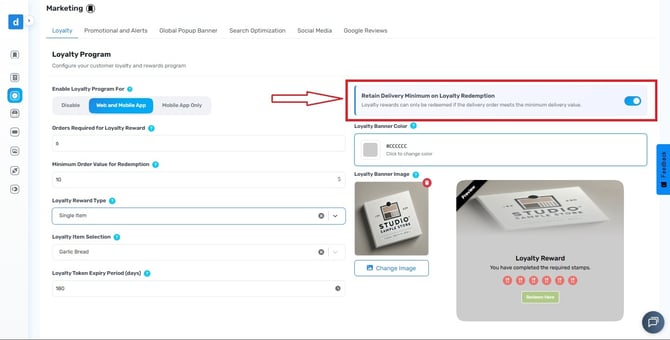
Retain Delivery Minimum on Loyalty Redemption: Toggle ON if you want loyalty rewards to apply only when the order meets your minimum delivery value.
Configure Display Settings
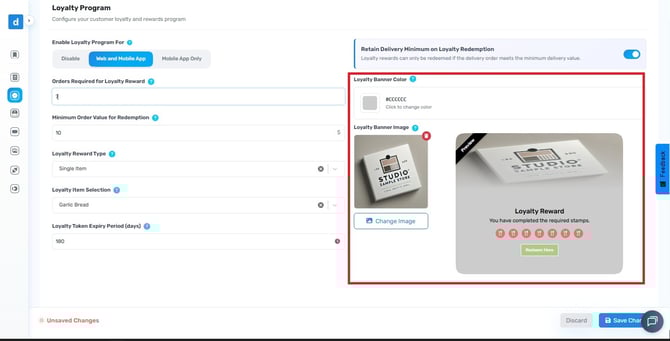
- Loyalty Banner Color: Click the color box to choose your preferred banner color.
- Loyalty Banner Image: Click Select Image to upload a banner image.
- Preview: Review how the selected banner color and image will appear before saving your changes.
Save Your Settings
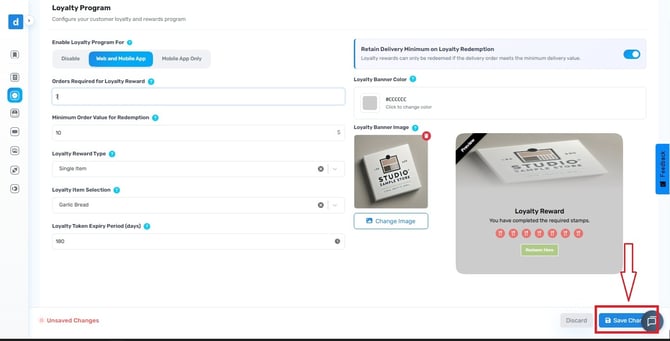
Once all fields are configured, click Save to activate your loyalty program.
Check Deployment Status
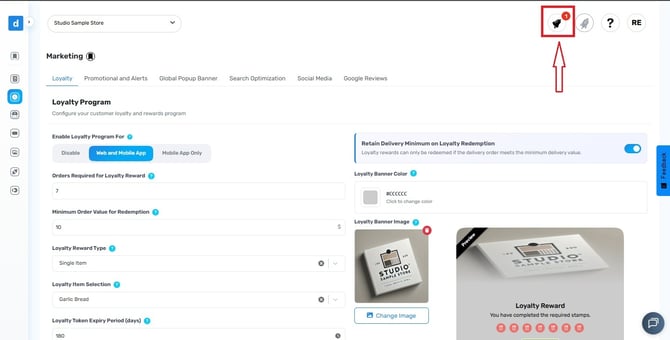
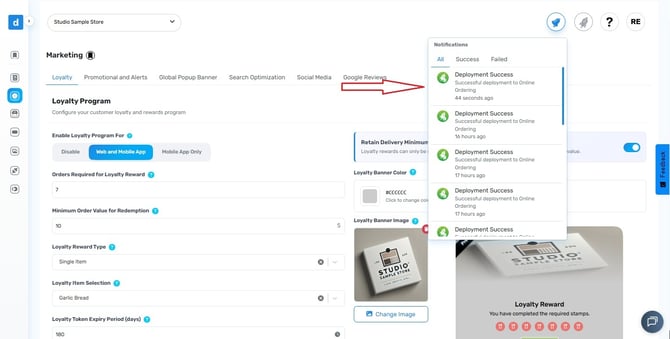
Tap the notification bell. If the deployment succeeded, you’ll see a confirmation message.
By following these steps, you will be able to configure the Loyalty Program on Deliverit Studio efficiently. If you need further assistance, simply click the blue chat icon at the bottom-right corner of the screen to connect directly with our Application Support Team.